
By the end of this, the Crew Shared 2026 folder belongs to me alone again. My crew lead’s account can’t open it, the link I dropped in our crew chat stops working, and the little person on the folder icon is gone.
In this tutorial, I’ll show you how to unshare a folder in Google Drive the way I did it for Bluebird Landscaping: remove one person, save, and switch the link to Restricted. Then I’ll check the result and do the same for a single Google Doc, several files at once, and the phone app.
What you need before you unshare anything
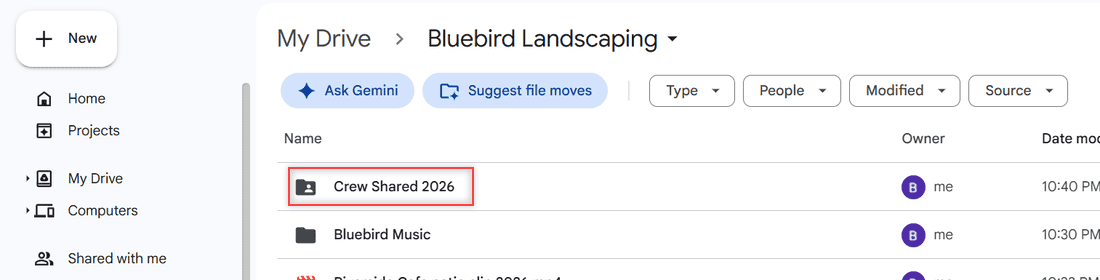
I did all of this on October 26, 2026, in our demo Drive, which is a personal Google account. The folder was Crew Shared 2026, inside My Drive > Bluebird Landscaping. It held our 2026 Crew Schedule spreadsheet and the Crew Handbook 2026 document.
- A folder or file you own, or one where you’re an Editor who’s allowed to change sharing.
- Google Drive open in a browser on a computer. Phone steps are further down.
- A minute to decide who should keep access. Unsharing one person doesn’t touch anyone else.
A shared folder is easy to spot in Drive. Its icon has a small person on it, while a private folder is plain. That icon is my quick check before and after.
One thing this is not: if someone else shared a folder with you and you want it out of your Drive, that’s removing shared files from your Google Drive, a different job. Here we’re taking back something you shared.
Take back the Crew Shared 2026 folder
My crew lead had Editor access, and the folder also had a view-only link. Both had to go. These steps took me about a minute, mostly because the Save button is easy to miss.
Open Share settings for the folder
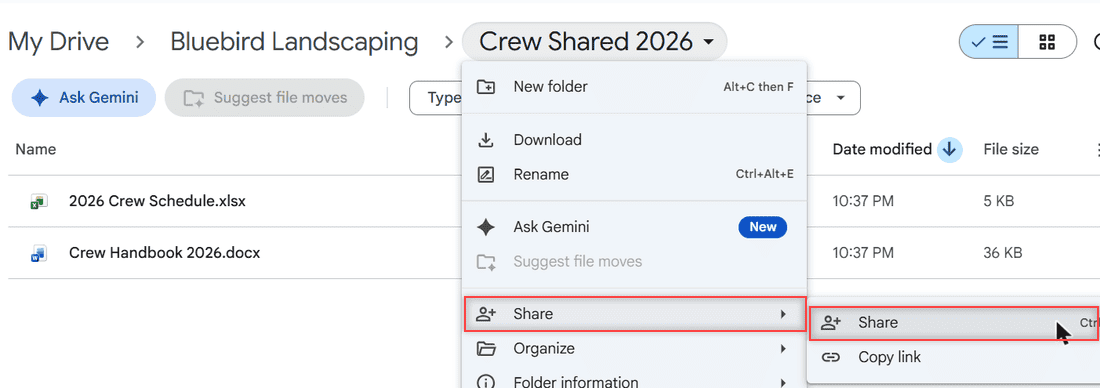
I opened the folder, then clicked its name in the breadcrumb at the top. That menu has Share, and pointing at it shows Share and Copy link. I clicked Share. You can also right-click the folder in the list, or select it and press Ctrl+Alt+A.
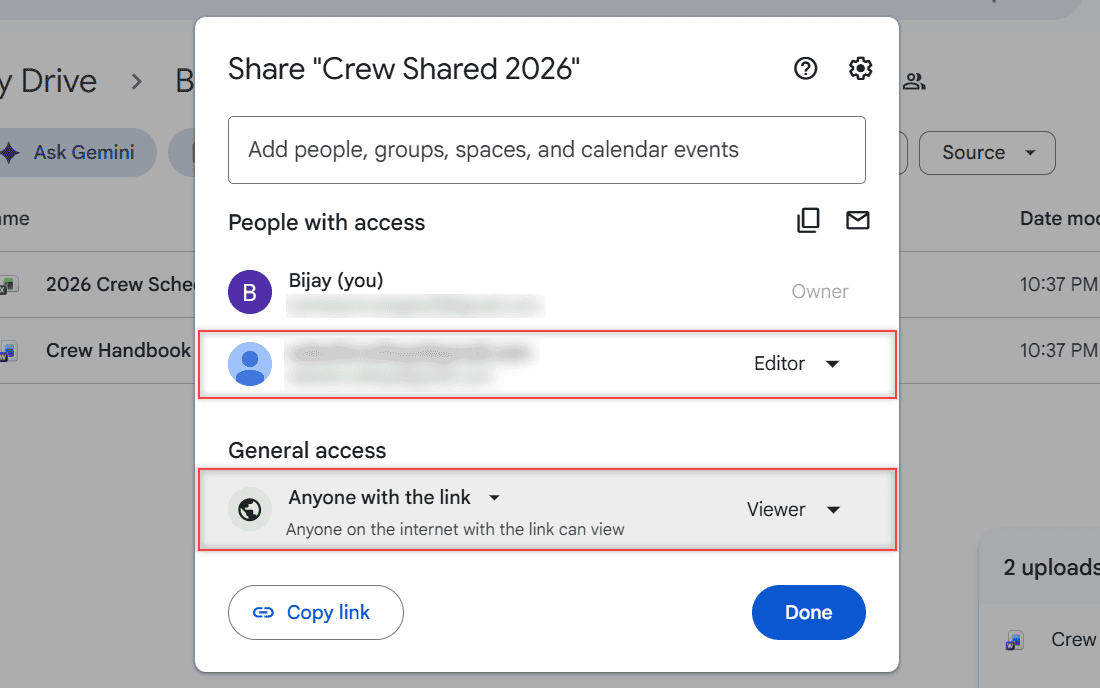
The Share dialog lists everyone with access. Mine showed me as Owner, my crew lead’s account as Editor, and General access set to Anyone with the link with the Viewer role.
Remove my crew lead’s access
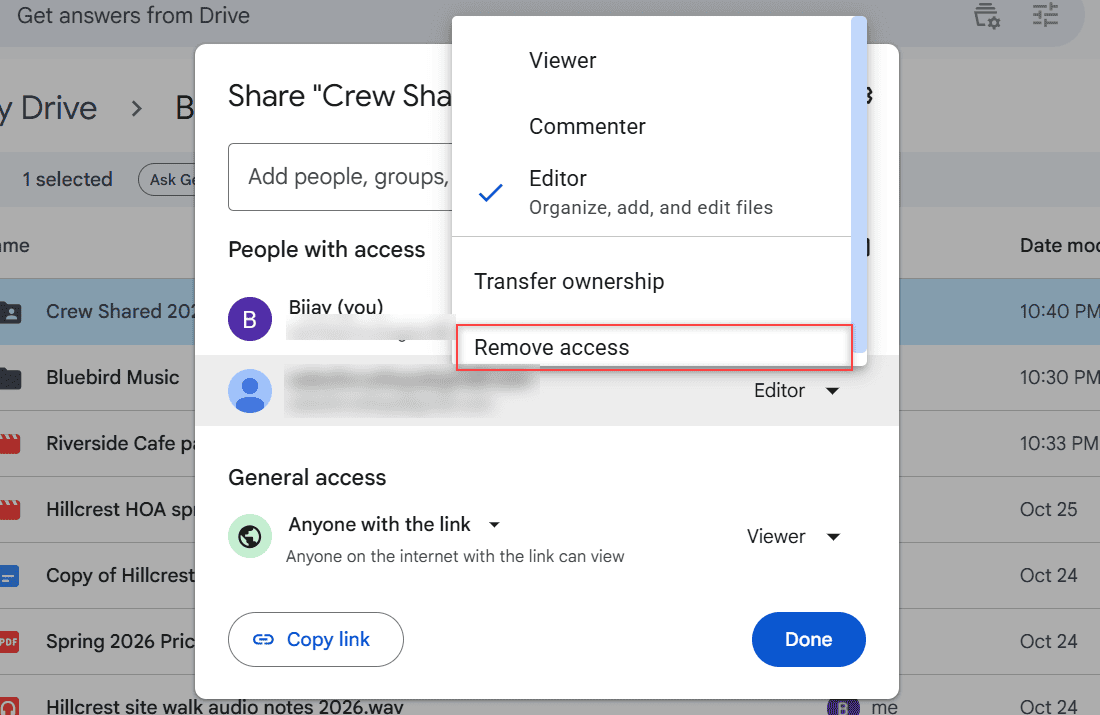
Next to the person’s name, I clicked the role (Editor) to open its menu. Below Viewer, Commenter, Editor, and Transfer ownership sits Remove access. I picked that.
Save the change before closing
This is the step people skip. After Remove access, the name gets a line through it, the role reads Remove, and the footer says Pending changes. Nothing has happened yet. I clicked Save, and Drive showed “Access updated.”
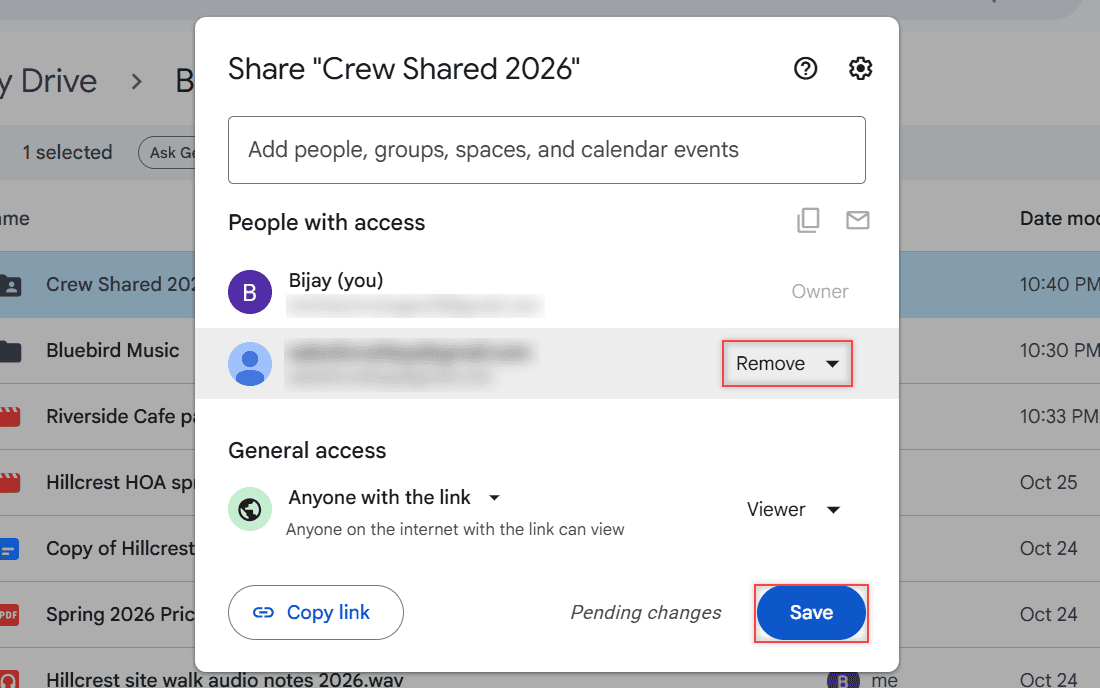
Watch out: If you close the dialog while it says Pending changes, the person keeps access. Google’s own steps end with Save for the same reason.
Switch the link back to Restricted
Removing people doesn’t kill a link. Under General access, I opened the dropdown and chose Restricted. This one saved right away. I saw a short “Saving” message and no extra button.
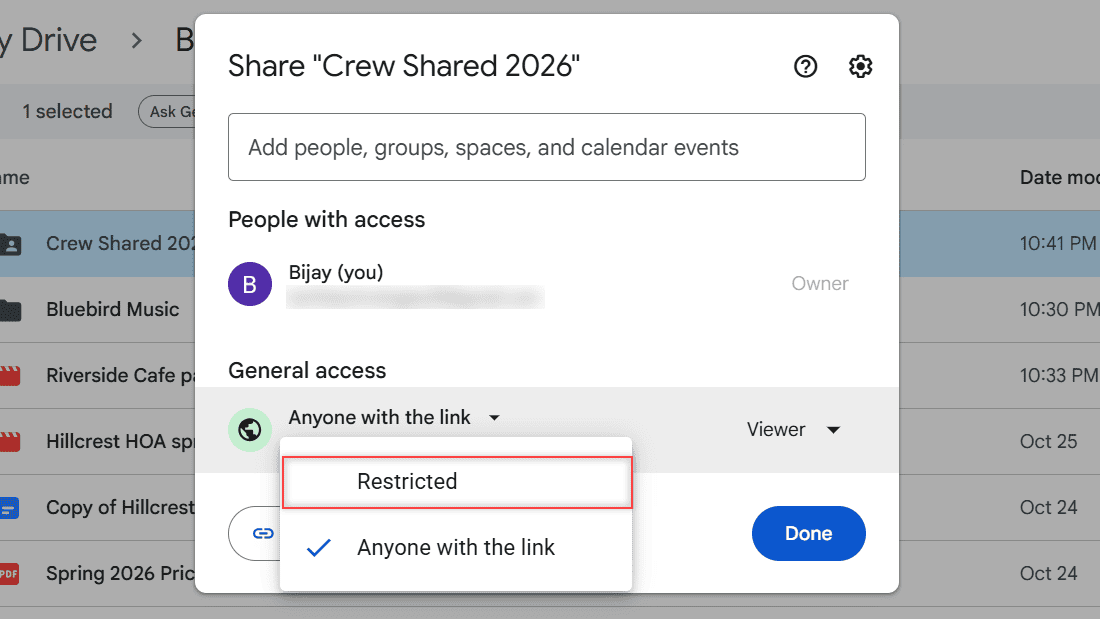
If you want the same link working again later, the switch back is covered in turning link sharing on in Google Drive.
Stop editors from sharing it again
Editors can reshare a folder by default. If you’re keeping some editors, click the Settings gear at the top of the Share dialog and uncheck Allow editors to change permissions and share.
On a single file, that panel also holds the download, copy, and print option for viewers and commenters, which I explained in turning off downloads in Google Drive.
Check that the folder is really unshared
I reopened Share. People with access listed only Bijay (you) as Owner, and General access read Restricted, “Only people with access can open with the link.” Behind the dialog, the folder icon was plain again.
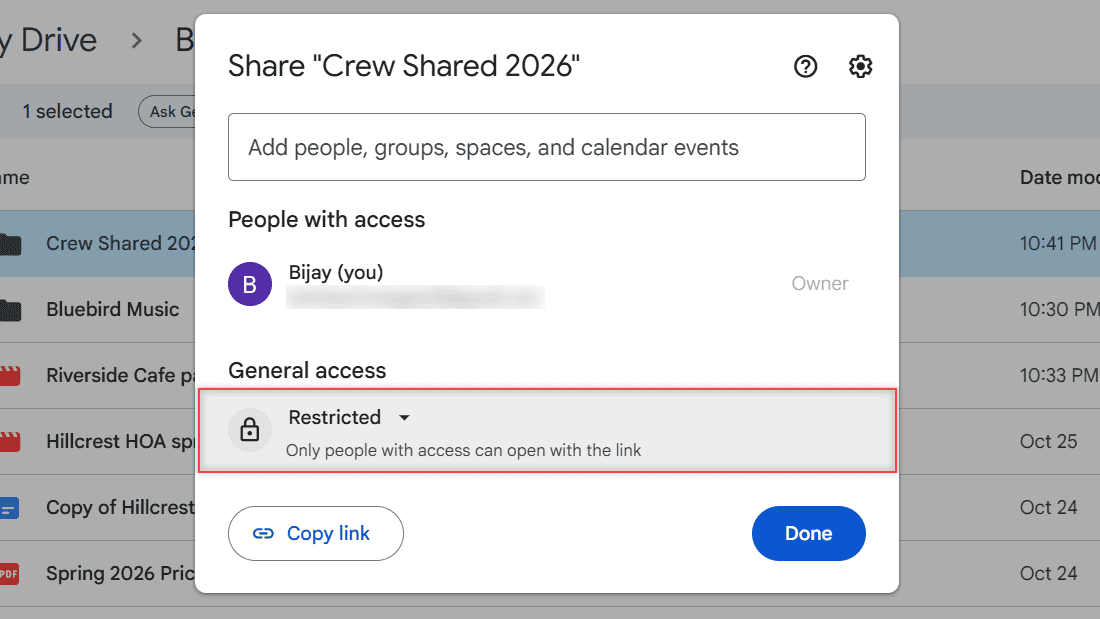
If my crew lead opens the old link now, Drive asks them to sign in or request access instead. That’s the screen from how request access works in Google Drive, and I can just ignore the request.
Files inside the folder inherit its sharing, so unsharing the folder took care of the schedule and the handbook too. If you also shared a file on its own, that file has its own list, so open Share on it and check.
Unshare a single Google Doc or file
A Doc, Sheet, PDF, or photo uses the same Share dialog. Right-click it in Drive and choose Share, or click Share in the top right while the Doc is open. Then remove people, click Save, and set General access to Restricted, exactly as above.
There’s one catch with files inside a shared folder. Google won’t let you give someone less access to a file than they have on its parent folder, and Drive asks you to change the folder instead.
The fix is to move that file into a folder you haven’t shared, like a private subfolder you create inside My Drive. Google suggests leaving a shortcut in the old spot so people can still find it.
A folder also has a stricter switch. In its Share dialog, the Settings gear showed me Limit access to “Crew Shared 2026”. Google says that once it’s on, only people you give permission to can open the folder.
Unshare multiple Google Docs or files at once
To work on several files together, select them first. I clicked the first file and Shift+clicked the second. Ctrl+click picks files that aren’t next to each other, as I showed in selecting multiple files in Google Drive.
Then I clicked the Share icon in the selection toolbar. Drive opened Share 2 files, with one General access dropdown for all of them and a row for each file below it. Setting the top dropdown to Restricted covers every file in the selection.
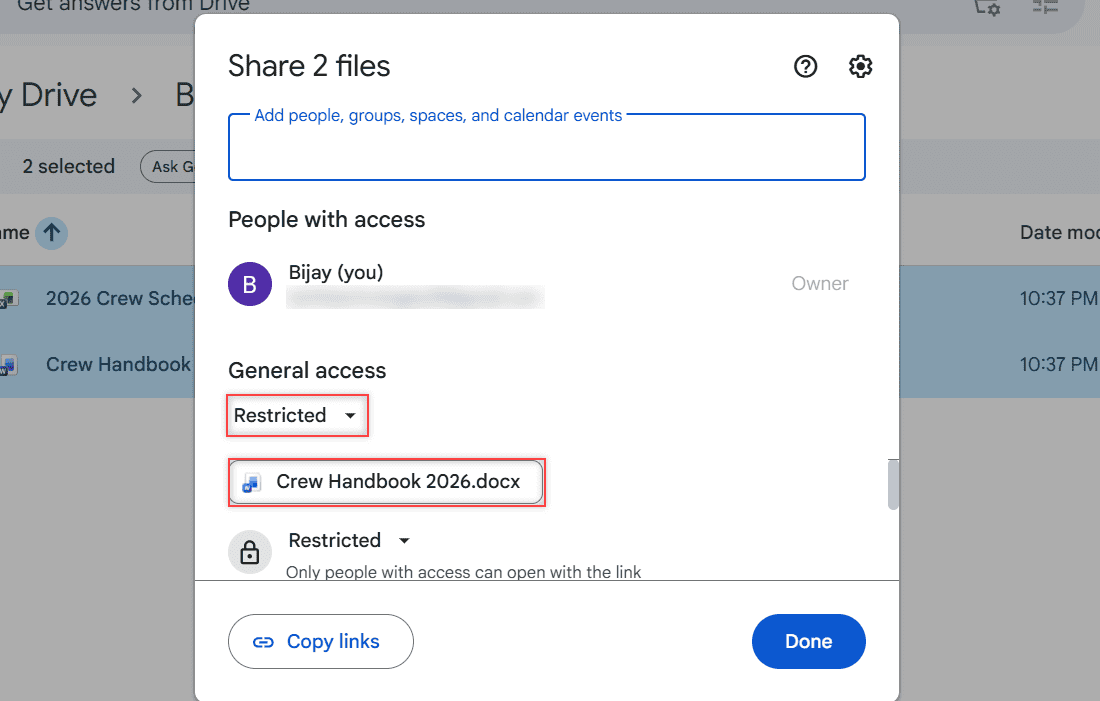
For a big pile of files, it’s often faster to move them into one folder and unshare that folder. They pick up the folder’s sharing because files inherit it.
Do it from the Drive app on Android or iPhone
I didn’t test this on a phone, so these steps come from Google’s Drive Help. On Android, iPhone, and iPad:
- Open the Google Drive app and tap More next to the folder or file.
- Tap Manage access.
- To remove someone, tap their name and select Remove.
- To kill the link, tap Change under General access on Android (the Right arrow on iPhone and iPad), then choose Restricted.
What unsharing does not undo
Deleting a shared folder is not a fast way to unshare it. If you own it, it just moves to the trash, and people can still view, comment on, or copy the files until you empty the Google Drive trash or delete it forever. Removing access is cleaner.
Google’s help also doesn’t say that unsharing reaches copies someone already made or downloaded, so I treat those as out of my hands. If that worries you, turn off downloads before you share next time.
Work and school accounts add two wrinkles, which I compare in personal Drive versus Google Workspace. Your admin may limit sharing outside the organization, and files in a shared drive follow its members, which the drive’s Managers control. If you can’t remove someone there, ask a Manager or your admin.
Once the folder is private again, these are worth a look:
- checking who downloaded your Drive files
- seeing who has viewed a Google Doc
- reading recent activity in Google Drive
- how shared folders use storage space
Questions about this setup

I am Carissa Gudinoa, a technology buff, and Office online and Apple expert with over 9 years of experience. I am passionate about helping others get the most out of their Apple devices. I have written extensively about Apple products and technologies. I am committed to providing my clients with the best possible service and am always up-to-date on the latest Apple products and features. I also write extensively on other software available for use at minimal cost or free. This includes Word Online, Outlook Online, Excel Online, and other Office online programs… Check out more.