
Last spring my office manager, Dana, asked me: if we lost access to our Microsoft account tomorrow, where would our crew handbook, price lists and invoices be? I didn’t have a good answer. Everything lived in OneDrive and nowhere else, so I bought a 2 TB external drive and set up a backup routine I still use.
In this tutorial, I’ll show you how to back up OneDrive to an external hard drive the safe way: two ways to get the files onto the drive, the download limits that quietly leave files out, why I copy the folder instead of moving OneDrive itself, and my monthly checklist. I’ll note where personal and work accounts differ.
Check how big your OneDrive is before you pick a drive
The first rule is boring but saves a second trip to the store: know how much data you’re backing up. An external drive that’s too small turns a ten-minute job into an afternoon of sorting. If you’re new to the service, my OneDrive tutorials hub covers the basics I lean on here.
On a work or school account, OneDrive is a SharePoint library behind the scenes, so the size breakdown lives in Storage Metrics. From OneDrive on the web, I open Settings (the gear), choose OneDrive settings, then More settings, and pick Storage Metrics. Each library and folder shows its total size and its share of the space used.
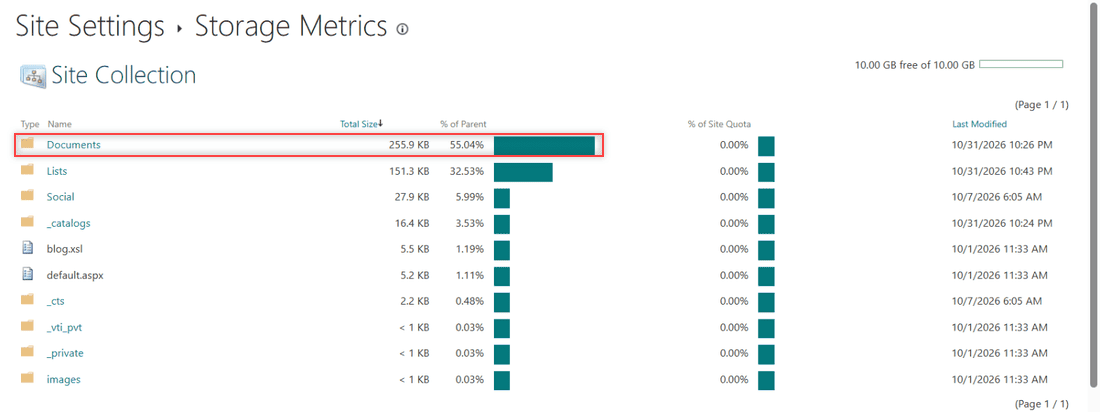
My demo library is tiny, just 255.9 KB in Documents, but the same page tells you whether you need a 64 GB flash drive or a 4 TB disk. On a personal Microsoft account, I check the storage line near the bottom of the left pane in OneDrive on the web instead.
Keep in mind that personal Microsoft storage is shared with Outlook.com attachments, so the number can look bigger than your files. If your mailbox is part of that total, it’s worth a look at how to check storage space in Outlook online too. I buy a drive at least twice the size of my OneDrive.
Restore deleted files first, because the recycle bin never gets backed up
Here’s the mistake I almost made. A download from OneDrive only includes files that are in My files right now. Anything sitting in the recycle bin is skipped, so if someone deleted the March invoices by accident last week, they won’t be on your external drive.
Before every backup I open the Recycle bin in the left pane of OneDrive on the web and look for anything that shouldn’t be there. I walk through the full process in my guide to the OneDrive recycle bin and restoring files, but the short version is: select the items and choose Restore.
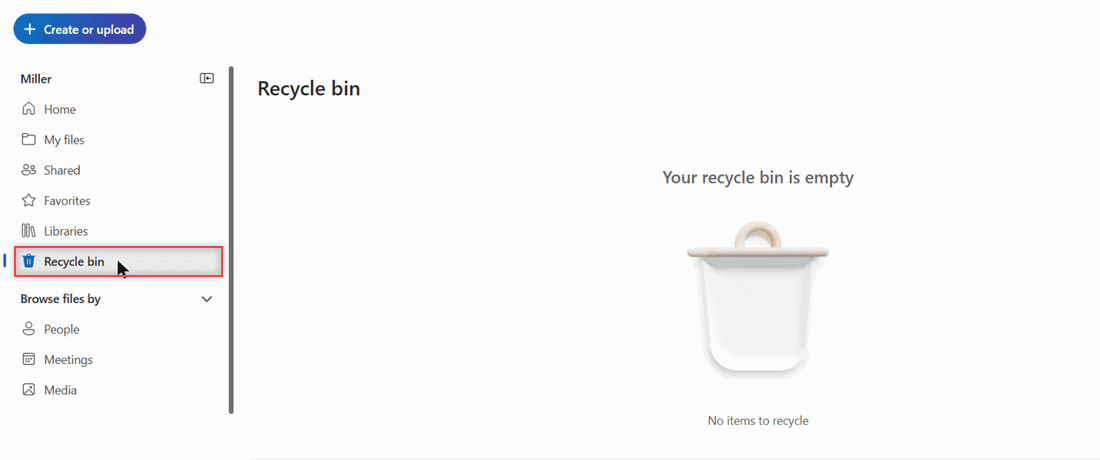
How long you have depends on the account. Microsoft says personal accounts can restore items deleted within the last 30 days, and work or school accounts get 93 days unless an admin changed that setting. After that, the files are gone, and so is any chance of backing them up.
If a lot of files were changed or deleted at once, Microsoft 365 subscribers also get Restore your OneDrive, which rolls the whole OneDrive back to any point in the last 30 days. I’d use that first, then back up the restored version.
Download from OneDrive on the web when the sync app is not installed
This is the method I use on our office laptop, because the OneDrive desktop app isn’t installed there. It works from any browser on Windows or a Mac, and it’s the same for personal and work accounts. The only thing you need is enough free space on the drive.
Plug in the external drive first. Then decide where your browser saves files. In Chrome I open Settings, search for Downloads, and either change the Location to the external drive or turn on Ask where to save each file. Either way, the download lands straight on the drive instead of filling up my laptop.
Next, sign in to OneDrive on the web and open My files. To grab everything in a folder, I check the Select all rows box at the top of the list (Ctrl+A does the same thing) and choose Download in the toolbar.
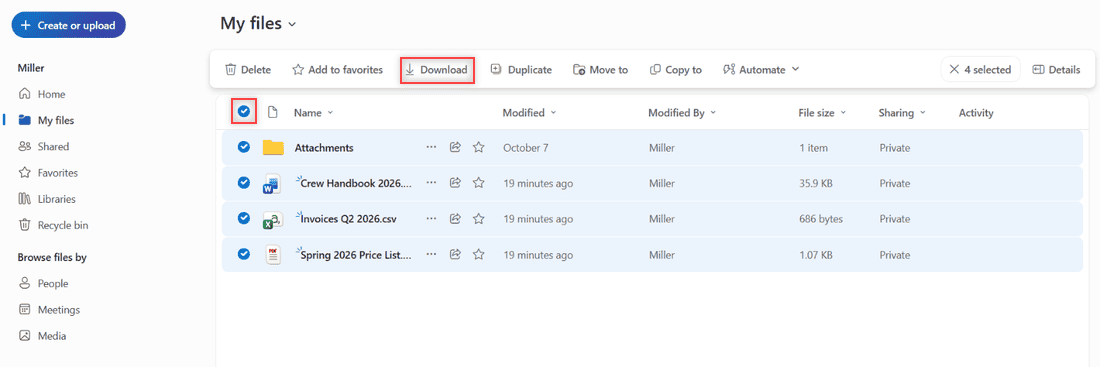
When more than one item is selected, the browser saves a single .zip file of everything you picked. If you’d rather keep files unzipped, download them one at a time. The same zip-or-not trade-off shows up in Google Drive, and my post on how to download from Google Drive without zipping explains why the services work this way.
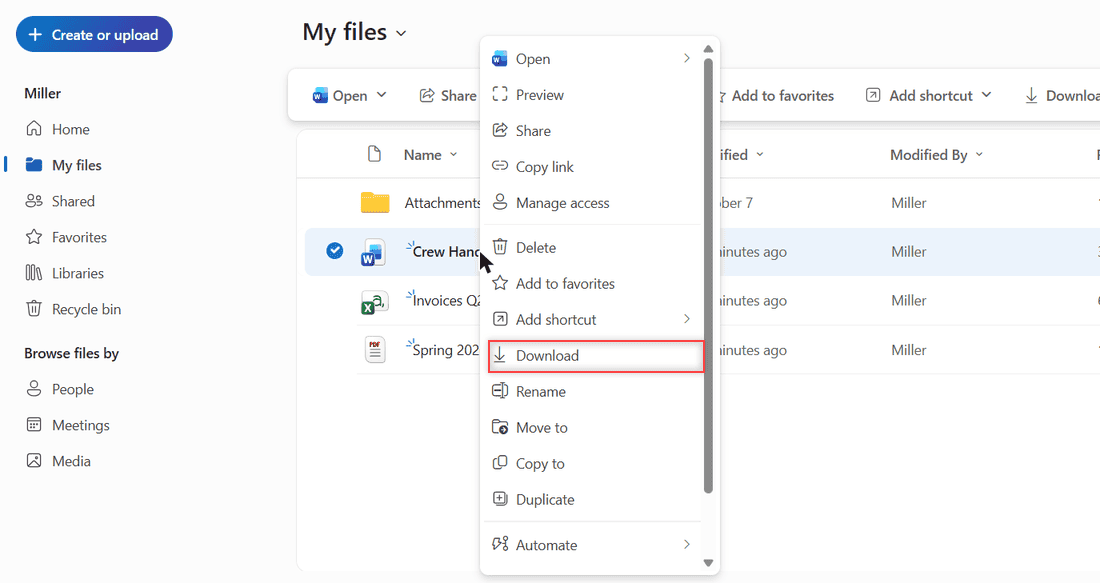
For a single file, I right-click it and choose Download from the menu. That’s handy for the one price list someone needs on the drive today, without waiting for a big zip.
Once the zip finishes, I open the external drive in File Explorer (or Finder on a Mac), right-click the zip and extract it into a dated folder like OneDrive backup 2026-11-01. Then I set Chrome’s download location back to my normal Downloads folder. If I forget, the next download fails whenever the drive is unplugged.
Watch the zip limits and the files that get left out
A web download feels complete, but Microsoft lists limits that matter for a full backup. According to the OneDrive download help page, a single file can be up to 250 GB, a download can hold up to 10,000 files, and zip downloads cap out at 10 GB per .zip file and 20 GB overall.
If your OneDrive is bigger than that, don’t try one giant download. I go folder by folder: Customers, then Invoices, then Photos, and so on. Smaller zips also finish faster and are easier to retry if the connection drops halfway.
Some content never makes it into a zip at all:
- OneNote notebooks. They can’t be downloaded this way. The zip gets a .txt file with an error message where the notebook should be.
- Encrypted files over 4 MB. Files protected by sensitivity labels or IRM (common on work accounts) are left out of the zip and have to be downloaded one by one.
- The Shared view. You can’t download from Shared. Open the file and save a copy to your own files first.
- Outlook email. Mail isn’t stored in OneDrive. If you keep important messages there, see how to save Outlook emails to OneDrive before you back up.
After every download I compare the folder count on the external drive with what I see online. If a folder looks short, it’s usually one of the cases above.
Copy from the synced OneDrive folder, but only after the files are local
If the OneDrive app is installed on your PC, you’ll have a OneDrive folder in File Explorer, and copying from it to the external drive is the fastest route. I don’t have the app on this computer, so I’m describing these steps from Microsoft’s help pages rather than showing them.
The catch is Files On-Demand. A file with a blue cloud icon is online-only: it shows up in File Explorer but isn’t actually on your PC. Microsoft says online-only files can’t be opened without an internet connection, so a copy that relies on them is fragile and can stall while each file downloads.
To fix that, right-click the OneDrive folder (or just the folders you want) and choose Always keep on this device. Wait until every item shows the solid green circle with a white check mark. A plain green check means a file is available locally for now, but OneDrive can free up that space later.
Then select the folders, press Ctrl+C, open the external drive and press Ctrl+V into a dated backup folder. When the copy finishes, you can right-click the same folders and choose Free up space to return them to online-only.
If the app shows an error instead of syncing, my fix for the OneDrive is not running error covers the usual causes. On a Mac, the steps are the same idea in Finder: make the files available offline, then drag the folders onto the external drive.
Copy the folder, don’t move OneDrive onto the external drive
The old version of this post suggested unlinking OneDrive and moving the whole OneDrive folder onto the external drive. I don’t recommend that anymore. I couldn’t find a Microsoft support page that backs it, and Microsoft does say a network or mapped drive can’t be the sync location.
There’s a bigger problem, too: a moved OneDrive folder is still a sync folder, not a backup. If someone deletes a file online, sync deletes it on the external drive as well. If you unplug the drive, OneDrive can’t find its folder and stops syncing.
A backup only protects you if it’s a separate copy that OneDrive doesn’t touch. That’s why I always copy or download into a plain folder. If you’re weighing a second cloud as well, my Google Drive vs OneDrive comparison goes through what each one does well.
Verify the copy and eject the drive safely
A backup you haven’t checked is a guess. Once the files are on the drive, I open three or four of them straight from the external drive: one Word document, one spreadsheet and one PDF. If they open, I trust the rest of the copy.
I also compare the size. In File Explorer, I right-click the backup folder, choose Properties and check the size and file count against the numbers from Storage Metrics or the folder online. They won’t match to the byte, but they should be close.
Then I eject the drive before unplugging it. On Windows, that’s Safely Remove Hardware and Eject Media in the notification area, or right-click the drive in File Explorer and choose Eject. On a Mac, drag the drive to the Trash or click the eject icon in Finder. Pulling a drive mid-write is the easiest way to corrupt a fresh backup.
For a second layer, some people keep a copy in another cloud. If that’s you, my steps to transfer OneDrive files to Google Drive work well alongside the external drive.
Refresh the backup every month and label it
OneDrive doesn’t have a built-in setting that backs up to an external drive on a schedule, so the routine is up to you. I put a recurring reminder on the first Monday of every month, and the job takes about fifteen minutes. My notes on how to set a calendar reminder in Outlook show the reminder I use.
Each backup goes into its own folder named with the date, such as OneDrive backup 2026-12-07. I keep the last three and delete the oldest, which gives me a way back if a file was damaged before the newest backup ran.
I also store the drive somewhere other than my desk. If the office floods, a backup sitting next to the laptop won’t help. Ours lives in a fire-resistant box at home.
My OneDrive backup checklist
This is the list I tape inside the drive’s case. It’s the whole field guide on one card:
- Check the total size in Storage Metrics (work) or the storage line in OneDrive on the web (personal).
- Open the Recycle bin and restore anything that shouldn’t be deleted.
- Plug in the drive and point the browser’s download location to it, or turn on Ask where to save.
- Download folder by folder, staying under 10 GB per zip and 20 GB overall.
- With the sync app, set folders to Always keep on this device and wait for the solid green circle.
- Copy into a dated folder. Never move the OneDrive folder itself.
- Grab OneNote notebooks and encrypted files separately.
- Open a few files from the drive and compare size and file count.
- Eject the drive, reset the download location and store the drive away from the computer.
If you also keep Outlook mail you can’t afford to lose, the same drive is a good home for it. I explain how to download Outlook mail to your computer in a separate post.
A few more posts that pair well with this backup routine:
- restore a backup from Google Drive
- upload large files to Google Drive
- why iCloud Drive takes up space on a Mac
- Mac tips and fixes
An external drive is only one copy, so it helps to have your pictures covered as well. Here’s how to back up photos to OneDrive from the web, your phone or a PC. If those files belong to a team, read SharePoint vs OneDrive before you decide where they stay.
Questions I get about this
Can I back up OneDrive to an external hard drive on a Mac?
Yes. Download from OneDrive on the web in any browser and save to the drive, or, with the OneDrive app, make the folders available offline and drag them onto the drive in Finder. Eject the drive before unplugging it.
Does OneDrive back up to an external drive automatically?
No. OneDrive syncs with the cloud, but it has no built-in option to copy your files to an external drive on a schedule. I set a monthly reminder and repeat the download or copy by hand.
Can I use a USB flash drive instead of an external hard drive?
Yes, the steps are the same. Just check that the flash drive has more free space than your OneDrive holds, and remember that zip downloads are limited to 10 GB per file.
Why is my OneDrive zip download missing files?
OneNote notebooks and encrypted files over 4 MB are left out of zip downloads. Microsoft lists every limit on its Download files and folders from OneDrive help page.

I am Carissa Gudinoa, a technology buff, and Office online and Apple expert with over 9 years of experience. I am passionate about helping others get the most out of their Apple devices. I have written extensively about Apple products and technologies. I am committed to providing my clients with the best possible service and am always up-to-date on the latest Apple products and features. I also write extensively on other software available for use at minimal cost or free. This includes Word Online, Outlook Online, Excel Online, and other Office online programs… Check out more.