
Last week I opened my Bluebird Landscaping folder to grab the spring price list and found four copies of it. One was in the main folder, one in Clients 2026, one in an old archive, and one I’d uploaded twice. None of them said which was current.
In this tutorial, I’ll show you how to organize Google Drive with the eight rules I now follow: a simple folder pattern, file names that sort by date, shortcuts instead of copies, colors and stars, search chips for duplicates, and Gemini’s file-move suggestions. I tested every step in my own Drive on November 7, 2026.
Pick one folder pattern: client first, then year
Why it matters: when every folder follows the same shape, you stop guessing where a file belongs. You also stop creating a new folder every time you can’t find the old one.
My pattern for a small business is one top folder per company, then folders by client or job, then by year. Inside Bluebird Landscaping I have Clients 2026, Crew Shared 2026, Hillcrest job photos 2026 and one Bluebird Archive folder for anything finished.
To make one, click New > Folder, type the name and click Create. Open that folder and repeat to nest a level deeper. My walkthrough on how to create subfolders in Google Drive shows every click.
Keep it shallow. Three levels is plenty for most people. If you need to click five folders deep to reach a receipt, you’ll start dropping files in My Drive again.
Leave My Drive itself almost empty. I keep only top-level folders there, so anything loose sticks out and gets filed on my next cleanup.
For a household, the same idea works with people or topics on top: Taxes, House, Kids’ School, Travel, each split by year.
Name files so they sort themselves
Why it matters: Drive sorts names alphabetically, so a date at the front puts your files in time order without any extra work.
I use the year-month-day format, YYYY-MM-DD, followed by the client and what the file is. A few real examples from my folder:
- 2026-03-14 Riverside Cafe planting proposal
- 2026-04-02 Hillcrest site walk notes
- 2026-11-07 Spring price list FINAL
Write the month as two digits. Otherwise 2026-11 lands before 2026-2 in the list. Once names are consistent, you can sort files in Google Drive by name and get a clean timeline.
Already have a pile of badly named uploads? Fixing them one by one is slow, so here’s how I rename multiple files on Google Drive in one pass.
Skip words like “new”, “latest” or “v2 final final”. A date tells you which file is newest, and a word like that stops being true the day someone saves another copy.
Move files and use shortcuts, never extra copies
Why it matters: copies drift apart. Someone edits one, someone else prints the other, and now you have two price lists with different numbers.
Right-click a file or folder and point to Organize. You’ll see Move (Ctrl+Alt+M), Add shortcut (Ctrl+Alt+R) and Add to starred (Ctrl+Alt+S), plus the folder color palette.
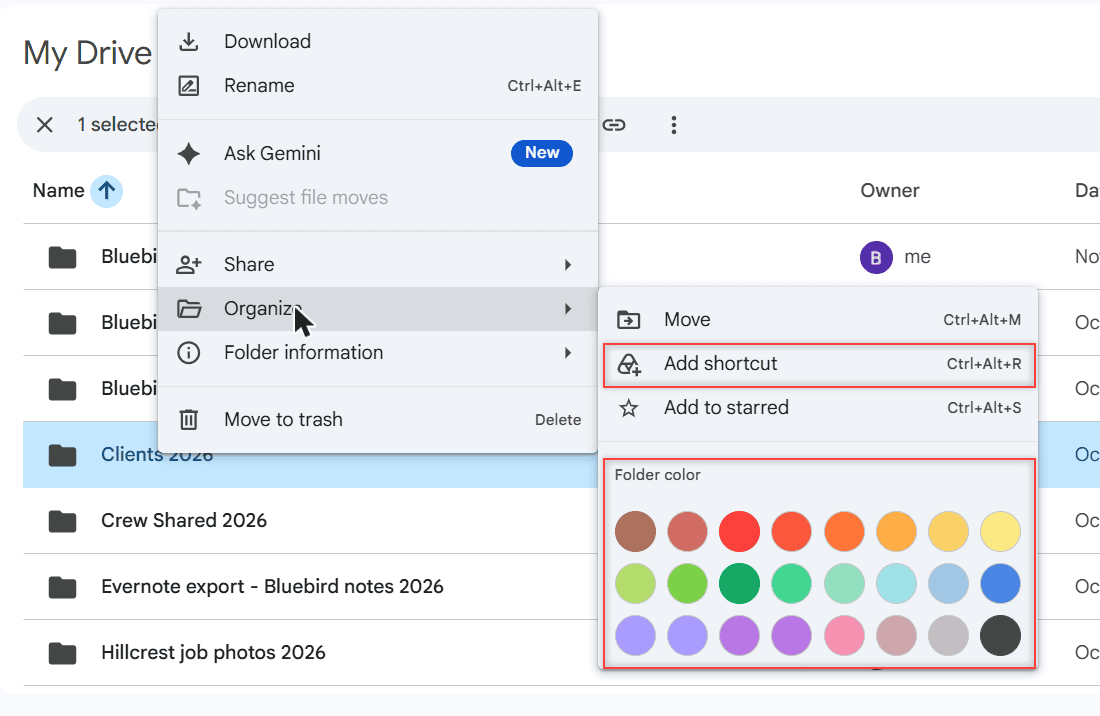
Use Move when the file simply lives in the wrong place. Pick the new folder and click Move. You can also drag the file onto a folder in the list.
Use Add shortcut when the file belongs in one folder but you also want to reach it from another. A shortcut is a link that points back to the original, so you always open the latest version.
Two details from Google’s help that saved me some worry. Deleting a shortcut doesn’t delete the original file. And if you don’t have permission to move a file, Drive adds a shortcut in the destination instead.
Shortcuts don’t change who can open the file, either. If you need someone else to see a whole folder, share the Google Drive folder itself rather than handing out copies.
Color and star only the folders you open every week
Why it matters: color works because it’s rare. If every folder is red, nothing stands out.
I gave Clients 2026 one color and starred it, since I open it daily. Right-click the folder, choose Organize and click a color from the palette. In my account the palette had 24 colors.
Folder colors only change your view of Drive. The people you share with won’t see your color scheme, so pick whatever helps you.
For stars, right-click and choose Organize > Add to starred. Then click Starred in the left menu to see them all in one list, no matter which folder they live in.
I keep my starred list under ten items and clean it out at the end of each month. For folders you want out of sight rather than in the spotlight, here’s how to hide a folder in Google Drive.
Hunt down duplicates with search chips
Why it matters: duplicates are the main reason a Drive feels messy. They also eat storage you’re paying for.
Type a name into the search bar at the top, like price list. The results page shows filter chips: Type, People, Modified, Source, Location, Title only and To do.
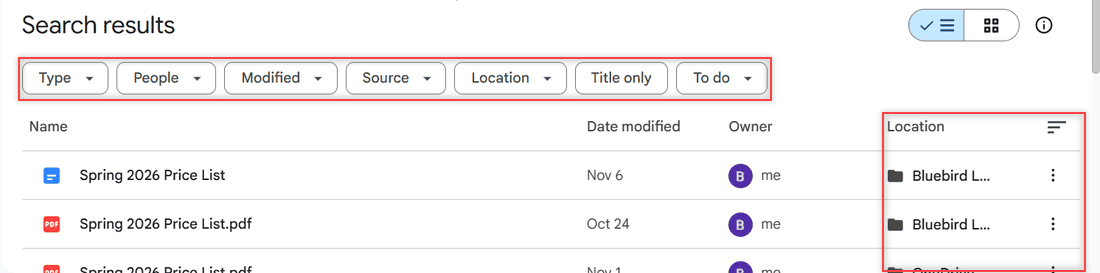
The Location column was the eye-opener. My copies of the Spring 2026 Price List sat in the Bluebird folder and in a folder whose name starts with OneDrive, left over from an old import. Click Title only to cut out files that merely mention the words inside.
No search term in mind? Switch to list view and sort by name. Google suggests this too, because copies with the same name line up next to each other and are easy to spot.
Before trashing a copy, open it and check the date it was last modified. The newest one isn’t always the one with the right numbers, so I glance at both.
Keep the newest copy, move it to the right folder, and trash the rest. If the copies keep coming back from your computer, read my fix to stop Google Drive from duplicating files.
Searching works for folders too. My guide to find folders in Google Drive covers the Type chip and a few search tricks.
Let Gemini suggest file moves, then review every row
Why it matters: if you have dozens of loose files, sorting them by hand is the part everyone puts off.
In my demo Drive, a Suggest file moves button showed up above the folder list. Clicking it opened a page called Organize my files with 19 files selected and a Move files button.
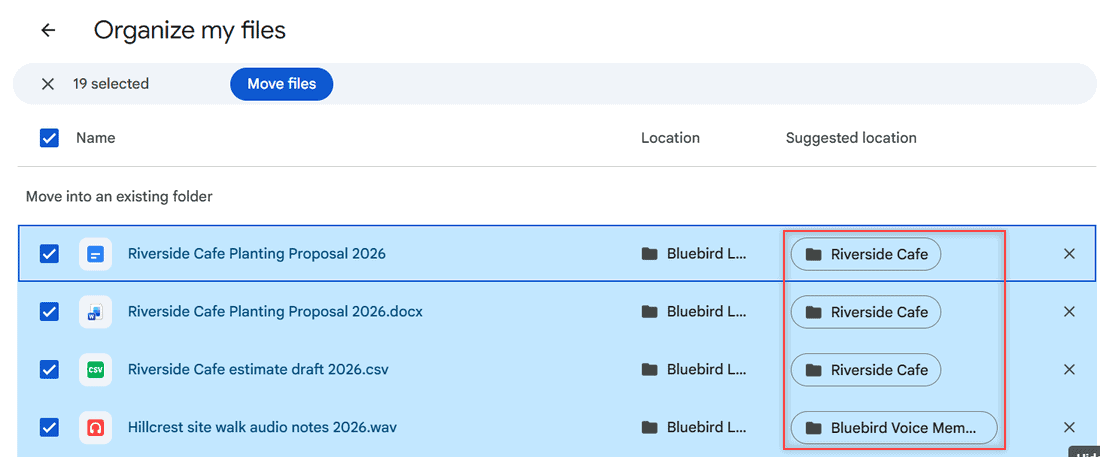
Each row lists the file, where it is now and a Suggested location. Gemini wanted to put Riverside Cafe Planting Proposal 2026 into my Riverside Cafe folder and a Hillcrest audio note into Bluebird Voice Memos 2026. Both were good calls.
I didn’t click Move files this time. I wanted to check every row first, and the page itself warns that Gemini in Workspace can make mistakes.
Google’s help page says Gemini won’t move anything without your approval. It works only on the web, in English, and only for files you can edit. You can remove a suggestion you don’t like, and Undo appears right after a move.
This showed up in my personal account on November 7, 2026. Google doesn’t list which plans get it, so if you don’t see the button, sort files by hand with the rules above.
Archive finished work instead of deleting it
Why it matters: deleting old jobs feels tidy, until a client asks for last year’s plan.
When a job wraps up, I move its whole folder into Bluebird Archive. My Drive stays short, and nothing is lost. Once a year I look at the archive and trash what I truly don’t need.
Before you clean house, check what’s heavy. My guide on how to see folder size in Google Drive helps you spot the big ones, usually photos and video.
Remember that files in Trash still count toward your storage until they’re deleted forever. When you’re sure, empty the trash in Google Drive to get the space back.
Know what changes on a work or school account
Why it matters: the tips above apply to everyone, but Google Workspace accounts have an extra tool personal accounts don’t.
On a personal Gmail account, everything lives in My Drive and in Shared with me. Your folders are the whole system.
Many Workspace accounts also have shared drives, which belong to the team instead of one person. For company files, put them there so they don’t vanish when someone leaves. Your admin decides who can create them.
If you’re deciding between the two, my comparison of Google Drive personal vs business lays out the other differences.
Shared folders can be confusing too: a file someone else owns can sit in your view without using your storage. That’s covered in my post on Google Drive shared folder space.
My monthly Google Drive cleanup checklist
I block 15 minutes on the first Monday of each month. Here’s the list I run through:
- Move anything loose in My Drive into its client or year folder.
- Rename new uploads to the YYYY-MM-DD name pattern.
- Search for common names (price list, invoice, proposal) and trash extra copies.
- Swap any copies I made for shortcuts.
- Unstar folders I no longer open every week.
- Move finished jobs into the Archive folder.
- Empty Trash once I’m sure nothing in it is needed.
If a file seems to disappear during all this, don’t panic. It’s usually in Trash or another folder, and my guide to Google Drive files going missing walks you through finding it.
Want to keep going? These pair well with a cleanup:
- how to select multiple files on Google Drive
- Google Drive storage full but no files
- how to remove suggested files in Google Drive
- all my Google Drive tutorials
Questions I get about this
What is the best way to organize Google Drive?
Use one folder pattern everywhere, such as client then year, put dates at the start of file names, and use shortcuts instead of copies. Then spend a few minutes each month moving loose files.
Can a file be in two folders in Google Drive?
Not as the same file, but you can get close. Keep it in one folder and add a shortcut in the other. The shortcut always opens the original.
Do folder colors show for people I share with?
No. Folder colors only change your own view of Drive.
Does Google Drive have a way to organize files automatically?
Some accounts see a Suggest file moves button where Gemini proposes folders, and nothing moves until you approve it. For manual tools, see Google Drive Help: organize your files.

I am Carissa Gudinoa, a technology buff, and Office online and Apple expert with over 9 years of experience. I am passionate about helping others get the most out of their Apple devices. I have written extensively about Apple products and technologies. I am committed to providing my clients with the best possible service and am always up-to-date on the latest Apple products and features. I also write extensively on other software available for use at minimal cost or free. This includes Word Online, Outlook Online, Excel Online, and other Office online programs… Check out more.