
Short answer: open the email, click the three dots, and pick Download. Outlook on the web saves it as an EML or MSG file you can keep on your computer.
In this tutorial, I’ll show you how to download emails from Outlook one at a time, save one as a PDF, grab several in one go, and export your whole mailbox with the desktop app.
Method 1: Download one email as an EML or MSG file
I tested this with an invoice email in my Bluebird Landscaping test mailbox. If you can’t find the email you need, try to sort your emails by size or by date first.
- Open Outlook on the web and click the email to open it.
- Click More actions (the three dots) at the top of the message.
- Point to Download.
- Pick Download as EML or Download as MSG.
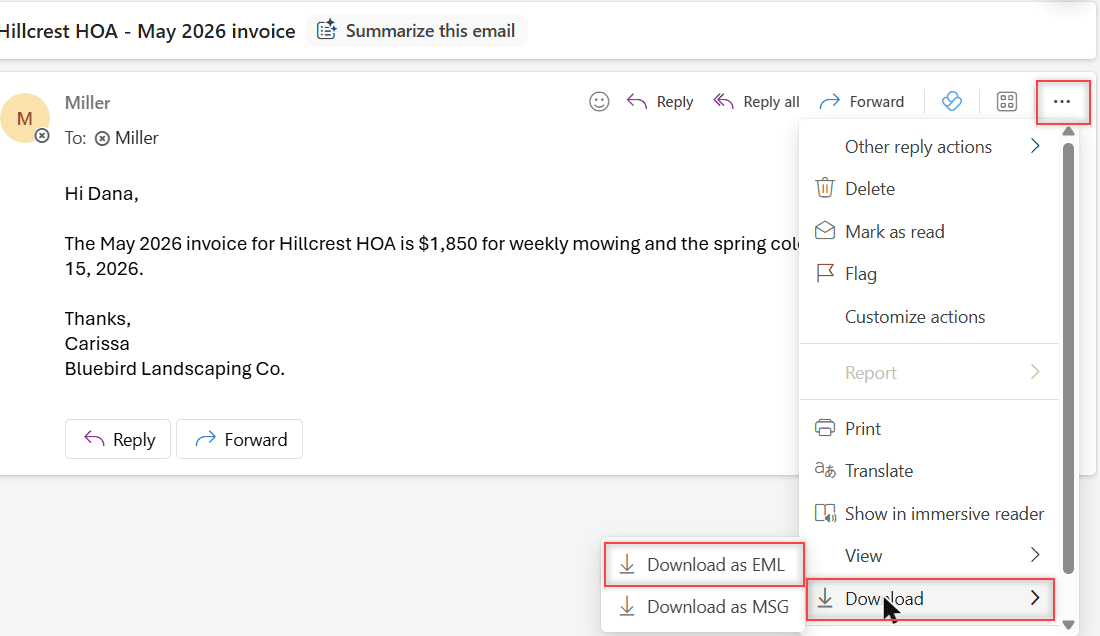
You can also right-click the email in your message list and choose Download. Either way, it’s one email per click.
How does this work?
Microsoft says the file usually lands in your Downloads folder, named after the email’s subject. An EML file is a copy, so the original email stays right where it was in your inbox.
Method 2: Save an email as a PDF
A PDF is handy when you need to send an email to someone who doesn’t use Outlook, like an accountant or a client.
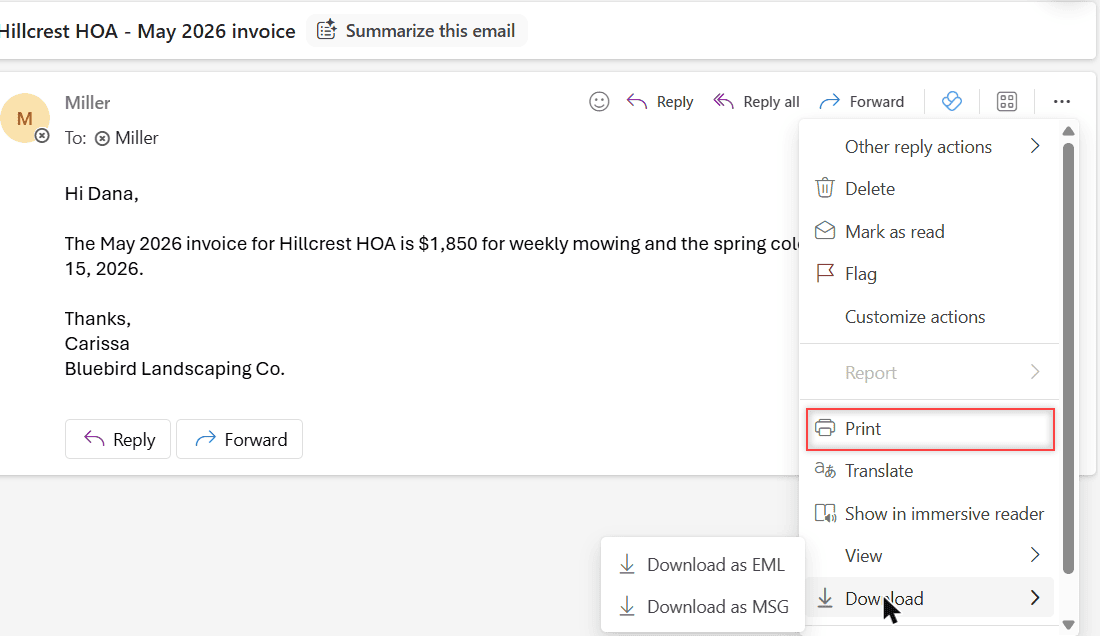
- Open the email and click More actions.
- Click Print, then click Print again in the preview.
- For the printer, choose Microsoft Print to PDF and click Print.
- Pick a folder and a file name, then click Save.
How does this work?
Outlook doesn’t have a Save as PDF button. Printing to PDF turns the email into a file instead of paper. The print step opens your browser’s own print window, so it may look a little different on your computer.
Pro tip: If you’d rather keep a copy in the cloud, you can save Outlook emails to OneDrive and skip the Downloads folder.
Method 3: Download several emails at once
Here’s the catch. When I checked two emails and right-clicked, the menu had no Download option at all. The reading pane just said “2 conversations selected.”
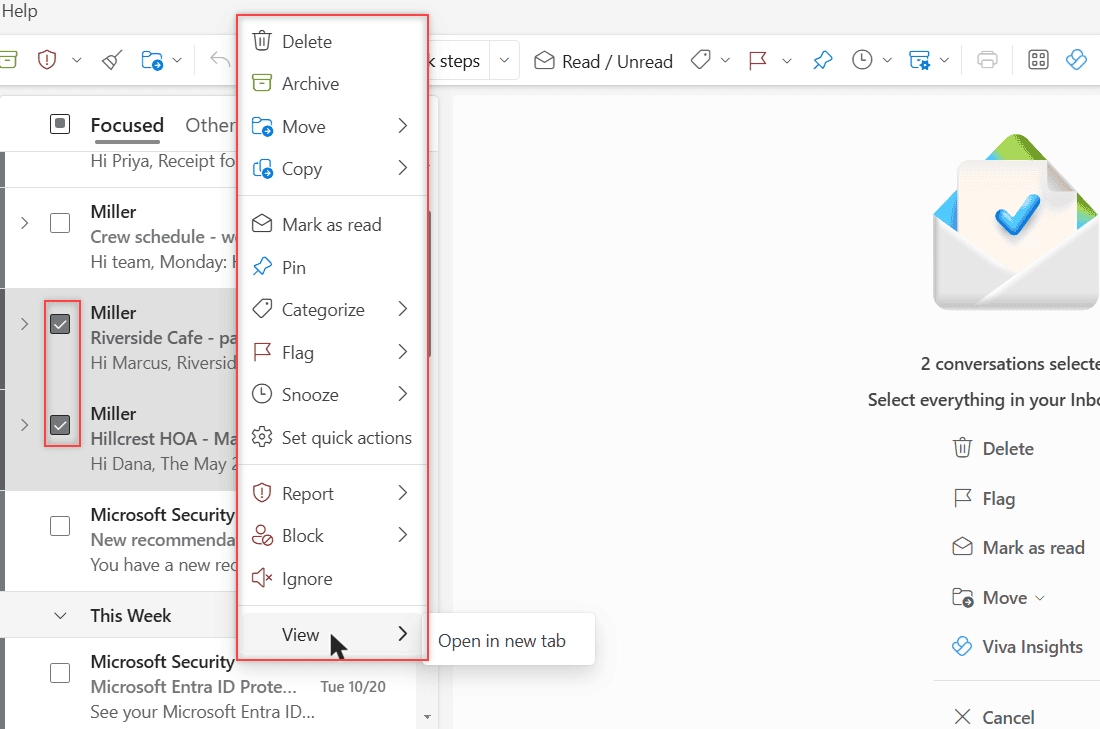
What works is to bundle them first. I selected three emails and clicked Forward, which forwards multiple emails at once as attachments. I sent that message to myself.
- Check the box next to each email you want.
- Click Forward on the Home tab.
- Type your own address in the To line and click Send.
- Open the message you received and click Download all.
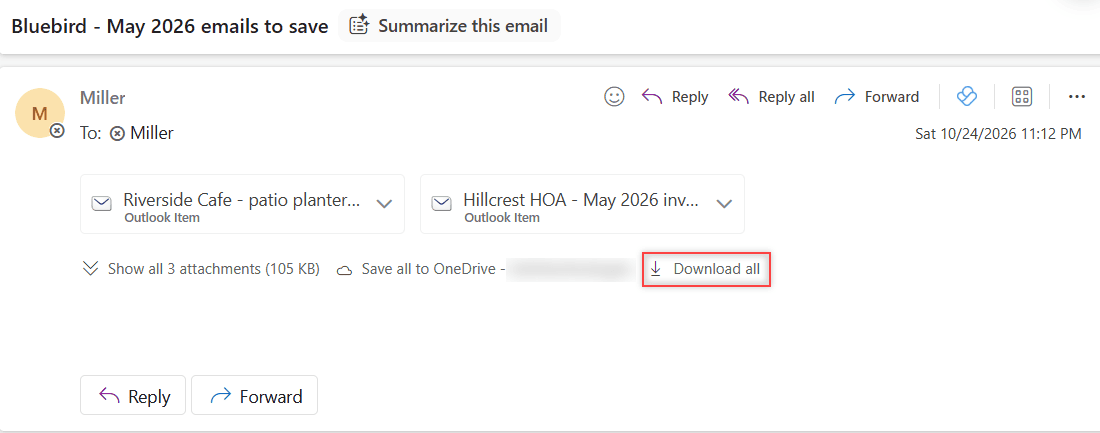
You can also download a single attached email. Click the arrow next to it and pick Download.
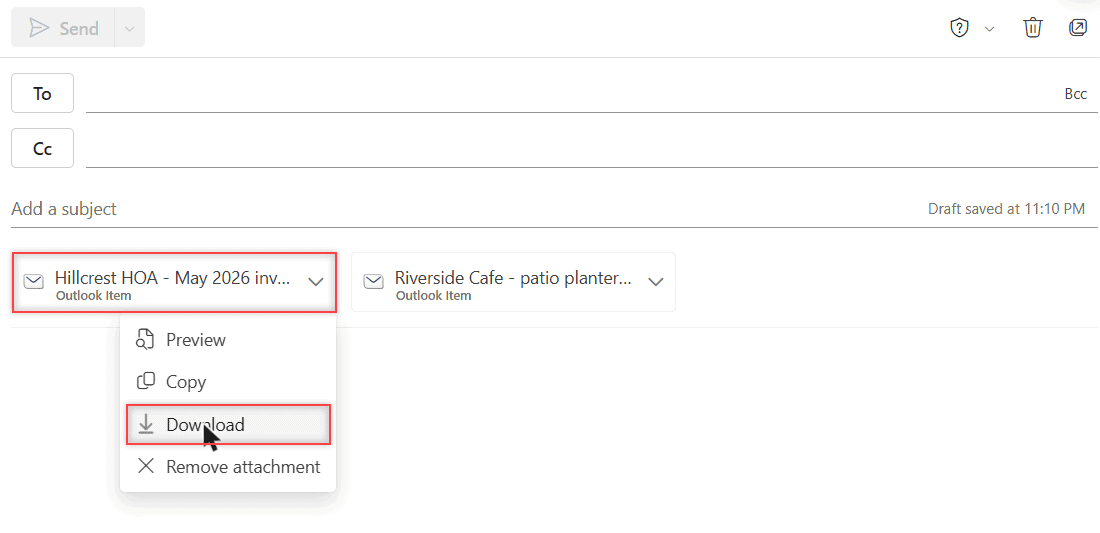
How does this work?
Each forwarded email rides along as an Outlook Item attachment. Microsoft says Download all saves every attachment from a single message, so you get all of them from one click.
Method 4: Export all your emails to a PST file
To download all emails from Outlook, you need the desktop app. Microsoft says exporting a whole mailbox takes a desktop version of Outlook. Classic Outlook for Windows saves it as a .pst file, and the legacy Mac app uses .olm.
- Add your account to classic Outlook for Windows.
- Set your mail sync to All. By default, Outlook only downloads the past year.
- Go to File > Open & Export > Import/Export.
- Choose Export to a file, then Outlook Data File (.pst).
- Pick your account, keep Include subfolders checked, and finish the wizard.
How does this work?
The .pst file holds everything up to the day you create it. Big mailboxes make big files, so check your storage space first and don’t save the file in OneDrive.
Things to keep in mind
- One email at a time on the web. Download only shows up with one email selected.
- No Word option. Microsoft says saving an email as a Word document isn’t supported.
- New Outlook for Windows. It uses More actions > Save as instead of Download.
- Work vs personal accounts. I tested a Microsoft 365 work mailbox. Personal Outlook.com accounts use the same steps. If an option is missing at work, ask your IT admin.
Saving emails for a client or a project? It also helps to show the full email address of each sender so you know exactly who wrote what.
More Outlook Online guides worth a look
- Clear recent searches in Outlook
- Add new fonts to Outlook Online
- Use an HTML template in Outlook Online
- All Outlook Online tutorials
Frequently Asked Questions
Can I download all emails from Outlook on the web?
Not in one click. The web version downloads one email at a time. To save a whole mailbox, export it to a .pst file with the desktop Outlook app.
Where do downloaded Outlook emails go?
They usually land in your Downloads folder, named after the email’s subject, as Microsoft explains here.
How do I download multiple emails from Outlook at once?
Select them, click Forward, and send them to yourself. Then open that message and click Download all to save every attached email.
Can I save an Outlook email as a Word document?
No. Microsoft says saving as a Word document isn’t supported. Save it as a PDF with Print instead.

I am Carissa Gudinoa, a technology buff, and Office online and Apple expert with over 9 years of experience. I am passionate about helping others get the most out of their Apple devices. I have written extensively about Apple products and technologies. I am committed to providing my clients with the best possible service and am always up-to-date on the latest Apple products and features. I also write extensively on other software available for use at minimal cost or free. This includes Word Online, Outlook Online, Excel Online, and other Office online programs… Check out more.