
You can use Google Drive without internet, but you have to set it up while you’re still connected. If you wait until the Wi-Fi drops, it’s too late for the files you didn’t prepare.
In this tutorial, I’ll show you how to use Google Drive offline in four ways: in your browser, file by file, with Drive for desktop, and on your phone. You’ll also see what happens to your edits when you reconnect.
My examples use a Google Doc called Hillcrest HOA Proposal 2026, from the sample files of a made-up landscaping business.
What you need before you go offline
Google’s browser method has a short list of requirements, and missing one is the usual reason the option stays greyed out:
- An internet connection while you set it up.
- Google Chrome or Microsoft Edge, and not a private browsing window.
- The Google Docs Offline extension, installed and turned on.
- Enough free space on your device to hold the files.
That extension is the one add-on this setup can’t skip. If you’re curious about others, I’ve rounded up the best Chrome extensions for Drive separately.
Method 1: Turn on offline access in Chrome or Edge
This method covers your recent Google Docs, Sheets, and Slides files on that computer.
- Go to drive.google.com/drive/settings.
- Find the Offline section.
- Check the box I’ve boxed in red below, labeled Create, open and edit your recent Google Docs, Sheets, and Slides files on this device while offline.
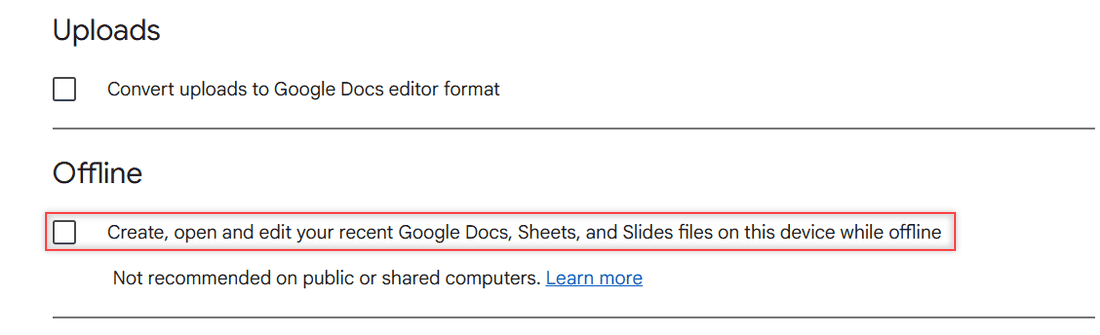
I want you to notice the line under that box: Google says it’s not recommended on public or shared computers. Your files get stored on the device, so keep this to a computer that’s yours.
You can also start from inside a document. Click the cloud icon next to the file name. If the popup says the document isn’t ready for offline use, click Turn on.
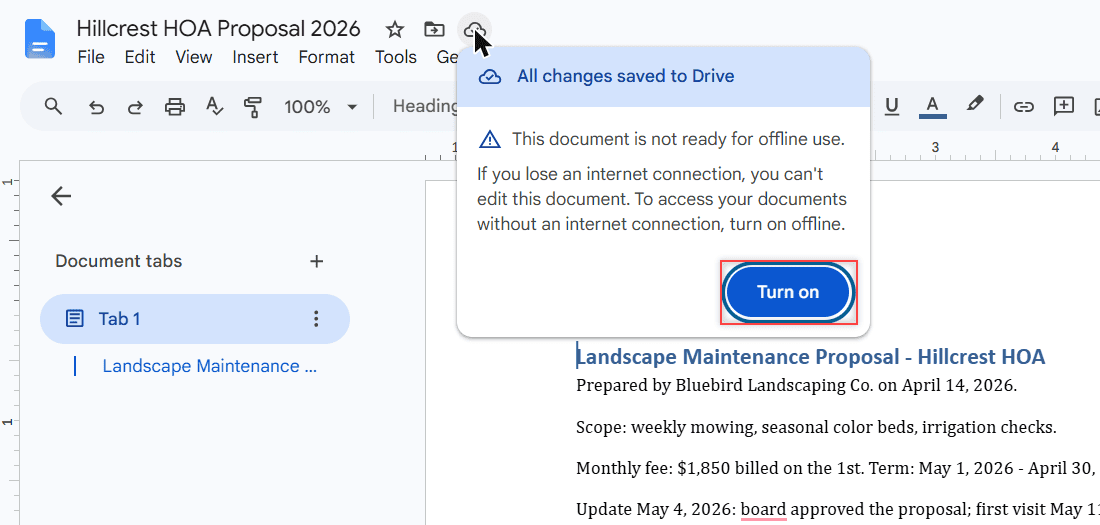
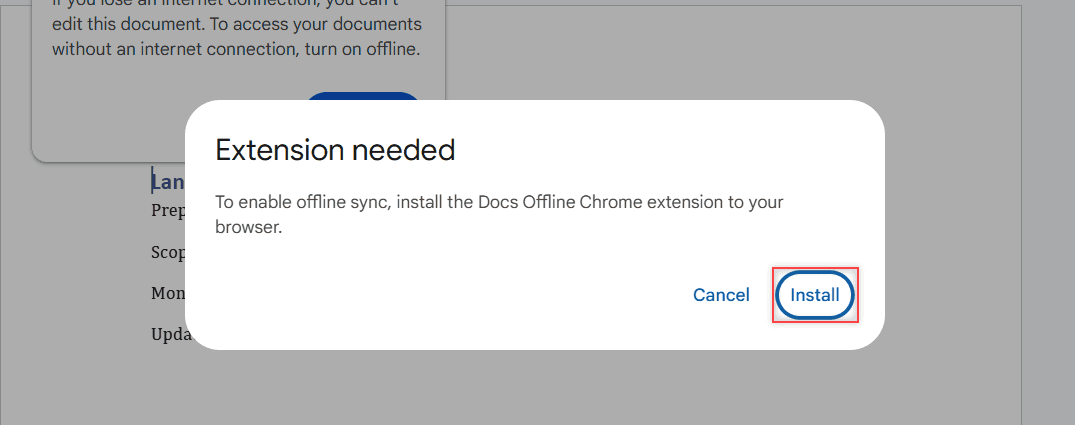
When the extension is missing, Docs stops and asks for it. Click Install and add it to your browser. I stopped at this dialog in my demo account, so I can’t show you the screens after it.
How does this work?
The setting and the extension work as a pair. The setting tells Drive you want recent files kept on this device, and the extension is what your browser needs for offline sync. That’s why it’s worth checking both when the option won’t cooperate.
Method 2: Pick the exact files you want offline
“Recent” is a guess. If you need a specific file on a flight, mark it yourself:
- Open drive.google.com while you’re online.
- Right-click a Google Docs, Sheets, or Slides file.
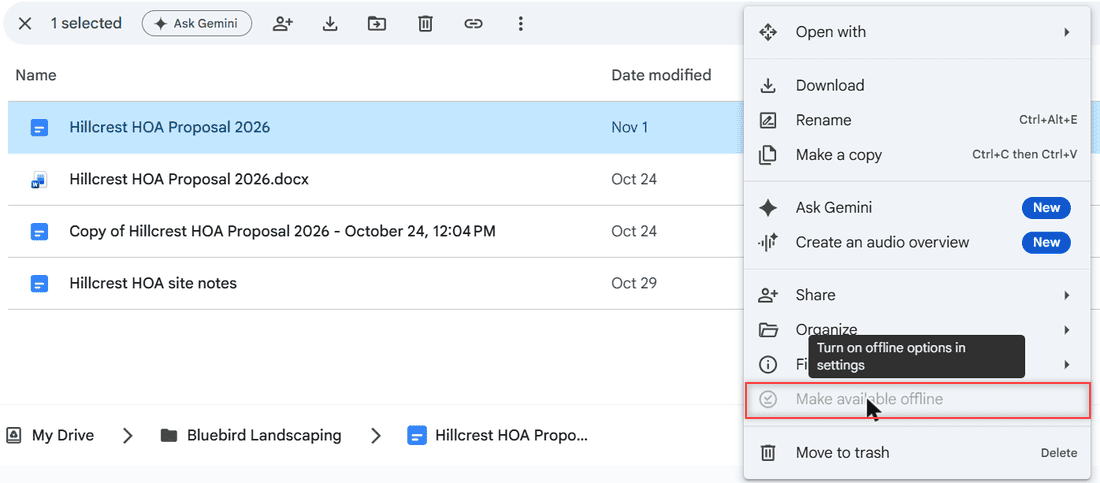
- Choose Make available offline.
To mark several at once, hold Shift or Ctrl (Command on a Mac) as you click them. Here’s more on selecting multiple files in Drive.
If the option looks faded, like it did in my demo account, offline isn’t on yet. The tooltip says exactly that: Turn on offline options in settings. Go back to Method 1 first.
With a document already open, the same command is on the File menu.
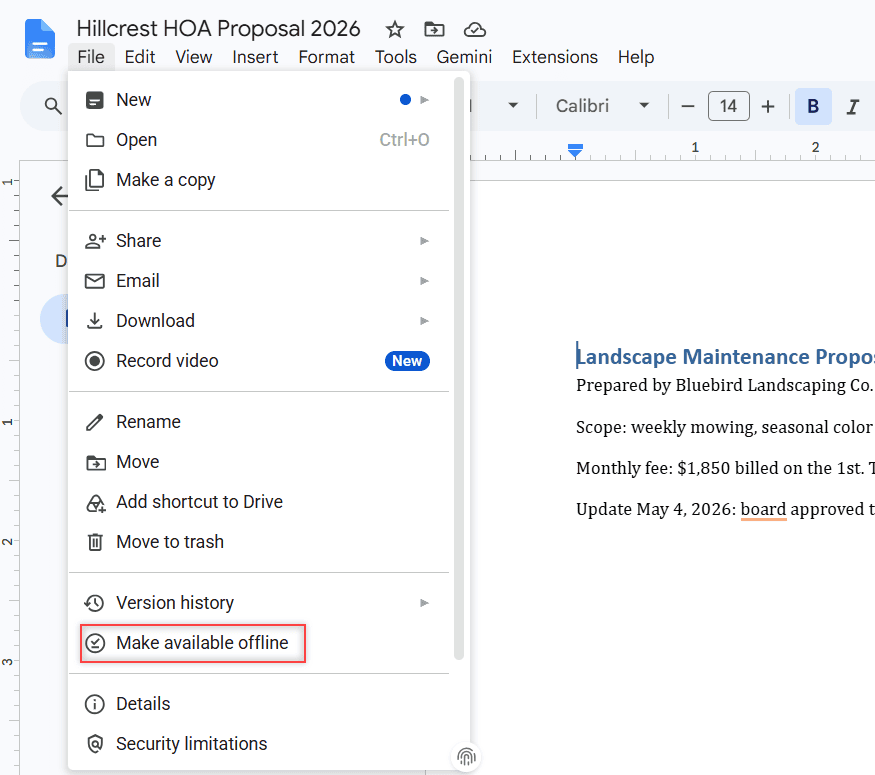
Pro tip: Before you lose your connection, click the offline icon at the top right of Drive and turn on Offline preview. It shows you which files are ready, so there are no surprises later.
How does this work?
Marking a file tells Drive to keep that particular copy on your device, instead of relying on the recent list. I’d mark anything I can’t afford to be without, rather than trust the recent list.
Method 3: Keep files offline with Drive for desktop
The browser route is built around Google’s own file types. For your other files, use the desktop app. If you don’t have it yet, start with installing Google Drive on your computer.
What you do next depends on your sync option. Mirrored files are always available offline, so there’s nothing to do. Streamed files need one extra step:
- Windows: In File Explorer, right-click the file or folder, then select Offline Access > Available offline.
- Mac: In Finder, right-click the file or folder, then select Available offline.
A green check appears once it’s saved. If you’ve wondered about that icon, here’s what the green check means in Drive.
How does this work?
Streaming keeps files in the cloud and downloads them as you open them, so marking one offline stores a real copy on your disk. One catch: Docs, Sheets, and Slides files still need Drive on the web, as in Method 2.
Method 4: Save files offline on Android or iPhone
I don’t have phone screenshots for this one, so these steps come straight from Google’s help page.
On Android
- Open the Google Drive app.
- Tap More (the three dots) next to the file.
- Tap Make available offline.
On iPhone or iPad
- Open the Google Drive app.
- Tap More next to the file.
- Turn on Available offline.
To find them later on either phone, open the Drive, Docs, Sheets, or Slides app, tap Menu, then tap Offline.
On iPhone and iPad, this saves a preview only. To edit offline, use the Docs, Sheets, or Slides app. Want a permanent copy instead? See how to save Drive files to your phone.
Things to keep in mind
- Your edits sync on reconnect. Newer changes overwrite older ones. If something seems lost, check the file version history.
- Offline folders eat disk space. New items added to one are saved offline automatically, so watch your space if your storage already looks full.
- Streamed files need the app running. If it won’t start, try these fixes for when you can’t launch Drive for desktop.
- Disconnecting your account has a cost. Offline streamed files are removed. Mirrored files stay.
- Setup is per device. The setting applies to the computer you’re on, so I’d repeat it on each one you use, and skip shared machines.
If Drive drops out while you do have internet, that’s a different problem. Here’s what to do when Google Drive keeps going offline.
A few more Drive guides you may want next:
Frequently Asked Questions
Can I access Google Drive without internet?
Yes, for files you set up beforehand. Google lists the requirements in its Google Drive offline help page.
Why is Make available offline greyed out?
Offline access usually isn’t turned on yet. Check the box in Drive settings and confirm the Google Docs Offline extension is installed and on.
Does Google Drive offline work in Safari or Firefox?
Google’s offline setup for computers names only Chrome and Microsoft Edge, so use one of those. Private browsing windows don’t work either.
Will my offline changes be saved?
Yes. They sync when you’re back online. Newer changes overwrite older ones, and version history lets you review what changed.

I am Carissa Gudinoa, a technology buff, and Office online and Apple expert with over 9 years of experience. I am passionate about helping others get the most out of their Apple devices. I have written extensively about Apple products and technologies. I am committed to providing my clients with the best possible service and am always up-to-date on the latest Apple products and features. I also write extensively on other software available for use at minimal cost or free. This includes Word Online, Outlook Online, Excel Online, and other Office online programs… Check out more.