
“This Mac has been locked with Find My Mac” means someone marked the Mac as lost in Find My, either on iCloud.com or from another Apple device. To unlock it, you need the passcode set when it was locked on an Intel-based Mac, or the Apple Account password on a Mac with Apple silicon. This isn’t a fault you can repair: it’s a security lock, and only the account that set it, or Apple with proof of purchase, can clear it.
Most likely cause
- You or a family member marked the Mac as lost and it reconnected to the internet.
- On an Intel Mac, it wants the numeric passcode created when it was locked, not your login password.
- On an Apple silicon Mac, it wants the Apple Account email or phone number and password.
- If you bought the Mac used, the previous owner’s account locked it.
The steps below work out who locked the Mac, then go from the quickest unlock to the last resort. They apply to Macs running macOS 27 Golden Gate, macOS 26 Tahoe and earlier versions.
Who Locked This Mac?
Everything depends on whose Apple Account set the lock, because only that account can remove it. Match your situation:
| Situation | What you need | Go to |
|---|---|---|
| You locked it and remember the details | Your passcode or Apple Account password | Fix 1 or Fix 2 |
| You locked an Intel Mac and forgot the passcode | Your Apple Account password, on any browser | Fix 3 |
| You forgot your Apple Account password | Your trusted phone number or device | Fix 4 |
| A family member locked it | Their passcode, or your own Apple Account | Fix 5 |
| You bought it used or found it | The previous owner | Fix 6 |
| You didn’t lock it and it’s your Mac | Control of your Apple Account | Fix 7 |
Next, find out which kind of Mac you have, because the unlock screen is different. An Intel-based Mac shows a padlock with a numeric passcode field, which some screens call a system lock PIN. A Mac with Apple silicon asks for an Apple Account email address or phone number and a password. If you’re not sure, the model year is a guide: Macs from late 2020 onward with an M-series chip are Apple silicon.
Note: Erasing the disk or reinstalling macOS doesn’t remove this lock. It’s tied to the Mac’s firmware and the Apple Account, so it comes back no matter what’s on the disk.
Fix 1: Enter Your Apple Account Password (Apple Silicon)
On a Mac with Apple silicon, Mark As Lost locks the Mac with the Apple Account password of whoever marked it as lost.
- On the lock screen, enter the email address or phone number for the Apple Account that marked the Mac as lost.
- Enter that account’s password.
- Complete two-factor authentication if a code appears on your iPhone or other trusted device.
When it works, the Mac continues to the normal login window. Log in with your Mac user password as usual. You can only unlock the Mac on the Mac itself, not online or from another device.
Fix 2: Enter the Find My Passcode (Intel)
On an Intel-based Mac, whoever marked it as lost had to create a numeric passcode, even if the Mac already had a login password. That passcode is the only thing the lock screen accepts.
- Type the numeric passcode created when the Mac was marked as lost.
- Press Return.
Don’t type your Mac login password or your iPhone passcode here. Many people lock themselves out a second time by trying those. If you don’t remember the Find My passcode, look it up with Fix 3 instead of guessing.
Fix 3: Look Up a Forgotten Passcode on iCloud.com (Intel)
Apple lets the account owner look up the passcode for an Intel Mac, for a limited time after it was locked. Use a phone, tablet or any other computer.
- Go to icloud.com/find and sign in with the Apple Account that marked the Mac as lost.
- Select the locked Mac in the All Devices list.
- Click Unlock and follow the steps to verify your identity with your Apple Account password.
- Note the passcode shown, then enter it on the Mac.
If the passcode no longer appears because too much time has passed, go to Fix 8.
Fix 4: Reset Your Apple Account Password
If you can’t remember the Apple Account password that the lock screen or iCloud.com asks for, reset it first. Apple’s guide for when you’ve forgotten your Apple Account password covers every route. The fastest ones:
- On an iPhone or iPad signed in to the account: open Settings, tap your name, tap Sign-In & Security, then tap Change Password.
- On another Mac signed in to the account: open System Settings, click your name, then Sign-In & Security, and click Change Password.
- Without a trusted device: go to iforgot.apple.com and verify with your trusted phone number, or use the Apple Support app on a borrowed device.
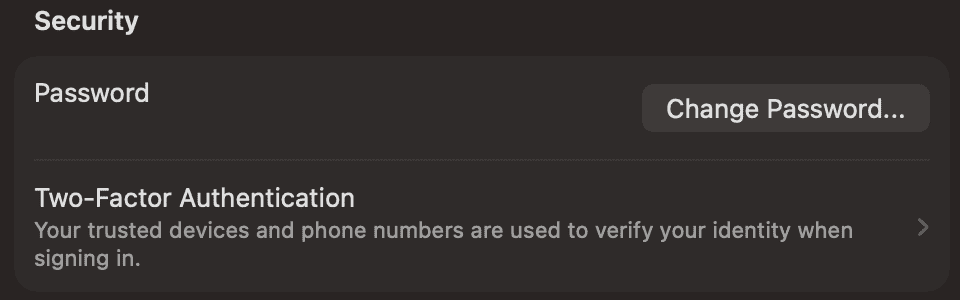
Apple may make you wait an hour before you can change the password. If none of these work, Apple offers account recovery, which can take several days. Once you have the new password, go back to Fix 1 or Fix 3.
Fix 5: Check With the Family Member Who Locked It
Family Sharing lets a family member mark your Mac as lost, but only after entering your Apple Account password. That means the lock still belongs to your account.
- Apple silicon: enter your own Apple Account email or phone number and password on the Mac, as in Fix 1.
- Intel: ask the family member for the passcode they created. If they don’t remember it, look it up yourself on icloud.com/find with Fix 3, because it’s your account.
If nobody in the family admits to locking the Mac, treat it as Fix 7 and secure your account.
Fix 6: Contact the Seller if You Bought It Used
A secondhand Mac with this screen was locked by the previous owner’s Apple Account. You can’t unlock it yourself, and Apple won’t remove the lock for you without the original proof of purchase.
- Contact the seller and explain the Mac shows the Find My lock screen.
- On an Intel Mac, ask them to look up the passcode on icloud.com/find (Fix 3) and send it to you.
- On an Apple silicon Mac, they need to enter their Apple Account details on the Mac, so arrange to meet or return it.
- After it’s unlocked, ask them to sign out of their account on the Mac and remove it from their device list in Find My.
If the seller won’t respond or the listing was a scam, ask the marketplace or your payment provider for a refund. A Mac locked to someone else’s account can’t be used, and a buyer has no way to bypass it.
Found a Mac with this message? Don’t try to unlock it. Hand it to the police or the place where you found it, or contact the owner if a message or phone number appears on the lock screen.
Fix 7: Secure Your Account if You Didn’t Lock It
If the Mac is yours and nobody in your household locked it, someone may have signed in to your Apple Account and used Find My against you. Scammers sometimes do this and then send a message demanding money to unlock the Mac.
- Don’t pay and don’t reply to any message asking for money.
- On another device, change your Apple Account password at account.apple.com or in Settings on your iPhone.
- In Sign-In & Security, check that the trusted phone numbers belong to you and remove any you don’t recognize.
- Review the devices signed in to your account and remove any you don’t own.
- Once you control the account again, unlock the Mac with Fix 1 (Apple silicon) or look up the passcode with Fix 3 (Intel).
If the attacker set a passcode you can’t see on iCloud.com, take the Mac and your proof of purchase to Apple, as in Fix 8.
Fix 8: Take It to Apple With Proof of Purchase
When nobody can supply the passcode or the account password, Apple’s last resort is a service visit. Take the Mac to an Apple Store or an Apple Authorized Service Provider, along with your original proof of purchase.
Bring the receipt or invoice that shows the serial number, or the name of the store and the date you bought it. Apple uses it to confirm the Mac is yours before removing the lock. Without proof of purchase, Apple can’t help, even if the Mac is in your hands.
How to Avoid This Next Time
- Don’t share your Apple Account password. Anyone who knows it, including a family member, can mark your Mac as lost from Find My.
- Write down the passcode when you mark an Intel Mac as lost, and keep it somewhere other than the Mac.
- Keep your Apple Account secure with two-factor authentication and a recovery contact. Apple’s article on changing your Apple Account password also covers checking your security settings.
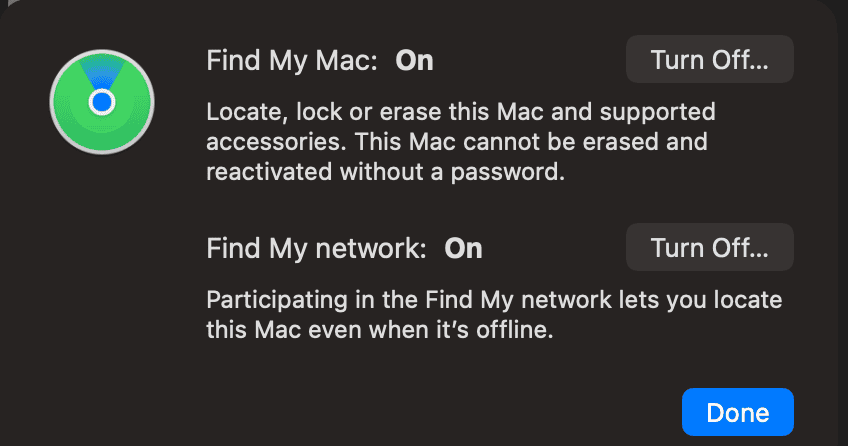
- Before selling a Mac, sign out of your Apple Account, turn off Find My and erase the Mac, so the buyer never sees this screen. When you sign out, macOS asks whether to keep a copy of your iCloud data on the Mac. Our guide to iCloud Drive taking up space on Mac explains what’s stored locally and what stays in iCloud.
Other Mac problems can look like a lock at first. A black screen on a charging Mac has its own fixes in Mac won’t turn on but is charging, and an update that keeps failing is covered in fixing “macOS Installation Couldn’t Be Completed”.
Common questions
Can I bypass “This Mac has been locked with Find My Mac” by erasing the Mac?
No. The lock lives in the Mac’s firmware and is tied to the Apple Account that set it. Erasing the disk or reinstalling macOS leaves it in place, and the same screen appears again on the next start.
Is the Find My passcode the same as my Mac login password?
No. On an Intel Mac, the Find My passcode is a separate number created when the Mac was marked as lost. Your login password won’t work on that screen. On an Apple silicon Mac, the lock uses your Apple Account password, which is also different from your Mac login password.
How long can I look up the passcode on iCloud.com?
Apple says you can look up the passcode for a limited time but doesn’t publish the exact period. If the option is gone, the remaining routes are the person who locked the Mac or an Apple service visit with proof of purchase.
Can Apple unlock my Mac without a receipt?
No. Apple needs proof of purchase that shows the Mac is yours. If you’ve lost the paper receipt, look for the email invoice from the store or the order confirmation from the seller, and make sure it shows the model or serial number.
Why did my Mac lock now when I marked it as lost days ago?
Find My can only send the lock when the Mac is turned on and connected to the internet. If the Mac was off or offline when someone marked it as lost, the lock waited and took effect the next time it came online.

I am Carissa Gudinoa, a technology buff, and Office online and Apple expert with over 9 years of experience. I am passionate about helping others get the most out of their Apple devices. I have written extensively about Apple products and technologies. I am committed to providing my clients with the best possible service and am always up-to-date on the latest Apple products and features. I also write extensively on other software available for use at minimal cost or free. This includes Word Online, Outlook Online, Excel Online, and other Office online programs… Check out more.