
Dana, the office manager at Bluebird Landscaping, recorded a 38-second voice memo while walking the Hillcrest HOA property. Now it sits in a “Bluebird Voice Memos 2026” folder in Google Drive, and anyone on the team can play it right in the browser.
In this tutorial, I’ll show you how to upload voice memos to Google Drive from a computer, an iPhone, and a Mac, then check that the recording plays and find it again later.
What you need before you start
- A Google Account and the voice memo saved as a file. iPhone and Mac Voice Memos export .m4a files.
- On a phone, the Google Drive app. On a computer, a browser or Google Drive for desktop.
- Free space in your account. Google gives 15 GB at no charge, shared by Drive, Gmail, and Photos.
Upload a voice memo from your computer
This is the setup I used for Dana’s recording in my demo Drive. I like this route best because it works on Windows, a Mac, or a Chromebook.
Make a folder for your recordings
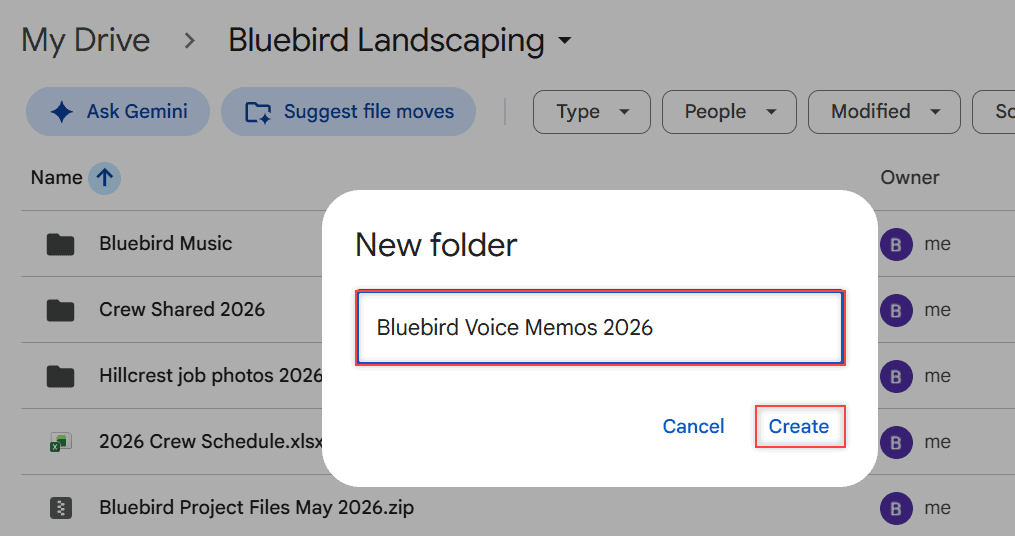
Go to drive.google.com, open the folder you want (mine was My Drive > Bluebird Landscaping), click New > New folder, type a name, and click Create. You can add subfolders for each client later.
Choose File upload from the New menu
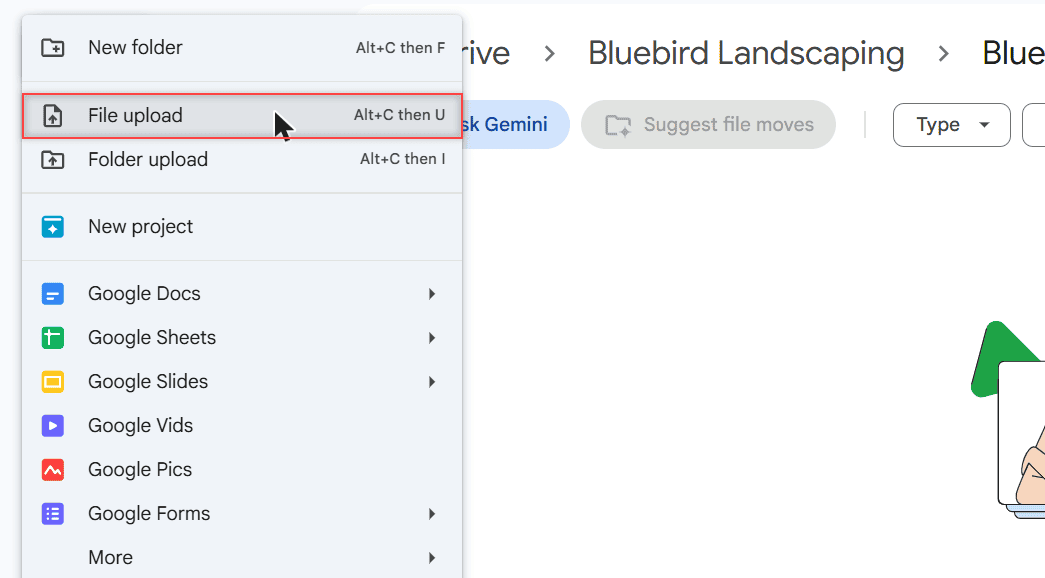
Open the new folder, click New, then File upload. The keyboard shortcut is Alt+C, then U. You can also drag the file from File Explorer or Finder into the browser window.
Pick the .m4a file and wait for the upload
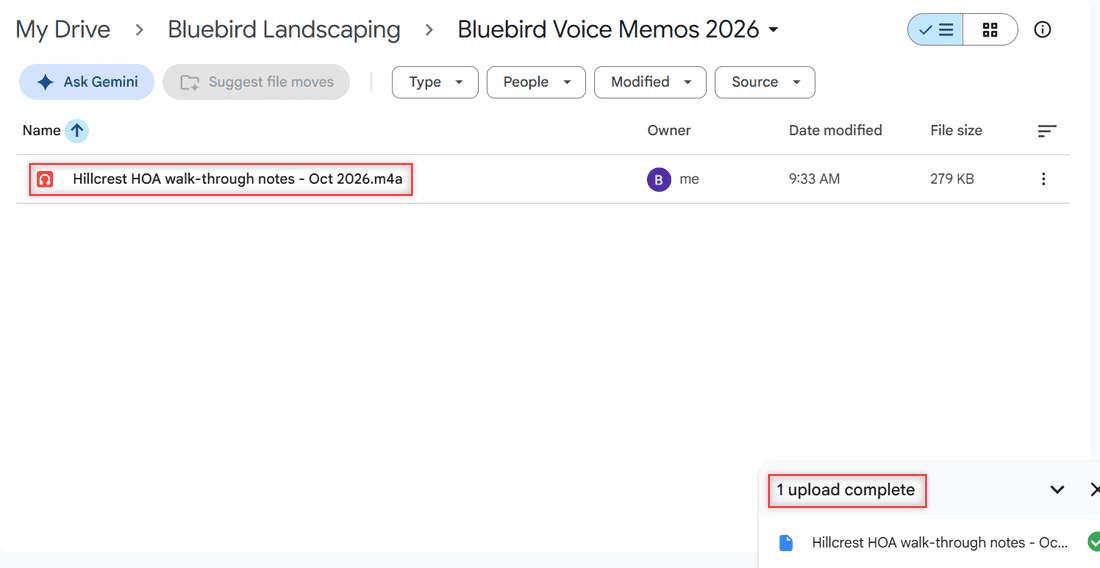
Select the recording and click Open. In my test, Dana’s 279 KB file finished in a few seconds, and the panel at the bottom right said “1 upload complete”. Audio files show a red headphones icon.
I keep one folder per year. If a file with the same name is already there, Drive saves the upload as a new version. Choose Keep both files if you want two copies.
Send a voice memo from your iPhone to Drive
Apple’s and Google’s help pages document a two-step path: save the memo to the Files app, then upload it with the Drive app. The same steps work on an iPad.
Save the recording to the Files app
- Open Voice Memos and tap the recording.
- Tap More (three dots), then Share.
- Scroll down, tap Save to Files, pick a location such as On My iPhone, and tap Save.
Apple says recordings export as .m4a by default. To send several at once, tap Select above the list first.
Upload it with the Google Drive app
- Open the Google Drive app and tap Add, then File upload.
- Find the voice memo and tap it.
- Tap Location, choose your voice memos folder, and tap Upload.
If the upload stalls, these fixes for Google Drive not uploading from a phone usually get it moving. After it finishes, you can delete the memo from your phone to free space.
Move voice memos from a Mac into Drive
On a Mac, open Voice Memos, select the recording, and drag it to a Finder window. Apple says that saves a copy to the folder you choose. I’d then upload that file at drive.google.com with New > File upload.
With Drive for desktop, drag the file into the Google Drive location in Finder instead. If it’s missing, here’s how to add Google Drive to Finder.
Check that the voice memo plays in Drive
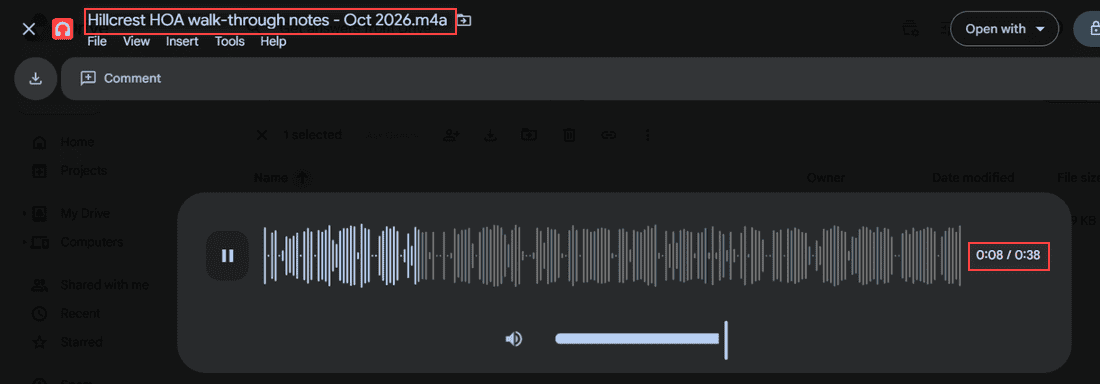
Double-click the file. Drive opened Dana’s .m4a in a dark preview with a waveform, a pause button, and the time (0:08 of 0:38). Google’s format list names MP3, WAV, .ogg, and .opus, not .m4a, but the iPhone file played fine in my test.
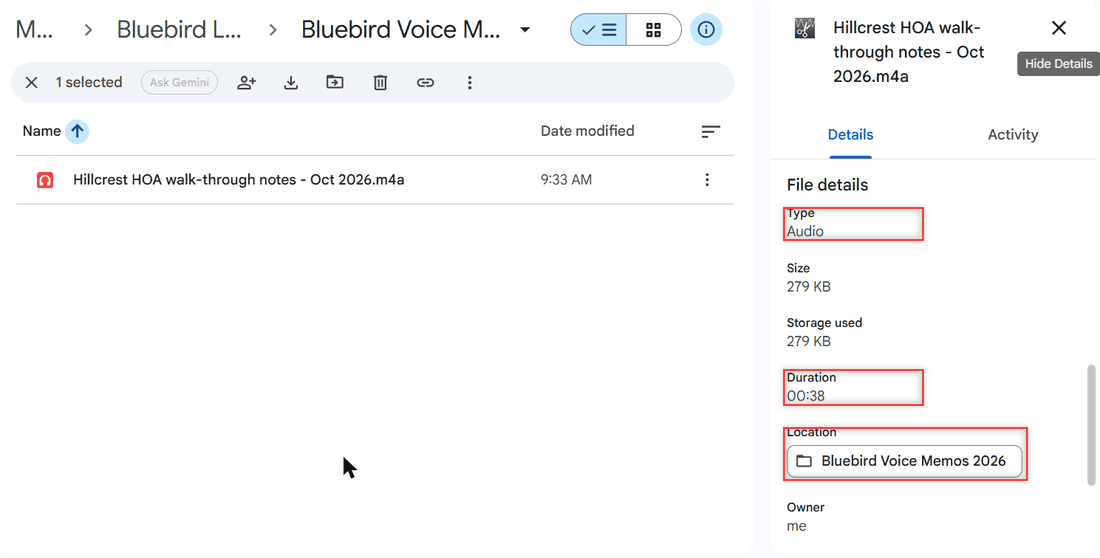
To confirm the whole recording made it, right-click the file and open the Details panel. It listed Type Audio, 279 KB, and a Duration of 00:38, the same length as the original.
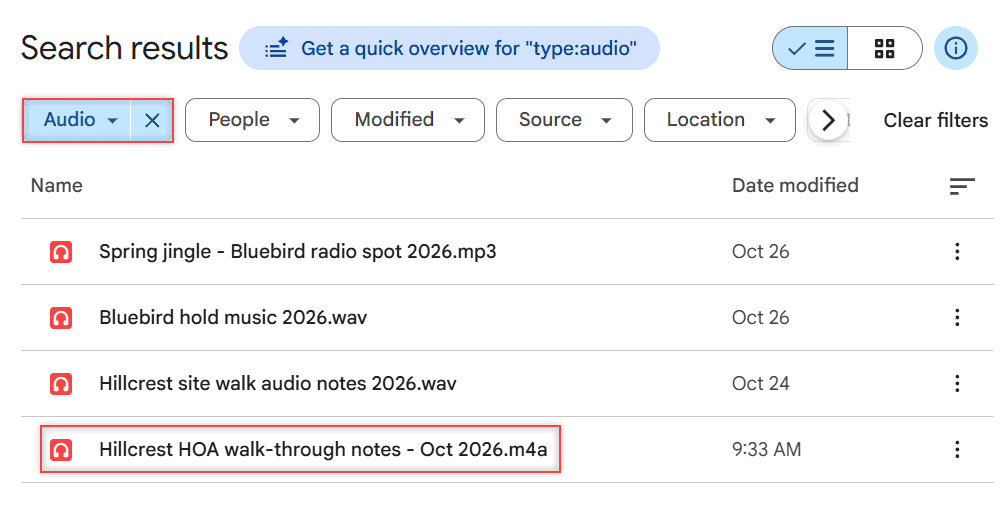
Months later, type type:audio in the Drive search box. It lists every recording, including MP3 and WAV files. More search tricks are in my guide to find folders in Google Drive.
Change it for your own recordings
- Name files with the place and date. I use names like Dana’s “Hillcrest HOA walk-through notes – Oct 2026”. Search finds them by any word.
- Uploads count against your storage, even in a folder someone else owns. If space runs out, see why Drive says storage is full.
- Work or school accounts can’t buy more storage themselves. Ask your Google Workspace admin.
- Music and other audio uploads the same way. My guide to add music to Google Drive covers songs and other audio files.
Once your recordings are in Drive, these help too:
- save a recording back to your phone
- cancel an upload you started by mistake
- upload long recordings and other large files
- check how big your voice memos folder is
Voice memos are just one file type, and the same basics apply to everything else. My guide on how to upload files to Google Drive covers the computer, your phone and the desktop app.
Questions about this setup
Can you upload voice memos to Google Drive?
Yes. Save the memo as a file (iPhone and Mac use .m4a), then upload it with New > File upload on a computer or Add > File upload in the Drive app.
Does Google Drive play .m4a voice memos?
In my test, an iPhone .m4a voice memo played in the Drive preview with a waveform and timer. Google’s official list names MP3, MPEG, WAV, .ogg, and .opus.
How do I upload several voice memos from my iPhone at once?
In Voice Memos, tap Select, pick the recordings, tap Share, and save them to Files. Then select them all in the Drive app upload screen, as Google Drive Help: upload files on iPhone and iPad describes.
Can I upload a voice recording from an Android phone?
Yes. Open the Drive app, tap New, then Upload, and pick the recording from your phone’s storage.

I am Carissa Gudinoa, a technology buff, and Office online and Apple expert with over 9 years of experience. I am passionate about helping others get the most out of their Apple devices. I have written extensively about Apple products and technologies. I am committed to providing my clients with the best possible service and am always up-to-date on the latest Apple products and features. I also write extensively on other software available for use at minimal cost or free. This includes Word Online, Outlook Online, Excel Online, and other Office online programs… Check out more.