
Short version: in Google Drive, click your round profile picture at the top right, then click the small pencil on it. A Personal info tab opens. Click Profile picture, pick or upload a photo, and click Save as profile picture.
In this tutorial, I’ll show you how to change your profile picture on Google Drive from a computer, an Android phone and an iPhone, plus why it changes everywhere and what to do when it won’t update.
Drive uses your Google Account picture
There’s no separate picture just for Drive. Drive shows the profile picture of your Google Account.
So when you change it, the new photo shows up in Gmail, Drive, Docs and the other Google apps you sign in to. The same goes for the little avatar people see when you share a Drive file with them.
Google’s help says one exception: your YouTube name and picture are separate.
Change the picture on a computer
I did this in Chrome with my demo Drive account. It takes under a minute.
- Open drive.google.com and sign in.
- Click your profile picture (or your initial) at the top right.
- In the account card, click the small pencil on your picture. Its tooltip says it opens the Personal info page in a new tab.
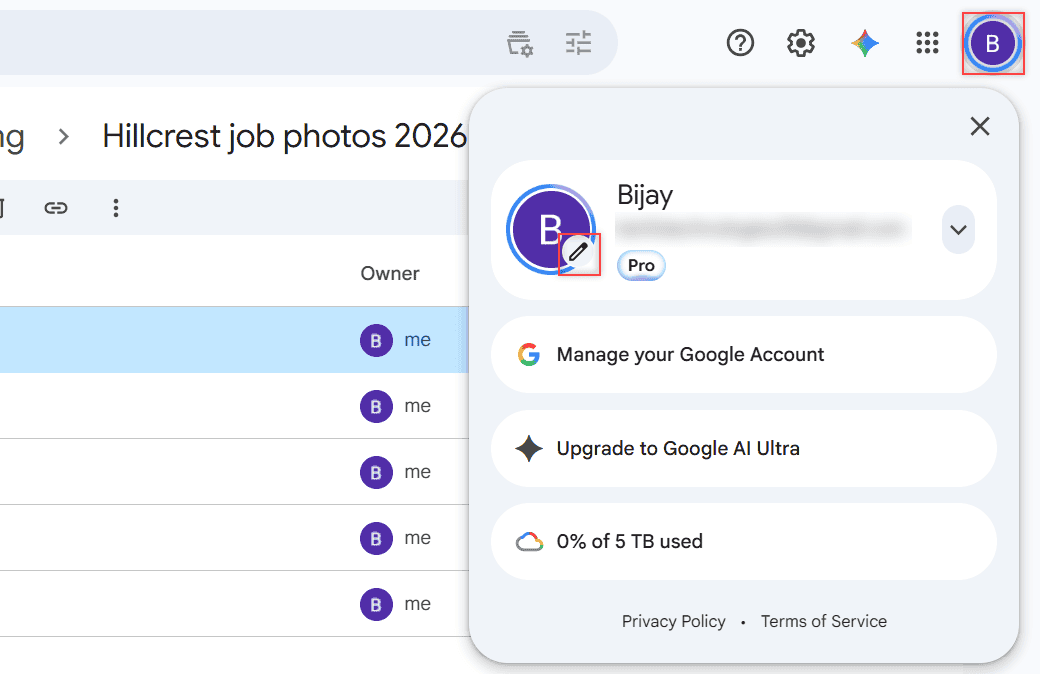
If you have more than one account signed in, check the name in that card first. The picture only changes for the account shown there.
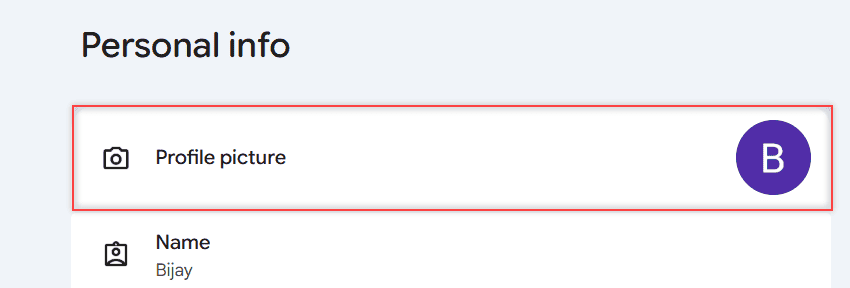
- On the Personal info page, click Profile picture under Basic info.
- Choose a source: an illustration, Upload from Device, Take a picture, or Google Photos.
- Rotate and crop the photo, then click Next.
- Click Save as profile picture.
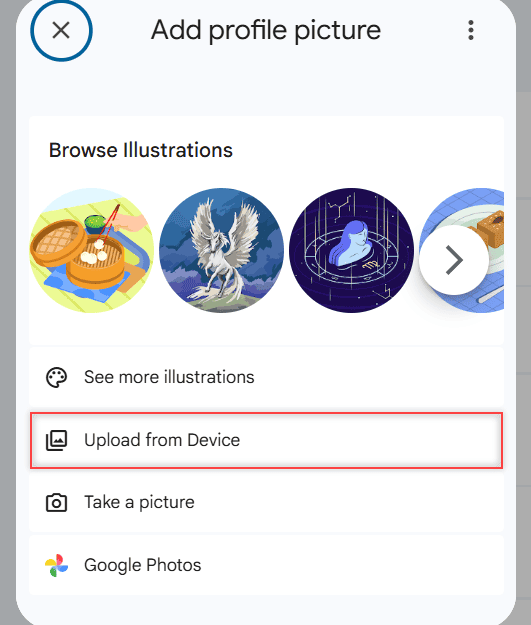
My demo account had no photo yet, so Google showed Add profile picture. If you already have one, you’ll see a Change button instead.
You can also skip Drive and go straight to myaccount.google.com, then Personal info. It’s the same page.
Change it on Android or iPhone
The Drive app doesn’t have its own photo setting either. You change the Google Account picture.
On an iPhone or iPad
- Open a Google app, like Drive or Gmail.
- Tap your profile picture or initial, then Manage your Google Account.
- Tap Personal info, then Profile picture.
- Tap Change or Add profile picture, then take a photo or pick one from your library.
- Center your face in the square, tap Next, then Save as profile picture.
On an Android phone
- Open myaccount.google.com in your browser and sign in if asked.
- Tap Personal info, then Profile picture.
- Tap Change or Add profile picture, then Next.
- Take or choose a picture and center it in the square.
- Tap Save as profile picture.
Signed in to the wrong account on your phone? Here’s how to sign out of Google Drive on iPhone so you can switch.
Old pictures, illustrations and who sees your photo
A few things I get asked about once the new photo is in place.
- Go back to an old photo: on the Profile picture page, click More at the top right, then Past profile pictures.
- No photo you like? The dialog has a Browse Illustrations row and a See more illustrations link, so you can use a drawing instead of your face.
- Who can see it: Google says other people who use Google services can see your name and profile picture. The About me page under People & sharing shows what others see.
For a work account, this matters more than you’d think. Your coworkers see that photo next to every comment and edit, and in tools like the activity list on a Google Doc.
When the new picture doesn’t show up
Google’s help says the change can take a few days to show up across all Google products. In my experience it’s usually faster in Drive itself.
To speed it up, sign out and back in, or clear your browser cache and cookies. That also fixes an old picture stuck in one browser.
Work or school account?
If the steps above don’t let you change the photo on a work or school account, the choice may not be yours. Google Workspace admins can turn off photo changes. Then only an administrator can set or update your photo.
An admin-set photo also replaces one you set yourself. Ask your IT team if you want a different one. It’s one of the small differences between personal and business Drive.
Want to tidy up the rest of your Drive while you’re at it? These are good next steps:
- Change the Google Drive language
- Turn off Google Drive notifications
- Find folders in Google Drive fast
- See and restore old file versions
Quick answers
How do I change my Google account profile photo?
Go to myaccount.google.com, click Personal info, then Profile picture. Upload or pick a photo, crop it, click Next and then Save as profile picture.
Can I have a different picture just for Google Drive?
No. Drive shows your Google Account picture, so one change updates Drive, Gmail and your other Google apps. YouTube is the exception, since it has its own name and picture.
How do I change my Google Play profile picture?
Google Play uses the same Google Account picture. Change it in Manage your Google Account, under Personal info and Profile picture.
Why can’t I change my profile picture on a work account?
Your Google Workspace administrator has probably turned off photo changes, so only they can set it. Google Account Help: Change your profile picture covers the steps for personal accounts.

I am Carissa Gudinoa, a technology buff, and Office online and Apple expert with over 9 years of experience. I am passionate about helping others get the most out of their Apple devices. I have written extensively about Apple products and technologies. I am committed to providing my clients with the best possible service and am always up-to-date on the latest Apple products and features. I also write extensively on other software available for use at minimal cost or free. This includes Word Online, Outlook Online, Excel Online, and other Office online programs… Check out more.