
You double-click a file in your OneDrive folder and Windows stops you with this message:
Make sure OneDrive is running on your PC, then try again.Nine times out of ten, the OneDrive app has closed or frozen in the background. Quit it, start it again from the Start menu, and the file opens.
In this tutorial, I’ll show you how to fix the make sure OneDrive is running on your PC, then try again message, starting with the quickest fix and working down to a reset and a clean reinstall.
Why OneDrive needs to be running to open your file
Most files in your OneDrive folder are online-only by default. They show a blue cloud icon, take up no space on your PC, and only download when you open them. The OneDrive app does that download.
So if the app isn’t running, signed in, or syncing, Windows has nothing to hand the file to. In my experience, that’s why the error tends to hit files you haven’t opened in a while.
My guide to backing up OneDrive to an external hard drive explains the same online-only idea from the other side.
I’ll be upfront: the OneDrive desktop app isn’t installed on my PC, so I couldn’t trigger this error myself. The desktop steps below come straight from Microsoft’s help pages, and the screenshots are from OneDrive on the web, which is where you can get your file right now.
Open the file in your browser while you fix the app
If you need the document this minute, skip the app. Sign in at onedrive.com, find the file, right-click it, and choose Open > Open in browser. Your files live in the cloud, so they’re all there even when the PC app is stuck.
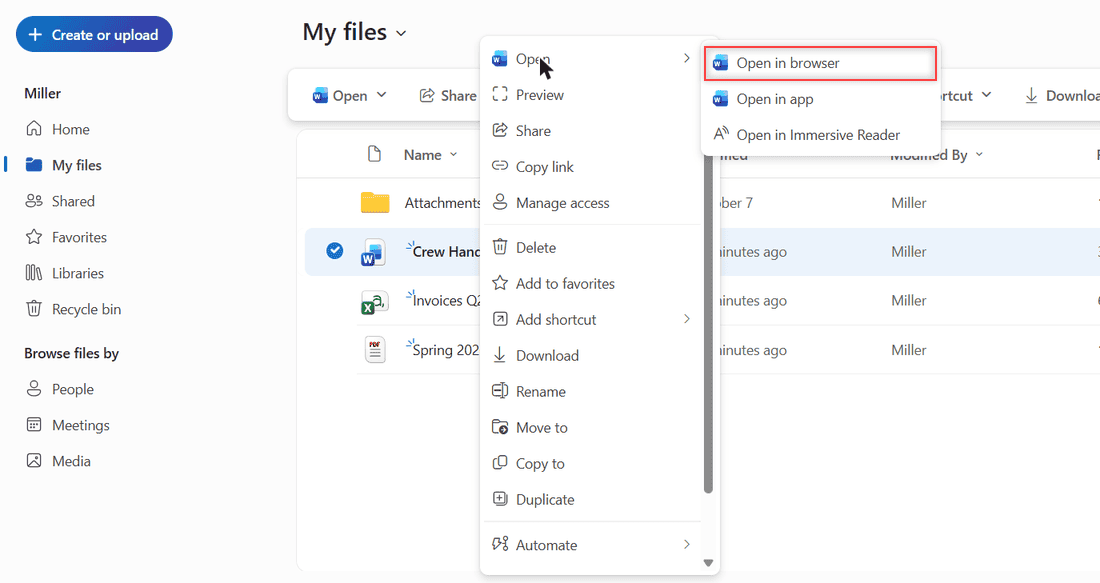
If the file opens fine on the web, the file itself is healthy. The problem is the app on your PC, and the fixes below are for that. I keep more web tricks like this in my OneDrive tutorials.
Quit OneDrive and start it again
Look for the white or blue OneDrive cloud icon at the far right of the taskbar. It may be hiding under the Show hidden icons arrow. No icon at all means OneDrive isn’t running.
- If you see the icon, select it, then select Help & Settings (the gear) and quit OneDrive.
- Select Start, type OneDrive in the search box, and select OneDrive in the results.
- Wait for the cloud icon to appear, then open your file again.
Still stuck? I always restart the whole PC and try once more before moving on. It’s the same first move I use when Drive for desktop won’t launch on Windows.
Check that you’re signed in and sync isn’t paused
A paused OneDrive can’t download online-only files. You can pause it for 2, 8, or 24 hours, and it also pauses on its own when your PC is in battery saver mode or on a metered network.
- Select the paused OneDrive icon in the notification area.
- In the activity center, select the pause button (or the yellow box) to resume syncing.
- If the icon says you aren’t signed in, sign in with the same account you used before.
Personal and work accounts behave the same here. A personal account uses your Microsoft account, while a work or school account uses the sign-in your organization gave you. Mixing them up is common if you also save Outlook emails to OneDrive from a work mailbox.
Turn on OneDrive at Windows sign-in
If the error comes back after every restart, I’d bet OneDrive isn’t set to start with Windows. Select the cloud icon, then Help & Settings > Settings.
Under Sync and back up, open Preferences and turn on the option to start OneDrive when you sign in to Windows. On a Mac, the matching setting is Open at Login under General.
You can also kick off sync from the web. In OneDrive on the web, select the gear and choose Sync this OneDrive. It hands your library to the desktop app on your PC.
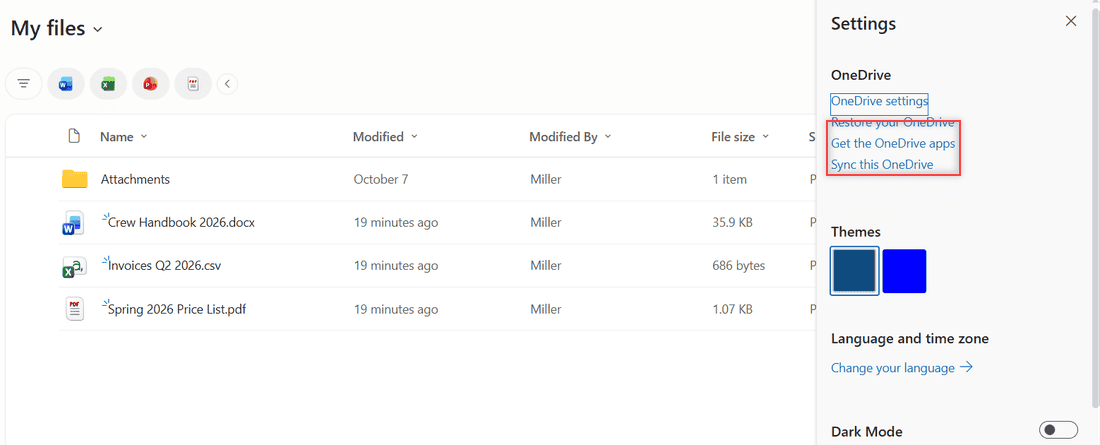
On a work PC, an administrator policy can stop OneDrive from starting at all. If nothing launches it, ask your IT team, because that block comes back after every restart.
Clear the storage and connection blockers
Microsoft says that once you exceed your storage, you can’t upload, edit, or sync new files. On a work account, open OneDrive settings in the browser, then More Settings > Storage Metrics to see the quota bar. Deleted files count until they leave the OneDrive recycle bin.
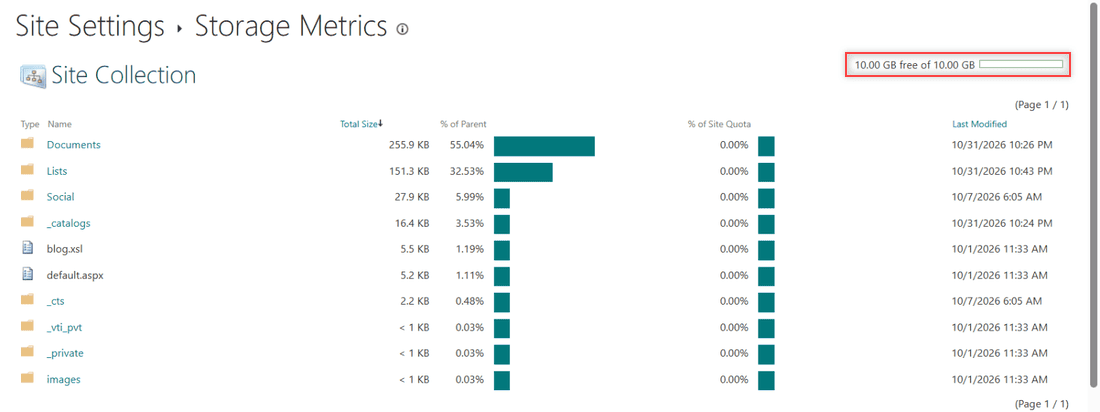
On a personal account, check your Microsoft storage on your account page. Then rule out the network: if you use a VPN, turn it off for a minute and open the file again. If that fixes it, the VPN app is getting in the way.
Keep important files on your device
Online-only files can’t open without an internet connection, and they lean on the app every time.
For files you need every day, right-click them in File Explorer and choose Always keep on this device. They get a green circle with a white check and open even when OneDrive is having a bad day.
Want the space back later? Right-click and choose Free up space. Files On-Demand itself lives under Settings > Sync and back up > Advanced settings.
Try unlinking, resetting, or reinstalling OneDrive
Unlink and re-link this PC
Select the cloud icon, then Help & Settings > Settings. On the Account tab, select Unlink this PC and confirm. Sign in again, and when OneDrive says the folder already exists, choose Use this folder. Microsoft says no data is lost.
Reset OneDrive
A reset disconnects every sync connection, personal and work, then runs a full sync. You won’t lose files. Press Windows key + R, paste this, and select OK:
%localappdata%\Microsoft\OneDrive\onedrive.exe /resetIf Windows says it can’t find the file, try these two paths in order:
C:\Program Files\Microsoft OneDrive\onedrive.exe /reset
C:\Program Files (x86)\Microsoft OneDrive\onedrive.exe /reset
Then open OneDrive from the Start menu. If you had picked only some folders to sync, pick them again. On a Mac, quit OneDrive, open its package contents, go to Contents > Resources, and run ResetOneDriveApp.command.
Reinstall the app
Open Add or remove programs, select Microsoft OneDrive, and choose Uninstall. Then download it again from Microsoft. Windows 11 already includes OneDrive, but a fresh copy replaces a damaged one.
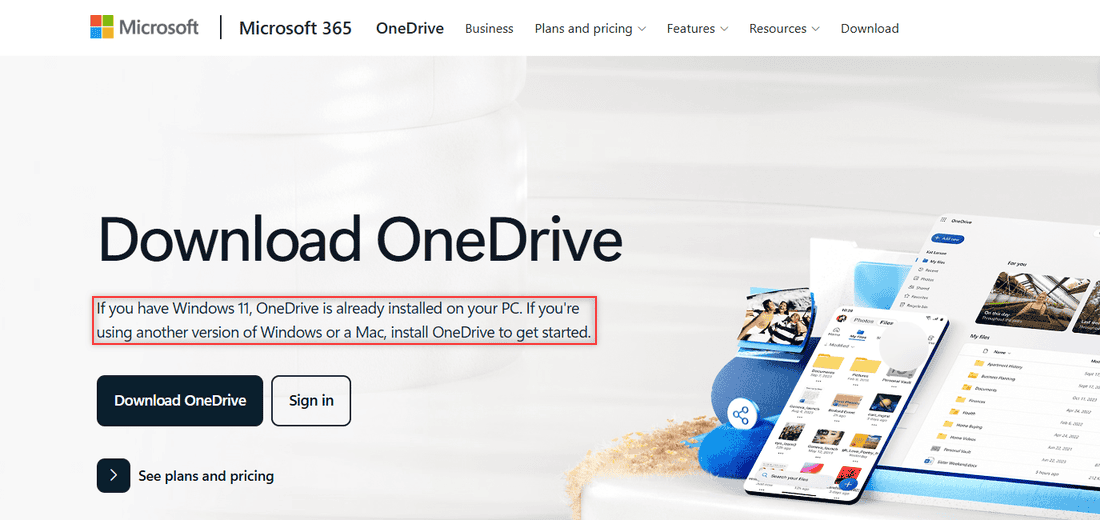
One catch: “OneDrive by Microsoft Corporation” in the Microsoft Store only views files. It doesn’t sync them, so it won’t clear this error.
Still failing? Confirm the fix and prevent a repeat
You’ll know it’s fixed when the cloud icon stays in the taskbar and an online-only file downloads when you open it. If you moved your OneDrive folder recently, re-link and point OneDrive to the new location.
Want to compare options before you go further? My Google Drive vs OneDrive comparison covers how each one syncs, and you can move OneDrive files to Google Drive if you decide to switch.
A few more guides you might want next:
More about this error
Will resetting OneDrive delete my files?
No. Microsoft says you won’t lose files or data by resetting OneDrive. It disconnects your accounts and runs a full sync. The exact commands are on Microsoft Support: Reset OneDrive.
Why does the error only show for some files?
It usually hits online-only files, the ones with a blue cloud icon, because they download only when OneDrive is running. Files marked Always keep on this device open without it.
Is the fix different for a work or school account?
The steps are the same. A work PC can have a policy that blocks OneDrive from starting, and only your IT team can change it.
Can I open my OneDrive files without the app?
Yes. Sign in at onedrive.com, right-click the file, and choose Open in browser. Everything you store in OneDrive is there.

I am Carissa Gudinoa, a technology buff, and Office online and Apple expert with over 9 years of experience. I am passionate about helping others get the most out of their Apple devices. I have written extensively about Apple products and technologies. I am committed to providing my clients with the best possible service and am always up-to-date on the latest Apple products and features. I also write extensively on other software available for use at minimal cost or free. This includes Word Online, Outlook Online, Excel Online, and other Office online programs… Check out more.