
Missing thumbnails in Drive come with no error message at all. You get a blank card, a generic icon, or a plain list with no pictures. The fix that works most often is the simplest one: switch the folder to Grid layout, because List layout never shows thumbnails.
In this tutorial, I’ll show you why you’re seeing google drive thumbnails not showing, which blank cards are completely normal, and what’s worth checking when your photos really should have a picture and don’t.
One honest note before we start. I can’t make thumbnails fail on demand, so every screenshot here is a real, working Drive. I’ll tell you which steps I tested and which ones come from Google’s help pages.
Check that you’re in Grid layout
How to tell this applies: every file in the folder has a tiny icon next to its name, and there are no pictures anywhere.
That’s List layout, and it’s doing exactly what it’s supposed to. In my demo account, List showed only small file-type icons, even for a folder full of photos. Grid showed the pictures.
- Open the folder in Google Drive on the web.
- Look at the top right of the file area for the layout toggle.
- Select the Grid layout side of the toggle.
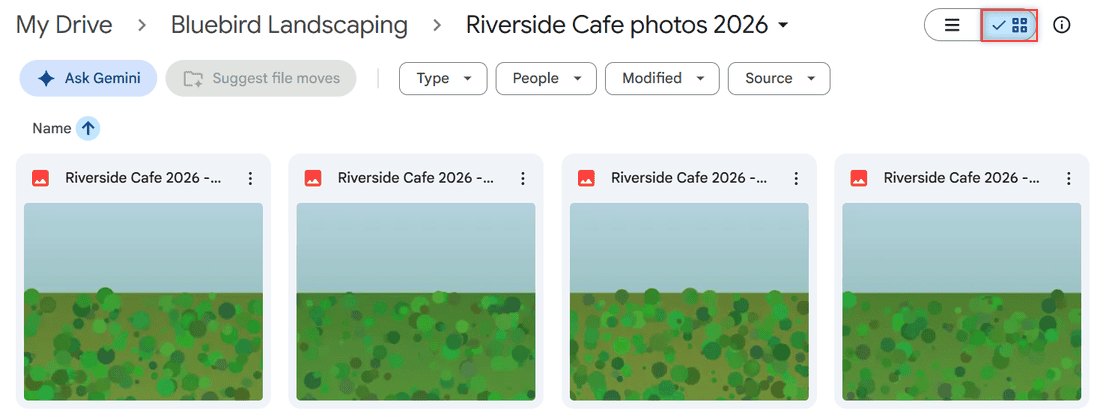
If thumbnails seem to have vanished overnight, a stray click on that toggle is a good first suspect. Once the pictures are back, my guide to sorting files in Drive can help you scan a big folder faster.
Find out whether that file type can have a thumbnail
How to tell this applies: you’re in Grid layout, most cards look fine, and only certain files are blank or show a big icon.
This is the one that catches most people, and it isn’t a bug. Drive can only draw a picture of a file it knows how to render. Here’s a real search result from my demo account:
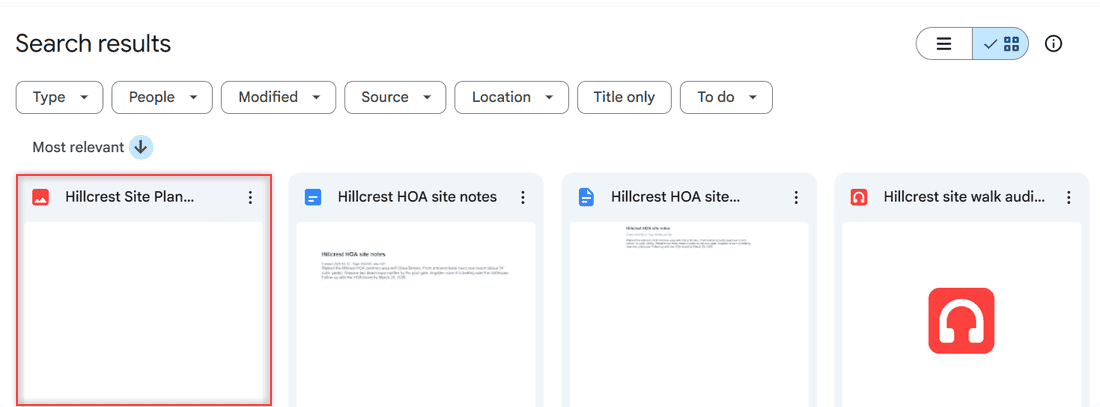
The card in the red box is a real .dwg CAD drawing. Its thumbnail area is simply white. The .wav audio file beside it shows a big generic headphones icon. The Google Docs next to them show their first pages. All three are working normally.
Here’s what I saw for each type I tried in Grid layout:
| File type | What the Grid card showed | Is that a problem? |
|---|---|---|
| JPG photo | The photo itself | No, this is the expected result |
| HEIC photo from an iPhone | The photo itself | No, real HEIC files got thumbnails in my test |
| Google Doc | A preview of the page | No, this is the expected result |
| WAV audio | A generic headphones icon | No, audio has no picture to show |
| DWG CAD drawing | A blank white area | No, Drive did not render it |
Google doesn’t publish a list of which file types get a thumbnail. Its help page says Drive can view videos, PDFs, Office files, audio, and photos, but that’s about opening files. So treat my table as what I saw, not as an official list.
To check a blank file, double-click it. If the preview opens, only the small picture is missing. If Drive can’t open it either, you’ve got a format problem, and my notes on opening unsupported files will help more than any browser setting.
If you really need a picture on the card for something like a CAD drawing, export a PDF or PNG from the app that made it and keep that next to the original. Drive handles those formats, and you’ll have something to recognize at a glance.
The Preview cards setting is something else
How to tell this applies: you found this setting while hunting for a thumbnail switch and you’re wondering if it’s the answer.
It isn’t. Open Settings, stay on General, and you’ll see “Preview cards: Show details card when hovering on a file or folder icon.” That controls the little pop-up of details you get when you hover over an item.
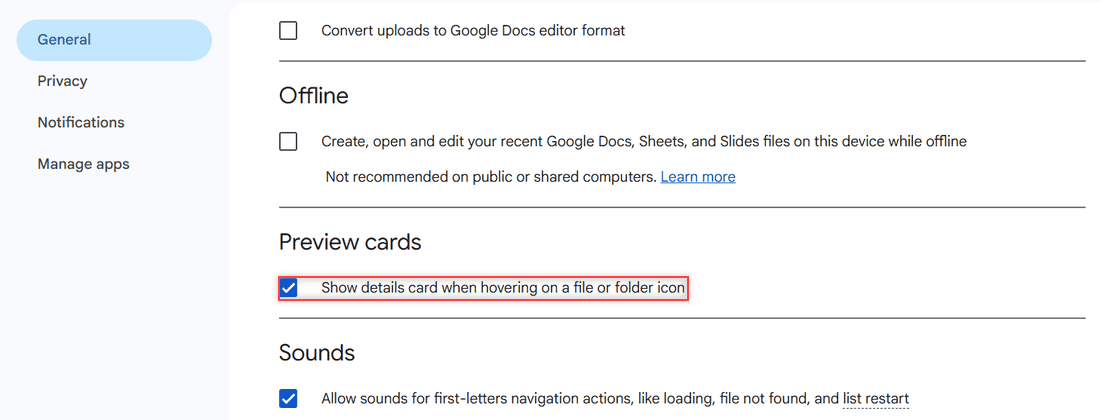
Turning it on or off changes only that hover card. I didn’t find any setting on this page that turns thumbnails on or off, and I’d be suspicious of any guide that says this checkbox fixes them.
Try the same folder in another browser
How to tell this applies: your photos and PDFs should have pictures, you’re in Grid layout, and the cards are still blank.
Before you change anything, find out how big the problem is. Open the same folder in a second browser where you’re signed in to the same Google Account, or on your phone. The result tells you where to look next.
| What you see | What it points to | Where to go |
|---|---|---|
| Thumbnails work in the second browser | Something in your first browser | Cookies, cache, extensions, updates below |
| Blank everywhere, but only for a few files | Those files or their format | Double-click them and check the type |
| Blank everywhere, for every file | Your network or Google | The status check below |
If you only see the problem on one computer, and Drive is also crawling, the cause may be broader than thumbnails. My guide on why Google Drive gets so slow walks through the connection and browser checks.
A note on my testing: from here down, I didn’t reproduce a browser-wide failure, so I can’t promise you which of these will bring your pictures back. They’re the settings Google says Drive depends on, in the order I’d try them.
Turn cookies and JavaScript back on
How to tell this applies: you’ve tightened your browser’s privacy settings recently, or Drive is misbehaving in other ways too.
Google’s system requirements say cookies and JavaScript need to be turned on for Drive. If either one is off, parts of the page may not work. Google doesn’t name thumbnails specifically, so think of this as a basic requirement to confirm.
Third-party cookies are a separate setting. Google says they’re needed to play videos in Drive, but it doesn’t say that about thumbnails. If videos are failing too, it’s worth allowing them for Google in Chrome:
- In Chrome, select the three-dot More menu, then Settings.
- Go to Privacy and security, then Third-party cookies.
- Under “Sites allowed to use third-party cookies,” select Add.
- Enter
[*.]google.comand select Add. - Reload Drive.
Keep this in mind if you’re testing in an Incognito window: Chrome blocks third-party cookies there by default, so it isn’t a clean comparison.
On a work or school Chromebook, Google says you might not be able to change this setting, so ask your administrator. If your account is also hitting folder access errors, mention those at the same time.
Clear Chrome’s cached images and cookies
How to tell this applies: Drive works in another browser, and your main browser has been open with the same profile for a long time.
Clearing cached data forces the browser to download images again. It also signs you out of websites, so have your passwords handy before you start.
- Open Chrome and select the three-dot menu at the top right.
- Choose Delete browsing data.
- Pick a time range. Start small, like the last hour or last 24 hours, if you’ve only just noticed the problem.
- Check the boxes for cookies and other site data, and for cached images and files.
- Select the button that confirms the deletion, then sign back in and reload Drive.
Sites may feel slower for a little while afterward, because everything has to load fresh. I’ve got a longer walk-through of clearing the cache for Drive if you’d like more detail.
Turn off extensions one at a time
How to tell this applies: you’ve got ad blockers, privacy tools, or Drive add-ons installed, and thumbnails broke around the time you added one.
Google doesn’t list extensions as a cause of blank thumbnails, so this is a process-of-elimination step and not a known fix. It costs you a few minutes and it’s easy to undo.
- In Chrome, select the three-dot menu, then Extensions, then Manage extensions.
- Turn off one extension.
- Reload the Drive folder and look at the cards.
- If nothing changes, turn it back on and try the next one.
If you find the culprit, leave it off or replace it. Here are the Chrome extensions I would actually use with Drive.
Update your browser
How to tell this applies: you’ve been dismissing update prompts, or you’re on an older computer.
Google recommends one of the two most recent versions of your browser for Drive. It also says other browsers may work, but some features might not be available. Install any pending update, restart the browser, and open the folder again.
Check whether Google Drive itself is having trouble
How to tell this applies: everything is blank on every device, including files that had thumbnails yesterday.
Open the Google Workspace Status Dashboard and find the Google Drive row. This is an example from a capture I took in October 2026, when it showed no incidents, so yours will reflect today’s status.
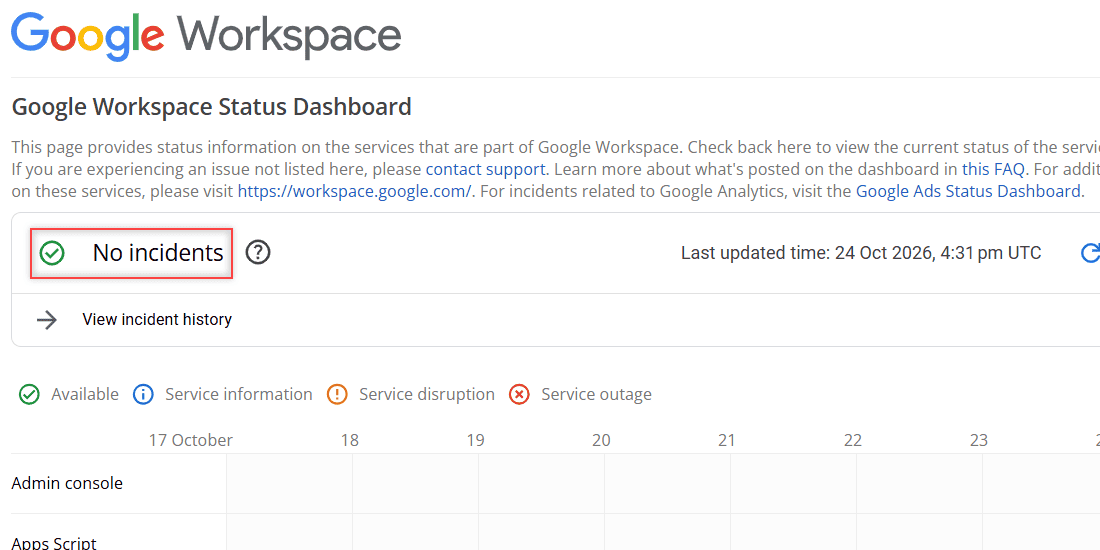
If Google lists an incident, there’s nothing for you to fix. Wait, then reload. If you’re also getting server errors in Drive, the same check applies.
What about File Explorer and Finder?
If your blank icons are in File Explorer or Finder through Drive for desktop, that’s a different piece of software from Drive on the web. I checked Google’s Drive for desktop help page, and it doesn’t cover thumbnails in File Explorer or Finder.
I couldn’t verify a Google-backed fix, so I’m not going to hand you one. If you’re having wider trouble with the app, start with a clean install of Drive for desktop, and confirm your files look right on drive.google.com first.
Still no thumbnails? How to narrow it down
If you’ve reached this point, separate the picture from the file. If the file opens, your data’s fine. Google describes a preview as a scaled-down version of the complete file, and a missing small picture doesn’t change the original.
Here’s the short list I’d run through last:
- Sign out of your Google Account and back in. Google’s video help page suggests this for playback and upload trouble, so it’s a reasonable last try here.
- Try a file you own and a file someone shared with you, to see whether only one kind is affected.
- Upload one ordinary JPG as a test. If that gets a thumbnail, your browser is fine and the other files are the issue.
- Double-check that a document you cannot access isn’t the real problem behind the blank card.
As for account types, none of the Google pages I checked treat thumbnails differently for personal accounts and Google Workspace accounts. Where a difference exists, it’s about who controls the browser, so on a managed computer your IT team may have to make the change.
A few more Drive guides that may come in handy while you’re tidying up:
- What to do when files seem to be missing
- Find a folder you have lost track of
- Browse all my Google Drive tutorials
Another Drive problem I get asked about is a trash that won’t clear. My post on why Google Drive trash is not emptying explains what’s likely going on and what to try when the space doesn’t come back right away.
More about this error
Why are my Google Drive files showing icons instead of pictures?
Most likely you’re in List layout, which shows small file-type icons. Switch to Grid layout using the toggle at the top right of the file area.
Does Google Drive show thumbnails for HEIC photos?
In my test, yes. Real HEIC files got normal thumbnails in Grid layout. Google doesn’t publish a list of thumbnail-supported types, so I can only speak to what I saw.
Why is my CAD file blank in Google Drive?
A real .dwg file showed a blank white thumbnail area in my demo account. Export a PDF or PNG from your CAD app if you want something visual on the card.
Does Google say what browser settings Drive needs?
Yes. It asks for cookies and JavaScript to be turned on and recommends one of the two most recent browser versions, as explained in Google Drive system requirements.

I am Carissa Gudinoa, a technology buff, and Office online and Apple expert with over 9 years of experience. I am passionate about helping others get the most out of their Apple devices. I have written extensively about Apple products and technologies. I am committed to providing my clients with the best possible service and am always up-to-date on the latest Apple products and features. I also write extensively on other software available for use at minimal cost or free. This includes Word Online, Outlook Online, Excel Online, and other Office online programs… Check out more.