
Yesterday I sent a quote called “Riverside Cafe – patio planter quote (wrong total)” and spotted the bad number the second it left my outbox. I opened it in Sent Items, picked Recall message, and less than a minute later Outlook mailed me a report saying it was pulled back.
In this tutorial, I’ll show you how to recall an email in Outlook on the web and in new Outlook, where the same command lives in classic Outlook for Windows, and how to replace a message with a corrected copy.
I’ll also walk through the recall report and set up Undo send, so the next slip never leaves your mailbox.
One thing up front: recall only works for Microsoft 365 work or school accounts, and only for people inside your own organization. If you use a personal Outlook.com or Hotmail address, skip to Method 3.
Method 1: Recall a message in Outlook on the web or new Outlook
I tested this in Outlook on the web with my demo work mailbox on November 3, 2026. New Outlook for Windows uses the same menus, so the steps match there too. If you’re still finding your way around the web version, my Outlook on the web guides cover the basics.
- Go to Sent Items in the left folder pane.
- Open the message you want to pull back. Microsoft suggests double-clicking it so it opens in its own window.
- Select … (More actions) at the top right of the message.
- Point to Advanced actions, then select Recall message.
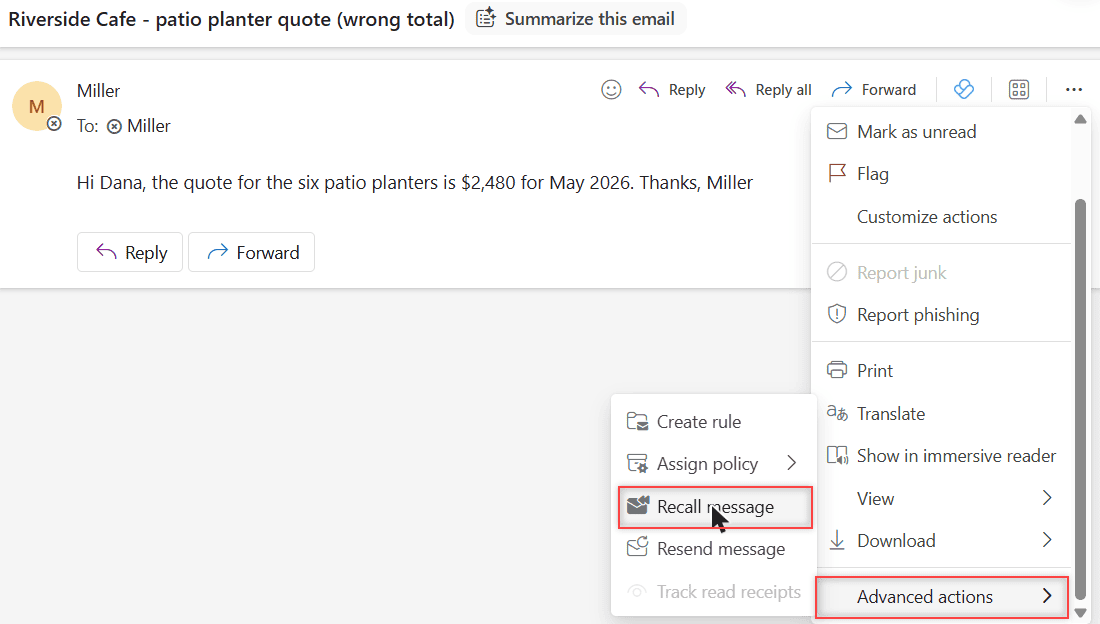
In a message that’s open in its own window, Microsoft’s steps say you can also select Recall Message right on the ribbon. Either way, you land on the same dialog.
The Recall message dialog says: “Recalling this message will delete it from the mailboxes of all recipients.” Below that are two choices:
- Only recall this message deletes the copy your recipients got. Nothing new is sent.
- Recall and open this message as a draft deletes their copy and opens your message again as a draft, so you can fix it and send a corrected version.
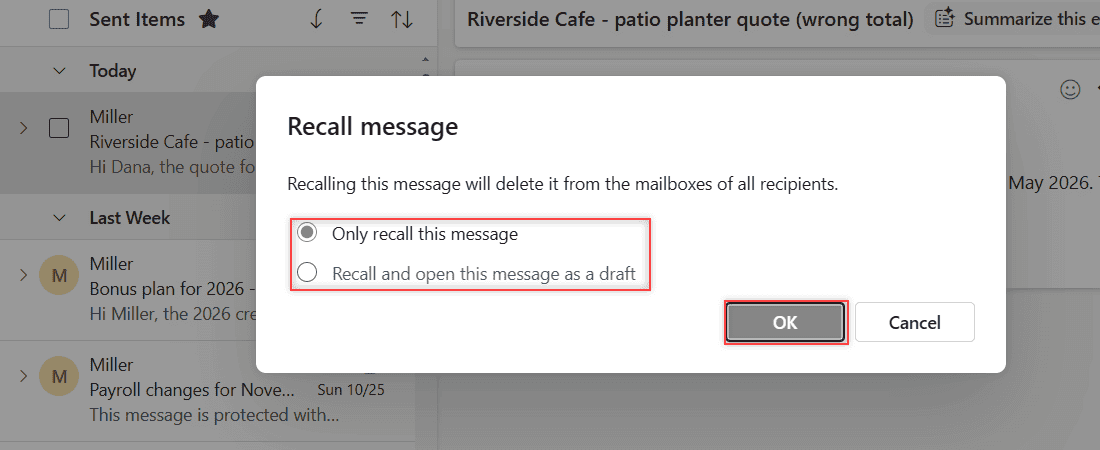
I left Only recall this message selected and clicked OK. If you pick the draft option instead, correct the total (or add the attachment you forgot), then select Send.
How does this work?
Work and school mailboxes use what Microsoft calls Cloud-based Message Recall. When you click OK, Outlook sends a hidden recall request, and a service inside Exchange Online deletes the original from each recipient’s mailbox. Your recipient doesn’t get a “Recall:” email in their Inbox; the message simply goes away.
When you choose the draft option, the recall deletes the original first, and then Outlook sends your new version as a normal email. That’s why the corrected copy shows up as a brand-new message for the recipient.
Pro tip: Before you hit Recall, check whether you forwarded the email to anyone yourself. Microsoft says copies a recipient forwards by hand, or through an Inbox rule, can’t be recalled.
Method 2: Recall This Message in classic Outlook for Windows
My screenshots are from Outlook on the web, but plenty of offices still run classic Outlook for Windows. The command there is called Recall This Message, and these steps come straight from Microsoft Support.
- Select the Sent Items folder.
- Double-click the message to open it. Selecting it in the Reading Pane isn’t enough; the recall command only appears in the opened message.
- On the Simplified Ribbon, go to the Message tab, select More commands (…), point to Actions, and select Recall This Message.
- On the Classic Ribbon, go to the Message tab and, in the Move group, select More Move Actions > Recall This Message.
- Choose Delete unread copies of this message or Delete unread copies and replace with a new message, then select OK.
- If you picked replace, edit the message that opens and select Send.
If Recall This Message isn’t there at all, Microsoft says you probably don’t have an Exchange account, or your organization hasn’t turned the feature on.
Classic Outlook also can’t recall in Online mode or when the profile holds more than one Exchange account. Saving a copy first with these steps to download Outlook mail never hurts.
Method 3: Turn on Undo send so you can stop the next mistake
Recall cleans up after the fact. Undo send stops the email before it ever leaves, and it works for personal Outlook.com accounts too. I set it up right after my recall test.
- Select Settings (the gear icon) at the top right of Outlook on the web.
- Go to Mail > Compose.
- Find Undo send and drag the slider. Mine went from 0 to 30 seconds.
- Select Save.
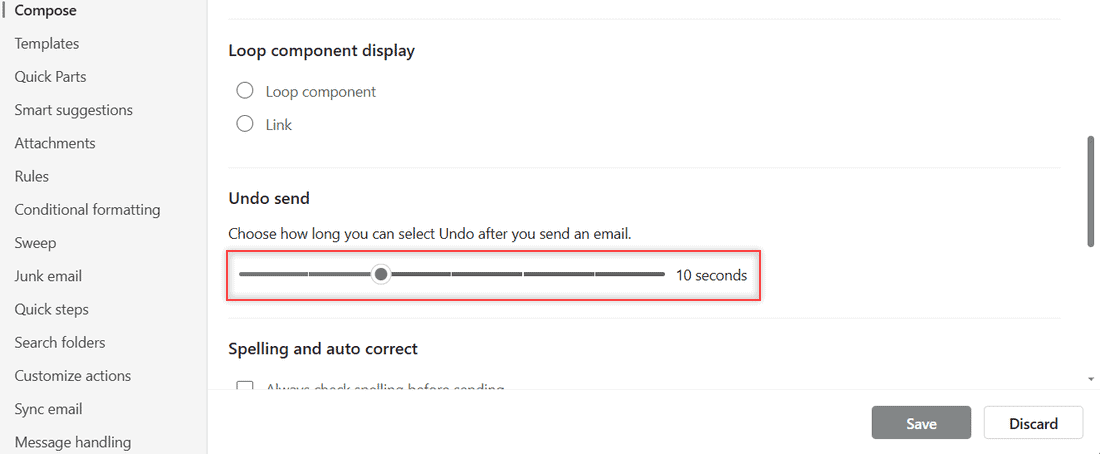
When I pushed the slider past 10 seconds, Outlook showed a warning: “Recommended delay: up to 10 seconds.” I settled on 10 seconds and saved. Now every time I send, an Undo prompt sits at the bottom of the message list for that long.
How does this work? Outlook simply holds the message for the delay you picked before handing it to the mail server. Click Undo in that window and the email lands back in your drafts, unsent. It pairs nicely with Inbox rules in Outlook on the web if you like keeping your mailbox on autopilot.
What the Message Recall Report tells you
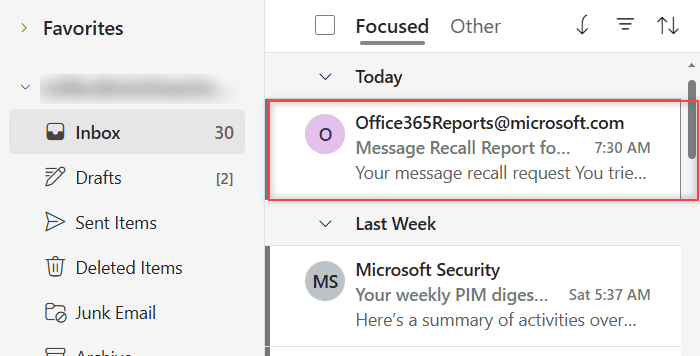
Within a minute of clicking OK, an email arrived from Office365Reports@microsoft.com. The subject was “Message Recall Report for message:” followed by my original subject in quotes.
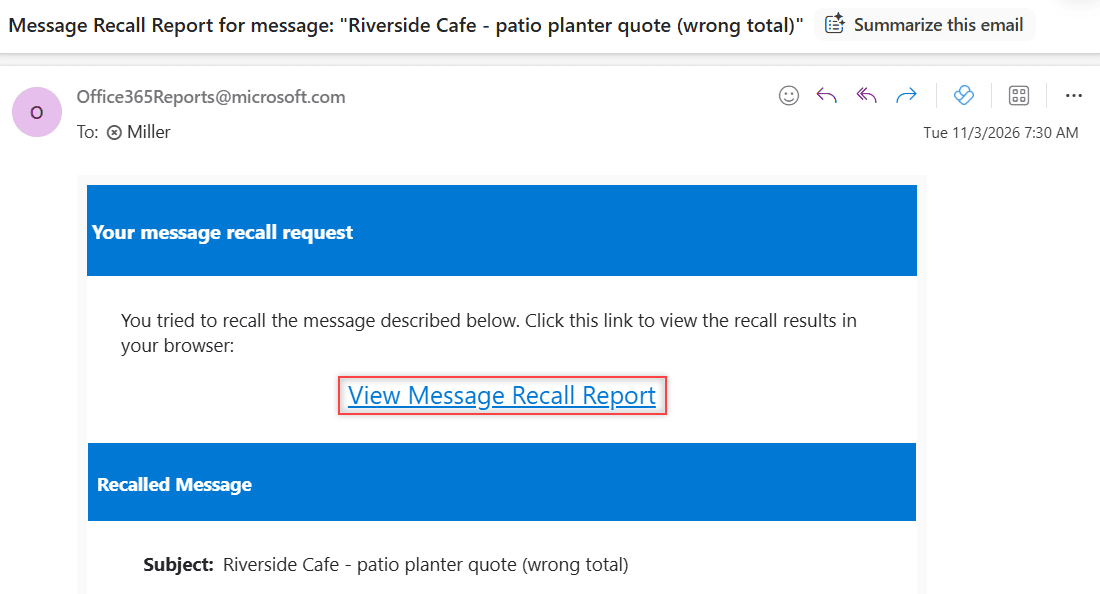
Inside, the heading reads Your message recall request. Under it there’s a View Message Recall Report link, and further down a Recalled Message section that lists the subject, so you know which email the report is about.
The link opens a page in your browser, and you have to sign in with the same work account. That page shows the status for each recipient: whether the recall succeeded, is still pending, or failed.
Since I sent the test email to myself, I was also the recipient, so I could check the result in my own Inbox. Under Today, the only message left was the recall report from Office365Reports@microsoft.com at 7:30 AM. The wrong-total quote was gone.
Microsoft says status usually shows up within a few minutes. For a message sent to tens of thousands of people it can take around half an hour, and the service keeps retrying a stuck recipient for up to 24 hours before it marks that one as failed.
If the report never shows up, check your Junk folder and any rules you’ve set. Make sure nobody added Office365Reports@microsoft.com to a blocked senders list in Outlook, because Microsoft sends every report from that address.
When recall fails and what to send instead
Recall isn’t magic. It won’t reach anyone outside your company’s Exchange Online organization, so a message that went to a Gmail, Yahoo, or personal Outlook.com address stays put. The same goes for copies that were forwarded by hand or by an Inbox rule.
Microsoft’s support page also says recall works only if the recipient hasn’t opened the message. With cloud recall, though, your IT admin decides whether already-read messages can be pulled back, so a read email may or may not disappear depending on that setting.
When the report says Failed, don’t send a second recall. Send a short, calm follow-up instead. Here’s the one I keep as a template:
Subject: Correction: Riverside Cafe - patio planter quote

Hi Dana,
Please ignore my earlier email. The total in it was wrong.
The correct quote for the six patio planters is in this message.
Sorry for the mix-up!
Carissa
If the wrong email held something sensitive, mark the correction with a sensitivity level using my guide to confidential emails. For a branded follow-up you send often, save it as an HTML email template in Outlook so it’s ready in seconds.
Things to keep in mind before you count on recall
- Work or school accounts only. Recall isn’t available for addresses ending in @outlook.com, @hotmail.com, @live.com or @msn.com. Use Undo send there.
- Same organization. Recipients must be in your Microsoft 365 organization. Some companies allow recall between partner tenants, but only when the receiving admin approves it.
- Your admin sets the rules. Admins can turn recall off, block recall of read messages, and set a maximum message age. The default age limit is 365 days.
- Protected mail is limited. Microsoft Support says messages protected by Azure Information Protection can’t be recalled. Encrypted mail can be recalled from Outlook on the web or new Outlook only if the sender has the Premium Encryption plan.
- Recipients may not notice. Recipient notifications are off unless your admin turns them on, so a recalled email just disappears.
I also keep my Sent Items tidy so I can find a message fast in a panic. My notes on how to sort folders in Outlook online help with that, and turning on automatic replies in Outlook before a trip saves me from rushed emails in the first place.
A few more Outlook tricks I lean on every week:
Frequently Asked Questions
Can I unsend an email in Outlook after it has been delivered?
Only with recall, and only for recipients inside your Microsoft 365 organization. Undo send works before delivery, during the delay you set (up to 30 seconds).
Can I recall an email I sent to a Gmail address?
No. Recall can’t reach mailboxes outside your Exchange Online organization, so Gmail, Yahoo and other outside recipients keep the message. Send a short correction email instead.
Does the recipient know I recalled an email?
By default, no. The original message just disappears, unless your admin turned on recall notifications for recipients.
Why is Recall message missing in my Outlook?
You may be signed in with a personal Outlook.com account, or your organization may have turned recall off. Microsoft lists every requirement in Microsoft Support: Recall or replace an email message.
How long do I have to recall an email in Outlook?
Cloud recall works on messages up to 365 days old by default, though your admin can shorten that. In practice, the sooner you recall, the better.

I am Carissa Gudinoa, a technology buff, and Office online and Apple expert with over 9 years of experience. I am passionate about helping others get the most out of their Apple devices. I have written extensively about Apple products and technologies. I am committed to providing my clients with the best possible service and am always up-to-date on the latest Apple products and features. I also write extensively on other software available for use at minimal cost or free. This includes Word Online, Outlook Online, Excel Online, and other Office online programs… Check out more.