
To stop Drive emails, go to drive.google.com, click the Settings gear, then Settings > Notifications, and uncheck the email box. For one noisy Google Doc, open it and choose Tools > Notification settings > None.
In this tutorial, I’ll show you how to turn off Google Drive notifications on a computer, for a single file, in the Drive app on your phone, and in Google Chat.
Turn off Drive email notifications on a computer
At Bluebird Landscaping Co., my inbox was filling up with Drive updates every time the crew shared a schedule. Here’s the switch I flipped in my test account.
- Go to drive.google.com.
- At the top right, click the Settings gear, then click Settings.
- On the left, click Notifications.
- Under Email, uncheck Get all updates about Google Drive items via email.
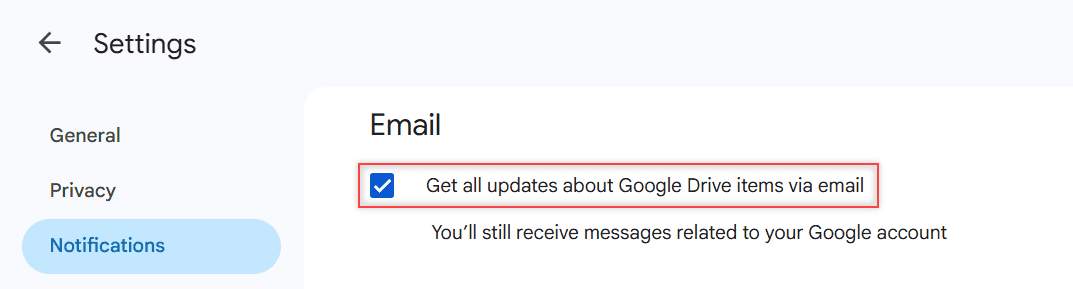
My personal account shows just this one checkbox. Google notes you’ll still receive messages related to your Google account, so security emails keep coming.
One catch from Google’s help: if you use Drive on more than one computer, change the setting on each one.
Looking for the opposite, an alert when someone drops a file in a folder? Drive has no switch for that, but I explain the options in my guide to getting notified when a file is added to a folder.
Mute comment and edit emails for one Google Doc
Sometimes only one file is the problem. Our Hillcrest HOA Proposal 2026 doc gets dozens of comments a day, but I still want alerts from everything else.
- Open the doc on your computer.
- Click Tools > Notification settings.
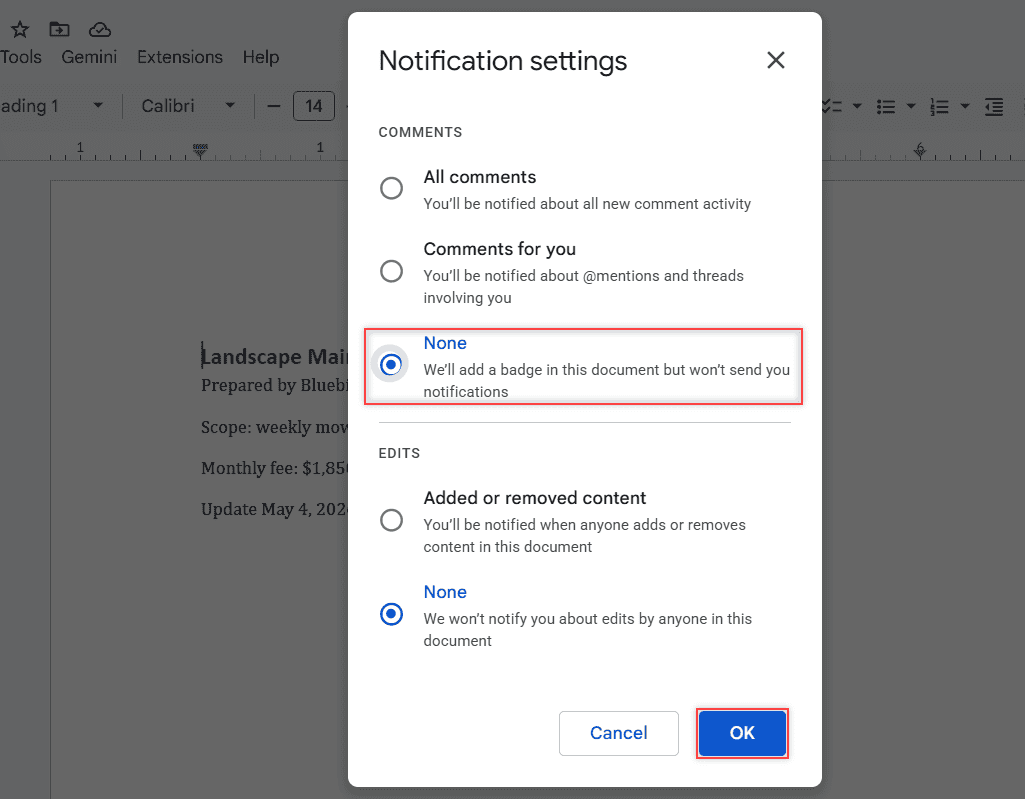
- Under Comments, choose None.
- Under Edits, choose None, then click OK.
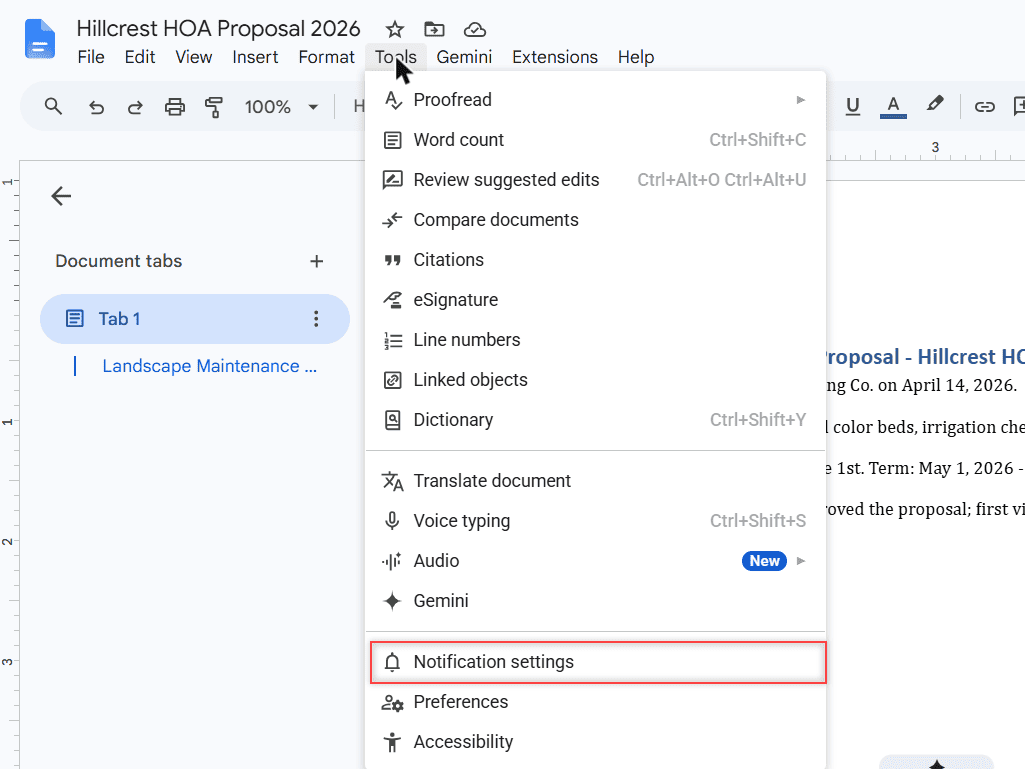
The dialog gives three comment choices. All comments sends everything, Comments for you covers @mentions and threads involving you, and None just adds a badge in the document.
This change only applies to the file you’re on. Google Sheets works a little differently: edit alerts live under Tools > Notification settings > Edit notifications. Slides only has the comment options.
If the comments come from people you’d rather not share with anymore, it may be time to unshare the folder in Google Drive instead.
Turn off notifications in the Drive app on Android or iPhone
Phone alerts are set inside the Drive app. I don’t have Android or iPhone shots for this one, so these steps follow Google’s help page.
On Android
- Open the Google Drive app.
- Tap the Menu icon at the top left, then tap Settings.
- Tap Notification settings and turn off what you don’t want.
Changing these settings in the Docs, Sheets, or Slides apps also changes them for Drive.
On iPhone or iPad
- Open the Drive app, tap Menu, then Settings.
- Tap Notifications.
- Switch Notifications Enabled off, or keep it on and turn off Shared items, Request for access, Comments, or Approvals.
Those individual switches only work while Drive notifications are allowed in your iPhone settings. If you’re handing the phone to someone else, you can also sign out of Google Drive on iPhone.
Stop Drive messages in Google Chat or Gmail
This one applies to work and school accounts. Some organizations let you add the Google Drive app to Google Chat, which then messages you about shares, mentions, access requests, and storage alerts.
- Open Google Chat or Gmail on your computer.
- Send any direct message, like “hello”, to the Google Drive app.
- In its reply, click Turn Off Notifications.
To turn them back on later, send the Drive app another message. I couldn’t test this part, since my demo is a personal account without the Drive app in Chat.
When Drive emails still don’t stop
- Check every computer. The Drive setting is per computer, so a laptop you rarely use may still have it on.
- Check the right account. If you’re signed in to two Google accounts, open Settings in the one getting the emails.
- Strangers keep sharing files? That’s spam, not a setting. Here’s how to stop getting spam on Google Drive.
- Pop-ups from the desktop app? Those may be sync messages. See how to turn off Google Drive sync.
And if a work account still sends Drive emails after all this, your Google Workspace admin may manage some of these settings, so ask them.
If you spend a lot of time cleaning up Drive, these guides are next
- Check recent activity on Google Drive
- Remove shared files from Google Drive
- Remove suggested files in Google Drive
- See who has viewed a Google Doc
Quick answers
What does Google Drive send notifications about?
Google lists three things: someone shares a new file or folder with you, someone mentions you in a comment or action item, and someone requests access to a file you own. Google Drive Help: Get Google Drive notifications has the full details.
How do I turn off Google Doc notifications?
Open the doc, click Tools, then Notification settings, and choose None under Comments and Edits. Click OK. It only affects that one document.
If you remove someone from a Google Drive file, are they notified?
Removing access isn’t one of the events Google lists for Drive notifications. The person just won’t be able to open the file anymore.
Will turning off Drive emails stop security alerts from Google?
No. Google says you’ll still receive messages related to your Google account even after you uncheck the Drive email box.

I am Carissa Gudinoa, a technology buff, and Office online and Apple expert with over 9 years of experience. I am passionate about helping others get the most out of their Apple devices. I have written extensively about Apple products and technologies. I am committed to providing my clients with the best possible service and am always up-to-date on the latest Apple products and features. I also write extensively on other software available for use at minimal cost or free. This includes Word Online, Outlook Online, Excel Online, and other Office online programs… Check out more.