
Got a file in Google Drive that you need to send from Gmail? You don’t have to download it first. The Drive icon in the compose window lets you pick the file and add it as a link or, for many file types, as a regular attachment.
In this tutorial, I’ll show you how to attach google drive files in gmail both ways, why a Google Doc only goes as a link, what Gmail checks when you send, and how it works on a phone.
My sample is a draft for my landscaping demo business, Bluebird Landscaping Co., with the subject Hillcrest HOA fall cleanup proposal.
Method 1: Insert the file as a Drive link
A link is the option that works for every file in your Drive. Here’s how I added my price list:
- Open Gmail and click Compose.
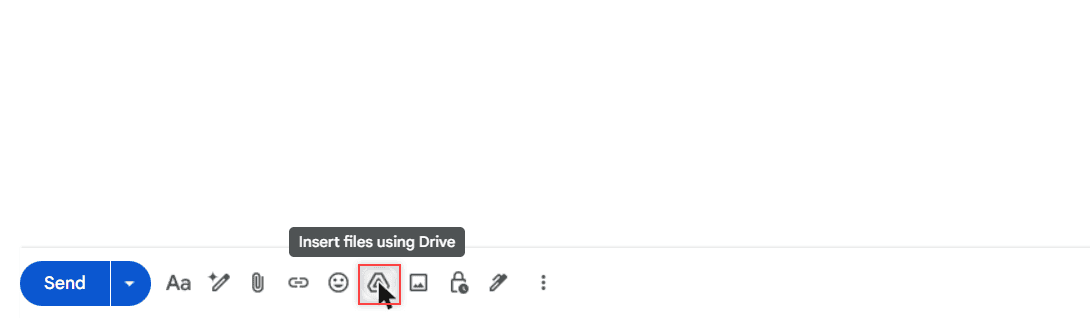
- In the toolbar at the bottom of the message, click the Drive icon. Its tooltip says Insert files using Drive.
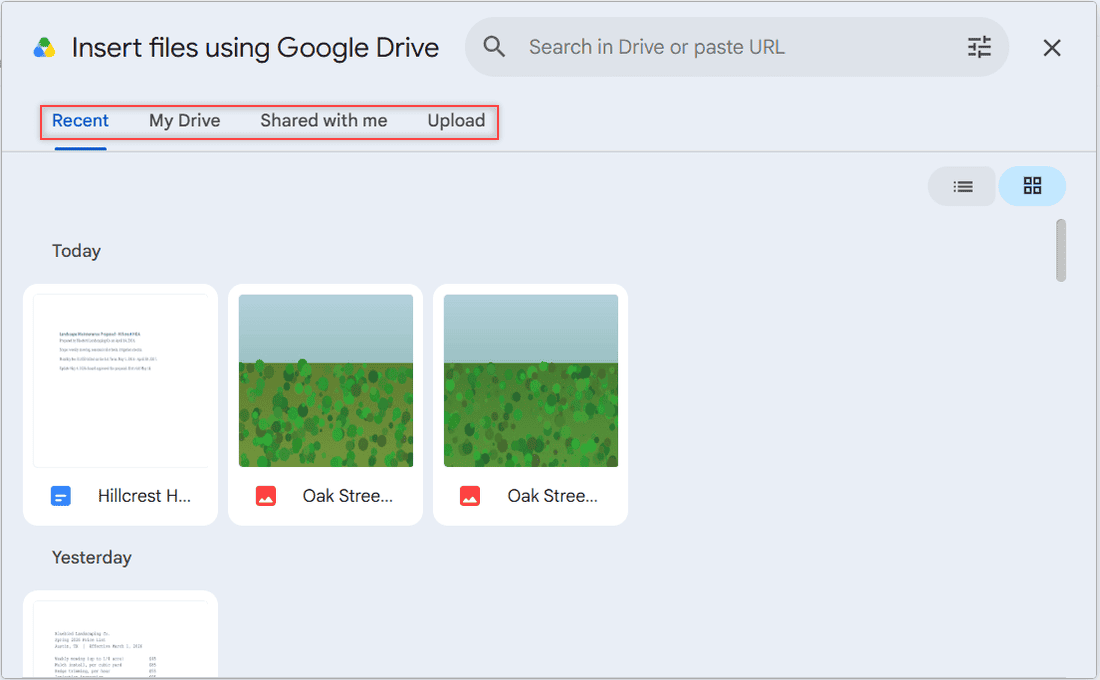
- In the dialog, find your file using the tabs or the search box.
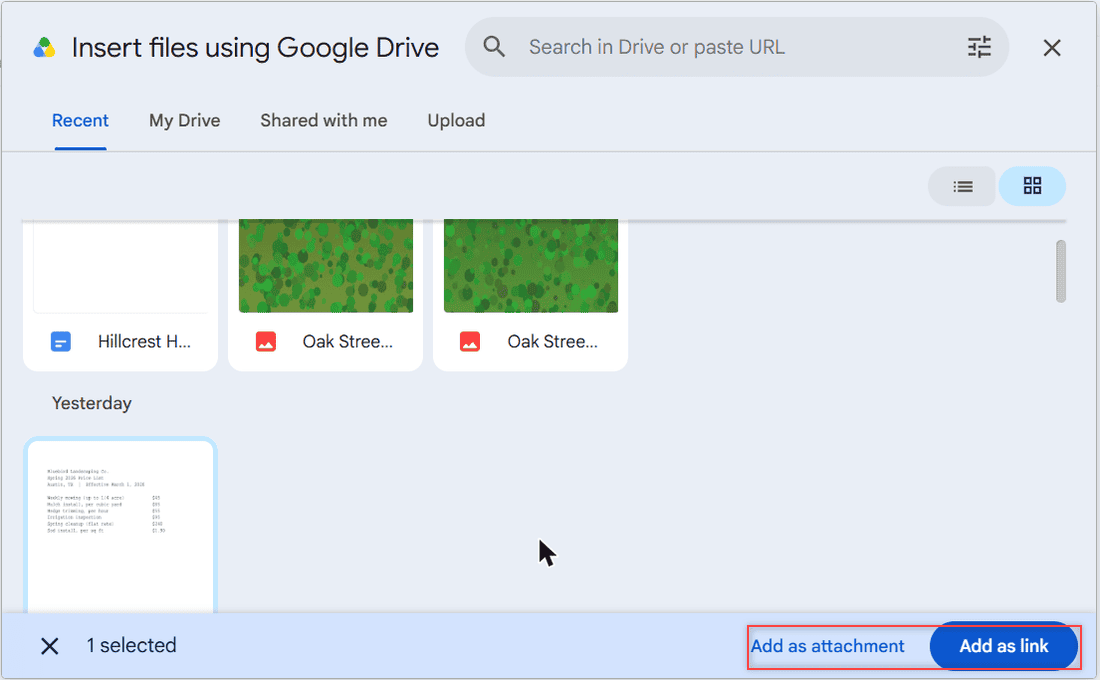
- Click the file so the bar at the bottom shows 1 selected.
- Click Add as link.
The dialog is called Insert files using Google Drive. It has four tabs: Recent, My Drive, Shared with me and Upload. The search box also accepts a pasted Drive URL.
Older guides mention a “Drive link” and “Attachment” options. On my account, those are now two buttons at the bottom right.
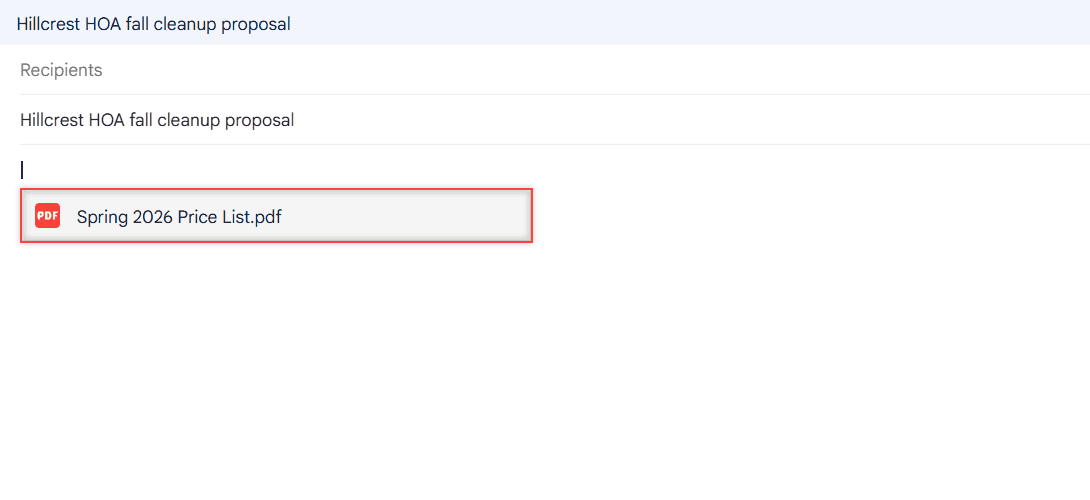
After I clicked Add as link, the draft showed a chip named Spring 2026 Price List.pdf under my cursor.
How does this work? The email carries a pointer to the file in your Drive, not the file itself. So the people you send it to need permission, the same kind you’d set when sharing a file on Google Drive.
Pro tip: Already have the Drive URL copied? Paste it into the search box in the dialog instead of scrolling through your files.
Method 2: Add the file as a regular attachment
If your file is something like a PDF, image or Word document, you have a second choice. The steps are the same as Method 1, but you click Add as attachment at the end.
How does this work? The file travels with the email like one you’d attach from your computer, so nobody needs Drive access to get it. I checked that the button is available for my PDF, but I didn’t click it in my test draft.
Personal Gmail accounts have a 25 MB attachment limit. For anything bigger, use a link, and if the file isn’t in Drive yet, start with how to upload large files to Google Drive.
Why a Google Doc can only go as a link
When I selected my Hillcrest proposal, which is a Google Doc, Add as attachment turned grey. Only Add as link worked.
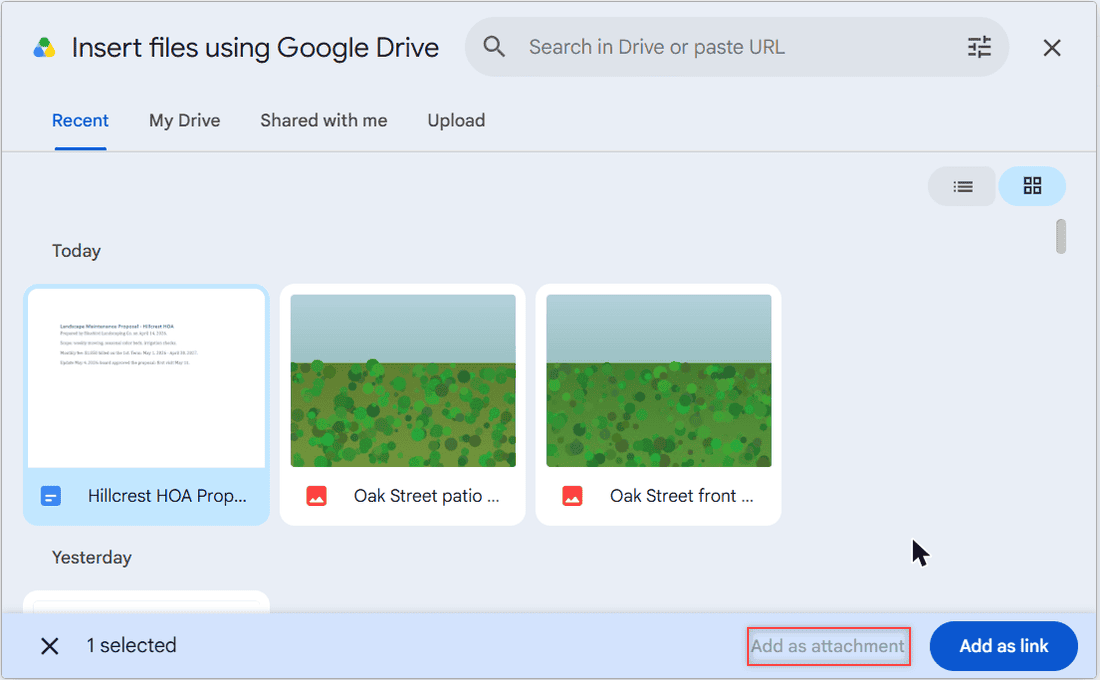
Google’s help explains why: regular attachments only work for files that weren’t created in Google Docs, Sheets, Slides or Forms. Those files live in Drive, so a link is the way to send them.
Going the other way? Here’s how to save an email to Google Drive when a message is worth keeping with your project files.
What Gmail checks when you click Send
I didn’t send my draft, so I haven’t seen this prompt on my demo account. This part comes from Google’s help.
Gmail checks whether your recipients can open the linked file. If they can’t, it asks you to change the sharing settings before the message goes out. You’ll have two main choices:
- Anyone with the link: you choose view, comment or edit, and people don’t need a Google Account. Anyone the email gets forwarded to has the same access.
- Email recipients only: found under More options. People without a Google Account or using a non-Google address may not be able to open a private file.
For a client file, I’d stick with view access. You can read more about turning on link sharing before you pick. If someone still gets blocked, they’ll see the screen I cover in the Google Drive request access guide.
Attach a Drive file from your phone
I didn’t test the phone apps, so these steps are from Google’s help pages.
- Android: in the Gmail app, tap compose, tap the attach option, choose Insert from Drive, pick the file, confirm your selection, and send.
- iPhone or iPad: in the Gmail app, tap compose, tap the attach control, pick your file under the Google Drive section, and send.
Google notes that Gmail Go on Android can’t attach Drive files.
Things to keep in mind
- A link stays tied to the Drive file. If you delete it or remove someone’s access, the link in that email stops working for them.
- Gmail blocks some file types, such as .exe files, as attachments.
- Work and school accounts follow the attachment limit their Google Workspace admin sets, which can differ from the 25 MB personal limit.
- Workspace admins can turn off sharing outside the organization or allow only trusted domains. If Gmail says a file can’t be shared, ask the file owner or your admin.
Here are a few more Drive guides you might want next:
- sharing a whole Google Drive folder
- removing shared files from Drive
- saving a link to Google Drive
- all my Google Drive tutorials
Frequently Asked Questions
Can I attach a Google Doc to Gmail as a file?
Not from the Drive picker. In my test, Add as attachment was greyed out for a Google Doc, so it can only go as a link.
Do recipients need a Google account to open a Drive link?
Not if you choose Anyone with the link. Private files limited to email recipients may not open for people without a Google Account, as Google’s Gmail help explains.
Is there a size limit for Google Drive links in Gmail?
The 25 MB limit applies to regular attachments on personal accounts. Google suggests using Drive for bigger files.
What happens if a file is too big to attach in Gmail?
Gmail automatically removes the attachment and adds the file as a Google Drive link in the email instead.

I am Carissa Gudinoa, a technology buff, and Office online and Apple expert with over 9 years of experience. I am passionate about helping others get the most out of their Apple devices. I have written extensively about Apple products and technologies. I am committed to providing my clients with the best possible service and am always up-to-date on the latest Apple products and features. I also write extensively on other software available for use at minimal cost or free. This includes Word Online, Outlook Online, Excel Online, and other Office online programs… Check out more.