
Yes, you can print Google Drive files from an iPhone, but Google’s own steps for Docs, Sheets, and Slides files run through the Google Docs, Sheets, or Slides app, not the Drive app. You’ll also need a printer your iPhone can reach, which usually means an AirPrint printer on your Wi-Fi.
In this tutorial, I’ll show you how to print from Google Drive on iPhone for each kind of file, what to do with PDFs and photos, how to print from a computer instead, and why Print can be missing when someone else owns the file.
How iPhone printing works with Google files
Your iPhone prints through Apple’s AirPrint. Apple says the printer and your iPhone have to be on the same Wi-Fi network, and printers plugged into an AirPort base station’s USB port or connected over Bluetooth can’t use it.
Google’s help page for iPhone and iPad lists three steps: get the Docs, Sheets, or Slides app, set up printing, then print from your phone. Here’s that page, with the part that’s out of date flagged.
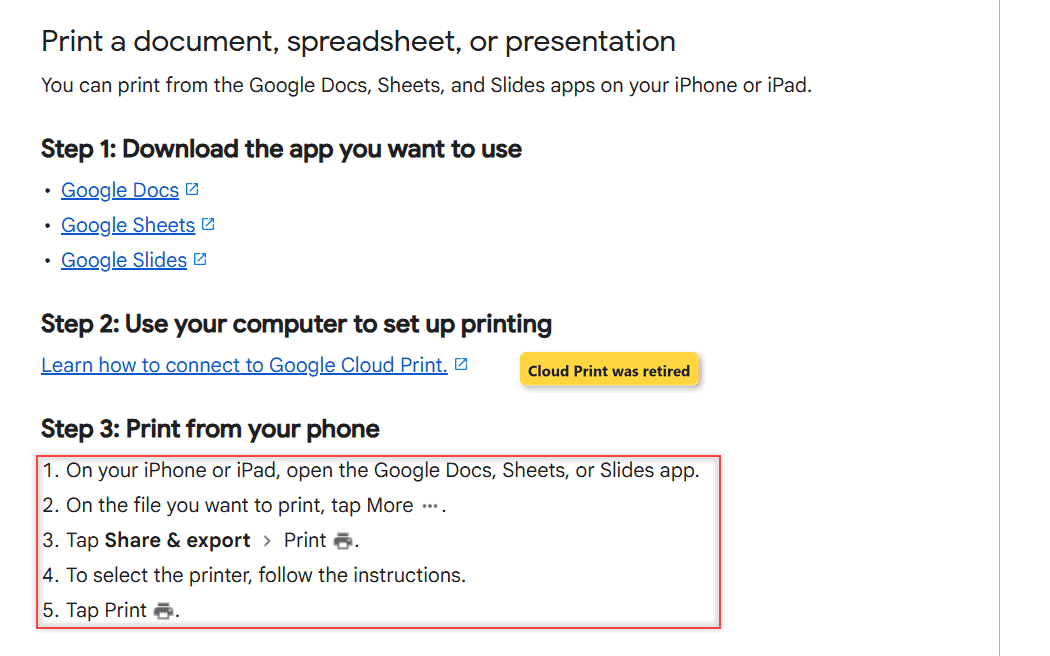
That second step still links to Google Cloud Print. Google retired Cloud Print at the start of 2021 and no longer supports it, so skip any guide that tells you to set it up. AirPrint replaces it on an iPhone.
If you’d rather keep a copy on the phone before printing, I’ve covered how to save files from Google Drive to your phone too.
Print a Google Doc, Sheet, or Slides file from the app
Google Docs, Sheets, and Slides files live in Drive, but they open in their own apps. That’s where Google puts the Print option. If the split between the two confuses you, here’s the difference between Google Drive and Google Docs.
- On your iPhone, open the Google Docs, Sheets, or Slides app.
- Find the file you want to print and tap More on it.
- Tap Share & export, then tap Print.
- Pick your printer when iOS asks. Apple’s steps have you tap No Printer Selected and choose an AirPrint printer.
- Set the number of copies or the pages you want, then tap Print.
Here’s how the route changes by file type, based on Google’s Docs and Drive help pages for iPhone:
| File in your Drive | Open it in | Where Print is |
|---|---|---|
| Google Docs file | Google Docs app | More > Share & export > Print |
| Google Sheets file | Google Sheets app | More > Share & export > Print |
| Google Slides file | Google Slides app | More > Share & export > Print |
| PDF, Word file, or image | Drive app, then another app | More > Open in, then that app’s share menu |
The steps are the same for a personal Gmail account and a work or school account. Google’s print page doesn’t list any difference between them.
PDFs, photos, and other files stored in Drive
Google’s Drive help for iPhone doesn’t describe a Print button inside the Drive app. What it does describe is getting the file out of Drive and into an app that can print it.
- Save it to Files: tap More next to the file, then Open in > Save to Files, choose a folder, and tap Save.
- Open it in another app: tap More > Open in and pick the app, such as your printer maker’s app if you’ve installed one.
- Photos and videos: tap Send a copy, then Save image or Save video. For a batch, see how to save several Drive photos to your iPhone.
Once the file is in an app with Print in its share or actions menu, Apple’s AirPrint steps take over. If the file won’t open on your phone at all, my guide to opening unsupported files in Google Drive can help.
No printer near your phone? Print from a computer
Sometimes the printer is at the office and only a laptop is connected to it. In that case I skip the phone and print from Drive in a browser. Here’s a PDF from my demo Drive for Bluebird Landscaping Co., a made-up lawn care business.
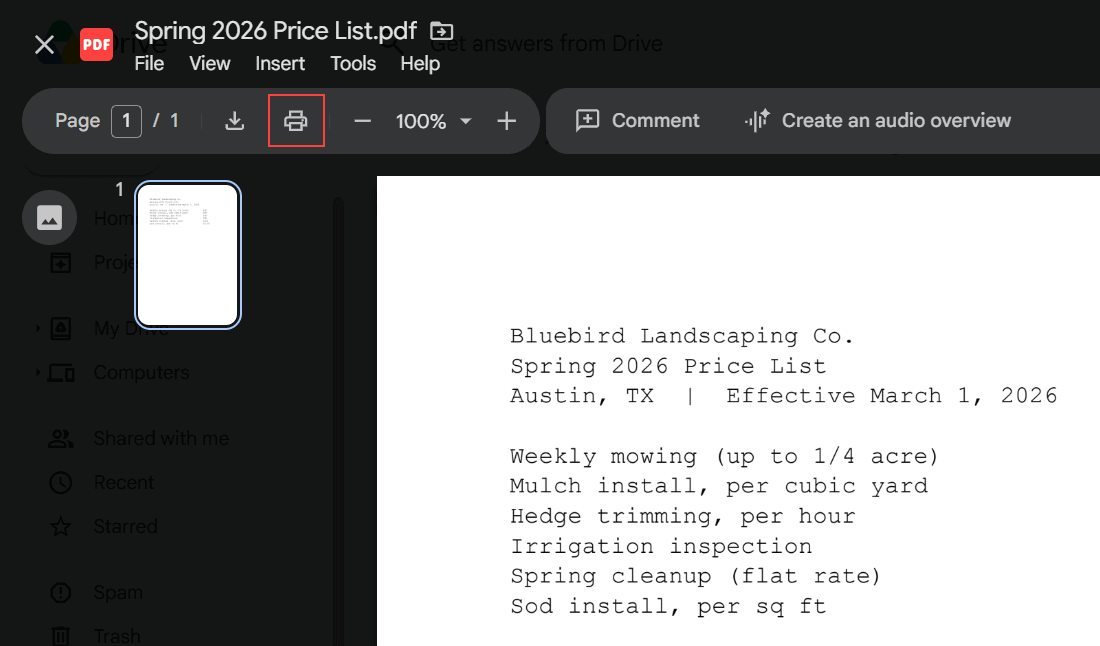
When you open a PDF preview at drive.google.com, the Print icon sits in the top toolbar. Click it and your computer’s normal print dialog opens.
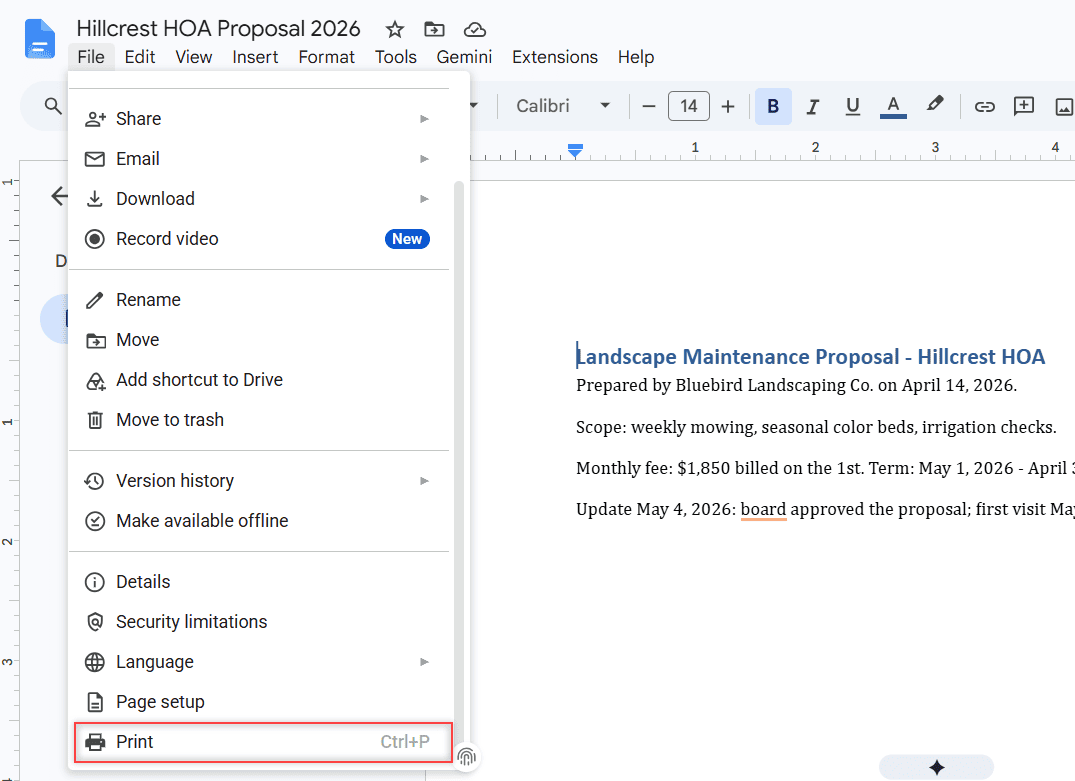
For a Google Doc, open it in the browser and go to File > Print, or press Ctrl+P on Windows (Command+P on a Mac). Sheets and Slides have the same File menu option.
Need a stack of files on paper? You can also print an entire folder from Google Drive from a computer.
When the owner turned off printing, and what to do
This is the part most guides miss. If someone shared a file with you as a viewer or commenter, the owner can hide download, print, and copy for those roles. Then you won’t get a Print option on your iPhone or anywhere else.
Here’s where the owner controls it, in Share > Settings. When Commenters and viewers is unchecked, people with those roles can’t print the file.
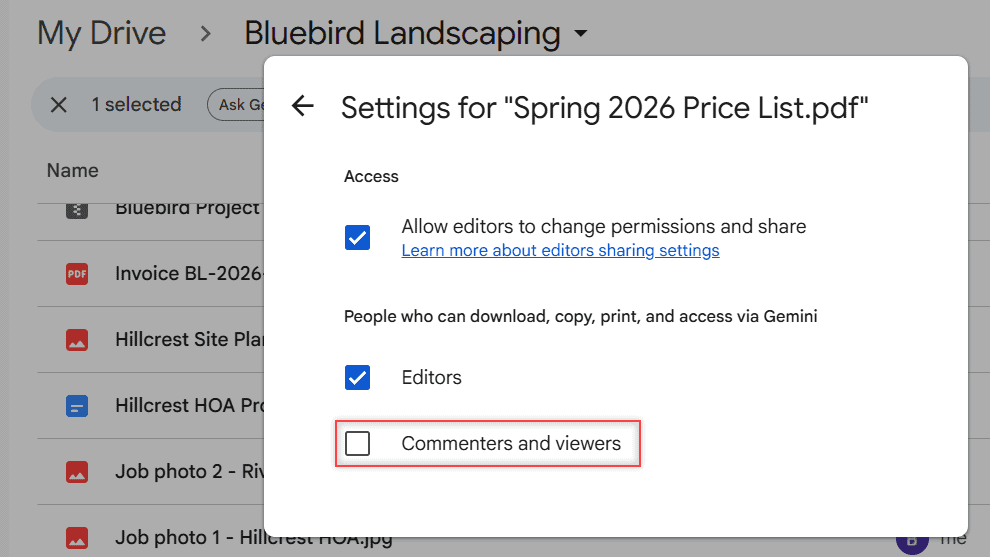
If you’re the viewer, the only right move is to ask the owner. They can recheck that box, give you editor access, or send you a printed copy. I explain the printing is disabled for this file message in more detail.
A request for access in Google Drive is a quick way to reach them.
On work or school accounts, your administrator may also limit how files are shared. If Print is missing on a company file you own, check with your IT team.
Why your printer doesn’t show up on the iPhone
If the printer list is empty after you tap Print, the problem is almost always the connection, not Google. These are the checks from Apple’s AirPrint article:
- Make sure the printer supports AirPrint.
- Put the printer and your iPhone on the same Wi-Fi network.
- Don’t rely on a printer attached by Bluetooth or plugged into an AirPort base station’s USB port.
If none of that helps, the printer maker’s own app is your best bet, using the Open in option above.
A few more iPhone and sharing guides you might want next:
- what viewers can download in Google Drive
- turn off downloads for your own files
- sign out of Google Drive on iPhone
- fix Google Drive not uploading from your phone
Common questions
Can I print straight from the Google Drive app on iPhone?
Google’s help pages only describe printing from the Docs, Sheets, and Slides apps. For other files, use Open in from the Drive app to move the file to an app that has Print in its share menu.
Does Google Cloud Print still work for iPhone printing?
No. Google says Cloud Print was deprecated in January 2021 and is no longer supported, so use an AirPrint printer or your printer maker’s app instead.
Why is Print missing in Share & export?
If someone else owns the file and you’re a viewer or commenter, the owner may have turned off printing. Ask them to allow it or to change your access.
How do you print a Google Doc from a computer?
Open the file in your browser, then choose File > Print. Google’s steps are on the Google Docs Editors Help print page.
Does my printer need AirPrint to print from an iPhone?
For iPhone’s built-in printing, yes. Apple’s AirPrint guide also says the printer and iPhone must share a Wi-Fi network.

I am Carissa Gudinoa, a technology buff, and Office online and Apple expert with over 9 years of experience. I am passionate about helping others get the most out of their Apple devices. I have written extensively about Apple products and technologies. I am committed to providing my clients with the best possible service and am always up-to-date on the latest Apple products and features. I also write extensively on other software available for use at minimal cost or free. This includes Word Online, Outlook Online, Excel Online, and other Office online programs… Check out more.