
A friend who runs a small cleaning business texted me last week: she had a folder of job photos on her Android phone and couldn’t find any way to send the whole thing to Drive. She kept tapping around the app looking for a folder option that just isn’t there.
In this tutorial, I’ll show you how to upload a folder to Google Drive on Android anyway, with three ways that work: rebuilding the folder in the app, sending it as a ZIP, or finishing the job on a computer. I’ll also cover the settings that quietly stall big uploads.
Accept that the Android app uploads files, not folders
Why: Google’s own Android steps for the Drive app only cover files. You open the app, tap Add (the plus button), tap Upload, and pick the files you want. There’s no folder option in those steps, and Google documents folder upload for computers only.
How: stop hunting for a hidden setting. Decide up front which method fits your folder. A flat folder of photos or PDFs is easy to rebuild in the app. A folder with lots of subfolders is easier to zip or upload from a computer.
A quick note on how I wrote this: I didn’t test on an Android phone. The phone steps below come straight from Google’s help, and I ran everything on the computer side in my own Drive.
Before you pick a method, get a rough idea of how big the folder is. My guide to checking folder size in Google Drive helps you plan for big ones, since a few gigabytes of video changes which method makes sense.
Rebuild the folder in the app, then upload the files into it
Why: this keeps everything on your phone and gives you a real Drive folder with the same name. The old version of this post said you could only upload one file at a time this way. That isn’t true; Google’s steps say to select your files, and you can pick several at once.
How, in the Drive app:
- Tap Add (the plus button) and choose Folder.
- Type the folder name and create it.
- Open the new folder.
- Tap Add again, then Upload.
- Select all the files you want from the folder on your phone and confirm.
The naming step works the same way on the web, where the dialog looks like this:
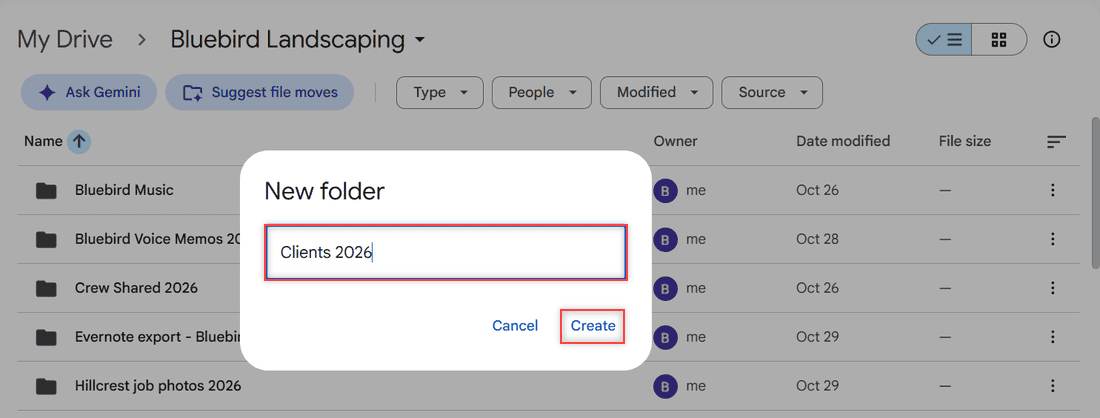
Because you uploaded from inside the folder, the files land there. Google notes that uploads from the app go to My Drive until you move them, so starting inside the folder saves a cleanup step later. If you skip that, selecting multiple files in Google Drive makes the move quick.
Recreate subfolders one level at a time
If your folder has subfolders, repeat the same steps inside it. Create each subfolder, open it, and upload its files. Here’s a nested setup I built for two client jobs:
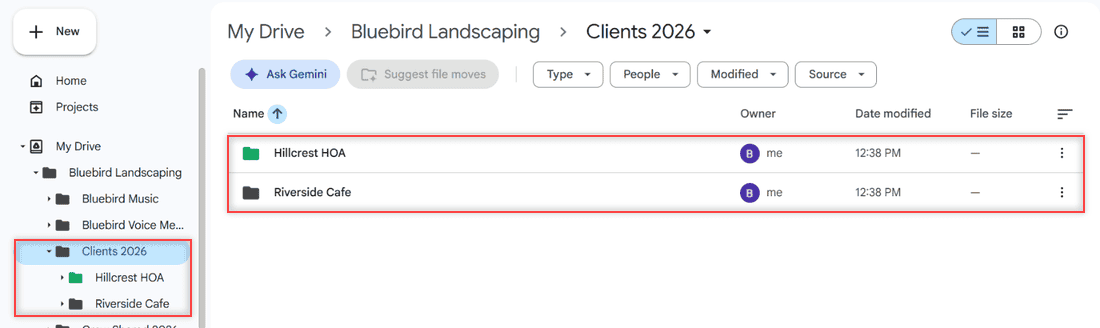
It’s slow past two or three levels, which is your cue to use one of the other methods. My guide on how to create subfolders in Google Drive covers the folder side in more detail.
Zip the folder when you need everything in one upload
Why: a ZIP file is a single file, and the Android app uploads files just fine. It’s the quickest way to move a folder with lots of subfolders from your phone in one go.
How: open your phone’s Files app, long-press the folder, and look for an option to compress it. The menu name depends on your phone maker and Files app, so it may say Compress, Zip, or something close. Then upload the ZIP with Add > Upload in Drive.
There’s a catch. Drive won’t unzip the file for you. Its preview only lists what’s inside, and you have to download the ZIP and extract it to get the folder back. My guide on how to view ZIP files in Google Drive shows what that preview looks like.
Use this when the folder is mostly a backup or a hand-off. If you or a coworker need to open single files in Drive every day, rebuild the folder or use a computer instead.
Use a computer when you need the real folder in Drive
Why: this is the only method Google documents for uploading a folder as a folder. Drive keeps the names and the subfolders exactly as they were.
How: copy the folder from your phone to a computer first, with a USB cable or however you normally move files, then open drive.google.com. Click New and choose Folder upload. The menu also shows a keyboard shortcut, Alt+C then I, if you upload a lot.
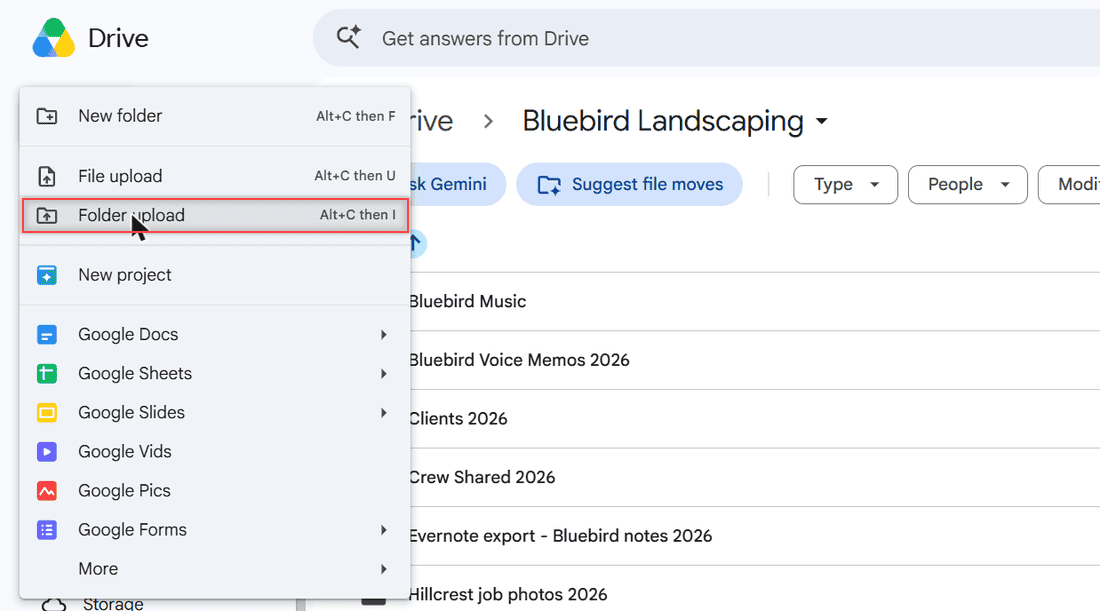
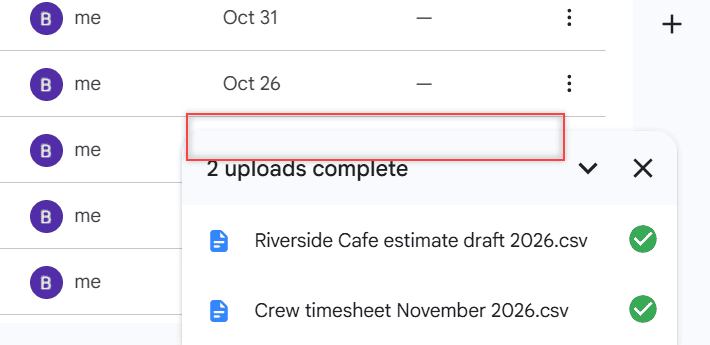
You can also drag the folder from your computer straight into the Drive window. Either way, the upload panel at the bottom right shows each file and a green check when it’s done:
If you’d rather skip the browser, Drive for desktop adds a Google Drive folder to your computer, and you can drag the folder into it. My guide on how to install Google Drive on your computer walks through the setup, and very big folders go smoother with my tips to upload large files to Google Drive.
Check Wi-Fi and storage before a big upload
Why: a whole folder of photos or videos is a lot of data. Two settings decide whether it moves at all: the Wi-Fi-only option and your free storage.
How: in the Drive app, open Settings and look under Data usage for Transfer files only over Wi-Fi. When it’s on, uploads wait until you join Wi-Fi. Google only shows this option when your phone can use mobile data, so if you don’t see it, nothing to change.
Storage matters too. Uploads count toward your storage, even when you put them in a folder someone else owns. If the upload sits there and never starts, my fixes for Google Drive stuck on waiting to upload are the next stop, and how shared folders use your storage explains the space side.
The steps are the same for personal accounts and Google Workspace work or school accounts. The one difference: a Workspace admin can restrict what you’re allowed to upload or share, so check with your IT team if an option is missing.
Run this checklist before you upload
- Pick the method first: rebuild in the app, ZIP, or computer.
- Start the upload from inside the folder you created, so files don’t land loose in My Drive.
- Use a ZIP only for backups or hand-offs; Drive won’t unzip it.
- Turn off Transfer files only over Wi-Fi if you mean to use mobile data.
- Make sure you have enough free storage for the whole folder.
- Wait for the green checks before deleting anything from your phone.
If you’re organizing your Drive anyway, these are worth a look:
- find folders in Google Drive fast
- stop an upload you started by mistake
- storage that says full with no files
- upload voice memos to Google Drive
Questions I get about this
Can you upload a whole folder to Google Drive from an Android phone?
Not as a folder in the Drive app. Google’s Android steps only cover files, so you either create the folder in the app and upload its files, upload a ZIP, or use Folder upload on a computer.
Can I select multiple files to upload in the Drive app?
Yes. After you tap Add and then Upload, you can select several files from the same place on your phone and upload them together.
Where do files go after I upload them from my phone?
They go to My Drive unless you started the upload inside a folder. Google Drive Help says you’ll find them in My Drive until you move them.
Will Google Drive unzip a ZIP file I upload?
No. Drive can preview the list of files inside a ZIP, but to get the folder back you have to download the ZIP and extract it on your phone or computer.

I am Carissa Gudinoa, a technology buff, and Office online and Apple expert with over 9 years of experience. I am passionate about helping others get the most out of their Apple devices. I have written extensively about Apple products and technologies. I am committed to providing my clients with the best possible service and am always up-to-date on the latest Apple products and features. I also write extensively on other software available for use at minimal cost or free. This includes Word Online, Outlook Online, Excel Online, and other Office online programs… Check out more.