
Yes, Google Drive is secure for most everyday use, with limits: Google encrypts your files in transit and at rest, but a personal account isn’t end-to-end encrypted, and your sign-in and sharing choices matter as much as anything Google does.
In this tutorial, I’ll answer is google drive secure by going through what Google actually says it protects, which threats are still on you, how personal accounts differ from Google Workspace, and the four settings I’d check today.
What Google does to protect a file in Drive
Google’s Drive help says all files uploaded to Drive, and files created in Docs, Sheets, and Slides, are encrypted in transit and at rest with AES256 bit encryption. In transit means while the file moves between your device and Google. At rest means while it sits in storage.
That covers someone intercepting the upload or getting hold of the stored data. It doesn’t cover someone who signs in as you, because to Drive that person looks like you.
Privacy is the second layer. Google says the content you save in Drive is private to you unless you choose to share it. You can see that on any file: select it, open the Details panel, and read the Who has access section.
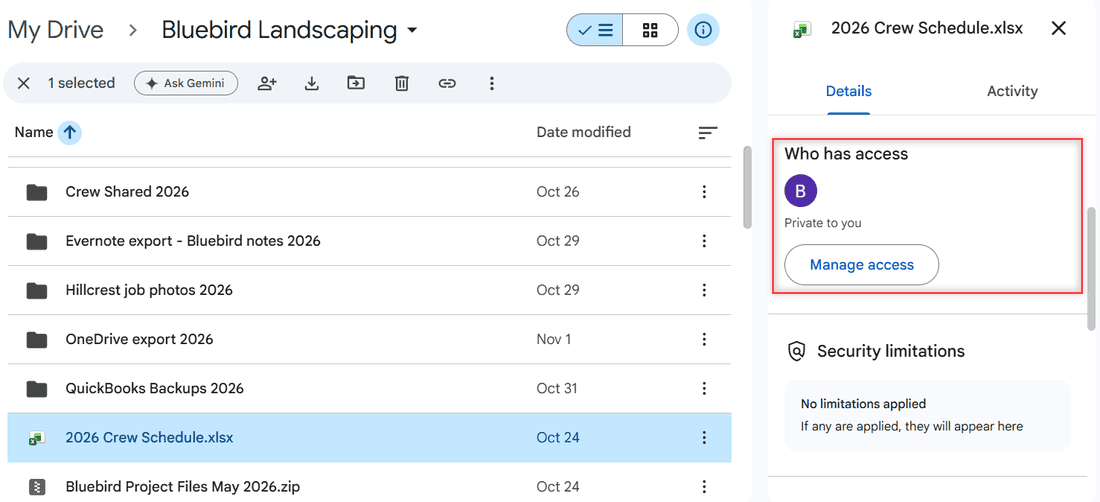
On my demo file the panel says Private to you, which is what I want to see on anything I haven’t shared on purpose. The same panel has a Security limitations area, and this file shows No limitations applied.
Malware is the third layer, and it’s narrower than people assume. Google says a suspicious file may trigger a warning when you try to download it. My guide on how Drive scans for viruses goes through what’s checked and what gets skipped.
The threats, how Drive handles them, and your part
Security questions get muddy fast, so here’s how I separate them. The middle column is only what Google documents. The right column is what’s left for you.
| Threat | How Drive handles it | What you must do |
|---|---|---|
| Someone intercepts a file while it uploads | Encrypted in transit | Nothing extra on your side |
| Someone gets at the stored data | Encrypted at rest with AES256 | Nothing extra on your side |
| Stolen or guessed password | Offers 2-Step Verification | Turn it on. Google calls it an extra layer in case your password is stolen |
| A link reaches the wrong person | Files stay private until you share; you pick who gets access | Keep General access on Restricted and review who can open it |
| A file carries malware or phishing | May warn on download. Work and school accounts get scans of files shared from outside the organization | Don’t open files you weren’t expecting, and heed the warnings |
| A third-party app reads too much | Apps only get what you authorize | Review linked apps and remove any you no longer use |
| Google itself reads your files | Google says it accesses private content only with your permission or when required by law. Standard files aren’t end-to-end encrypted | For very sensitive files, consider client-side encryption on a supported Workspace edition |
Notice how many rows end with you. The two rows at the top are handled for you, and the rest depend on habits. A bad link is a good example, and I wrote a separate piece on when a Google Drive link can be dangerous.
End-to-end encryption: personal accounts vs Workspace
This is the question the rest of the internet argues about, so I’ll be plain. A personal Google Drive isn’t end-to-end encrypted.
Google doesn’t put that exact sentence on its help pages, so here’s what I’m basing it on. The option Google describes as end-to-end is client-side encryption, and its help page says you must have a Workspace account and your administrator must enable it.
On files protected that way, Google says it cannot decrypt them. It doesn’t make that promise about ordinary Drive files, and its own wording about accessing content “when required by law” tells you the difference matters.
| Personal Google account | Workspace with client-side encryption | |
|---|---|---|
| Encrypted in transit and at rest | Yes | Yes, with the extra layer on top |
| End-to-end encryption | Not offered | Yes, on files created that way |
| Can Google decrypt the file? | Google doesn’t say it can’t | Google says it cannot |
| Who turns it on | Not available | Your administrator, for chosen groups and people |
Google lists the supported editions as Frontline Plus, Enterprise Plus, Education Standard, and Education Plus. If your plan isn’t on that list, this feature isn’t available to you.
It also comes with trade-offs. Google says only one person can edit an encrypted file at a time, and encrypted Docs, Sheets, and Slides have a maximum size of 100 MB. It’s built for files that need the protection, not for everything.
If you were hoping for a simple password on a folder instead, that’s a separate question, and I cover password protecting a Drive folder and what works in its place.
Who else can get at your files
Three groups come up, and it helps to take them one at a time.
People you shared with come first. Anyone you’ve given access to can open the file, and if you’ve turned on link sharing, that can include anyone holding the link. This is the most common way files end up in front of the wrong eyes.
Apps come second. Google says linked apps may request access to products like Drive, and if you grant management rights, an app can edit, create, and delete data in your account.
Google is third. Its Drive privacy page says it accesses your private content only when it has your permission or is required to by law. Its privacy policy says access is restricted to employees, contractors, and agents who need the information, and that it may share information to respond to legal process.
Automated systems are a different thing from a person reading your file. Google’s privacy policy says automated systems analyze content to detect abuse such as spam, malware, and illegal content. On advertising, the Drive page is direct: Drive does not use your information for advertising purposes.
Four settings I would check today
None of these cost anything on a personal account, and together they take about as long as a coffee.
Turn on 2-Step Verification
Open your Google Account and select Security & sign-in. Under How you sign in to Google, look at the 2-Step Verification row and select it if it’s off, then follow the prompts.
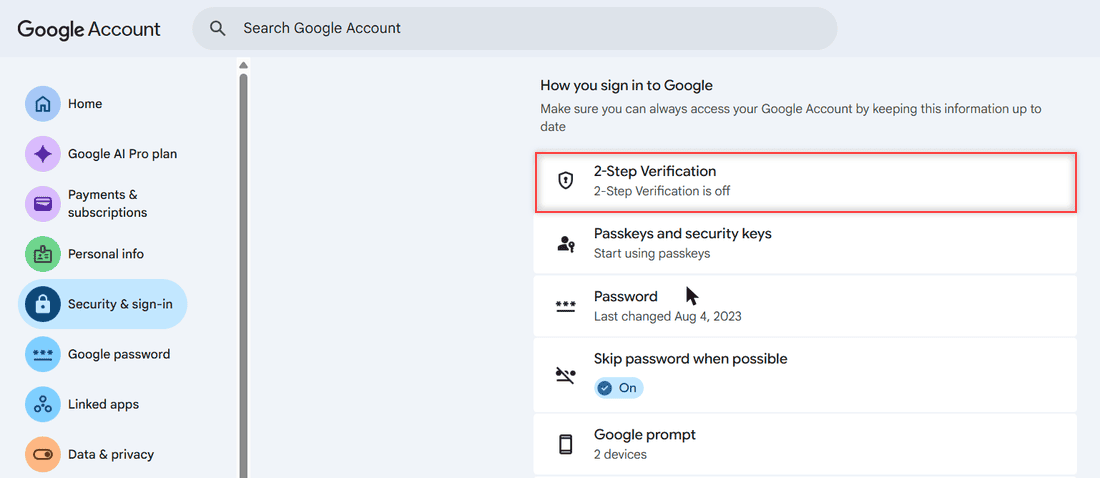
That screenshot is my throwaway demo account, so please don’t copy it. The row says off there, and that’s the exact thing you’re checking for on yours. On a work or school account, these steps may not work and you may need your administrator.
Keep General access on Restricted
Right-click a file, choose Share, and look at General access. Restricted means only people with access can open it with the link. My guide to sharing a Drive file with specific people walks through adding them by name.
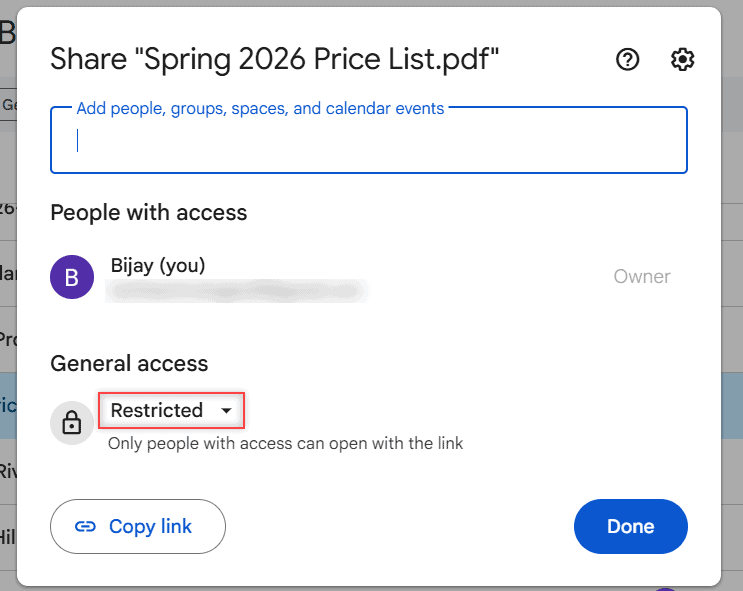
For anything already out there, review it and unshare the folder or file once the work is done. Old links are easy to forget.
Review your linked apps
Go to the Linked apps page in your Google Account and read the list. Google says linked apps can only access what you authorized, so you’re looking for anything you don’t recognize or no longer use.
Remove those. One catch from Google’s page: removing access stops future access, but the app may keep data it already collected, and you may need to ask the developer to delete it.
Run Security Checkup
Sign in, click your profile picture at the top right, and select Recommended actions if it’s there, which takes you to Security Checkup. Google describes it as personalized security recommendations for your account. If you don’t see that option, use Manage your Google Account, then Security & sign-in.
What Drive’s security can’t do
Every storage service has edges. These are the ones I’d keep in mind with Drive.
- It can’t stop someone who signs in with your password, unless 2-Step Verification gets in their way.
- It can’t take back a file someone already downloaded, even after you remove their access.
- It doesn’t scan everything. On work and school accounts, Google lists a 100 MB scanning limit, and some file types can’t be scanned.
- It can’t protect you from someone looking over your shoulder. Google says even client-side encryption doesn’t protect a file from someone who can view your screen.
- It won’t sign you out of a shared computer. Google’s advice is to sign out yourself when you’re done.
Scanning is also easy to mix up between products. The label below is from Gmail, not Drive. Google says Gmail attachments are automatically scanned for viruses, and that’s a Gmail promise.
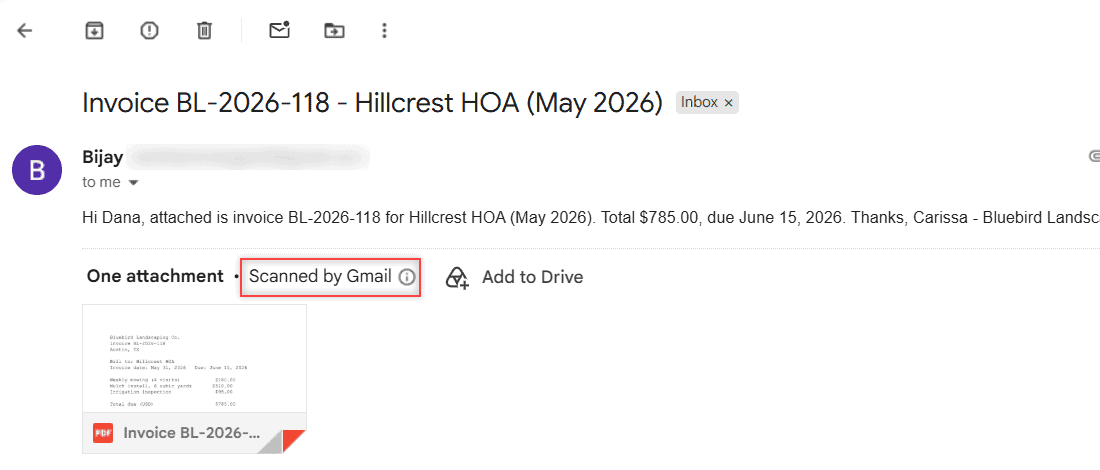
Don’t read it as a stamp on files in your Drive. Unwanted shares are their own nuisance, too. Here’s how I stop spam files in Google Drive from piling up.
Deletion is the other edge. Removing a file isn’t always instant, so check how long Drive keeps deleted files before you assume something sensitive is gone.
If a shared file looks wrong, or you need more protection
If someone sends you a Drive file you weren’t expecting, don’t open it just to find out. Check with the sender through a different channel, like a phone call or a new message.
If Drive shows a warning that a scan failed, Google’s advice is to use caution when you open the file. On work and school accounts, Google may block access to a file it flags, and that block is there on purpose. Talk to your IT team rather than hunting for a way around it.
If you’re on the sending side, think about what the other person really needs. Sometimes view-only is plenty, and you can decide whether viewers can download the file at all.
For tax records, IDs, or client data with legal requirements, I’d ask one question: is it OK if this file isn’t end-to-end encrypted? If not, a personal Drive isn’t the right home for it. Talk to whoever handles compliance about client-side encryption or another approach.
For the family photos, school projects, and ordinary work files most of us keep there, Drive with 2-Step Verification and tight sharing is a reasonable place to be.
A few more guides for keeping a Drive tidy and under control:
- removing shared files you no longer want
- handling a request for access
- when an admin has disabled a backup
Common questions
Can Google employees see my Google Drive files?
Google’s Drive privacy page says it accesses your private content only with your permission or when required by law. Its privacy policy adds that access is limited to staff who need the information. Standard files aren’t end-to-end encrypted, so that’s a policy promise rather than a technical block.
Is Google Drive safe for tax documents?
It can be fine for personal copies if you use 2-Step Verification and keep the files Restricted. Just remember a personal Drive isn’t end-to-end encrypted. If a rule or client contract asks for more, check with whoever handles compliance first.
Does Google use my Drive files for ads?
Google’s Drive help says Drive does not use your information for advertising purposes. Automated systems can still analyze content to detect abuse such as spam and malware, according to Google’s privacy policy.
Is Google Drive safe to use on a shared computer?
It can be, as long as you sign out of your Google Account when you’re done, which is what Google recommends. I’d avoid downloading sensitive files on that machine, since a local copy stays behind after you sign out.

I am Carissa Gudinoa, a technology buff, and Office online and Apple expert with over 9 years of experience. I am passionate about helping others get the most out of their Apple devices. I have written extensively about Apple products and technologies. I am committed to providing my clients with the best possible service and am always up-to-date on the latest Apple products and features. I also write extensively on other software available for use at minimal cost or free. This includes Word Online, Outlook Online, Excel Online, and other Office online programs… Check out more.