
Open your Doc, click File > Download > PDF Document (.pdf), and the PDF lands in your browser’s Downloads folder. Your original Doc stays exactly as it was.
In this tutorial, I’ll show you how to save a google doc as a pdf on a computer and a phone, where the file ends up, how to email it as a PDF, and what to do when the option isn’t there.
Save the Doc as a PDF on a computer
This is the method I’d use nine times out of ten. My demo file is a Doc called Hillcrest HOA Proposal 2026, the kind of thing a board wants as a clean attachment.
- Open the Doc in Google Docs.
- Click File in the menu at the top.
- Point to Download.
- Click PDF Document (.pdf).
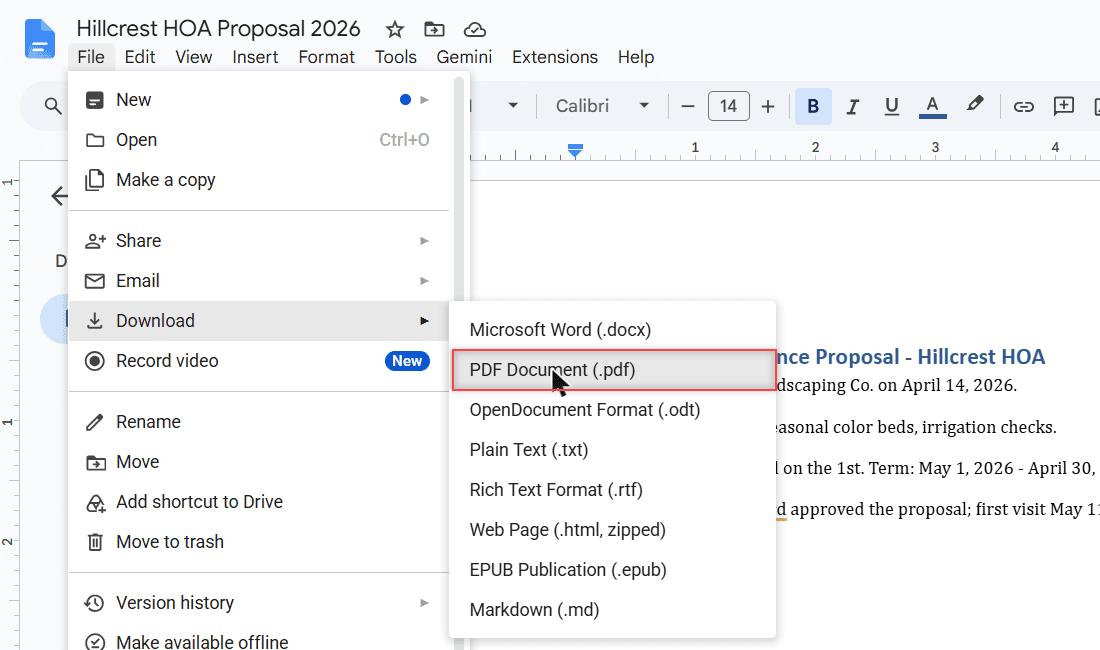
There’s no dialog and no settings screen to get through. When I ran this on my demo Doc, the browser saved a PDF named after the Doc.
So give the Doc a sensible name first, since that’s the name your recipient will see. If you need to tidy the text before exporting, here’s how to edit a document in Google Drive.
Other formats in the same Download menu
The PDF sits in a list of eight formats. Here’s everything my Download menu showed, with my take on when each one is handy.
| Format on the menu | When I would pick it |
|---|---|
| Microsoft Word (.docx) | Someone needs to edit it in Word |
| PDF Document (.pdf) | Sending a finished version to read or print |
| OpenDocument Format (.odt) | The other person uses LibreOffice |
| Plain Text (.txt) | You only want the words |
| Rich Text Format (.rtf) | An older program needs basic formatting |
| Web Page (.html, zipped) | The content is going on a website |
| EPUB Publication (.epub) | Reading it on an e-reader |
| Markdown (.md) | Pasting it into a notes or docs tool |
If you’re not sure how a Doc and its Drive file relate, this rundown of Google Drive vs Google Docs clears it up. Short version: the Doc lives in Drive, and the PDF you download is a separate file on your computer.
Where the PDF lands and how to get it into Drive
On Windows and Mac, Chrome saves downloads to your Downloads folder by default. That’s the first place to look.
You can change that in Chrome. Open the three-dot menu, go to Settings > Downloads, and click Change. To choose a spot every time, turn on Ask where to save each file before downloading.
Downloading doesn’t add a PDF to your Drive. If you want one there, you have to upload it, and Google gives you these steps:
- Go to drive.google.com.
- Click New > File upload.
- Pick the PDF from your Downloads folder and confirm.
You can also drag the PDF into a Drive folder in your browser. Keep in mind that the upload counts against your storage.
Google also says that uploading a file with the same name as an existing one makes it a new version of that file. If you want both, click Keep both files.
One small trap: the PDF is a snapshot, so later edits to the Doc won’t appear in it. Export again when the content changes. To pass it along from Drive, follow my steps to share a file on Google Drive.
Print to PDF when a long Doc won’t download
Google suggests a second route for large Docs in Chrome. I didn’t run this one for this post, so the steps are straight from Google’s help page.
- In the Doc, click File > Print.
- At the left, next to Destination, select Save as PDF.
- At the top, click Save.
Think of this as a backup for when the regular download struggles. If you actually want paper, my guide on how to print a whole Drive folder covers printing more than one file.
Email the Doc as a PDF without downloading it
If the only reason you want a PDF is to send it, you can skip the download. Docs will attach one for you.
- Click File, then point to Email.
- Click Email this file.
- Fill in To and check the file type says PDF.
- Click Send.
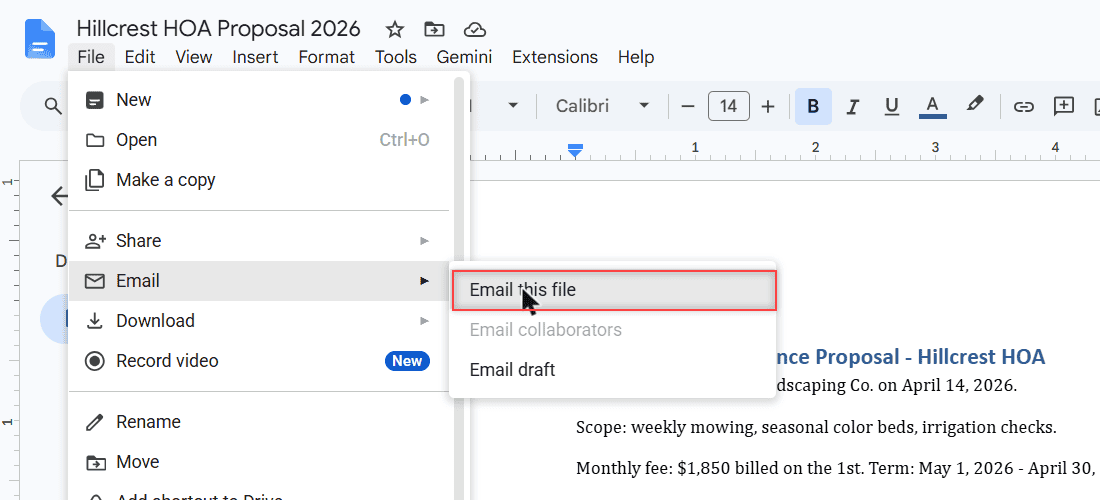
The Email submenu has three items: Email this file, Email collaborators, and Email draft. Email collaborators was greyed out on my demo Doc.
The dialog already had the Doc’s name in the Subject line. It also offers Send yourself a copy, a Message box, and an option labeled Don’t attach. Include content in the email.
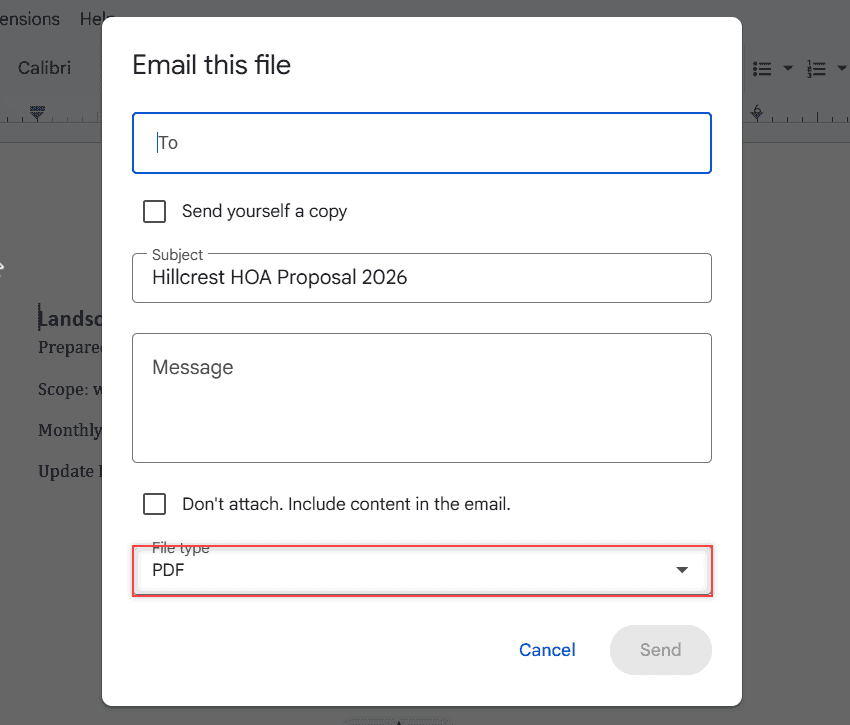
Leave that last option unchecked if you want an actual attachment. I cancelled the dialog on my demo account, so nothing was sent.
On Android or iPhone
I didn’t test the phone apps for this post, so this comes from Google’s help pages. Google lists PDF as an export format for the Docs app on both Android and iPhone or iPad.
Google’s documented path goes through printing:
- Open the Google Docs app.
- Open the file, or find it in your list, and tap More.
- Tap Share & export, then Print.
- Follow the instructions on your phone to choose a printer.
- Tap Print.
Google’s page stops at choosing a printer and doesn’t spell out a PDF tap-by-tap. So look through the other choices under Share & export, and check what your phone’s print screen offers.
On Android, Google also says you can tap More > Download to put the file on your phone, but it doesn’t say which format that gives you.
If you need a guaranteed PDF, the computer steps above are the surest route. My guide to printing from Google Drive on iPhone goes further on the iPhone side.
Send a link that downloads the PDF
Google’s Workspace tips include a neat option for your own Docs. Copy the Doc’s share link, paste it, and change the end before you send it.
Replace edit?usp=sharing at the end with export?format=pdf. Whoever clicks the new link can download a PDF copy, and Google says it always points to the latest version.
I like this for a document that keeps changing, because you never have to resend it. The person still needs access to the Doc, so check your sharing settings first.
When the PDF option is missing or the download fails
Download and Print are not there
An owner can turn off download, copy, and print for people who only view or comment. If that’s your situation, the options simply aren’t available to you, and the right move is to ask the owner for a copy or for that setting to change.
Here’s more on what viewers can download, and if you’re the owner, how to turn the download option off for others.
The download starts but never finishes
For a large Doc, try the File > Print route above. If other Drive downloads are failing too, run through my fixes for when you can’t download from Google Drive.
You can’t find the PDF
Check your Downloads folder and search for the Doc’s name. If you’ve turned on the Chrome setting that asks where to save, it went wherever you pointed it.
A few more guides for working with PDFs and documents in Drive:
- turning an image into a PDF in Drive
- embedding a Drive PDF on a web page
- saving Word documents to Google Drive
Quick answers
Does saving a Google Doc as a PDF change the original?
No. The download creates a separate PDF, and your Doc stays editable in Drive. Edits you make later won’t show up in that PDF, so export a new one when the Doc changes.
Can I save a Google Doc as a PDF for free?
Yes. File > Download > PDF Document (.pdf) is built into Google Docs, and I didn’t need any add-on or extra software to find it on my demo account.
What will my PDF be called?
When I tried it, the PDF took the name of the Doc. Rename the Doc before you download if you want a cleaner file name.
Where are Google’s official steps for downloading a Doc?
They’re on Google Docs Editors Help for creating and downloading files, which also has the Save as PDF tip for large Docs on Chrome.

I am Carissa Gudinoa, a technology buff, and Office online and Apple expert with over 9 years of experience. I am passionate about helping others get the most out of their Apple devices. I have written extensively about Apple products and technologies. I am committed to providing my clients with the best possible service and am always up-to-date on the latest Apple products and features. I also write extensively on other software available for use at minimal cost or free. This includes Word Online, Outlook Online, Excel Online, and other Office online programs… Check out more.