
Last week I finished the patio job at Riverside Cafe, and the owner asked for a quick video of the result. I filmed a short walk-through on my phone, and I wanted it in the client’s Bluebird Landscaping folder so I could send one link.
In this tutorial, I’ll show you how to upload a video to Google Drive from a computer, your phone and Drive for desktop, what formats and sizes Drive accepts, how long processing takes, and what to do when an upload stalls or a video won’t play.
Use New > File upload for one or two clips
For a single video, the browser is the fastest route. Open drive.google.com, go to the folder you want, and click New at the top left. Then pick File upload and choose the video on your computer.
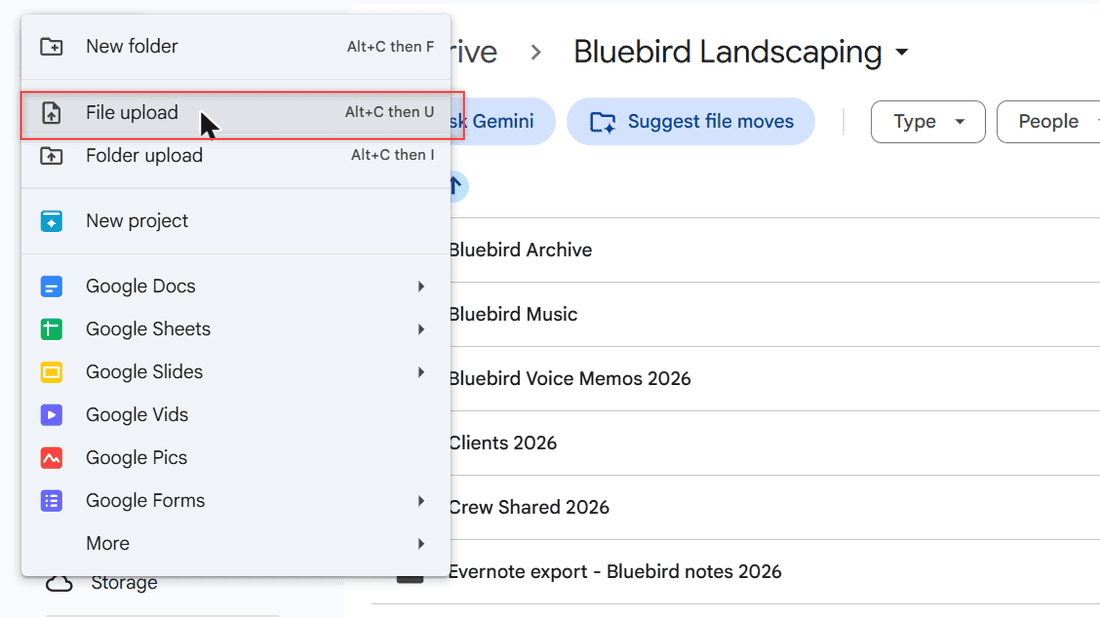
The menu also lists keyboard shortcuts. Press Alt+C and then U for File upload, or Alt+C and then I for Folder upload, which sends a whole folder of clips at once.
My test file was a 6-second .webm of the patio, only 412 KB. It took a few seconds, and a panel at the bottom right said 1 upload complete with a green check next to the file name.
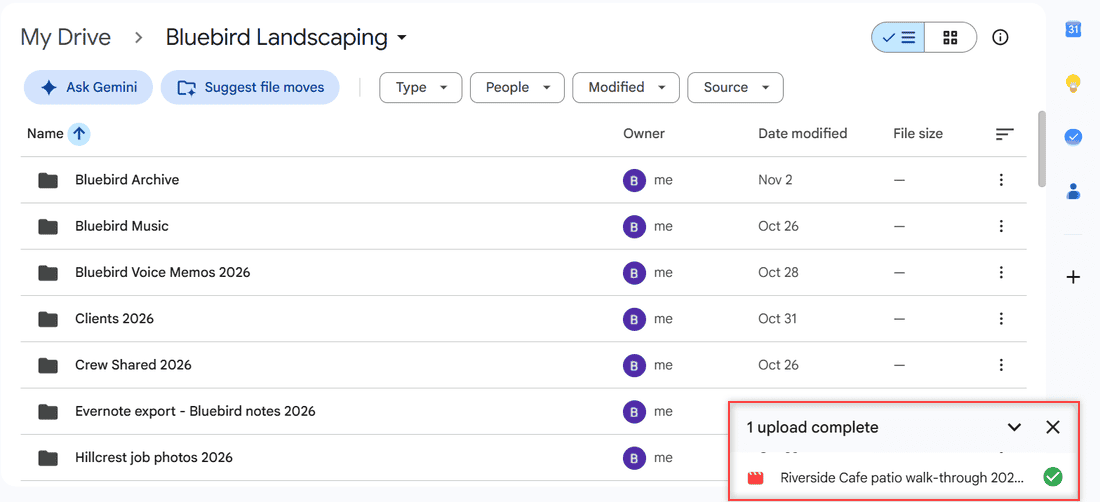
Bigger videos show a progress bar in that same panel. Keep the tab open until it finishes. If you started the wrong file, here’s how to cancel a Google Drive upload without waiting it out.
Or drag the video into the folder
You can skip the menu completely. Open the Drive folder in your browser, then drag the video from File Explorer or Finder and drop it on the file list. Drive starts the upload as soon as you let go.
Once it’s done, the video sits in the folder like any other file. Mine showed up as Riverside Cafe patio walk-through 2026.webm, owner me, 412 KB, right next to an older clip I’d uploaded earlier.
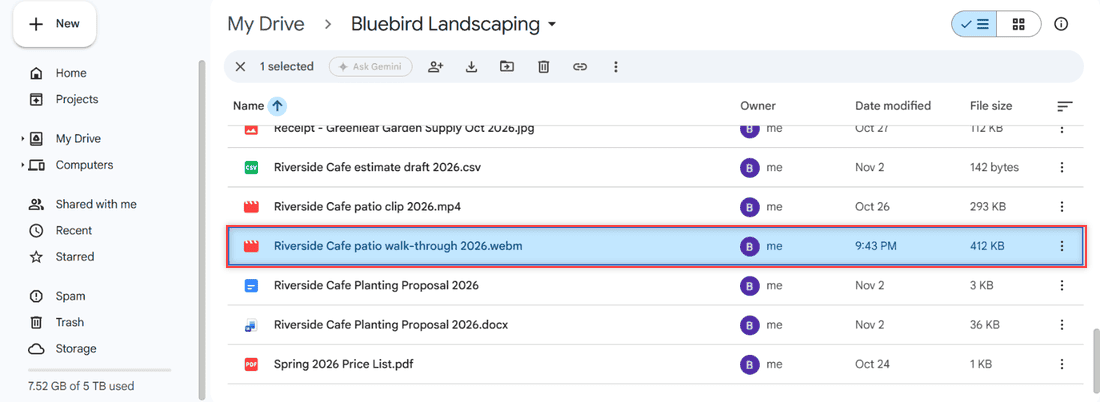
Watch the file name. If you upload a video with the same name as one already in the folder, Drive saves it as a new version of that file. Pick Keep both files when it asks if you want two separate videos.
Move big folders of footage with Drive for desktop
When I have a full day of job footage, I don’t babysit a browser tab. Drive for desktop adds a Google Drive folder to your computer. Drag your videos into that folder, and the app uploads them in the background.
It’s the better choice for long 4K clips or dozens of files, because a closed browser tab can’t stop it. I cover the app’s settings and speed tips in my guide to uploading large files to Google Drive.
One thing to know before you start: every video you upload counts against your own storage, even if you drop it into a folder someone else shared with you.
Upload from your phone in the Drive app
Most of my videos start on my phone, so I often upload right from there. In the Google Drive app on Android or iPhone, tap the plus button, choose Upload, and pick the video from your gallery or Photos library.
Keep the app open and stay on Wi-Fi for anything longer than a minute or two. Phone videos are large, and a weak signal is the usual reason they crawl.
If the upload sits there and never moves, my fixes for when Google Drive is not uploading from your phone and the stuck Waiting to upload message walk through each cause.
Give the video time to process before you share it
An uploaded video isn’t always ready to play everywhere. Drive has to process it first. In the same browser session you uploaded from, you can usually play it right away, but other devices and other people may still see it processing.
My tiny test file was ready almost instantly. When I opened it, Drive showed a blue banner: This video has finished processing. Refresh for the full experience.
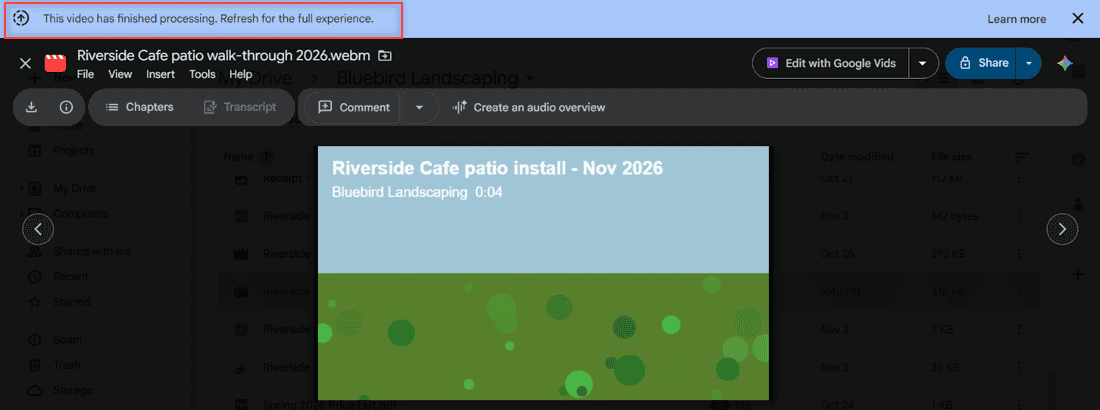
Large files take longer, sometimes a lot longer. If you see a message that the video is still processing, give it time and refresh. If it says the video cannot be played, that’s a different problem with its own fixes.
Check the format and size before you hit upload
You can store any file in Drive, but only some video types play in the preview. These are the ones Google lists:
- WebM (VP8 video, Vorbis audio)
- MPEG4, 3GPP and MOV (H.264 or MPEG4 video, AAC audio)
- AVI (MJPEG video, PCM audio)
- MPEGPS (MPEG2 video, MP2 audio)
- WMV, FLV (FLV1 video, MP3 audio), MTS and OGG
Google also warns that not every video type works on every device, so a file that plays on your laptop might not play on a client’s phone. MP4 with H.264 is the safe pick.
Resolution isn’t a limit for uploading. You can upload 4K, but Drive plays videos back at a maximum of 1920 x 1080. Very small files under 4 KB won’t play at all.
Size is mostly about storage. You can store a single video up to 5 TB if you’ve bought at least that much space. A free account has 15 GB, and that’s shared across Gmail, Drive and Google Photos, so one long phone video can eat a big piece of it.
Share or embed it only after it plays for you
Once the video plays in the preview, send it. Click Share at the top right of the video and add the client’s email, or copy a link. My steps on how to share a file on Google Drive cover Viewer access and link settings.
Want the video on a website instead? You can embed a Google Drive video with a short bit of code. And if it belongs on your channel, here’s how to move a Drive video to YouTube.
Fix a stalled upload or a video that will not play
When an upload freezes, I go through the same short list. Check your internet connection first, then make sure you still have free storage. After that, cancel the upload and try again in a fresh browser tab or a different browser.
If Drive throws a numbered error, look it up. The Google Drive upload failure 38 error is one I see a lot, and it usually comes down to the browser or the network.
If the upload worked but the video won’t play, wait a few minutes for processing, then refresh. Still nothing? The format is the next suspect. Convert it to MP4 with H.264 video and AAC audio, upload it again, and test it on another device.
My checklist before I upload client video
- Rename the file first so it says what it is, like “Riverside Cafe patio walk-through 2026”.
- Use MP4 (H.264 and AAC) when the video needs to play on other people’s phones.
- Check free storage, especially on a free 15 GB account.
- Use Drive for desktop for long clips or a whole folder of footage.
- Wait for the processing banner, then play the video once before sharing.
- Share with Viewer access unless the person needs to change files.
If you work with video in Drive a lot, these will help too:
- saving a YouTube video to Google Drive
- uploading voice memos to Google Drive
- all my Google Drive tutorials
Questions I get about this
How long does it take to upload a video to Google Drive?
It depends on the file size and your upload speed. My 412 KB test clip took a few seconds, while a long phone video can take many minutes or more on a slow connection.
Why is my Google Drive video still processing?
Drive has to process each video before it plays everywhere. Large files take a while, so give it time and refresh the page. In the browser you uploaded from, you can often play it right away.
What is the maximum video size for Google Drive?
You can store a video up to 5 TB if you bought at least that much storage. Otherwise you’re limited by your free space. Playback tops out at 1920 x 1080, as Google Drive Help explains for video files.
Does uploading a video to Google Drive lower its quality?
No, Drive stores the original file you uploaded. Only the preview player is limited, and it plays videos at up to 1920 x 1080.

I am Carissa Gudinoa, a technology buff, and Office online and Apple expert with over 9 years of experience. I am passionate about helping others get the most out of their Apple devices. I have written extensively about Apple products and technologies. I am committed to providing my clients with the best possible service and am always up-to-date on the latest Apple products and features. I also write extensively on other software available for use at minimal cost or free. This includes Word Online, Outlook Online, Excel Online, and other Office online programs… Check out more.