
You double-click the Google Drive icon and, instead of your files, you get a pop-up. People who hit this problem report it like this:
Can't launch Drive for desktop
Something went wrong
The fix that works most often is the boring one: fully quit Drive for desktop, restart the computer, and open it again. If that doesn’t do it, the cause is usually a cleaner app, a proxy, antivirus, or a damaged install.
In this tutorial, I’ll walk you through what to do when you can’t launch Drive for desktop on Windows or Mac, in the order I’d try the fixes, and how to check that it’s really working again.
A quick note before you start
I couldn’t reproduce this dialog on purpose, and I’m not going to fake a screenshot of it. Drive for desktop isn’t installed on my PC right now, so the text above is what users report on forums. Google’s own help page lists the fixes but doesn’t print this exact message.
The screenshots below come from a working copy of Drive for desktop (version 132) on my Windows demo account. If you’re setting it up for the first time, my guide on how to install Google Drive on your computer covers the first sign-in.
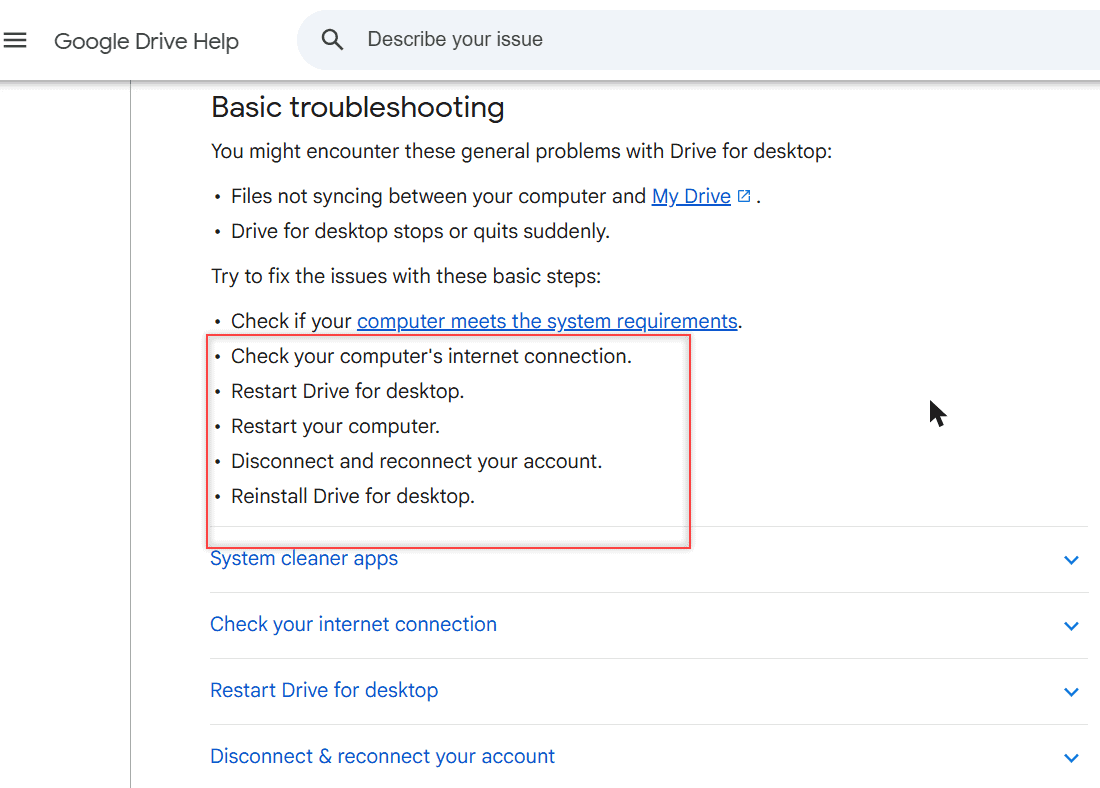
Those basic steps are the backbone of everything below: check the system requirements and your internet connection, restart Drive for desktop, restart the computer, reconnect your account, and reinstall.
Fix 1: Quit Drive for desktop completely and restart
Closing the window isn’t enough, because Drive for desktop keeps running in the background. A stuck process can block a fresh launch, so I quit it from its own menu first.
- On Windows, click the Drive icon in the taskbar. On a Mac, click it in the menu bar.
- Click the gear icon (Settings), then click Quit.
- Restart the computer.
- Open Google Drive again from the Start menu or the Applications folder.
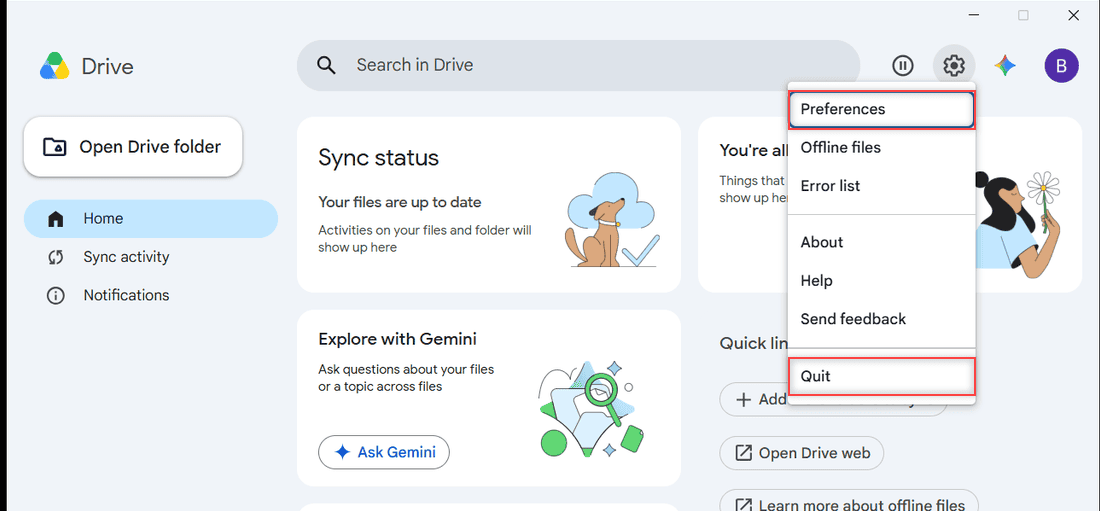
If the pop-up never lets you reach the menu, skip to the restart. A clean boot clears whatever was holding the app.
Fix 2: Check the things that stop it from starting
When the app starts but can’t load your account, Google lists a short set of causes. Your internet connection is the first one to rule out, especially if Google Drive keeps going offline for you in the browser too.
No free drive letter (Windows)
Drive for desktop streams your files to a drive letter, G: by default. If every letter is taken by USB drives, card readers or network shares, it has nowhere to mount. Unplug a drive you don’t need and try again.
Proxy settings
Google says your proxy settings can stop Drive for desktop from running. In Preferences > Settings, the Proxy settings option is Auto-detect by default. On a home network, try Direct connection; at work, ask IT which one your network needs.
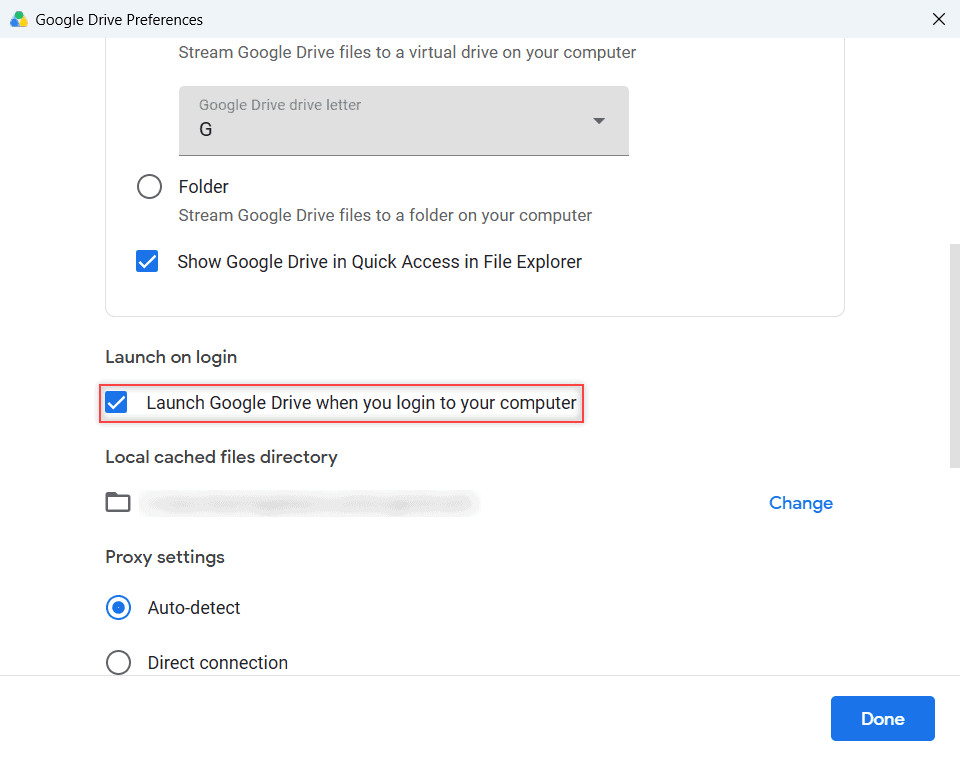
While you’re there, confirm Launch on login is checked if you want Drive to start every time you sign in to your computer.
Antivirus or a work policy
If Drive for desktop opens and then stops again and again, Google’s advice is to exclude it from your virus scanner. On a Google Workspace account, an administrator can also block the app or its install, and only they can lift that.
Fix 3: Undo what a system cleaner changed
This one surprises people. Google warns that system cleaner apps like CCleaner and Advanced SystemCare may edit Drive for desktop’s configuration data, which can cause errors and even data loss.
If you want to free up space, it’s safer to clear the Google Drive cache the right way than to let a cleaner do it.
Turn off the cleaner’s Google Drive cleanup, then reconnect your account (Fix 4) or reinstall (Fix 6).
Fix 4: Disconnect and reconnect your account
A broken sign-in can stop the app from loading. Before you disconnect, look for a Lost & Found folder: Google says files there are deleted when you disconnect, so copy them somewhere safe first. On Windows it sits here:
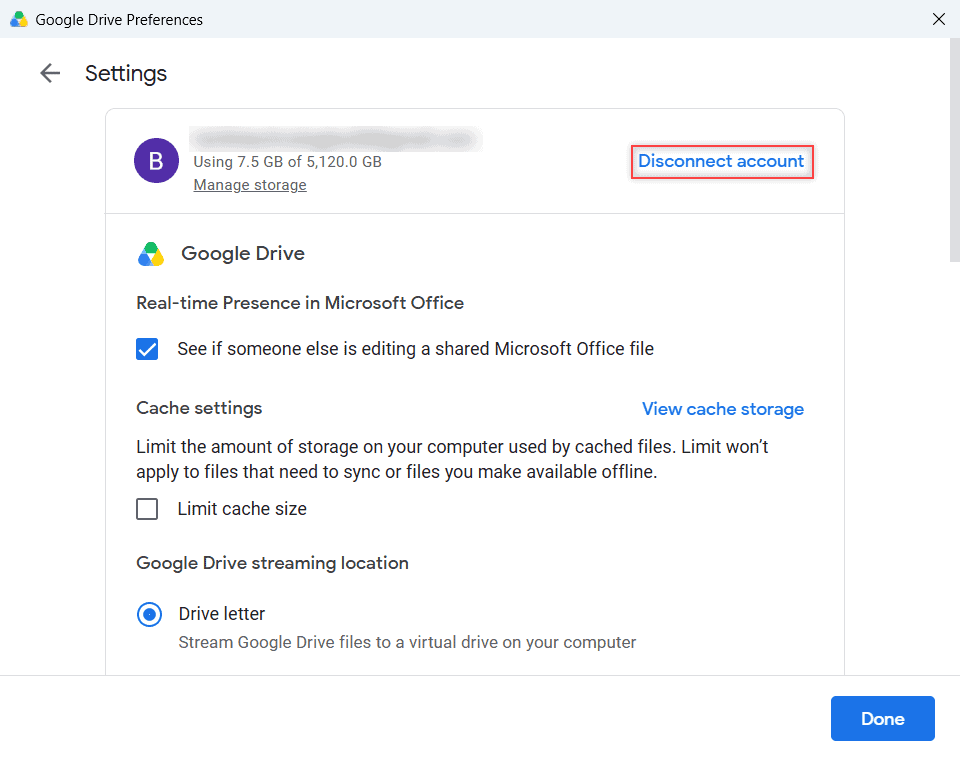
C:\Users\<username>\AppData\Local\Google\DriveFS\lost_and_found\<account_token>- Open Drive for desktop, click the gear icon, then Preferences.
- Click the Settings gear in the Preferences window.
- Click Disconnect account and confirm.
- Sign in again with the same Google account.
Fix 5: Repair the configuration folder permissions
If you see a message that Google Drive can’t start because of a configuration folder error, your user account has lost access to Drive’s own folders. On Windows, these are the two:
C:\Users\<username>\AppData\Local\Google\
C:\Users\<username>\AppData\Local\Google\DriveFS
Right-click each folder, choose Properties > Security, and give your user full permission and ownership (Allow on every option).
On a Mac, the folders are these. Use Get Info > Sharing & Permissions and set your user to Read & Write:
/Users/<username>/Library/Application Support/Google
/Users/<username>/Library/Application Support/Google/DriveFS
Fix 6: Reinstall the latest version
An old or half-updated install is a common reason Drive for desktop won’t open. Quit the app if it’s running, then download the newest version from Google’s download page and install it over the top.
If you only wanted to turn off Google Drive sync, you don’t need to uninstall at all.
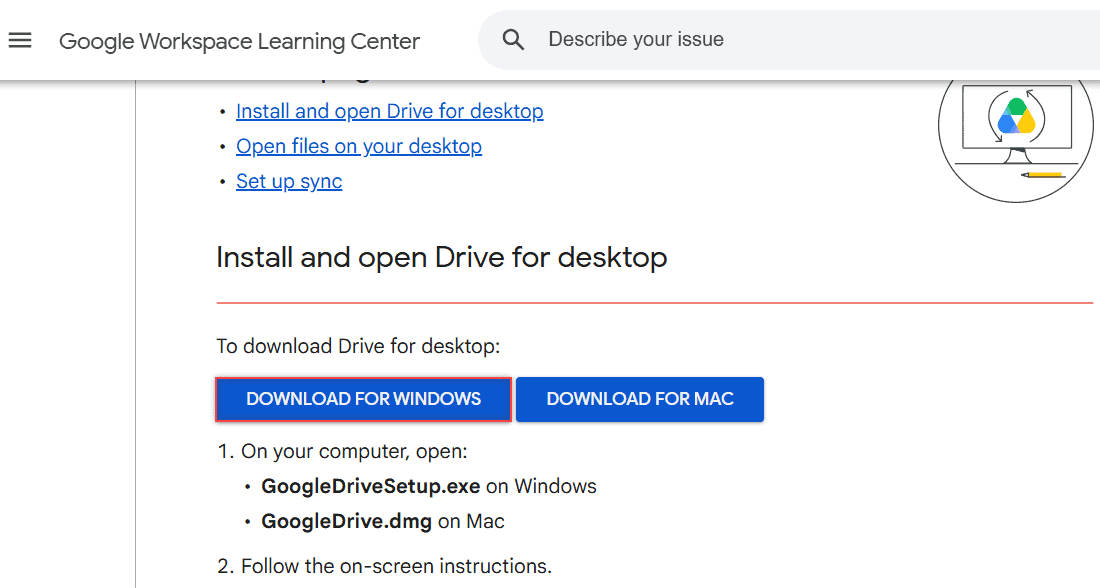
Windows downloads GoogleDriveSetup.exe and a Mac downloads GoogleDrive.dmg. Run it, sign in, and check that your files show up under the G: drive or in Finder.
Heads up: You’ll see advice online to run Drive as an administrator or edit the registry. Google doesn’t list either as a fix, so I’d skip them.
Still failing? Confirm the fix and send feedback
You’ll know it’s fixed when the Drive icon stays in the taskbar or menu bar and the window says “Your files are up to date.” If it opens but syncing crawls, my notes on why Google Drive is so slow pick up from there.
If nothing works, use Settings > Send feedback in the app (if it opens at all), tick the box to include diagnostic logs, and click Submit. Google’s support team gets the details it needs to dig in.
A few more Google Drive fixes worth bookmarking:
- what the Drive for desktop error list means
- fix the Failed – Server error in Google Drive
- stop Google Drive from duplicating files
- Drive storage full but no files
More about this error
Why is Google Drive not opening on my desktop?
Most often a stuck background process, a cleaner app that changed its settings, a proxy, antivirus, or an outdated install. Quit it from the gear menu, restart, and reinstall if needed. Google’s full list is on Google Drive Help: Fix problems in Drive for desktop.
Will I lose files if I reinstall Drive for desktop?
Files in My Drive stay in the cloud. Before you disconnect your account, copy anything in the Lost & Found folder, because Google says those files are deleted when you disconnect.
Why does Google Drive for desktop not launch at startup?
Check that Launch on login is turned on in Preferences > Settings. If it is, the app may be failing on start for one of the reasons above, so open it manually and see what happens.
Can my work admin stop Drive for desktop from opening?
Yes. On a Google Workspace account, an administrator can block Drive for desktop or its installation. In that case, contact your admin, because there’s nothing to fix on your computer.

I am Carissa Gudinoa, a technology buff, and Office online and Apple expert with over 9 years of experience. I am passionate about helping others get the most out of their Apple devices. I have written extensively about Apple products and technologies. I am committed to providing my clients with the best possible service and am always up-to-date on the latest Apple products and features. I also write extensively on other software available for use at minimal cost or free. This includes Word Online, Outlook Online, Excel Online, and other Office online programs… Check out more.