
Instead of green checks, Google Drive shows an error list of files that didn’t upload or sync, with a Retry all button on top. Retry all just sends every failed file again, so I fix the cause first and then click it once.
In this tutorial, I’ll explain what the Google Drive error list retry all option really does, then walk you through fixes grouped by where you see the list: Drive for desktop, the web upload panel, or the phone app.
What the error list means, and why Retry all exists
Drive keeps a file on the list when it couldn’t finish moving it. Retry all saves you from clicking Retry on fifty files one by one, but it doesn’t change anything. If storage is full or a folder blocks you, the same files land right back on the list.
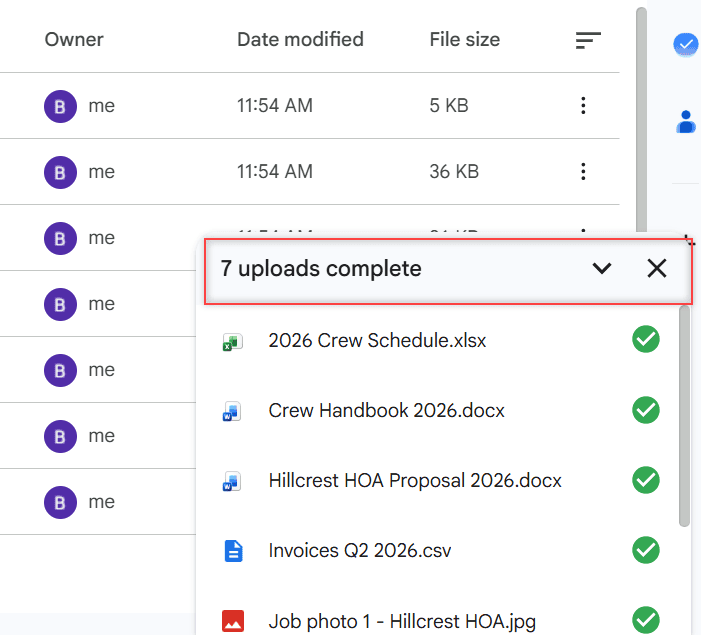
For comparison, here’s a healthy batch I uploaded in my demo Drive. Every file gets a green check and the header counts them as complete.
If one file fails with a code instead of a list, my guide to Google Drive upload failure 38 covers that case.
Drive for desktop: clearing the sync error list
This is where most people meet the list, because Drive for desktop syncs whole folders in the background. Google’s troubleshooting starts with the basics: check your connection, restart the app, then restart your computer.
Restart, or pause and resume syncing
- Click the Drive for desktop icon in the taskbar (Windows) or menu bar (Mac).
- Click Settings > Quit, then open Drive for desktop again. I try this first.
- If files still sit on the list, pause syncing from the same Settings menu, wait a minute, and resume it.
Google says you can pause or resume sync at any time, so nothing is lost. If you’d rather stop it for longer, here’s how to turn off Google Drive sync.
Read the reason before you retry
Google lists the usual reasons a file can’t sync. I always match mine before clicking Retry all:
- Low disk space on your computer, or Google storage full.
- No permission to edit the file or folder. Ask the owner for edit access.
- Daily upload limit. The app retries on its own. If it doesn’t, wait a day and restart it.
- Antivirus interfering. Google suggests excluding Drive for desktop from scans.
Files that still can’t upload get copied to a Lost and Found folder. On Windows it’s here:
C:\Users\<username>\AppData\Local\Google\DriveFS\lost_and_foundMove those files back into My Drive to retry them. Copy them out first if you plan to disconnect your account, because Google deletes that folder on disconnect.
Reinstall the latest version
If the list keeps coming back, download the newest Drive for desktop from Google’s page and install it over the old one.
If it won’t open afterward, see what to do when you can’t launch Drive for desktop.
The web upload panel: failed uploads in your browser
In the browser, the list shows up in the panel at the bottom right. Google’s fixes here are to wait and try again, use another browser, or clear your cache and cookies. Restarting your router helps too.
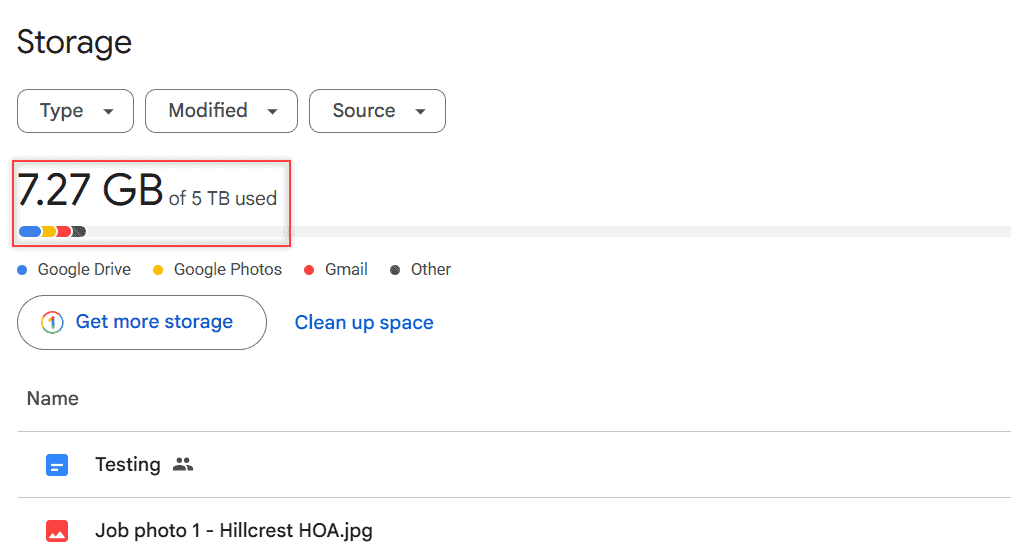
Full storage is the next suspect, since Drive won’t accept new files once you’re out of space. Click Storage in the left menu to check. My demo account is on a paid 5 TB plan; a free account gets 15 GB shared with Gmail and Photos.
Big batches can also hit the daily cap. Google’s Workspace admin help says each user can upload and copy 750 GB in 24 hours. My tips to upload large files to Google Drive help you spread them out.
Uploading into someone else’s folder? You need to be an Editor there. A Viewer can’t add files, so every one lands on the list.
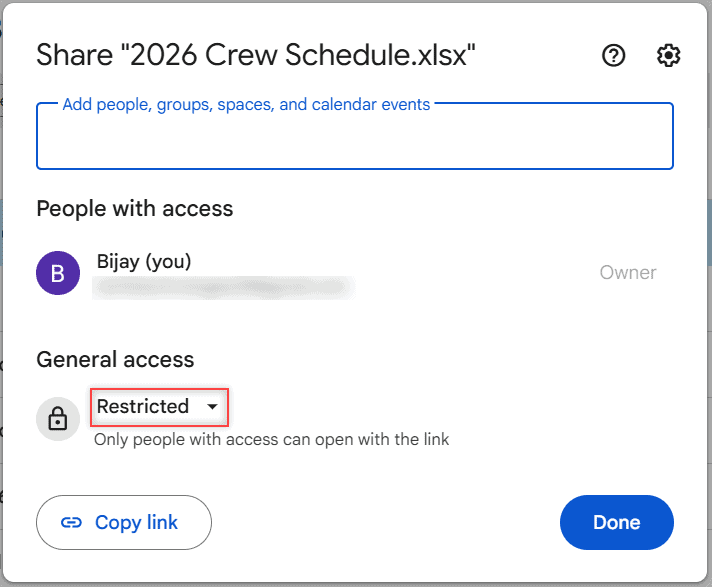
In that case, request edit access in Google Drive from the owner and retry.
The Drive phone app: uploads that won’t finish
On a phone, check Transfer files only over Wi-Fi in the Drive app’s settings. If it’s on and you’re on mobile data, uploads wait. Restarting the phone clears a stuck app as well.
More phone-specific fixes are in my post on Google Drive not uploading from your phone.
Still failing? Check Google’s side
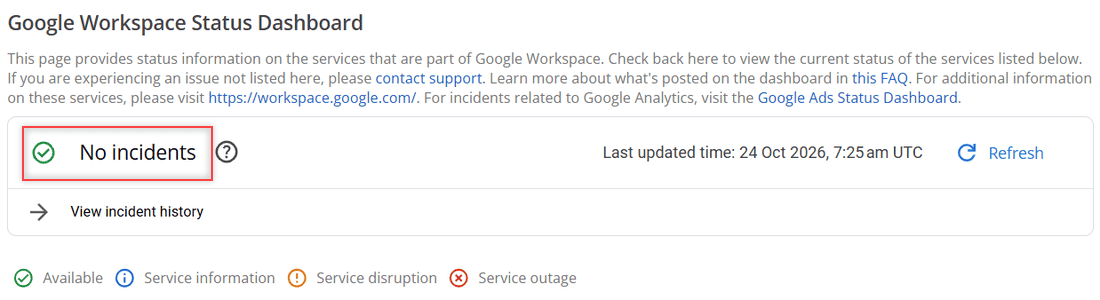
Sometimes the problem isn’t you. The Google Workspace Status Dashboard shows outages for Drive. If there’s an incident, wait until it’s fixed, then click Retry all once.
A server message instead of a list? That’s a Failed – Server error in Google Drive, with its own fixes.
If Drive is still acting up, these may help next:
- Google Drive stuck on waiting to upload
- error accessing folder contents
- Google Drive keeps going offline
- stop a Google Drive upload
More about this error
What does Retry all mean in Google Drive?
It tells Drive to try uploading or syncing every file on the error list again. It doesn’t fix the cause, so check storage, permissions, and your connection first.
Why does Google Drive keep showing an error list?
The same problem keeps blocking the files: full storage, no edit access, the daily upload limit, or an unstable connection. Each retry fails until that’s fixed.
How do I clear the Google Drive error list?
Fix the cause, then click Retry all. In Drive for desktop, files that still fail go to Lost and Found; move them back into My Drive or delete them.
Will Retry all upload my files again?
It retries the files on the error list. Files that already finished are in your Drive, so you don’t need to add them again.
Where is the error list in Drive for desktop?
It’s in the app you open from the taskbar or menu bar. Google Drive Help on Drive for desktop problems explains each error message.

I am Carissa Gudinoa, a technology buff, and Office online and Apple expert with over 9 years of experience. I am passionate about helping others get the most out of their Apple devices. I have written extensively about Apple products and technologies. I am committed to providing my clients with the best possible service and am always up-to-date on the latest Apple products and features. I also write extensively on other software available for use at minimal cost or free. This includes Word Online, Outlook Online, Excel Online, and other Office online programs… Check out more.