
Open a Google Doc’s version history and you’ll see a list of timestamps down the right side, like “October 24, 12:04 PM – Current version” with your name under it. Click an older one, and the document shows exactly what it looked like then, with a blue Restore this version button at the top.
In this tutorial, I’ll show you how to use Google Drive version history three ways: restore an older version of a Doc, Sheet, or Slide, name or copy a version, and manage versions of PDFs, images, and Office files.
Method 1: Restore an older version of a Google Doc, Sheet, or Slide
I’m using a proposal called Hillcrest HOA Proposal 2026 in my Google Drive. The same steps work in Sheets and Slides.
- Open the file on your computer.
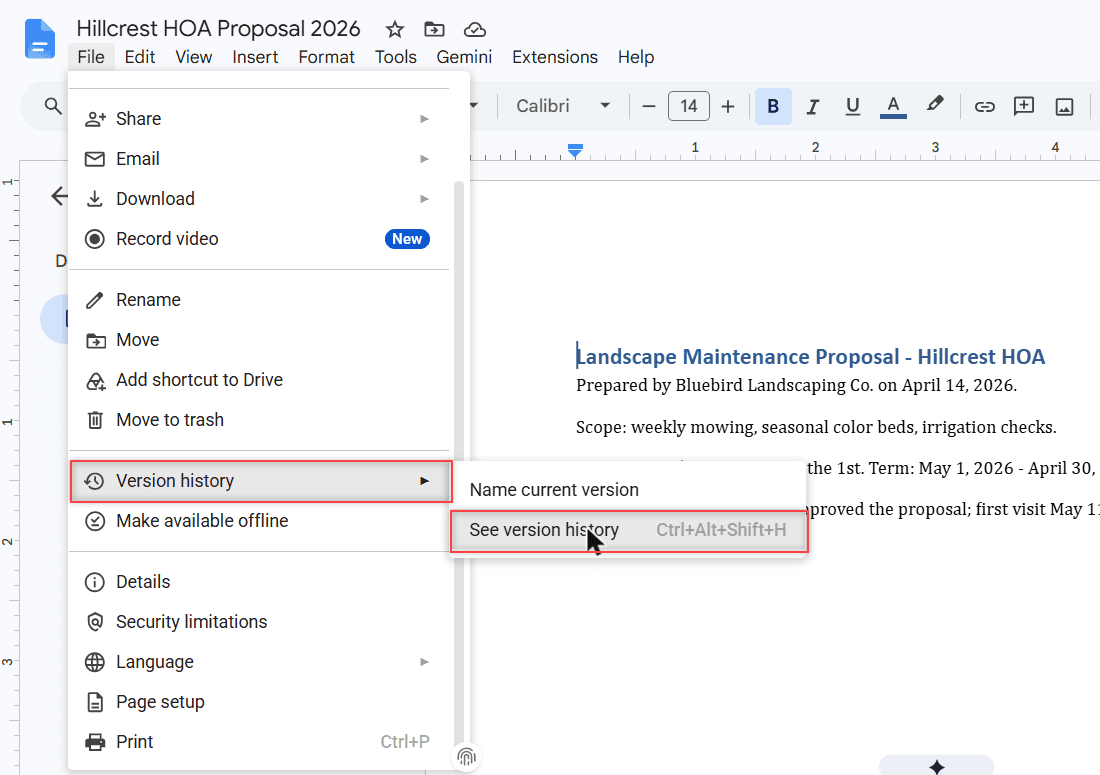
- Click File > Version history > See version history. The shortcut is Ctrl+Alt+Shift+H, or click Last edit at the top right.
- In the panel on the right, click an earlier version to preview it.
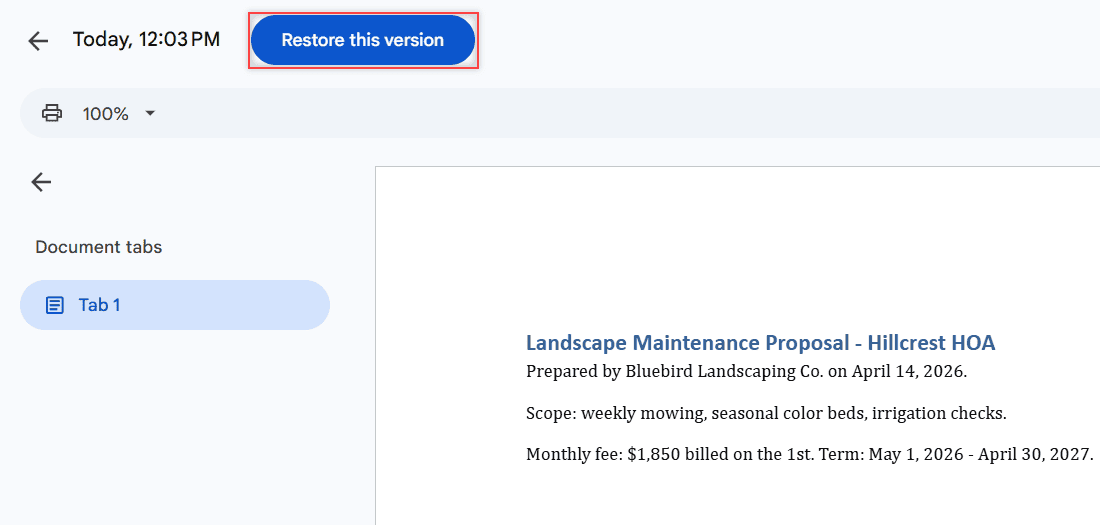
- Click Restore this version at the top, then confirm.
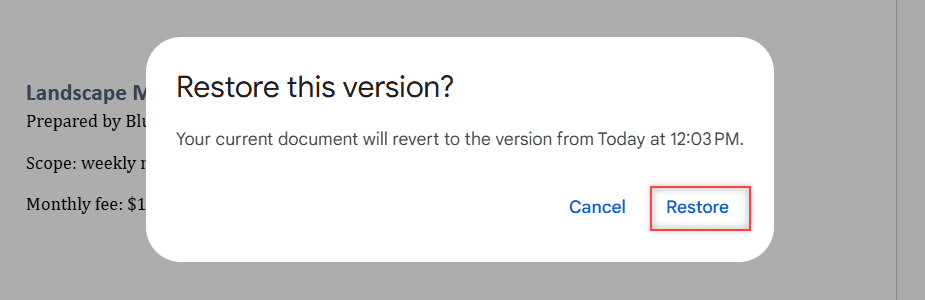
Docs asks you to confirm first. The box says your current document will revert to the version you picked.
How does this work?
Restoring doesn’t throw away the newer edits. When I restored the 12:03 PM version, Docs added a new current version labeled “Restored from October 24, 12:03 PM”, and the newer versions stayed in the list below it.
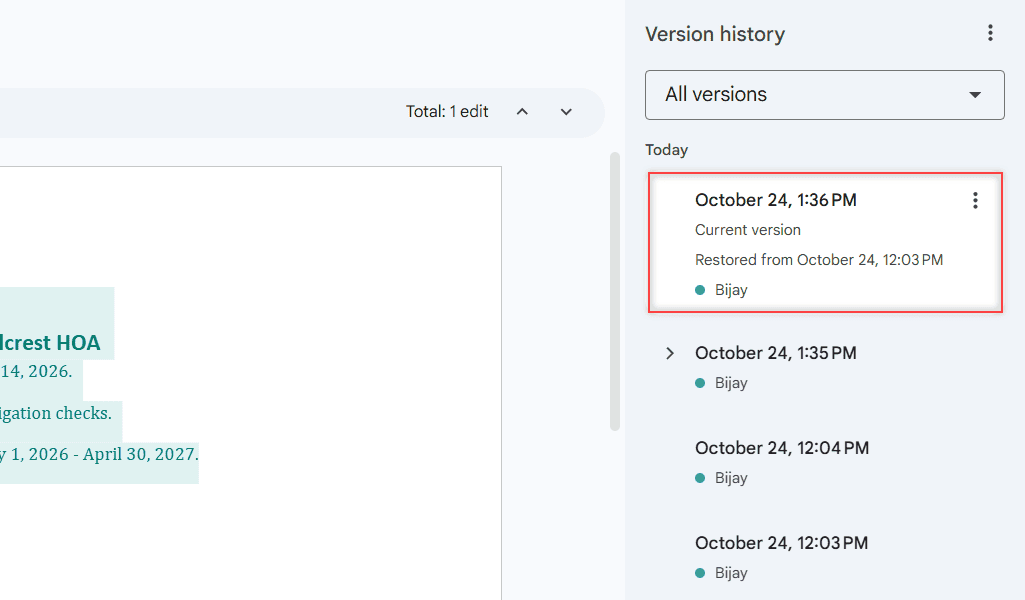
So you can always switch back. I restored the newer version a minute later, and the May 4 update line came back.
You need edit access to browse versions. If you can only view or comment, the option won’t be there.
Method 2: Name, copy, or delete a version
Each version in the panel has a three-dot menu. That’s where you name a version, copy it into a new file, or clean up old history.
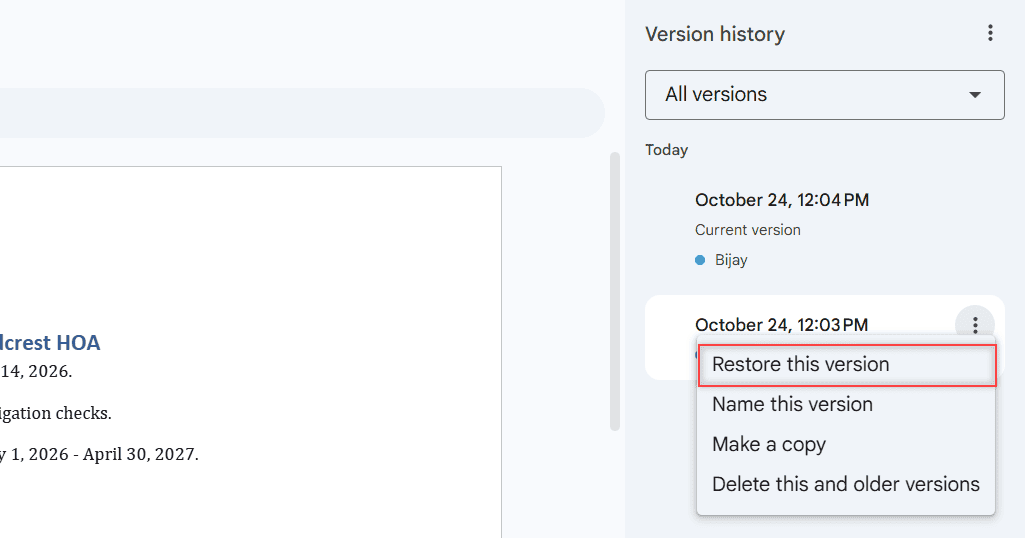
- Name this version: gives a checkpoint a label like “Sent to board.” You can also click a version’s name to rename it, or use File > Version history > Name current version.
- Make a copy: saves that version as a separate file, so you can pull a paragraph back without touching the current document.
- Delete this and older versions: removes unnamed versions older than this one. Only the owner can do it, and it can’t be undone.
How does this work?
Google groups small edits together and may merge older revisions, so the list isn’t every keystroke. Named versions don’t get merged, and the Only show named versions toggle hides the rest. A document can hold up to 40 named versions and a spreadsheet up to 15.
Pro tip: Name a version right before a big rewrite or before you share the file. It takes five seconds and makes the right restore point easy to find later.
Version history shows what changed inside one file. To see edits, moves, and shares across folders, check recent activity in Google Drive instead.
Method 3: Manage versions of PDFs, images, and Office files
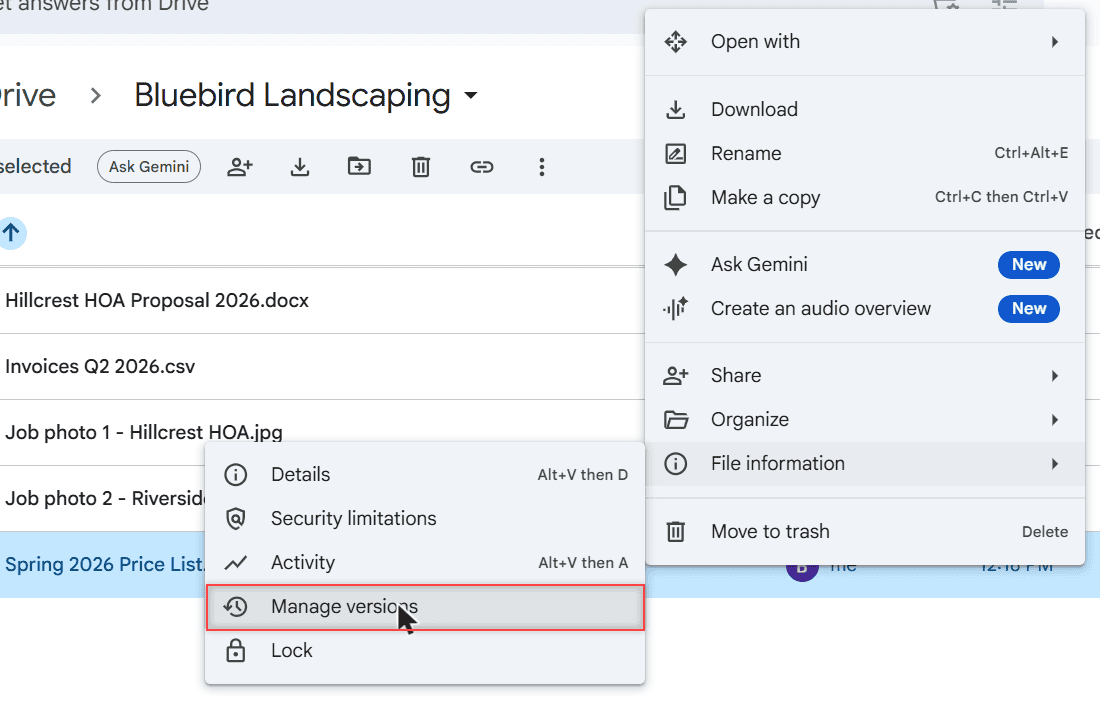
Uploaded files like PDFs, images, and Word or Excel files don’t have a Restore this version button. They use Manage versions, where you download an old copy or upload a newer one. I’ll use Spring 2026 Price List.pdf.
- Go to drive.google.com and right-click the file.
- Click File information > Manage versions. You can also select the file and use More (three dots) > Manage versions.
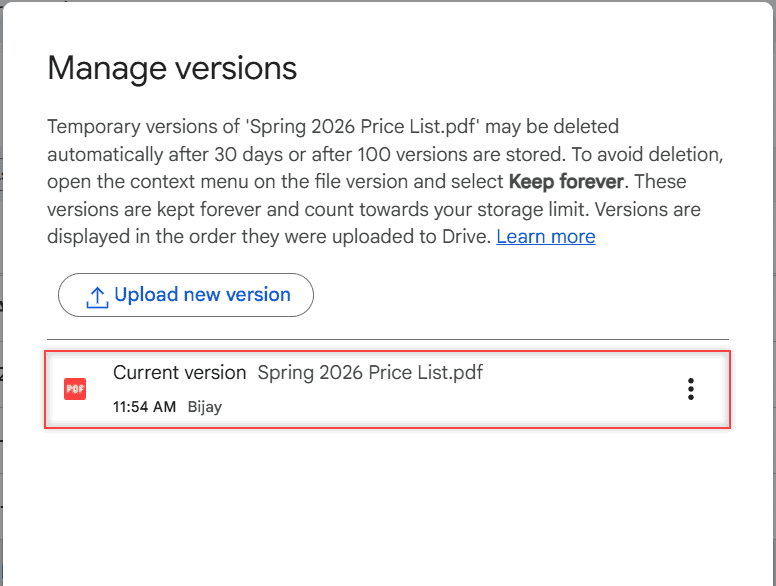
- Next to a version, click More and choose Download to save that copy, or Keep forever so Drive never removes it.
- To make an old copy current again, click Upload new version and pick the file you downloaded.
How does this work?
Older versions of uploaded files are temporary. Drive may delete one after 30 days or once 100 newer versions exist, unless you mark it Keep forever. Kept versions count toward your storage.
When you edit a file on your computer, use Upload new version instead of uploading it again. You keep one file with its history, not a duplicate, and if someone else owns it, they stay the owner.
If a download from this dialog fails, here’s how to fix it when you cannot download a file from version history.
Can you roll all of Google Drive back to a previous date?
Not in one step for most people. Version history works file by file, so you restore each file on its own.
If files were deleted rather than changed, open Trash, right-click each file, and choose Restore. Sort by Trashed date to find everything removed on one day. Items stay there for 30 days, which is covered in how long Google Drive keeps deleted files, so don’t empty the Trash until you’ve checked.
Google is also testing a Restore file versions tool (Beta) under Settings that rolls many uploaded files back at once, mainly for ransomware. It covers the last 25 days, skips Google Docs and Slides, and won’t let you pick individual files, so it may not appear in every account yet.
Things to keep in mind
- Edit access is required: viewers and commenters can’t open version history.
- Personal vs Workspace: version history itself works the same in both. Workspace Business Standard and higher plans add Show editors, which shows who changed a selected part of a Doc.
- Sheets cell history: right-click a cell > Show edit history. Restoring an older spreadsheet version clears the cell history for changes before the restore.
- It doesn’t show views: to find out who opened a file, see who has viewed a Google Doc.
Want to keep your files safer? These are worth a look next:
Frequently Asked Questions
How far back does Google Drive version history go?
For Google Docs, Sheets, and Slides, I haven’t found a time limit, but older edits can be merged. For PDFs and other uploaded files, a version may be deleted after 30 days or 100 newer versions unless you choose Keep forever.
Can I see the version history of a PDF in Google Drive?
Yes. Right-click the PDF and choose File information > Manage versions to see, download, or keep its uploaded versions. You can’t see edits inside the PDF, only the versions that were uploaded.
How do I restore Google Drive to a previous date?
There’s no single button for most accounts. Restore changed files one at a time from version history, and restore deleted files from Trash within 30 days.
Does version history count toward Google Drive storage?
Versions of uploaded files you mark Keep forever count toward your storage limit, as the Manage versions dialog says. Temporary versions may be deleted automatically after 30 days or 100 versions.
Who can see version history in Google Docs?
Anyone with edit access can open it, and viewers or commenters can’t. Only the owner can delete versions. Details are in Google Docs Help on version history.

I am Carissa Gudinoa, a technology buff, and Office online and Apple expert with over 9 years of experience. I am passionate about helping others get the most out of their Apple devices. I have written extensively about Apple products and technologies. I am committed to providing my clients with the best possible service and am always up-to-date on the latest Apple products and features. I also write extensively on other software available for use at minimal cost or free. This includes Word Online, Outlook Online, Excel Online, and other Office online programs… Check out more.