
By the end, our Hillcrest HOA site notes live in Google Drive as a real Google Doc. The crew can open it, fix a typo, and find it by searching “crape myrtles,” and the original Evernote file sits right next to it as a backup.
In this tutorial, I’ll show you how to migrate from Evernote to Google Drive the free way: export your notes from the Evernote desktop app, pick the format Drive can actually use, upload the export, and turn each note into an editable Google Doc.
What you need before you move your notes
I set this up for my made-up business, Bluebird Landscaping Co., in a demo Google account. Here’s the short list.
- The Evernote desktop app on a Mac or Windows PC. Evernote’s help says exporting works only in the desktop app, not in Evernote Web. Free accounts can export too.
- A Google account with room in Drive. Every file you upload counts against your storage, so if Drive is already tight, read how I dealt with a full Google Drive with no big files first.
- A folder for the export. I made one called “Evernote export – Bluebird notes 2026” so nothing landed loose in My Drive.
One honest note about my screenshots. The Drive steps are real, but the notes themselves are sample files I built in Evernote’s export formats: four Bluebird notes as HTML files, an index.html page, and one file called “Bluebird notes 2026.enex.”
Exporting Evernote and moving the notes into Drive
There’s no built-in Evernote Google Drive integration that copies notes over for you. The migration is export, upload, then convert, and it went like this for me.
Export your notebook from the Evernote desktop app
In the desktop app, select a notebook or a group of notes, right-click, and choose Export…. Evernote lets you export up to 100 notes at a time, or whole notebooks.
Next comes the choice that matters most. Evernote offers three formats: ENEX, single-page HTML, and multi-page HTML. You can also check or uncheck attributes like tags, created date, and author, and the export saves to your desktop.
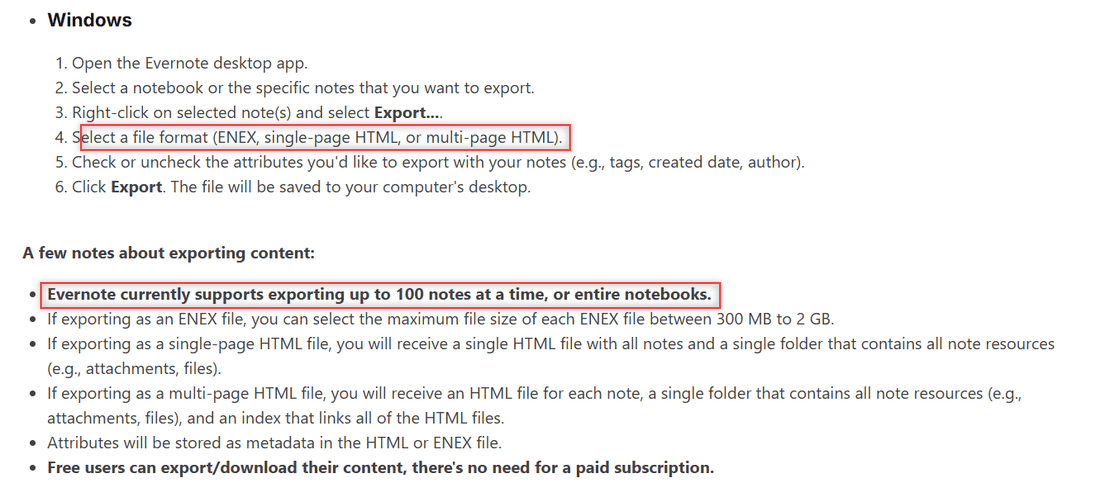
Before you click Export, decide which notebooks are worth moving. I skipped an old notebook of past supplier quotes and only exported the 2026 job-site notes, which kept the Drive folder small and easy to check.
Pick multi-page HTML if you want Google Docs
Here’s what each format gives you, based on Evernote’s help page:
| Format | What you get | Good for |
|---|---|---|
| ENEX (.enex) | One Evernote export file, max size you pick from 300 MB to 2 GB | Backup, or importing back into Evernote |
| Single-page HTML | One HTML file with every note, plus a resources folder | Reading everything in one long page |
| Multi-page HTML | One HTML file per note, a resources folder, and an index that links them | Turning each note into its own Google Doc |
I export both. Multi-page HTML is the one I convert, and the ENEX file is my safety copy in case I ever want the notes back in Evernote.
Single-page HTML is handy for printing or skimming, but converting it gives you one giant Google Doc. With multi-page HTML, each note becomes its own Doc with its own title, which is much easier to search and share later.
Leave the attributes checked if you care about them. The tags and created date ended up as a line near the top of my converted Doc, which is the only place that history survives once the note leaves Evernote.
Upload the export folder to Google Drive
Open drive.google.com and go into your new folder. Select New, then Folder upload to send the whole export folder at once, or File upload to pick individual files.
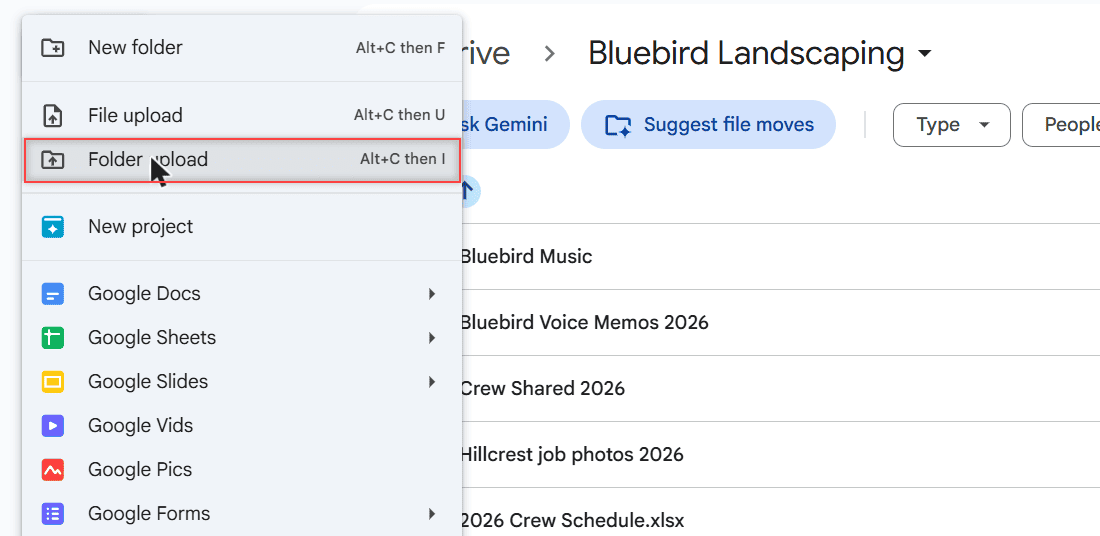
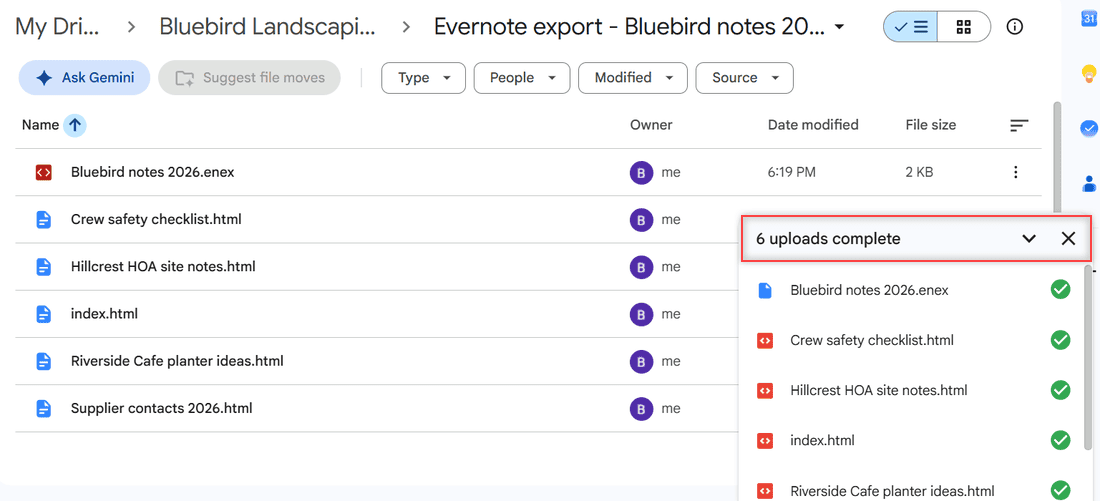
I used File upload and selected all six sample files. Dragging them into the open folder works too, and it’s the same trick I use to upload large files to Google Drive.
When the panel at the bottom right said “6 uploads complete,” everything was in.
Now the folder holds the .enex file and five .html files. Mine looked like this, with the ENEX file at just 2 KB because the sample notes are short.
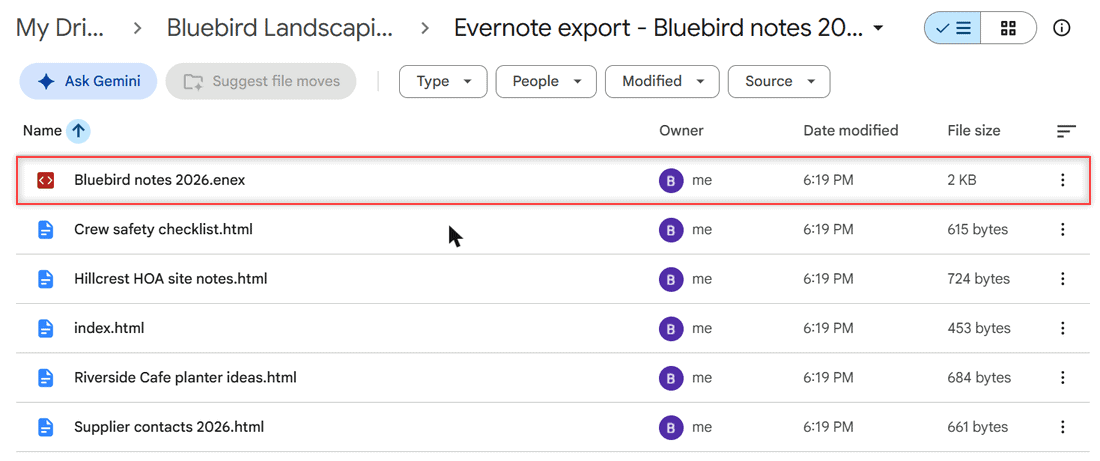
Open an ENEX file and see why it is only a backup
This is the part nobody warned me about. Google Drive can store an ENEX file, but it can’t read it as notes. When I double-clicked Bluebird notes 2026.enex, the preview showed raw XML: tags, dates, and note text crammed between markup.
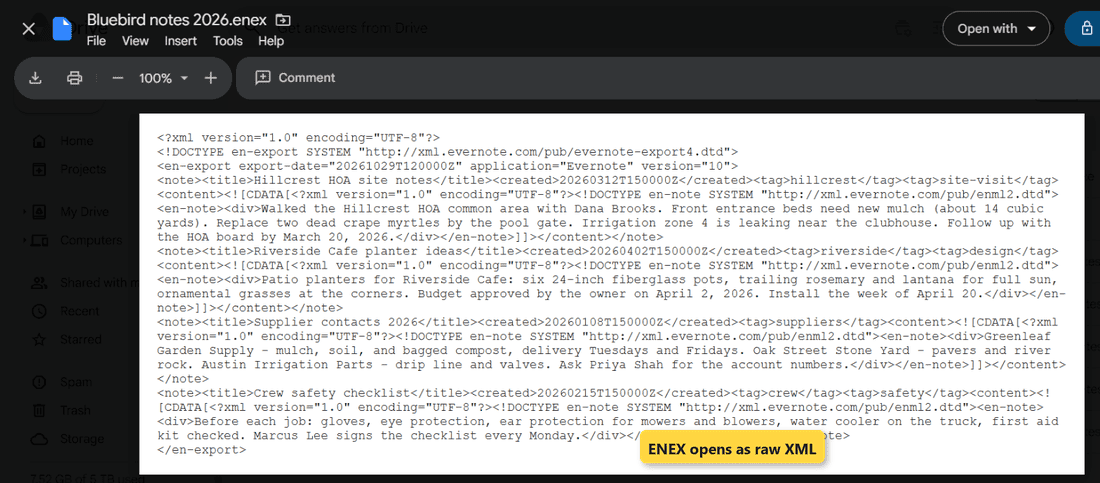
So if your only export is ENEX, you have a backup in Drive, not usable notes. That’s why I lean on the HTML export for everything I want to keep working with.
Convert each HTML note to a Google Doc
My first guess was right-click, Open with, Google Docs. It isn’t there. The submenu listed Preview, Open in new tab, and suggested apps like Text Editor, draw.io, and Editey.
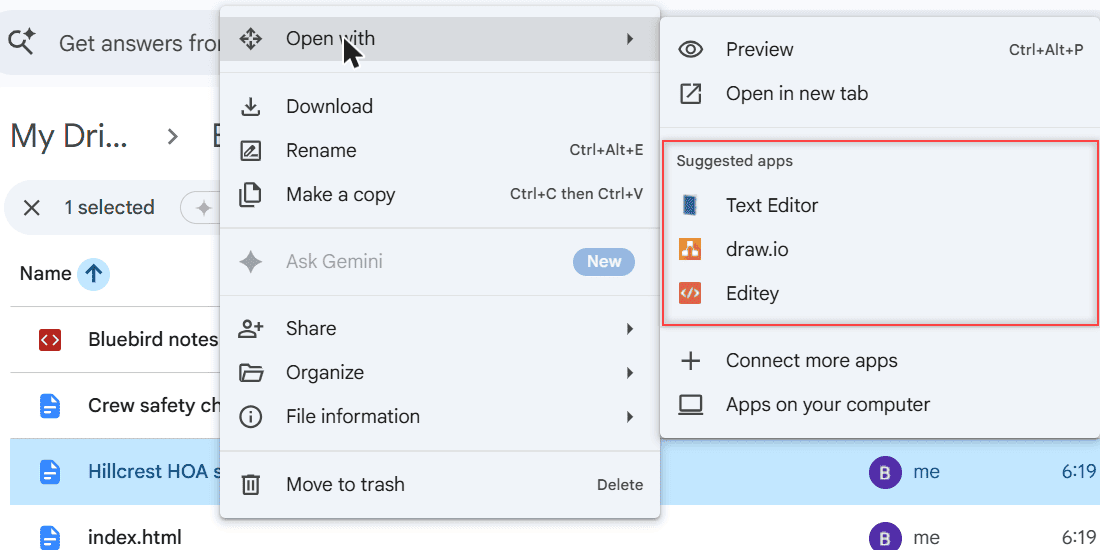
What worked was opening the file in Preview. Drive showed the HTML source as text, with an Open with Google Docs button across the top.
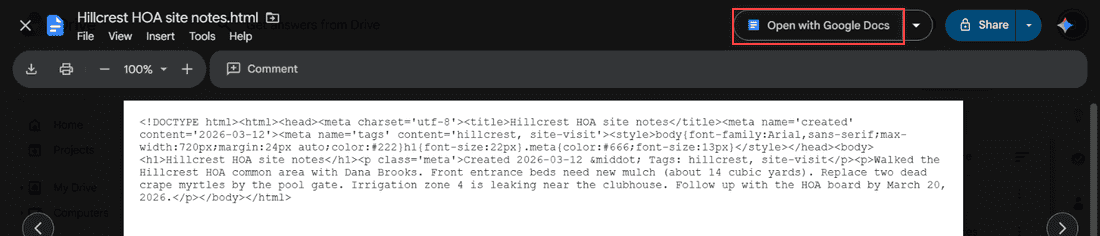
I clicked it, and Drive created a new Google Doc called “Hillcrest HOA site notes.” The heading, the created date and tags line, and the body text all came through, and the original .html file stayed in the folder.
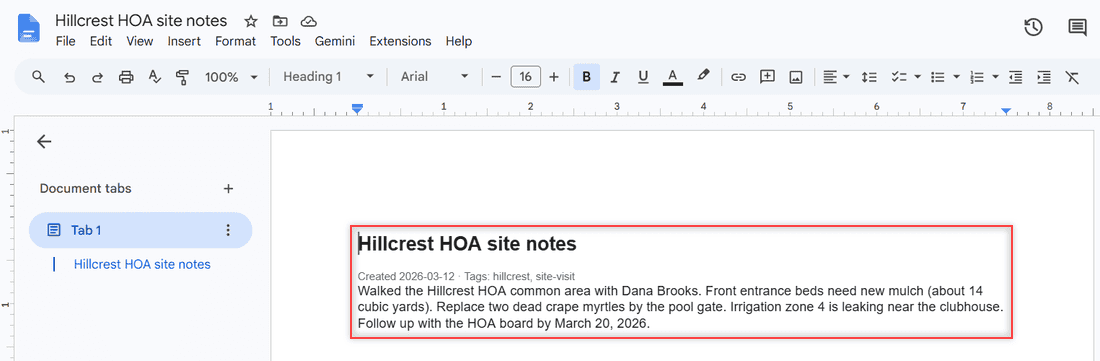
From here it’s a normal document. If you’re new to the editor, here’s how to edit a document in Google Drive.
Check that your notes made the move
A migration isn’t done until you can find things. I typed “crape myrtles,” a phrase from the Hillcrest note, into the Drive search bar.
Three results came back: the .html file, the .enex file, and the new Google Doc. An AI Overview line also showed above them in my account.
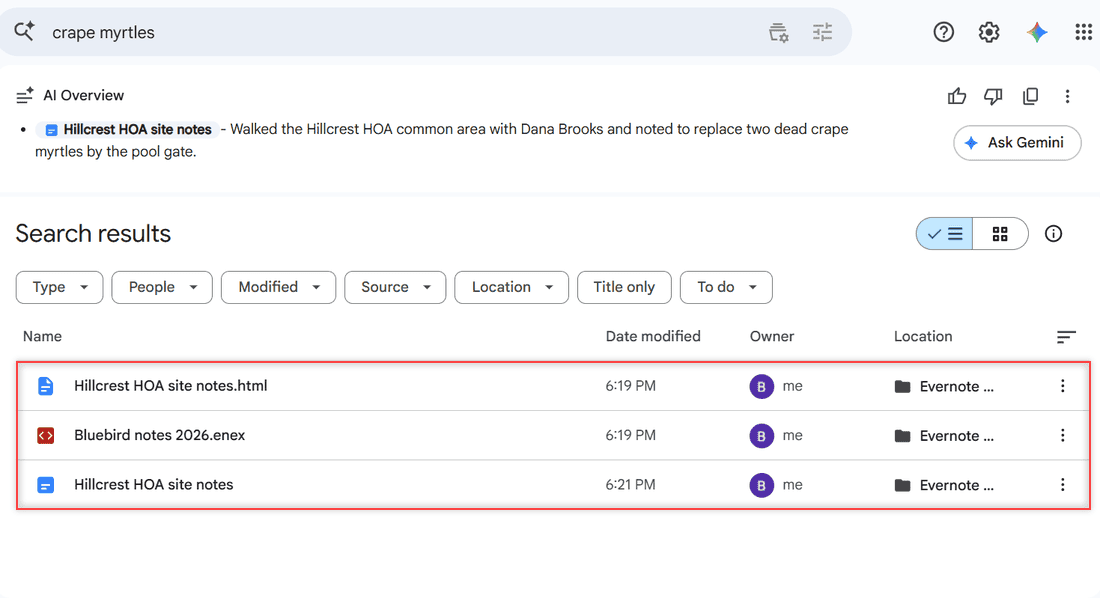
So the text inside your uploads is searchable either way. The difference is what happens when you open the result. The Google Doc reads like a note and you can edit it, while the other two open as code.
Then I opened the converted Doc side by side with the HTML preview. The heading matched, the created date and tags line was there, and every paragraph of the note was in the Doc. That quick comparison is worth doing on two or three notes before you convert the rest.
I also opened the index.html file to make sure every note was listed. For a big notebook, sort the folder by name so it’s easy to tick off notes, the way I sort files in Google Drive.
Change the setup for your own notebooks
Once one note works, these are the adjustments I’d make for a real Evernote account.
- One folder per notebook. Evernote exports notebook by notebook anyway, so match it in Drive. Here’s how to create subfolders in Google Drive if you want them nested.
- Batches of 100. The 100-note limit applies to selected notes, so export big notebooks whole or in chunks.
- Notes with attachments. My sample notes were text only. Evernote’s help describes the resources folder as a folder that contains note resources (attachments, files), so upload it too and spot-check a few converted Docs.
- Tidy names after converting. Exported files carry Evernote’s note titles. If they’re messy, you can rename multiple files in Google Drive in a few passes.
You may also spot a Drive setting called “Convert uploads to Google Docs editor format.” It’s in Drive’s settings and was off in my account. I didn’t test it with HTML notes, so I’m sticking with the Open with Google Docs button I know works.
Share the converted notes with your team
The big win of Google Docs over an Evernote notebook is sharing. Once the Hillcrest note was a Doc, I could share it with the crew lead from the Share button instead of exporting it again for each person.
For a whole notebook, share the Drive folder instead of single files. Google’s sharing help says every file and subfolder inside a shared folder inherits the folder’s sharing, so the converted notes in it are covered.
If someone needs a link rather than an invite, here’s how to turn on link sharing in Google Drive.
Keep the .html and .enex files in a subfolder named something like “Originals.” The crew sees only the Docs they need, and the raw export stays put if anything goes wrong during the move.
Should you use a third-party transfer service?
Search for this topic and you’ll find cloud-transfer services and ENEX converter tools, usually on the vendor’s own blog. They can save clicks when you have thousands of notes.
Just know what you’re agreeing to. To copy notes, these services need access to both your Evernote account and your Google account. I’m not recommending any of them, and for most people the free export above does the job.
If you want an extra safety net, keep the ENEX file in Drive and back the folder up somewhere else, like the steps in my post on backing up cloud files to an external drive.
If you are moving other things into Drive too, these guides help
- Move OneDrive files to Google Drive
- Save Word documents to Google Drive
- Back up QuickBooks to Google Drive
- Google Drive vs Google Docs, explained
Questions about this setup
Can I export Evernote to Google Docs directly?
Not in one step. Export the notes as HTML from the Evernote desktop app, upload them to Drive, open each file in Preview, and select Open with Google Docs.
Can I export Evernote from Evernote Web?
No. Evernote says exporting works only in the desktop app for Mac and Windows, and free accounts can export too. The steps are in Evernote’s help article on exporting notes and notebooks.
Can I migrate from Evernote to Google Keep?
Google Keep isn’t covered here. This walkthrough moves notes into Google Drive and Google Docs, which is where I could test every step.
Why does my ENEX file show code in Google Drive?
Drive stores ENEX files but previews them as raw XML, not as notes. Keep the ENEX as a backup, and export HTML for the notes you want to read and edit in Drive.
Is there a way to upload a whole export folder at once?
Yes. In Drive, select New, then Folder upload, or drag the folder into an open Drive folder. Google covers both in Google Drive Help: upload files and folders.

I am Carissa Gudinoa, a technology buff, and Office online and Apple expert with over 9 years of experience. I am passionate about helping others get the most out of their Apple devices. I have written extensively about Apple products and technologies. I am committed to providing my clients with the best possible service and am always up-to-date on the latest Apple products and features. I also write extensively on other software available for use at minimal cost or free. This includes Word Online, Outlook Online, Excel Online, and other Office online programs… Check out more.