
Ever had a meeting sitting right there on your calendar and still missed it? That’s what reminders fix. Outlook can pop up an alert before the event, send you an email about it, or do both.
In this tutorial, I’ll show you how to set calendar reminders in Outlook for one event, add an email reminder, change the default for every new event, and decide how the reminder pop-up looks. I tested it all in Outlook on the web with a Microsoft 365 work account.
Method 1: Set a reminder on one event
This is the one you’ll use most. I set it up on a site walk for my test business, Bluebird Landscaping. If you keep birthdays on the same calendar, you can also add birthdays to your Outlook calendar and give them their own reminders.
- Open Outlook on the web and click the Calendar icon on the left.
- Click New event, or open an event that’s already on your calendar.
- Fill in the title, date, and time.
- On the toolbar, click the reminder button (the alarm clock).
- Pick how early you want the alert, then click Save.
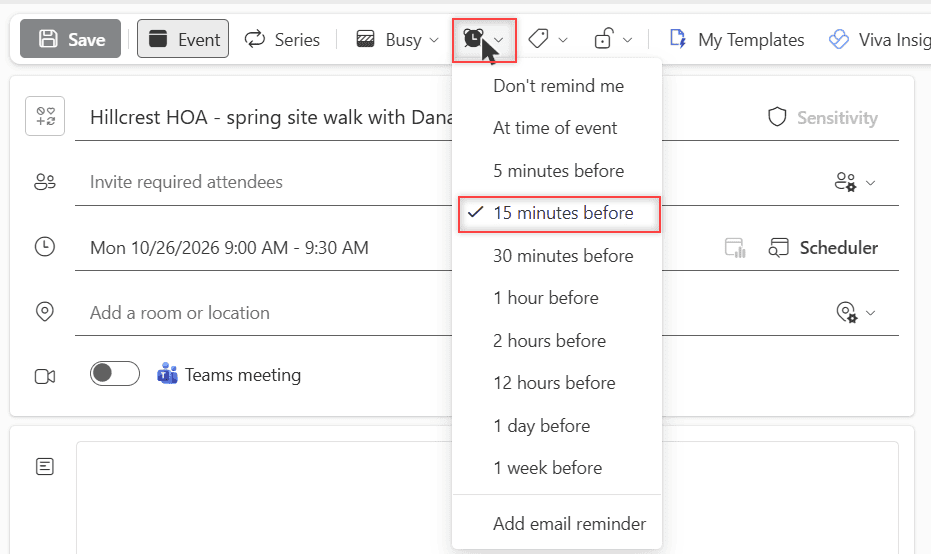
The list runs from At time of event up to 1 week before, with 5, 15, and 30 minutes, 1, 2, and 12 hours, and 1 day in between. Don’t remind me sits at the top if you want the event to stay quiet.
Once you save, the event shows up on your calendar. Click it and a small card shows the title, the date and time, and buttons to edit or delete it.
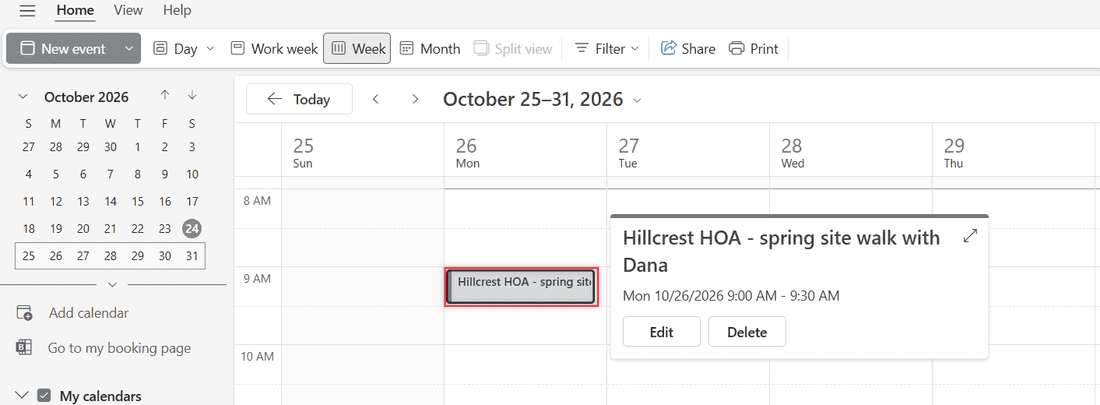
How does this work?
The checkmark in that list is your current default. In my mailbox, it sat on 15 minutes before. Whatever you pick here only changes this one event. Your other events keep their own reminders.
For a repeating event, Microsoft says to select View series first. Then the reminder you pick covers the whole series instead of one meeting.
Turn the reminder off for one event
Some events don’t need a nudge, like a lunch block or a reminder to yourself that you’re working from home. Open the event, click the reminder button, and pick Don’t remind me at the top of the list.
That only silences the one event. Your default stays the same, so the next event you create still gets its usual reminder.
Method 2: Add an email reminder to an event
A pop-up only helps if Outlook is open. An email reminder lands in your inbox, so you’ll see it wherever you read your mail. It’s a nice pairing with inbox rules in Outlook Online if you like to file those reminders somewhere.
- Open the event and click the reminder button on the toolbar.
- At the bottom of the list, click Add email reminder.
- In Remind me, choose when the email should arrive.
- Type a short note in the message box if you want one.
- Click Save, then save the event.
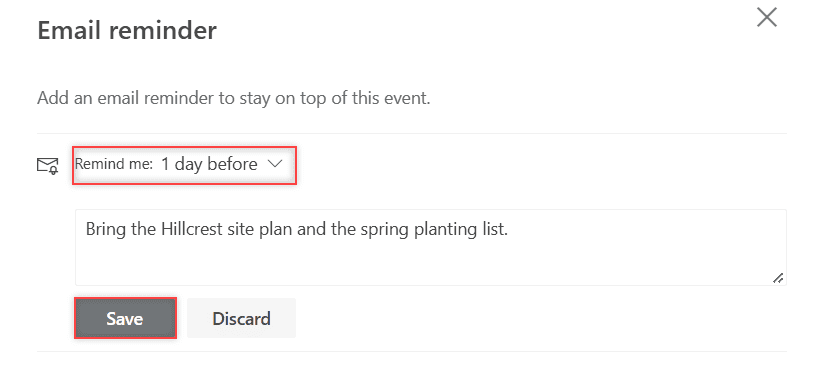
I set mine to 1 day before with a note to bring the Hillcrest site plan and the spring planting list. The time list has the same choices as the pop-up reminder, plus Custom if none of them fit.
How does this work?
After you save, the dialog lists your email reminder with edit and delete icons. Below it, there’s + Add email reminder, so you can stack more than one. I like a 1-week email for prep work and a 1-day email for the final check.
Pro tip: Use the note box. A week later, “Bring the site plan” is a lot more useful than the event title alone.
Pick the right reminder time for each kind of event
The best reminder depends on what you need to do before the event. Here’s how I set them up for my landscaping business. Use it as a starting point and adjust to how your week runs.
| Event | Pop-up reminder | Email reminder |
|---|---|---|
| Quick team call | 5 minutes before | None |
| Client meeting in the office | 15 minutes before | 1 day before |
| Site walk across town | 1 hour before | 1 day before |
| Project that needs prep | 1 day before | 1 week before |
| Deadline or renewal | 1 week before | Custom, a few days out |
Travel time is the thing people forget. A 15-minute reminder is fine for a call at your desk. It’s too late for a meeting you have to drive to, so give those events at least an hour.
I also keep the email reminder for anything where I have to bring something, print something, or call someone first. The pop-up tells me to leave. The email tells me what to get ready.
Method 3: Change the default reminder for all events
If you always change 15 minutes to something else, set it once in settings instead. This is the outlook calendar reminder setting most people are hunting for.
- Click the Settings gear at the top right of Outlook on the web.
- Go to Calendar > Events and invitations.
- Under Events you create, open the Default reminder dropdown.
- Pick a new time, and click Save if Outlook asks.
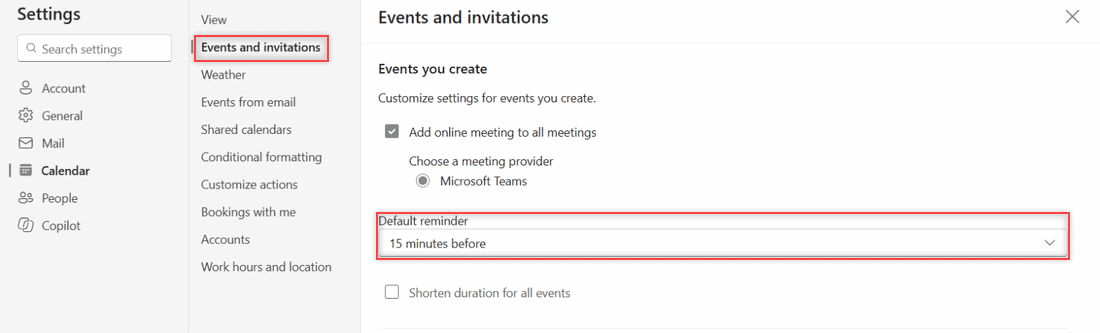
The same page has other options for events you create, like adding an online meeting to every meeting. If some events shouldn’t show details to coworkers, you can also mark an Outlook event as private.
How does this work?
Microsoft says this default applies to your existing meetings and to the new ones you create. You can still change the reminder on any single event with Method 1, so the default is a starting point, not a lock.
Method 4: Choose how reminders pop up
If reminders aren’t showing at all, or they show in a way you don’t like, this is where to look.
- Click the Settings gear.
- Go to General > Notifications.
- Make sure Notifications in Outlook is on.
- Turn on Calendar and click it to expand.
- Pick a Notification style and a sound.
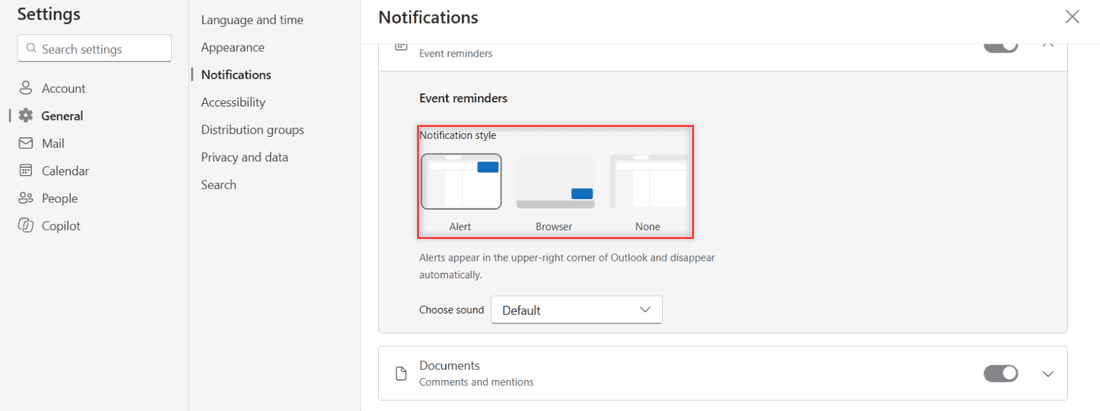
You get three styles. Alert shows the reminder inside Outlook, and it’s the one I use. Browser is the other pop-up choice, and None turns the pop-up off. The Mail and Documents toggles on the same page are separate.
How does this work?
Outlook’s own text says alerts appear in the upper-right corner of Outlook and disappear automatically. Microsoft also says notifications only show while Outlook on the web is open in your browser. Close the tab and the pop-ups stop, which is why I add an email reminder to the big ones.
What happens when the reminder pops up
When a reminder fires, a Reminders box shows up at the top right of Outlook. Each event gets its own line with a snooze button (the alarm clock) and an X to dismiss it. A Dismiss all button sits at the top.
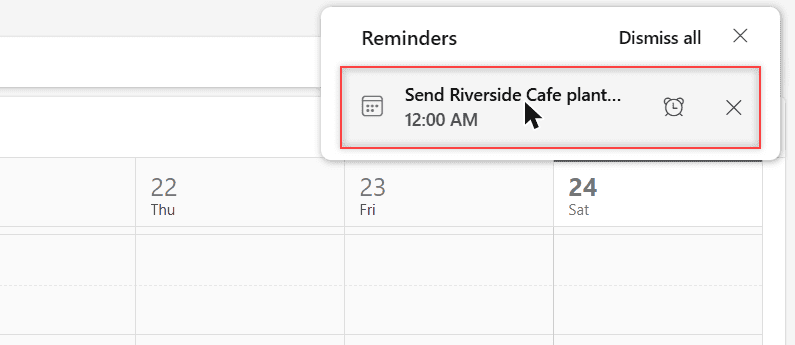
Here’s something I didn’t expect. I saved an event that started 10 minutes later, with the default 15-minute reminder. The pop-up appeared within seconds, because the event was already inside its reminder window.
Click the alarm clock to snooze. My list offered 5 mins before start and 0 mins before start, then 5, 10, 15, and 30 minutes.
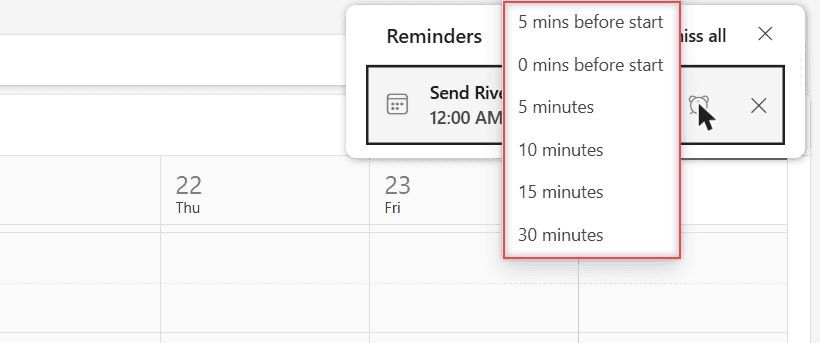
Microsoft says the same window lets you join a Teams meeting straight from the reminder. Busy week ahead? You can also set up automatic replies so people know when you’re out on site.
Method 5: Set reminders in classic Outlook for Windows
I tested everything above on the web. For the desktop app, here are the steps Microsoft lists for classic Outlook. Microsoft lists the same Settings steps for new Outlook for Windows as for the web.
- Default for new events: File > Options > Calendar. Under Calendar options, check Default reminders and pick a time.
- One event: open it. For a repeating meeting, Outlook asks whether you want Just this one or The entire series. On the Appointment tab (or Recurring Event for a series), use the Reminder dropdown. Pick None to turn it off.
- Reminders on top: File > Options > Advanced, then check Show reminders on top of other windows.
- Clear old reminders: in the same Advanced section, check Automatically dismiss reminders for past events.
- Email follow-ups: select a message, then Home > Follow Up > Add Reminder.
Microsoft also says changing the default doesn’t take away custom reminders. You can still set a different time on any single item you create.
Microsoft says the classic default is 15 minutes before, the same as my web mailbox. If classic Outlook feels slow while you’re in there, it’s worth taking a minute to check your Outlook storage space.
Things to keep in mind
- Keep Outlook open. Web pop-ups only appear while Outlook is open in a browser tab. Email reminders don’t have that limit.
- Two kinds of reminders, one button. The pop-up time and the email reminders both live under the same alarm clock button on the event toolbar, and each one is set on its own.
- Tasks are separate. Microsoft says task reminders live in To Do: open the task and select Remind me.
- Check Do not disturb. Microsoft points to Teams “Do not disturb” and Windows Focus Assist when reminders don’t show.
- Work vs personal accounts. I tested a Microsoft 365 work mailbox. If a setting is missing on a work account, ask your IT admin.
- Mac and phones. I didn’t test Outlook for Mac or the mobile apps, so I’ve left those steps out.
More Outlook Online guides you might like
- Remove an account from Outlook Online
- Sort folders in Outlook Online
- Download emails from Outlook
- All Outlook Online tutorials
Frequently Asked Questions
How do I set a reminder in Outlook 365?
Open the event in your calendar, click the reminder button on the toolbar, and pick a time. Click Save, and Outlook reminds you that long before the event starts.
What is the default reminder time in Outlook?
It’s 15 minutes before the event. You can change it under Settings, Calendar, Events and invitations, Default reminder.
Can I set more than one reminder for an Outlook event?
In Outlook on the web, yes for email. The Email reminder dialog has an Add email reminder link, so you can add several on top of the pop-up reminder.
Why am I not getting Outlook calendar reminders?
Check that the Calendar toggle is on under Settings, General, Notifications, and that Outlook is open. Teams Do not disturb or Windows Focus Assist can also hide them, as Microsoft explains here.

I am Carissa Gudinoa, a technology buff, and Office online and Apple expert with over 9 years of experience. I am passionate about helping others get the most out of their Apple devices. I have written extensively about Apple products and technologies. I am committed to providing my clients with the best possible service and am always up-to-date on the latest Apple products and features. I also write extensively on other software available for use at minimal cost or free. This includes Word Online, Outlook Online, Excel Online, and other Office online programs… Check out more.