
Yes, you can share a Google Drive file with someone who doesn’t use Gmail. The address ending isn’t the real obstacle. What matters is whether that address belongs to a Google Account.
In this tutorial, I’ll show you how to share google drive with non gmail users three ways, what each person can do afterward, and where personal and work accounts differ.
Why a non-Gmail address can still work
A Google Account doesn’t have to be a Gmail account. Google lets anyone create one with an address they already have, such as a Yahoo, Outlook, or company email. If your recipient has done that, you can share the file the usual way.
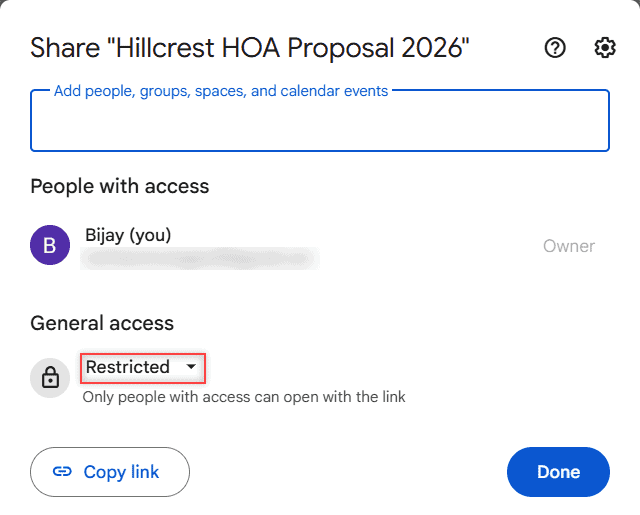
The trouble starts when the address has no Google Account behind it. Here’s the Share dialog before I add anyone. General access is Restricted, so only people I’ve added can open the file.
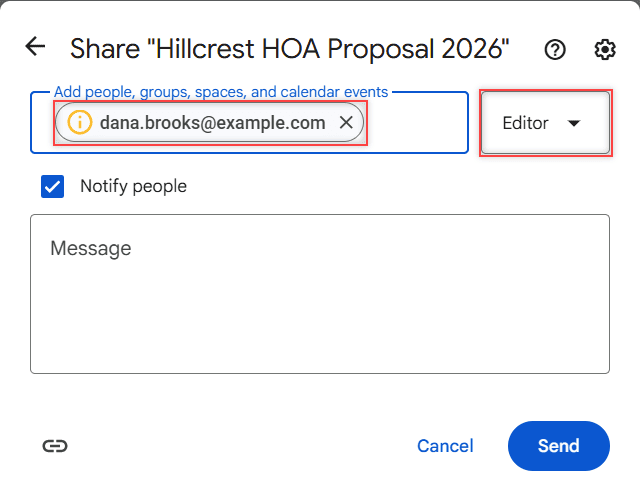
When I typed a made-up address, Drive added it as a chip with a yellow icon. The role defaulted to Editor, and Notify people was checked.
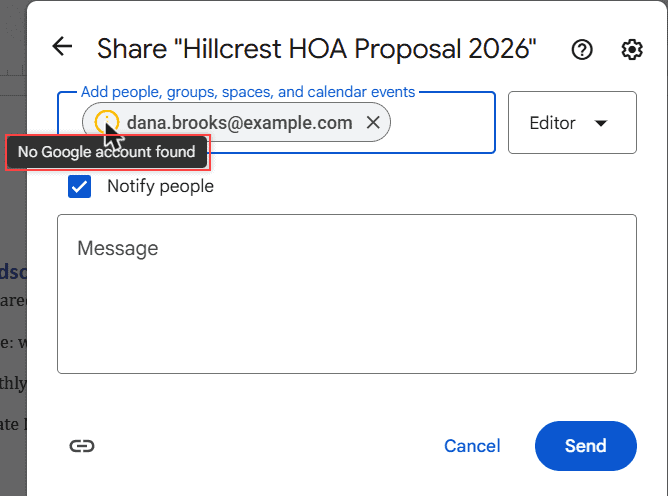
Hovering over that icon shows the reason:
I stopped there and didn’t click Send, so I can’t tell you what that person would receive from a personal account. Google’s help doesn’t spell it out either. I’d treat that yellow icon as your cue to pick one of the options below.
Three ways to give them access
| Option | Who can use it | What the recipient needs | What they can do |
|---|---|---|---|
| Anyone with the link | Personal accounts, plus work or school if the admin allows it | Just the link | Open the file without signing in; Google lists this as view-only for people with no account |
| Google Account on their current email | Any sender | A free Google Account made with their existing address | Whatever role you give them |
| Visitor sharing | Work or school accounts only, if the organization allows it | A code sent to their email | View, comment, or suggest edits for 7 days per verification |
Share a link anyone can open
This is the fastest route on a personal account. I’ve covered the clicks in my guide to turning on link sharing. In short, click Share, open the General access dropdown, choose Anyone with the link, then Copy link and Done.
My personal demo account shows only two choices here. Work and school accounts can also see an option for their organization.
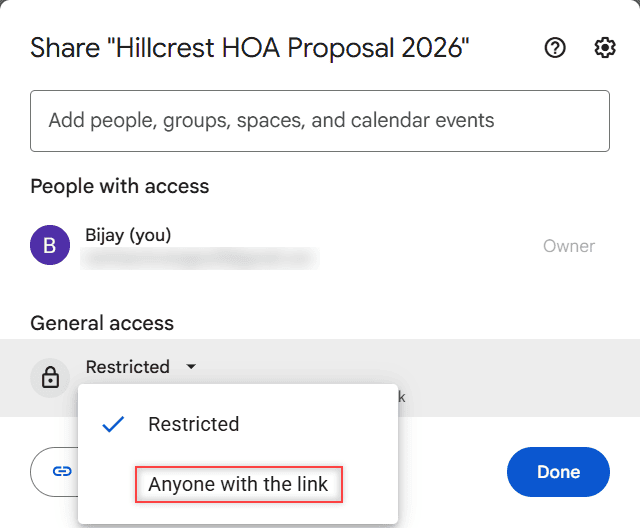
Please be careful with this one. Anyone holding the link can open the file, even if it gets forwarded to a stranger. Read how Drive links can go wrong before using it on anything private.
People who aren’t signed in show up as anonymous animals in the file, so you won’t see who they are.
Have them create a Google Account with their own email
This is the best choice for someone you’ll work with often, because you can give them a real role. Understanding what viewers can download helps you pick the right one.
- They go to the Google Account sign-up page and click Create account, then For my personal use.
- They enter their basic info and click Use your existing email.
- They type their current address and verify it with the code Google sends.
- They create a password and finish.
After that, share with that same address from your Share dialog. They keep their current inbox and never need Gmail.
Use visitor sharing on a work or school account
Visitor sharing lets you invite a specific non-Google address and have that person verify it. Your organization has to allow it, and your admin decides which outside accounts qualify. Personal accounts don’t have this feature in Google’s instructions.
- Sign in to your work or school account and open the file.
- Click Share, enter the email address, and press Enter.
- Choose Viewer, Commenter, or Editor, then click Send.
The visitor gets a verification code by email, enters it on the Verification tab, and clicks Next. It works for Docs, Sheets, Slides, Sites, images, PDFs, Office files, and folders in a shared drive.
What visitors and link users can’t do
- Visitors can’t own files, upload to My Drive, or download folders. They can download individual files.
- Visitor access lasts 7 days after verifying. To continue, they verify again from the original email link.
- Admins at work or school may block links for people outside the organization.
- Expiration dates are for work or school accounts only, so a personal link stays open until you change it.
When the work is done, set General access back to Restricted. To end a visitor’s access, click Share, then Advanced, then Remove, Save changes, and Done. For folders, here’s how to unshare a whole folder.
If you’re the one without a Google Account
Ask the owner to send a link or set up visitor sharing, or make a free account with your current email. If a file says you need permission, only the owner can change that, which is why requesting access goes to them.
A few more sharing guides you might want next:
- sharing a whole Google Drive folder
- removing shared files from your Drive
- fixing “unable to access document” errors
Common questions

I am Carissa Gudinoa, a technology buff, and Office online and Apple expert with over 9 years of experience. I am passionate about helping others get the most out of their Apple devices. I have written extensively about Apple products and technologies. I am committed to providing my clients with the best possible service and am always up-to-date on the latest Apple products and features. I also write extensively on other software available for use at minimal cost or free. This includes Word Online, Outlook Online, Excel Online, and other Office online programs… Check out more.