
Yes. In Outlook on the web, go to View > Folder pane > Sort folders and pick Order folders A to Z, and your own folders line up alphabetically under the built-in ones.
In this tutorial, I’ll show you how to sort folders in Outlook on the web, what the A-to-Z option leaves alone, and how to set your own order with Move up and Move down.
Yes, Outlook on the web can sort folders now
My old version of this post said there was no direct way to do it. That’s no longer true, so you can skip the old trick of renaming every folder with numbers.
I tested this on 2026-10-24 in a Microsoft 365 work mailbox for my made-up business, Bluebird Landscaping Co. I added four folders first: Suppliers, Clients, Invoices 2026, and Crew schedules.
Everything here is for Outlook on the web. If your mailbox is getting crowded too, it helps to check your Outlook storage space while you tidy up.
How to put Outlook folders in alphabetical order
- Open the View tab at the top of Outlook.
- Click Folder pane. The menu shows Folder list, Favorites, Sort folders, and Resize.
- Point to Sort folders and choose Order folders A to Z.
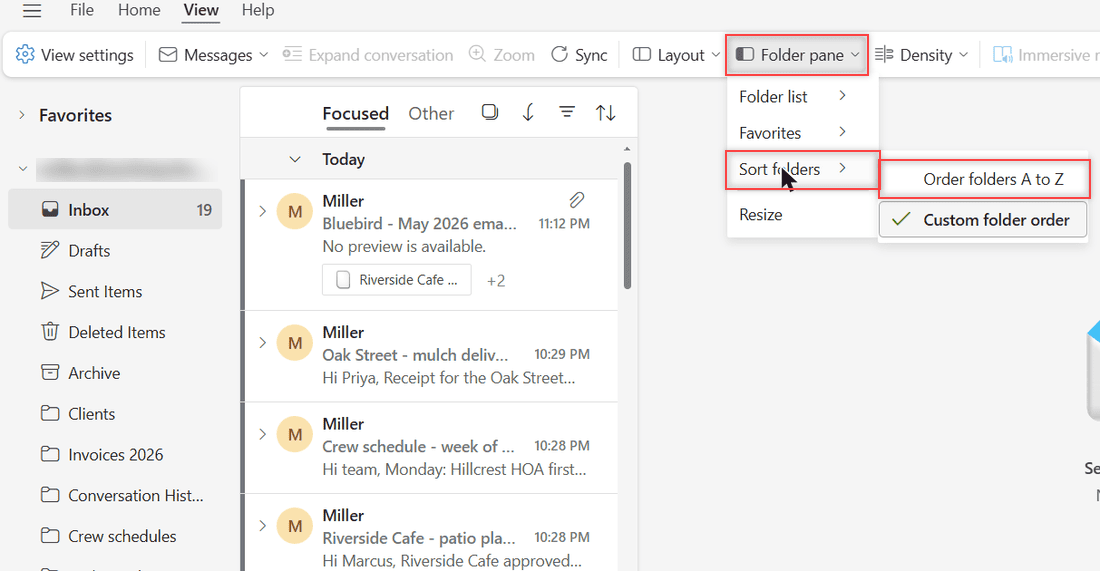
In my mailbox, Custom folder order was checked when I opened the menu. That was the default, and it’s why my new folders didn’t look sorted at first.
Once your folders are in order, filing mail gets easier. You can forward several emails at once from a folder without hunting for it.
What A to Z sorts and what stays put
The A-to-Z option doesn’t touch the built-in folders. They stay at the top in their fixed order, and only the folders you made get sorted under them.
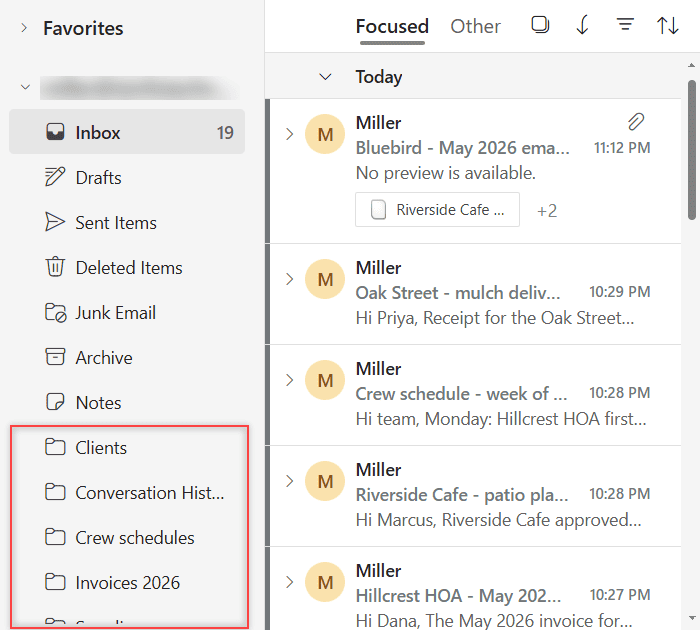
| Option | Built-in folders | Your folders | Move up / Move down |
|---|---|---|---|
| Order folders A to Z | Stay on top: Inbox, Drafts, Sent Items, Deleted Items, Junk Email, Archive, Notes | Sorted A to Z (Clients, Conversation History, Crew schedules, Invoices 2026, Suppliers) | Not in the menu |
| Custom folder order | Start on top, but Move up and Move down can shift them | The order you set | In the right-click menu |
Conversation History counts as one of the sorted folders, so it landed between Clients and Crew schedules. After I reloaded the page, a folder I’d just created also slotted into its alphabetical spot.
How to set your own folder order instead
Maybe you want Invoices 2026 near the top all year. Switch back to Custom folder order in the same Sort folders menu, then:
- Right-click the folder you want to move.
- Choose Move up or Move down.
- Repeat. Each click moves the folder one spot.
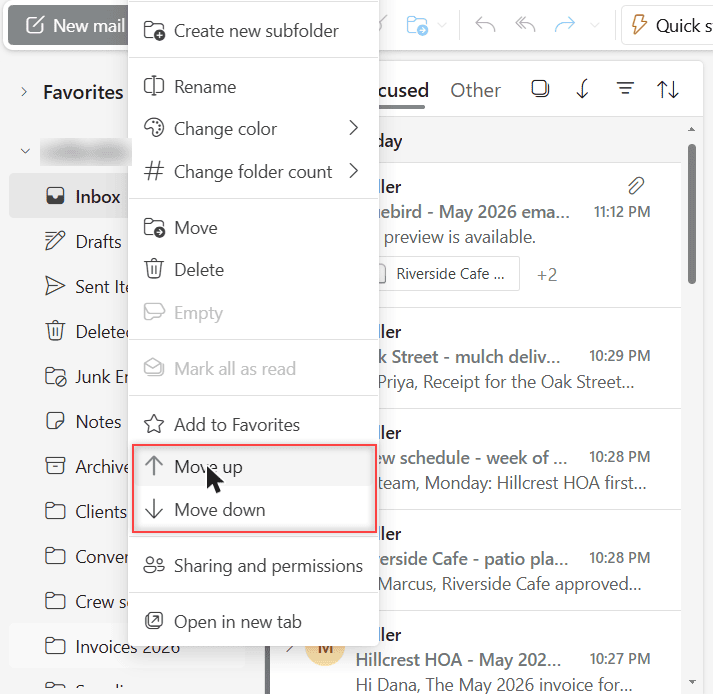
These two options only appear in Custom folder order. When A to Z is on, the right-click menu doesn’t show them, because Outlook is handling the order for you.
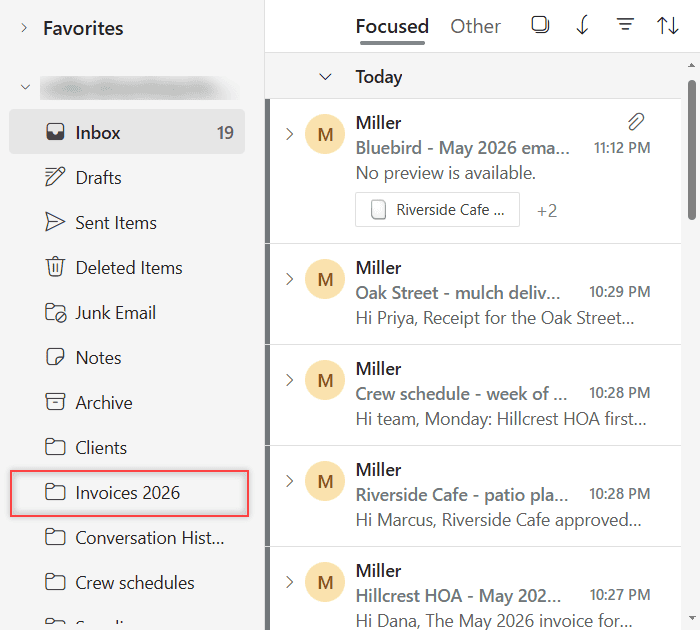
The same right-click menu has Rename and Change color. If you want some other cleanup, you can set up inbox rules in Outlook Online to file new mail into these folders automatically.
Tips for new folders and naming
- New top-level folder: right-click your account name and choose Create new folder.
- Subfolder: right-click a folder and choose Create new subfolder.
- Force one to the top of A to Z: since the list is alphabetical, a name like “01 Urgent” sorts before letters. Keep it to one or two folders.
- Built-in names stay fixed: you can’t rename Inbox, Drafts, or Deleted Items, so a prefix won’t move them.
If a folder holds mail you want to keep offline, you can download an Outlook email before you clear it out.
What sorting doesn’t change
Sorting only changes the order of the folder list. Your mail stays in the same folders, and nothing gets renamed or moved into a different parent folder.
Favorites work a little differently. Adding a folder to Favorites only adds a shortcut, and the folder itself stays in your folder list. You reorder Favorites on their own, which I cover in the questions below.
Want to keep tidying Outlook? Try these next
- Clear your Outlook recent searches
- Change fonts in Outlook Online
- Use an HTML template in Outlook Online
- All Outlook Online tutorials
Common questions
How do I sort folders alphabetically in new Outlook?
In Outlook on the web, open View > Folder pane > Sort folders and choose Order folders A to Z. I tested it on the web only, so check the same View tab in new Outlook.
Why are my Outlook folders not in alphabetical order?
Custom folder order is probably on. In my mailbox it was the default, and any folder moved with Move up or Move down keeps that spot. Pick Order folders A to Z to fix the list.
Can I sort the Inbox and other default folders too?
No. Inbox, Drafts, Sent Items, Deleted Items, Junk Email, Archive, and Notes stay at the top in a fixed order. Only your own folders get sorted.
How do I reorder my Outlook Favorites?
Drag a favorite to a new spot, or right-click it and choose Move up or Move down, per Microsoft’s guide to working with message folders. Removing a favorite only removes the shortcut.

I am Carissa Gudinoa, a technology buff, and Office online and Apple expert with over 9 years of experience. I am passionate about helping others get the most out of their Apple devices. I have written extensively about Apple products and technologies. I am committed to providing my clients with the best possible service and am always up-to-date on the latest Apple products and features. I also write extensively on other software available for use at minimal cost or free. This includes Word Online, Outlook Online, Excel Online, and other Office online programs… Check out more.