
No, Google Drive can’t put a password on a folder or a file. There’s no lock icon or password box anywhere in Drive. Instead, Drive keeps your files private to your Google account and lets you decide exactly who else can open them.
In this tutorial, I’ll explain why you can’t password protect a Google Drive folder, then walk you through what actually works: restricted sharing, files with their own password, download limits, a stronger account lock, and encryption for work accounts. I tested each one in a demo Drive for a small landscaping business.
Why Google Drive doesn’t use folder passwords
Drive treats your Google account as the lock. Google’s own help puts it simply: your files are private unless you choose to share them. Nobody can open a folder in your My Drive unless you’ve added their account or turned on a link.
That means the share dialog is where the real protection lives. When General access says Restricted, only the people listed above it can open the folder, even if someone else gets the link.
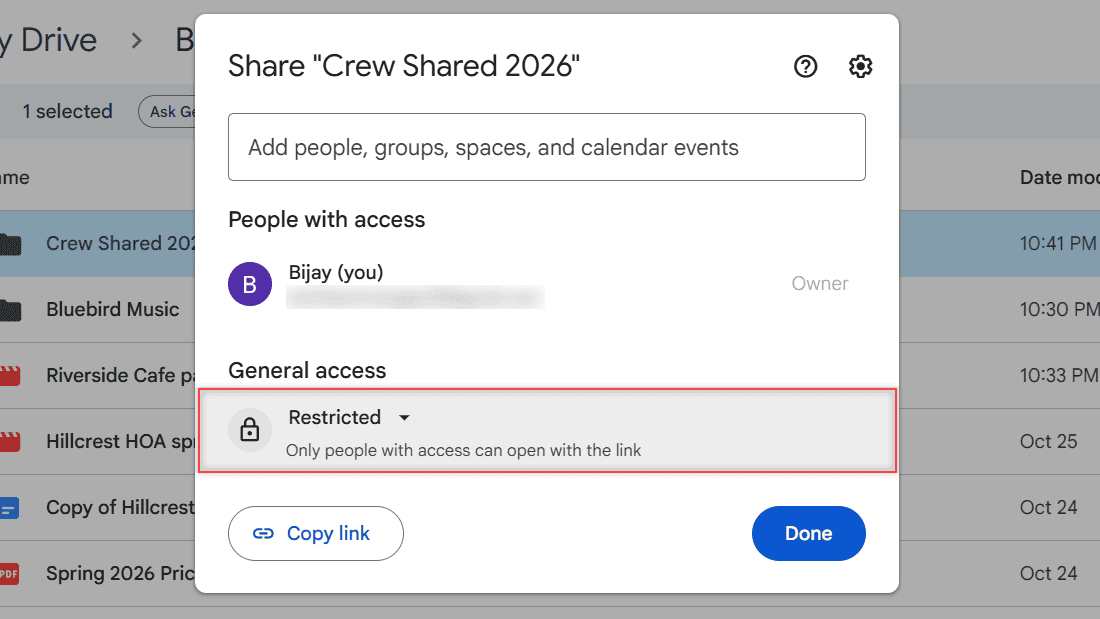
If a folder was opened up to anyone with the link, switching it back to Restricted is the closest thing to locking it. I cover the full steps in my guide on how to unshare a folder in Google Drive.
I picked the Crew Shared 2026 folder for this test because it’s the kind of folder that gets shared too widely over time. Clearing out old names is often the fastest security win.
Your options for protecting a Drive folder
Since a single password isn’t on the menu, I mix a few tools depending on what’s in the folder. Here’s how they compare.
| Option | What it protects | Who can use it |
|---|---|---|
| Restricted sharing | Only people you add can open the folder | Every Google account |
| Password on the file itself (PDF, ZIP) | The file needs a password to open, even inside Drive | Anyone, using a PDF app or 7-Zip before upload |
| Download, print, and copy limits | Viewers and commenters can open but not save a copy | Every Google account (file owner) |
| 2-Step Verification | Your whole Drive, if someone learns your password | Every Google account |
| Client-side encryption | File contents are encrypted with your organization’s keys | Google Workspace, turned on by an admin |
For most personal accounts, the first four cover it. If you only need the folder out of sight on your own screen, that’s a different job, and you can hide a folder in Google Drive instead.
How to add a password to a file before you upload it
This is the only way to get a real password prompt in Drive. You set the password on the file first, then upload it. Drive doesn’t remove that password.
I tested it with a payroll summary PDF that I’d password-protected on my computer. After uploading it, I double-clicked it in Drive, and the viewer stopped me with a password box.
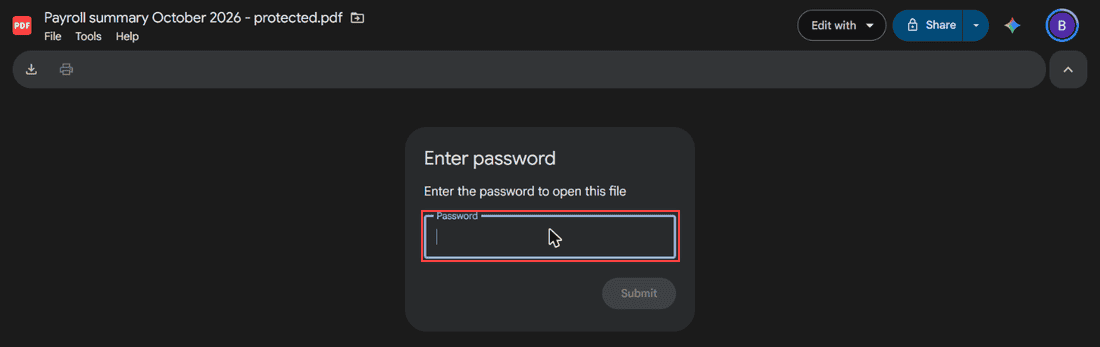
Here’s the exact message Drive showed:
Enter password
Enter the password to open this file
For a whole set of files, I zip them with a password instead. 7-Zip, a free Windows app, can create a ZIP file with AES-256 encryption. Here’s what to do:
- Select the files on your computer, right-click, and choose 7-Zip > Add to archive.
- Set Archive format to zip (or 7z), type a password, and pick AES-256 as the encryption method.
- Click OK, then upload the new file to your Drive folder.
One thing surprised me. Drive’s preview of my protected ZIP still listed the file inside by name. The contents were locked, but anyone with access could read “Payroll October 2026.csv”. You can see the same view in my post on how to view ZIP files in Google Drive.
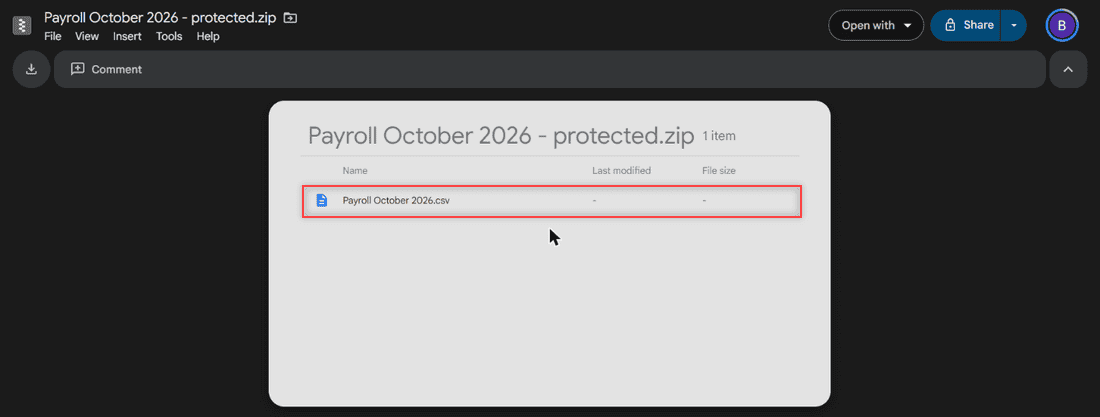
Classic ZIP encryption hides what’s in a file, not its name. Either give the inner files plain names, or use 7-Zip’s .7z format and check its Encrypt file names box. That’s a 7-Zip option, not a Google one.
How to stop people from downloading or resharing
Sometimes the worry isn’t who opens a file, it’s who keeps a copy. As the owner, you can take away the download, print, and copy options for viewers and commenters.
- Open the file’s Share dialog and click the gear icon for Settings.
- Under People who can download, copy, print, and access via Gemini, uncheck Commenters and viewers.
- Uncheck Allow editors to change permissions and share if editors shouldn’t add people.
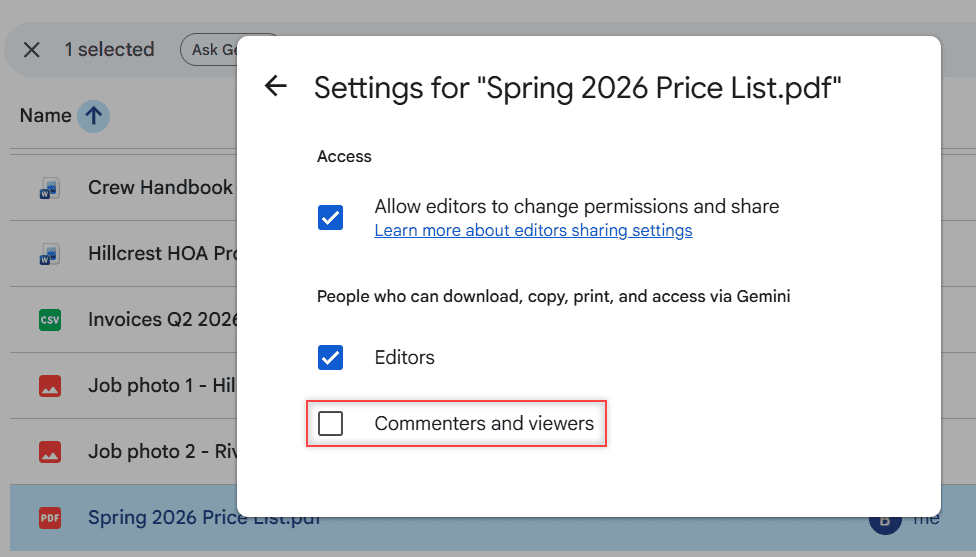
In my test, Editors stayed checked unless I cleared that box, so I only give edit access to people I trust. For a folder-wide approach, see how to disable the download option in Google Drive.
Lock the account itself with 2-Step Verification
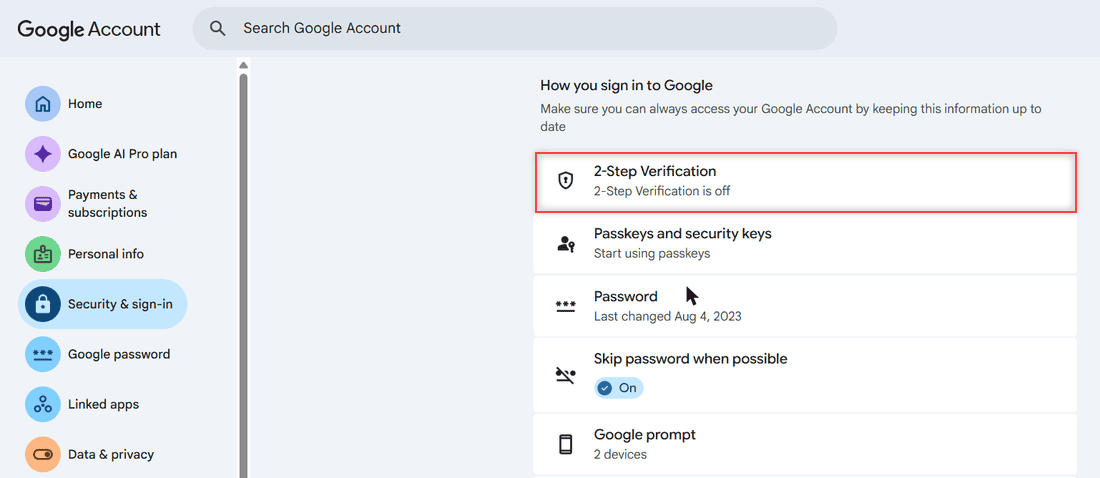
Every file in Drive is only as safe as your Google account password. If someone learns it, they get the whole Drive. 2-Step Verification adds a second check, like a Google prompt on your phone, before anyone can sign in.
To find it, open your Google Account, click Security & sign-in, and look under How you sign in to Google. My demo account shows it’s off, which is exactly what you’d fix.
Phones need a lock too. On an iPhone or iPad, Google suggests setting a passcode on the device. On Android, you can’t set a passcode for the Drive app itself, only for the phone, so turn on the screen lock.
On a shared phone or a family computer, sign out when you’re done. Here’s how to sign out of Google Drive on iPhone.
Encryption for Google Workspace accounts
Work and school accounts have one more layer. Google Workspace client-side encryption lets you encrypt Drive files with keys your organization controls, including uploaded PDFs and Office files.
It isn’t something you can switch on yourself. It works only on Google Workspace accounts, and your administrator has to turn it on. Personal Gmail accounts don’t get it at all.
It also has limits. Some features in Docs, Sheets, and Slides aren’t supported yet for encrypted files, so test how your team works before you rely on it.
What a Drive password can’t do, and what to watch for
Even with every layer above, a few gaps remain. I’d rather you know them now than find out later.
- A shared password travels. Anyone you give it to can pass it on. Send the password through a different channel than the link, like a text message when the link went by email.
- File names can leak. As my ZIP test showed, names stay visible unless you encrypt them too.
- Opened files can be copied. Once someone opens a file, Drive can’t stop screenshots or retyping.
- Lock extensions add risk. Browser add-ons that promise a Drive “password lock” need access to your Drive, so I’d be very careful before installing one.
Got a password-protected file from someone else? Ask the owner for the password; there’s no other legitimate way in. If you can’t open their folder at all, send a request for access in Google Drive instead.
Never guess or reset someone else’s file password. If it’s your own file and you lost the password, open the original copy on your computer instead.
Want to keep tightening who sees your files? These guides pick up where this one stops:
- Check who downloaded files in Google Drive
- See who has viewed a Google Doc
- Remove shared files from Google Drive
- Can a Google Drive link be dangerous?
Common questions
Can you put a password on a Google Drive folder?
No. Google Drive has no password option for folders or files. You control access by sharing with specific Google accounts and keeping General access set to Restricted.
Is Google Drive private by default?
Yes. Your files stay private unless you choose to share them, as Google Drive Help on keeping files safe explains.
Does Google Drive keep a PDF password after upload?
Yes. When I uploaded a password-protected PDF, Drive’s viewer asked for the password before showing the file.
How do I lock Google Drive on my phone?
You can’t set a separate passcode for the Drive app. Set a passcode or screen lock on the phone itself, and sign out of Drive on any device you share.

I am Carissa Gudinoa, a technology buff, and Office online and Apple expert with over 9 years of experience. I am passionate about helping others get the most out of their Apple devices. I have written extensively about Apple products and technologies. I am committed to providing my clients with the best possible service and am always up-to-date on the latest Apple products and features. I also write extensively on other software available for use at minimal cost or free. This includes Word Online, Outlook Online, Excel Online, and other Office online programs… Check out more.