
Short answer: Google Drive no longer has one switch that hides suggested files, but you can dismiss them one at a time, fold the sections away, or skip the Home page so you never see them.
In this tutorial, I’ll show you how to remove suggested files in Google Drive with four methods I tested this week, from the gentle one-file fix to the account-wide setting that turns file suggestions off everywhere.
Where Google Drive shows suggested files
When you open drive.google.com, you land on Home. It has two sections: Suggested folders and Suggested files.
My demo account for a made-up business, Bluebird Landscaping, shows the Bluebird Landscaping folder up top and a list of files below it. It’s a different view from the recent activity in Google Drive, which shows changes rather than picks.
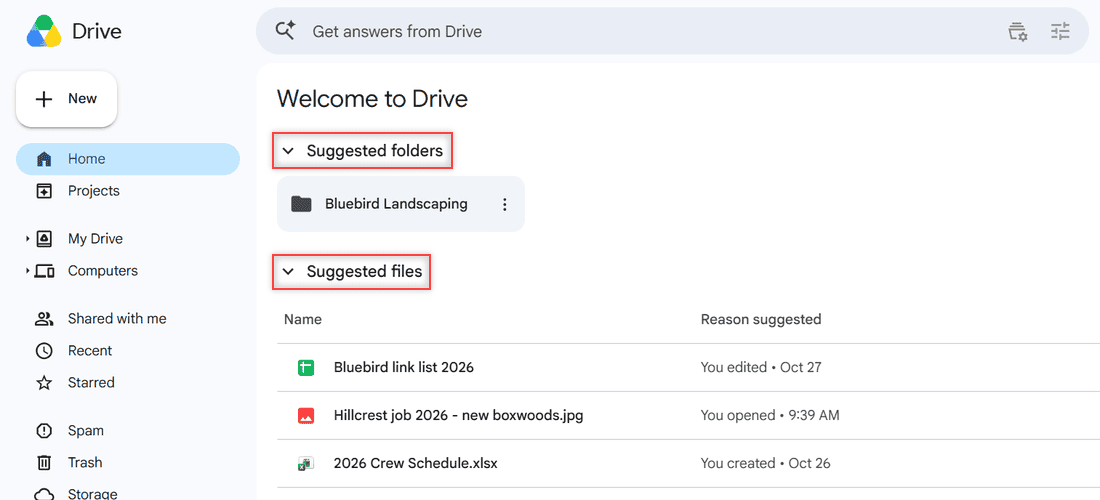
The Reason suggested column tells you why each file is there, like “You edited – Oct 27” or “You opened – 9:39 AM”. Google picks files that you or other people opened, shared or edited, plus files tied to upcoming meetings on your calendar.
Method 1: Remove one suggested file with “Not a helpful suggestion”
This is the fix I use most. It takes one file off the list and leaves everything else alone.
- On the Home page, find the file in Suggested files.
- Click the three dots (More actions) at the end of its row.
- Choose Not a helpful suggestion at the bottom of the menu.
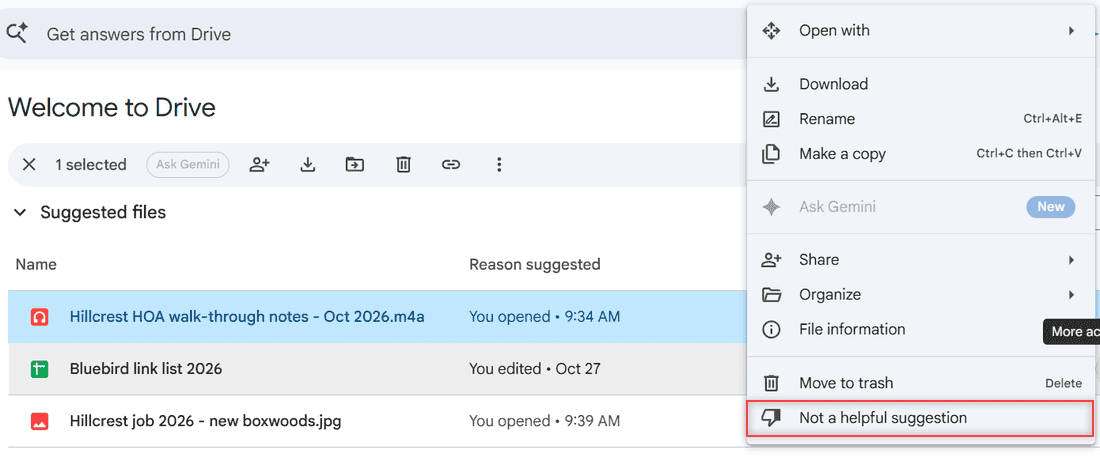
When I clicked it on Hillcrest HOA walk-through notes – Oct 2026.m4a, the file disappeared from Suggested files right away. I reloaded the page and it was still gone.
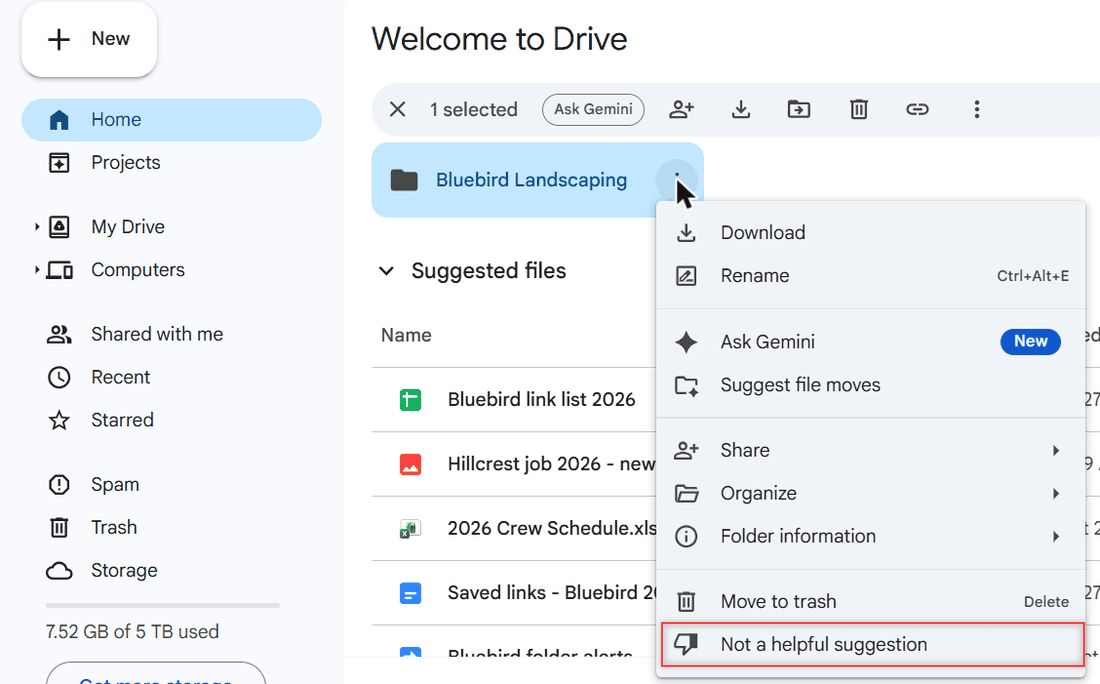
Folders have the same option. Open the three-dot menu on a card under Suggested folders and you’ll find Not a helpful suggestion below Move to trash.
How does this work?
It only changes the suggestion, not the file. My audio file stayed in its folder, untouched. That’s the big difference from Move to trash, which sits one line above it. If a shared file keeps popping up and you want it gone for good, see how to remove shared files from Google Drive.
Pro tip: If you share your screen at work, dismiss the few files you’d rather not show a few minutes before the call. It’s faster than hunting through settings.
Method 2: Collapse the Suggested folders and Suggested files sections
If you just want a clean screen, fold both sections away. Click the small arrow next to Suggested folders, then the one next to Suggested files.
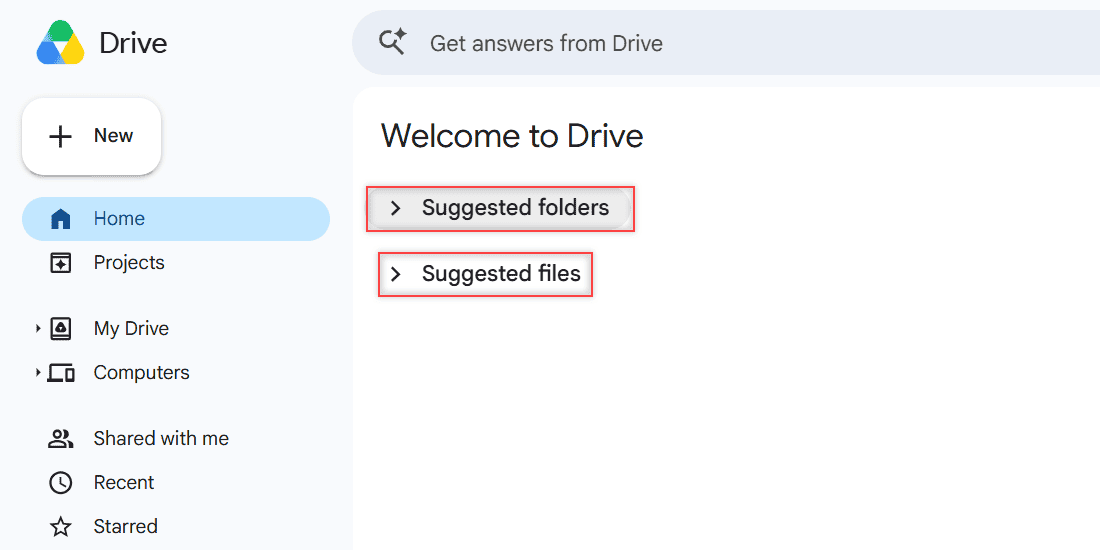
The headings stay, but the files and folders are hidden. I reloaded the page and Drive remembered that both sections were collapsed. Click the arrows again to bring them back.
How does this work?
Nothing is removed. Drive only hides the lists from view, so it’s a nice middle ground on a work laptop. To find a file after that, use search or the tips in my guide to sort files in Google Drive.
Method 3: Open My Drive instead of Home
The cleanest fix for most people is to skip Home entirely. Google lets you choose Home or My Drive as your start page.
- Click the gear icon at the top right of Drive and choose Settings.
- Stay on the General tab.
- Under Start page, select My Drive.
- Click Done.
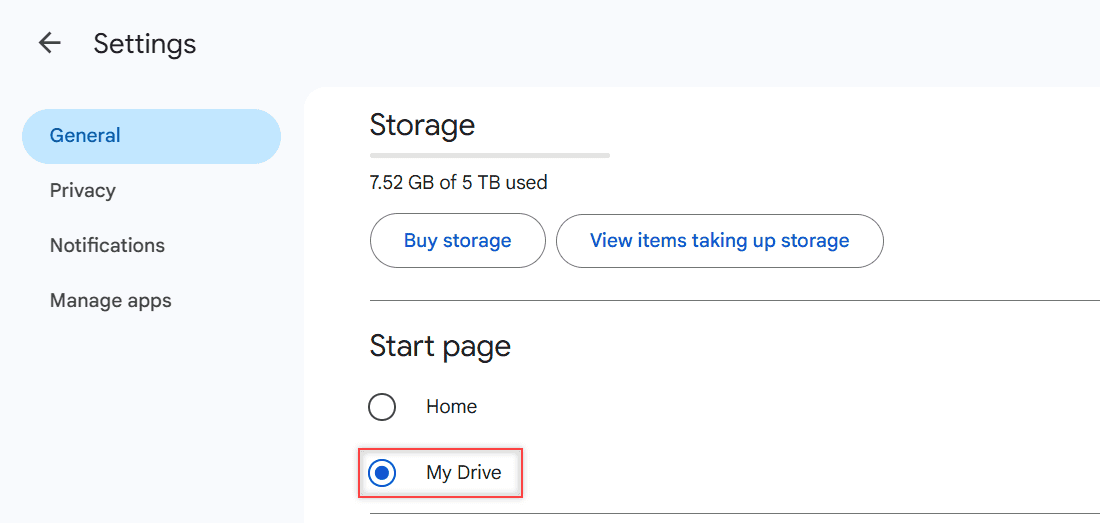
After I made the change, typing drive.google.com took me straight to My Drive, with my folders and no suggestions. My demo account is on a 5 TB Google One plan, and that’s why the storage line shows 7.52 GB of 5 TB used.
How does this work?
Home still exists in the left menu, and the suggestions are still on it. You just don’t see them unless you click Home. It pairs well with a tidy folder setup, so it’s worth learning to create subfolders in Google Drive for the files you open most.
Method 4: Turn off Workspace smart features (the heavy-handed option)
This is the only setting that switches file suggestions off at the account level, so I’d treat it as the last resort.
- Click the gear icon and choose Settings.
- Open the Privacy tab.
- Click Manage Workspace smart feature settings.
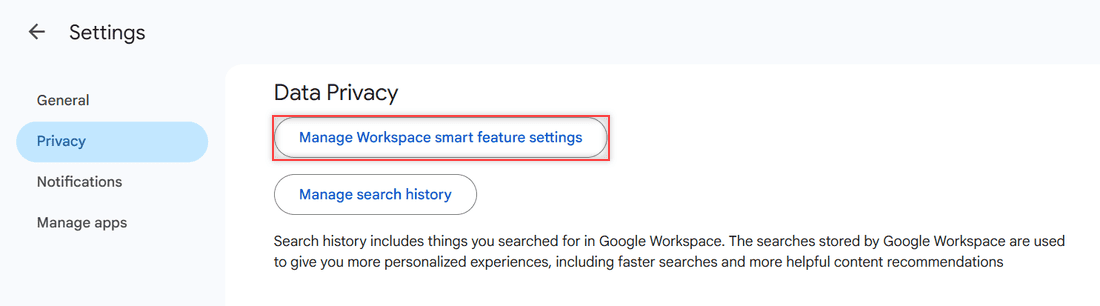
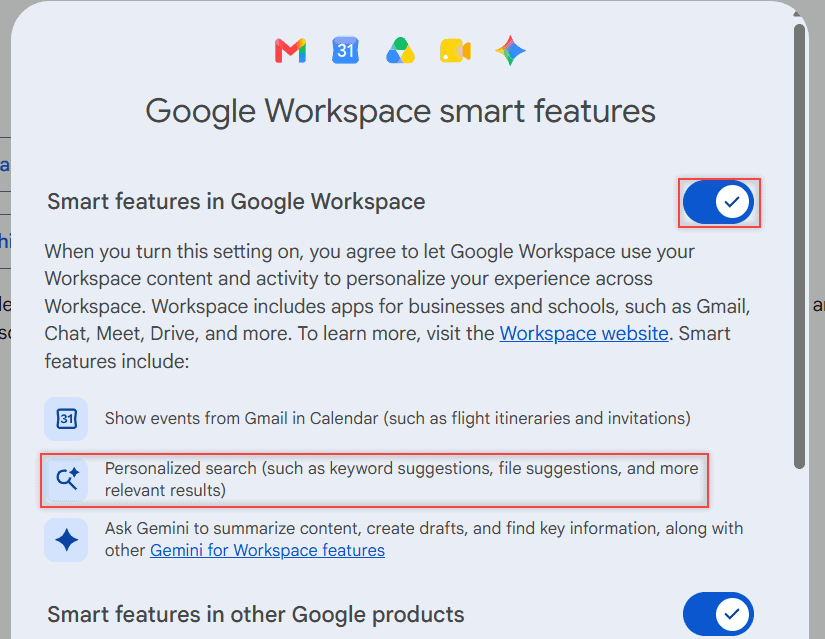
A dialog called Google Workspace smart features opens. The first toggle, Smart features in Google Workspace, includes “Personalized search (such as keyword suggestions, file suggestions, and more relevant results)”. Turn it off and click Save.
How does this work?
I didn’t turn it off in my account, and here’s why. Google says this toggle also switches off Gemini features in Workspace apps, Gmail events in Calendar (like flight bookings) and other personalized features. It’s a big trade for a cleaner Home page.
If privacy is your real goal, my guide to protect Google Drive with a password may help more.
Things to keep in mind
- There’s no setting that turns off suggestions on Home alone. Older guides mention a “Show suggested files in My Drive” checkbox under Suggestions. It isn’t in Drive’s settings anymore.
- Don’t delete files just to clear the list. Not a helpful suggestion hides them without touching the file.
- The Google Drive app on Android and iPhone has its own Home tab with suggestions. Google says the smart features setting can only be changed from a web browser.
- I tested this in a personal account. In a work or school (Google Workspace) account, your admin may manage some of these features, so the dialog could look different. My page on Google Drive personal vs business covers the other differences.
If the suggestions came from shared files you don’t recognize, check out how to stop getting spam on Google Drive.
Want a tidier Drive overall? Try these next
- hide a folder in Google Drive
- stop Google Drive notifications
- find folders in Google Drive
- empty the trash in Google Drive
Frequently Asked Questions
How do I turn off suggested files in Google Drive?
There is no Home-only switch. Set your start page to My Drive in Settings, or turn off Smart features in Google Workspace under Settings > Privacy, which also turns off other smart features.
Does “Not a helpful suggestion” delete the file?
No. It only takes the file off your Suggested files list. The file stays in its folder with the same sharing settings.
Why does Google Drive suggest files?
Drive picks files that you or others opened, shared or edited, and files linked to upcoming meetings. Google Drive Help: how to use Google Drive.
Where did the “Show suggested files” setting go?
That old checkbox is no longer in Drive’s settings. Today the controls are Not a helpful suggestion, the collapse arrows, the start page and the smart features setting.

I am Carissa Gudinoa, a technology buff, and Office online and Apple expert with over 9 years of experience. I am passionate about helping others get the most out of their Apple devices. I have written extensively about Apple products and technologies. I am committed to providing my clients with the best possible service and am always up-to-date on the latest Apple products and features. I also write extensively on other software available for use at minimal cost or free. This includes Word Online, Outlook Online, Excel Online, and other Office online programs… Check out more.