
Last month I needed an invoice PDF for Bluebird Landscaping, and all I remembered was that I’d touched it sometime after October 1. Scrolling through my Drive got me nowhere, but one short search found it in seconds.
In this tutorial, I’ll show you how to search google drive by date and file type using the filter chips, typed operators and the Advanced search dialog, plus the difference between a modified date and a created date that trips up a lot of people.
Reach for the chips when you only half remember
Chips are the easiest place to start, because you don’t have to remember any syntax. Search for anything, or just open your results, and you’ll see the Type, People and Modified filters above the list. If you’re after a folder instead of a file, I’ve got a separate guide on how to find folders in Google Drive.
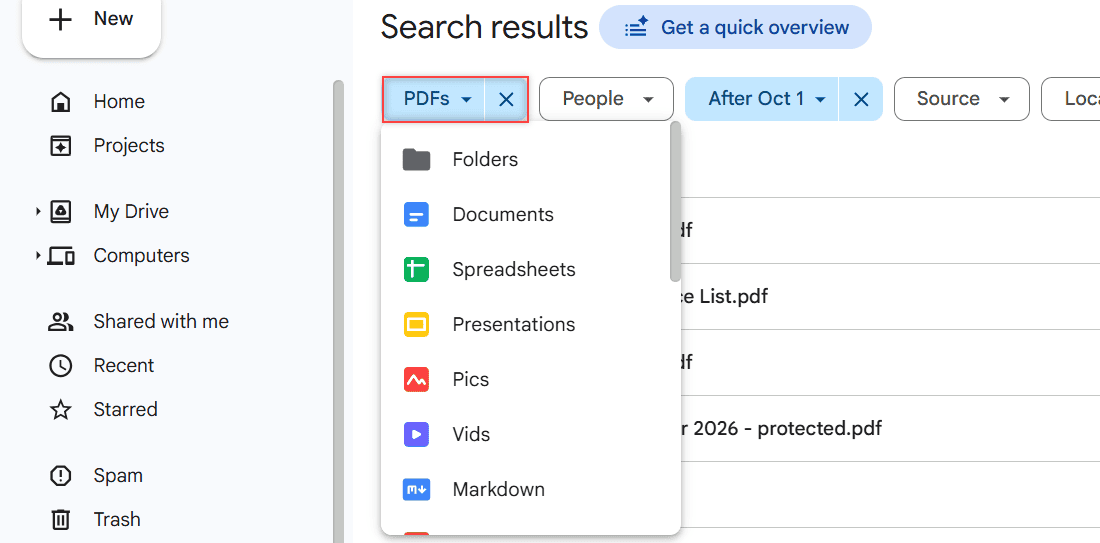
Click Type and pick a kind of file. My list starts with Folders, Documents, Spreadsheets, Presentations, Pics, Vids and Markdown. It scrolls, so keep going if you don’t see yours. PDFs sit further down.
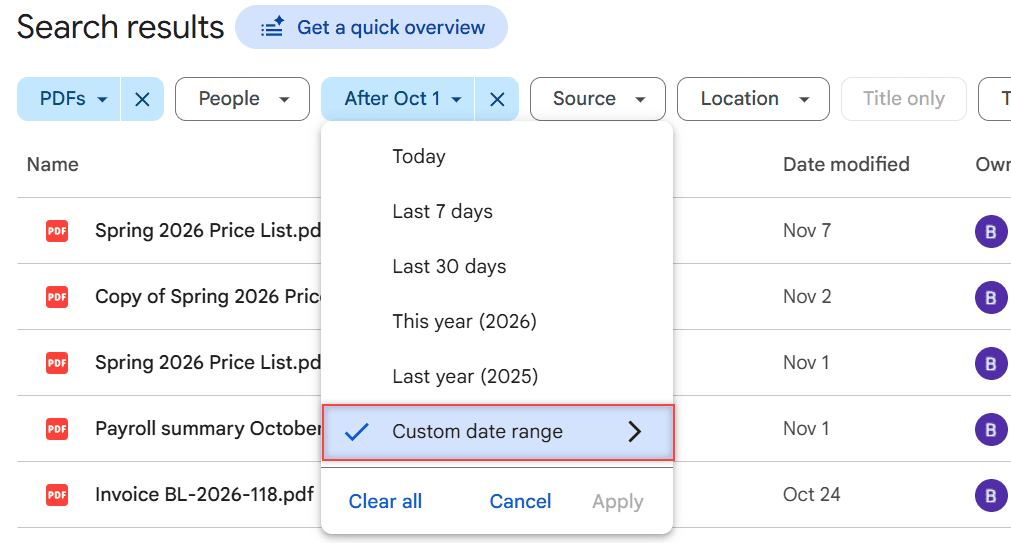
Then click Modified. You get Today, Last 7 days, Last 30 days, This year (2026), Last year (2025) and Custom date range for your own dates.
Type the operators when you know the date
Once you know exactly what you want, typing is faster than clicking through two menus. This is what I entered in the search box:
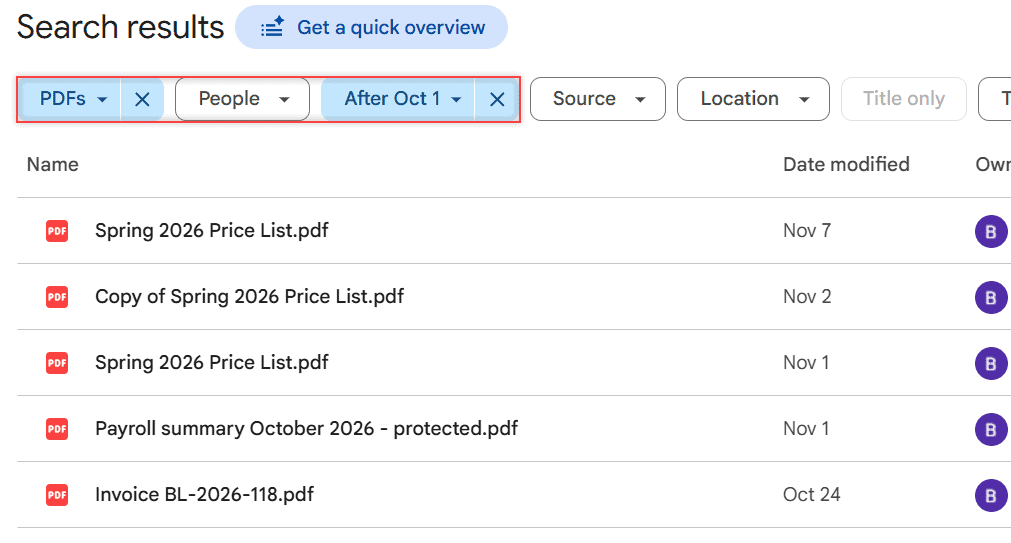
type:pdf after:2026-10-01Drive turned both operators into blue chips, PDFs and After Oct 1, and cleared the text from the box. My results were five PDFs, dated Nov 7 back to Oct 24, including the invoice I was after.
Dates must be written as YYYY-MM-DD. To close off a range, Google’s help also lists before:. I only ran after: in my test, so here’s the shape to try:
type:pdf after:2026-10-01 before:2026-11-01The word after type: has to be one Drive knows. These are the values Google lists:
type:folder
type:document
type:spreadsheet
type:presentation
type:pdf
type:image
type:video
type:drawing
type:form
type:site
type:script
type:table
type:email layout
type:jam file
Good to know: results come back sorted by relevance, not date. Click a column header to change that, or read my guide on how to sort files in Google Drive.
Use Advanced search if you prefer filling in boxes
Some people would rather not type operators at all, and that’s fine. Click the sliders icon at the right end of the search box to open Advanced search.
Set Date modified to Custom…, and two fields appear under Between: After date and Before date. You can fill in one or both, then click Search. I entered 2026-10-01 and left the other empty.
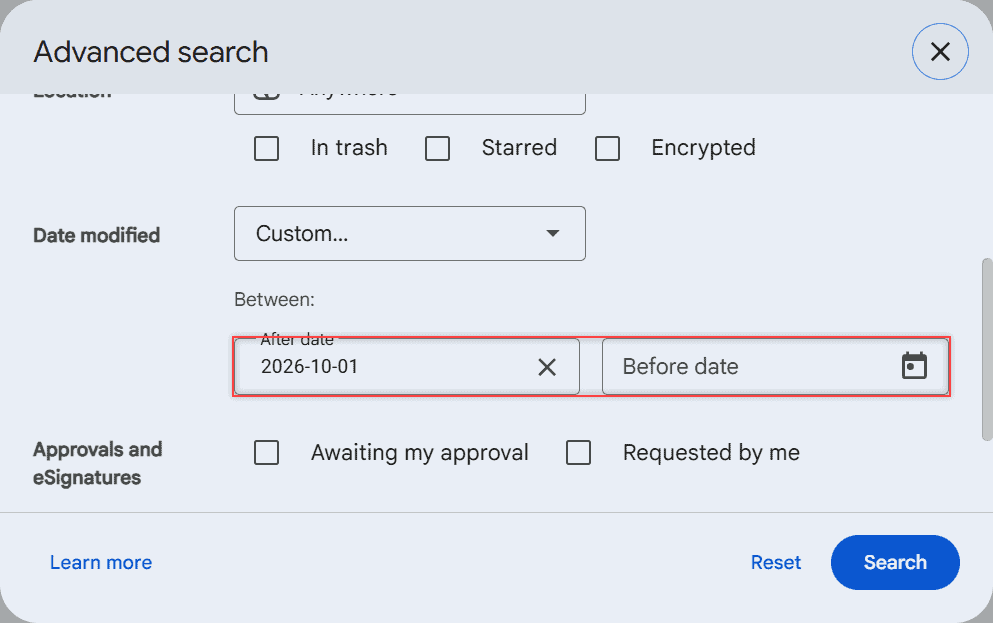
The same dialog has Type, Owner, Has the words, Item name and Location, along with In trash, Starred and Encrypted checkboxes. That In trash box is handy when you suspect a file was removed, and my checklist for Google Drive files gone missing picks up from there.
Pick created or modified on purpose
This is the rule most guides skip. before: and after: look at the date a file was modified. An old estimate you tweaked yesterday counts as new.
If you care about when a file first appeared, use createdafter: or createdbefore: instead. I wanted the files I’d started in November:
createdafter:2026-11-01Then I clicked the Spreadsheets chip. Two things stood out. The operator stayed as text in the search box, and the Modified chip stayed unset, because created dates have no chip.
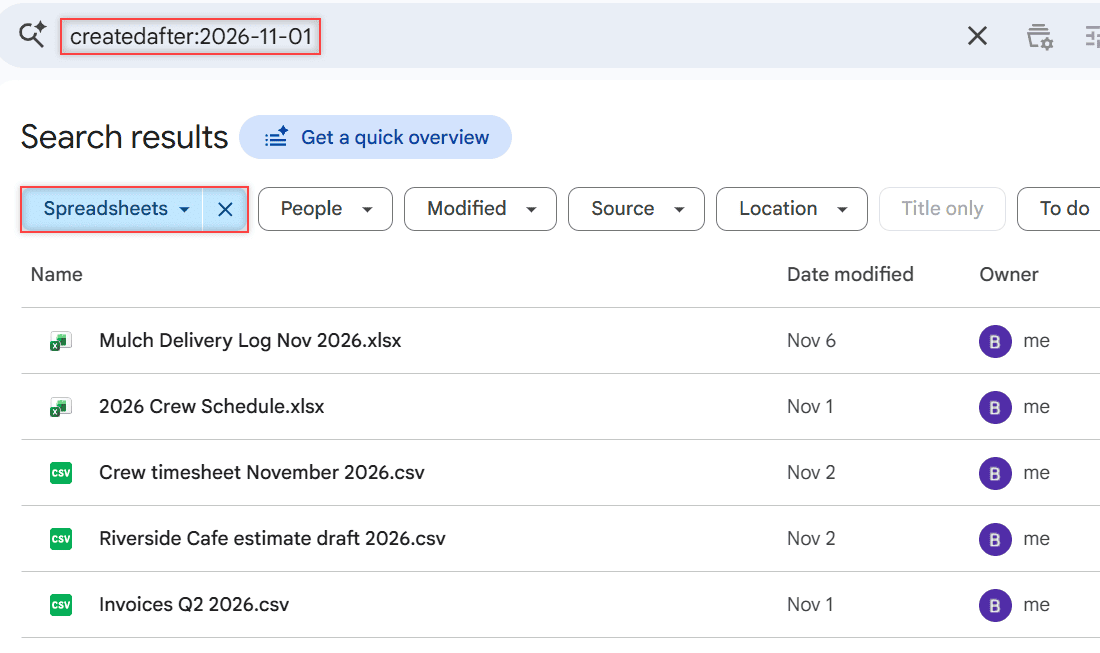
Also, notice the file types. The Spreadsheets filter returned my .xlsx files and my .csv files, so don’t assume it means Google Sheets only. For a quick look at what changed lately rather than a search, try checking recent activity on Google Drive.
Clear your filters before the next search
Chips can hang around and quietly narrow your next search. If results look strangely thin, remove them with the X on each chip or with Clear filters. The Modified menu also has its own Clear all link.
And don’t go looking for a file size filter, because the search box doesn’t have one. To hunt for big files, open the Storage page and sort by Storage used. My guide to reducing file size in Google Drive covers what to do with them next.
My checklist before I give up on a search
- Is the date the last edit or the day it was created? Pick
after:orcreatedafter:to match. - Is the date written as YYYY-MM-DD?
- Did I scroll the Type list far enough to find the type I need?
- Are old chips still switched on?
- Could the file be in the trash? Check the In trash box in Advanced search.
All of this worked on my personal demo account, and Google’s help describes the same filters for Google Workspace accounts.
Want to get more organized in Drive? Try these next:
- listing the files in a folder and its subfolders
- seeing a folder’s size in Drive
- selecting multiple files at once
- all my Google Drive tutorials
Questions I get about this
How do I search for a PDF in Google Drive?
Type type:pdf in the search box, or open the Type chip and scroll down to PDFs. Add after: and a date if you want to narrow it further.
Does the after: operator use the created date in Google Drive?
No. It filters by the modified date. Use createdafter: when you want the date the file was created.
Why does the Spreadsheets filter show CSV files?
In my test, both the chip and type:spreadsheet returned both .xlsx and .csv files, so check the file extension in the Name column.
Can I search Google Drive in plain English?
Natural language search and AI Overview are for Google Workspace accounts with Gemini, according to Google’s Drive search help. Chips and operators work on personal and Workspace accounts.

I am Carissa Gudinoa, a technology buff, and Office online and Apple expert with over 9 years of experience. I am passionate about helping others get the most out of their Apple devices. I have written extensively about Apple products and technologies. I am committed to providing my clients with the best possible service and am always up-to-date on the latest Apple products and features. I also write extensively on other software available for use at minimal cost or free. This includes Word Online, Outlook Online, Excel Online, and other Office online programs… Check out more.