
After a big planting job last month, I had 40 photos sitting in Google Drive, all named IMG_4127, IMG_4128 and so on. My client wanted them sorted by task. I selected the whole batch, right-clicked, and went looking for Rename. It was there, but greyed out.
In this tutorial, I’ll show you how to rename multiple files in Google Drive the honest way. You’ll see what Drive on the web can and can’t do, the fastest way to rename files one by one, and the three real options for bulk renaming, plus the checklist I run before I touch a batch.
Accept that Drive on the web renames one file at a time
Why: knowing the limit saves you ten minutes of hunting for a hidden bulk option. There isn’t one in Drive on the web. As soon as you select two or more files, Rename turns grey in the menu.
How: here’s what I saw with five job photos selected. The top bar says “5 selected”, and Download, Make a copy and the other actions still work. Rename doesn’t. If you’re new to picking several files at once, my guide on selecting multiple files in Google Drive covers the clicks.
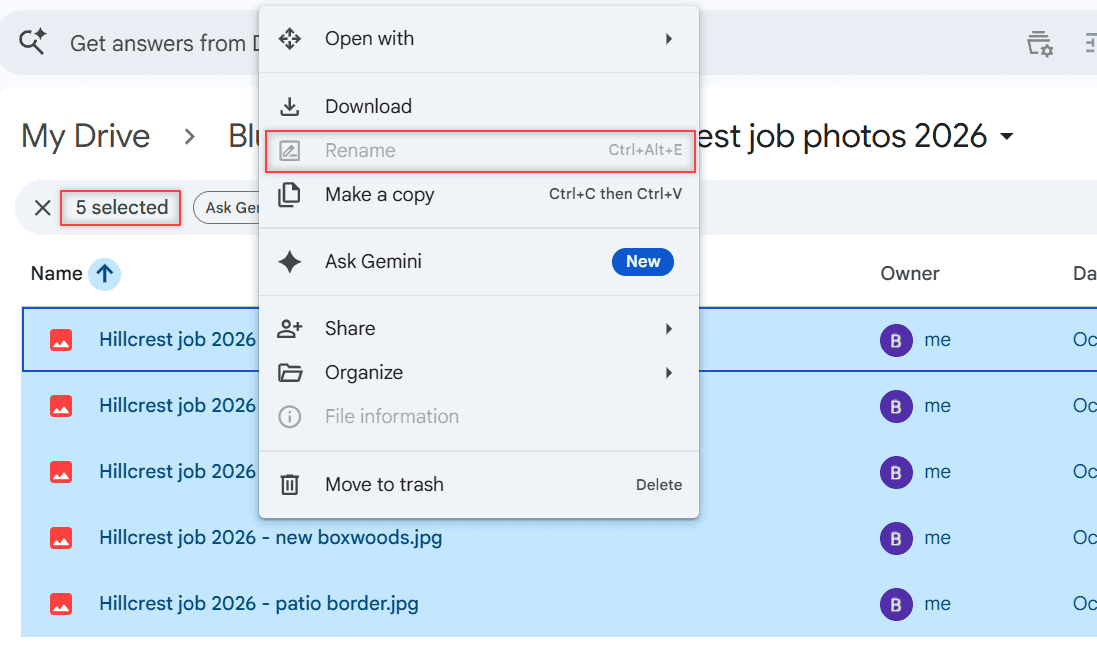
So for a handful of files, you rename them one by one. For dozens, you need one of the options further down.
Rename single files from the menu and keep the extension
Why: for five or ten files, doing them by hand is honestly the quickest route. Nothing to install, nothing to grant access to.
How: click the three-dot More actions menu next to a file, or right-click it, and choose Rename. My Drive menu shows Ctrl+Alt+E next to Rename, and Google’s keyboard shortcut list gives F2 for renaming the selected item.
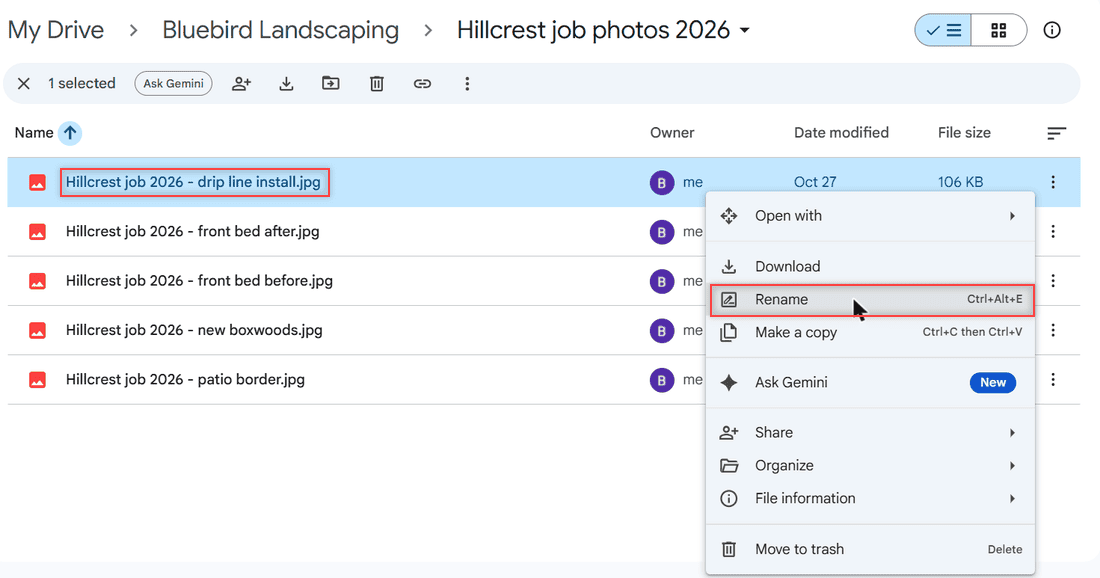
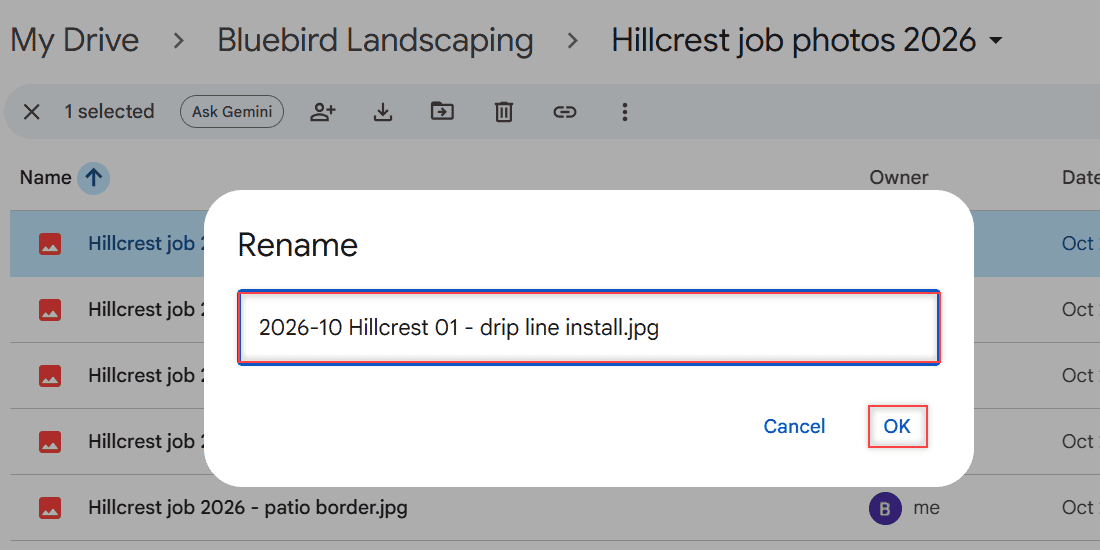
The Rename dialog has a nice touch. Drive pre-selects the name without the .jpg extension, so whatever you type replaces only the name. I typed “2026-10 Hillcrest 01 – drip line install” and the .jpg stayed put. Click OK to save, or Cancel to back out like I did in the demo.
Pick a naming pattern before you rename anything
Why: whichever tool you use, the pattern does the real work. A good one keeps files in order when you sort by name, and it tells you what each photo is without opening it.
How: I use date, then job, then a two-digit number, then a short description. For example:
2026-10 Hillcrest 01 - drip line install.jpg
2026-10 Hillcrest 02 - front bed before.jpg
2026-10 Hillcrest 03 - front bed after.jpg
Two-digit numbers (01, 02) keep 10 from jumping ahead of 2. Once names follow one pattern, sorting files in Google Drive by name lines everything up neatly.
Use Drive for desktop when a whole folder needs new names
Why: this is the bulk option I trust most, because it uses your own computer’s file tools and no third-party app gets into your Drive.
How: install Google Drive for desktop, then open File Explorer on Windows or Finder on a Mac and go to the Google Drive folder, as Google describes. Rename the files there with whatever rename tools your computer offers. Google says any edits you make to files sync automatically to your computer and to Google Drive.
My advice: rename one test file first, then check its name in Drive on the web before you do the whole folder. Let syncing finish before you close the laptop.
Heads-up: If sync acts up afterward, look at the Drive for desktop status first and give it a minute to catch up before you rename the next batch.
Check what a Marketplace add-on can access before you install it
Why: bulk rename add-ons in the Google Workspace Marketplace need access to your Drive to do their job. Google says that if an app can edit, create or delete your data, it can change or permanently delete your data. Google also doesn’t verify reviews or ratings.
How: open the listing and read the Permissions tab, which shows the data and Google apps the add-on will access. I’m not naming a specific add-on here because I haven’t tested one on my own files. Try any tool on a test folder first, the same way I’d vet Chrome extensions for Google Drive.
On a work or school account, your Google Workspace admin decides whether you can install Marketplace apps at all. If the Install button is missing, that’s why. Personal Google accounts don’t have that gate.
Leave Apps Script to people who write code
Why: Google Apps Script can rename files in Drive, and the old version of this post mentioned scripts too. But a script that renames the wrong files can’t be undone with one click, and I haven’t tested one for this guide.
How: if you already write scripts, run anything new on a copy of a test folder first. If you don’t, Drive for desktop gets you there with far less risk. Keeping your batches in clear subfolders in Google Drive also limits what a script can touch.
My checklist before I rename a batch
- Fewer than ten files? Rename them by hand from the More actions menu.
- Write the naming pattern down first: date, job, two-digit number, short description.
- Keep the file extension (.jpg, .pdf, .docx) exactly as it is.
- For a full folder, rename in Drive for desktop and test one file first.
- Before any add-on, read its Permissions tab and test it on a copy.
- Wait for syncing to finish, then check the names in Drive on the web.
A few more Drive guides that help once your files are tidy:
- find folders in Google Drive fast
- list every file in a folder and its subfolders
- stop Google Drive from duplicating files
- use version history in Google Drive
Questions I get about this
How do I rename a file in Google Drive?
Right-click the file or open its three-dot menu, choose Rename, type the new name and click OK. Drive keeps the extension unless you delete it yourself.
Can you bulk rename files in Google Drive?
Not in Drive on the web. With several files selected, Rename is greyed out. For bulk renaming, use Drive for desktop on your computer or an add-on you trust.
What is the keyboard shortcut to rename in Google Drive?
Google lists F2 for renaming the selected item on Windows, ChromeOS and Mac in Google Drive Help: keyboard shortcuts for Drive on the web.
Is there a Chrome extension to bulk rename files in Google Drive?
Some tools offer it, but any of them needs access to your Drive. Read the permissions it asks for, check who makes it, and test it on a copy of a few files first.

I am Carissa Gudinoa, a technology buff, and Office online and Apple expert with over 9 years of experience. I am passionate about helping others get the most out of their Apple devices. I have written extensively about Apple products and technologies. I am committed to providing my clients with the best possible service and am always up-to-date on the latest Apple products and features. I also write extensively on other software available for use at minimal cost or free. This includes Word Online, Outlook Online, Excel Online, and other Office online programs… Check out more.