
Here’s what you’ll end up with: one Google Sheet that names every file in a Drive folder, the subfolder it sits in, its type, size, last update, and a link. I built mine for a folder with five subfolders, and it took about three seconds to run.
In this tutorial, I’ll show you how to list files in a folder and subfolder on Google Drive three ways: the normal folder view, Advanced search scoped to one folder, and a short Apps Script that writes the whole list to a spreadsheet you can sort, filter, or print.
Method 1: Open the folder in list view (top level only)
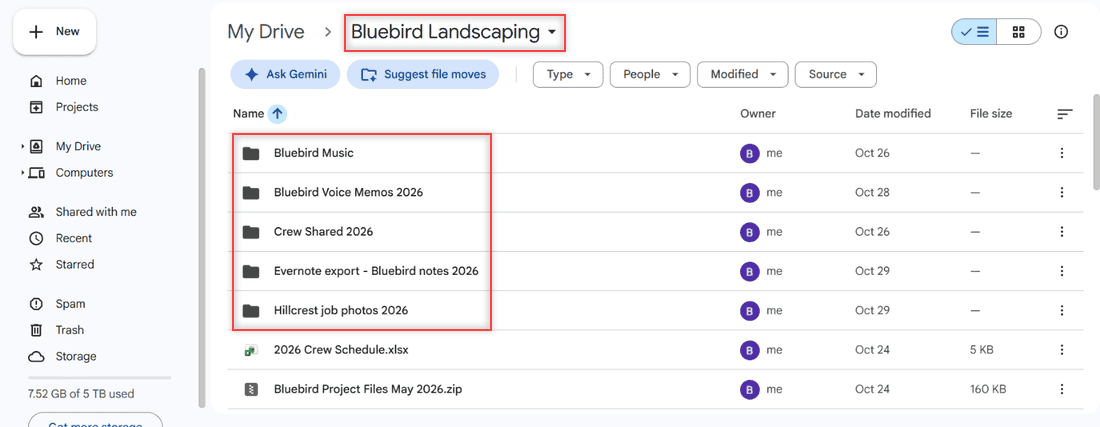
I’m using my demo account for a made-up business, Bluebird Landscaping. Its main folder holds five subfolders, like job photos and invoices. If you can’t spot your folder, here’s how to find folders in Google Drive first.
- Open drive.google.com and double-click the folder.
- Click List layout at the top right if Drive shows big tiles.
- Read the breadcrumb at the top to confirm where you are.
How does this work?
List view only shows one level. My five subfolders appear as folder rows, but the files inside them don’t. That’s fine for a quick look, and you can click a column header to sort the rows.
To see what’s inside, you’d open each subfolder one by one. If you set the folders up yourself, my guide to create subfolders in Google Drive shows how that nesting works.
Method 2: Search inside the folder and every subfolder
This is the fastest way to see everything at once without any code. Drive’s Advanced search can limit the results to one folder, and it includes all the subfolders under it.
- Click the Search options icon (the sliders) at the right end of the Drive search box.
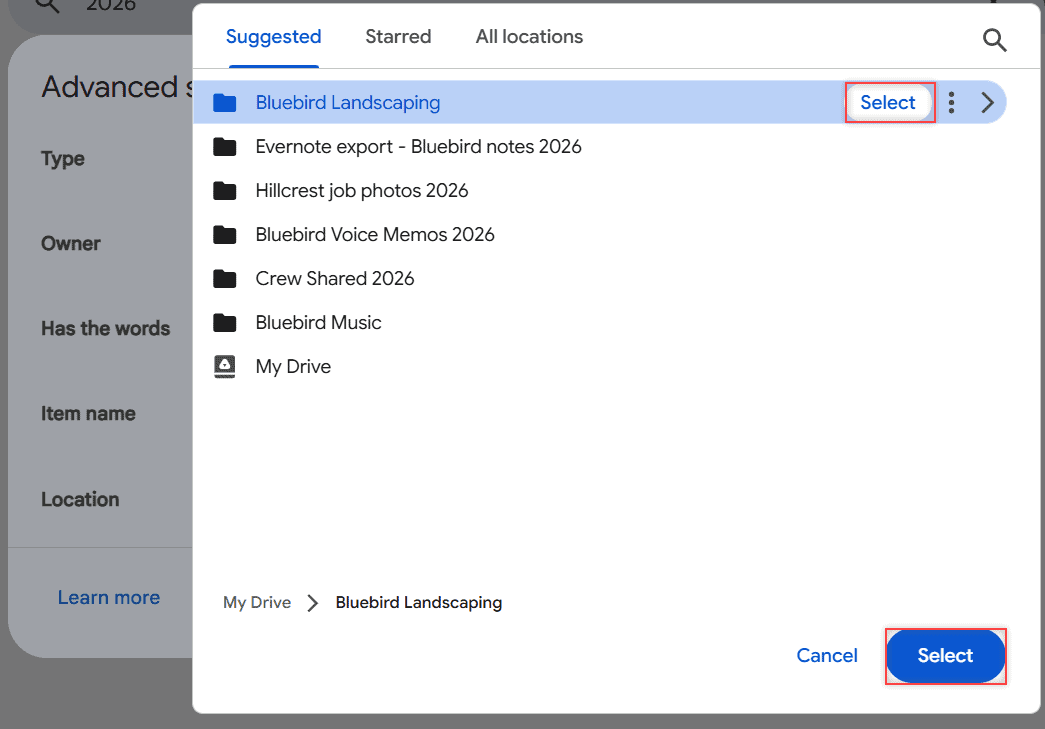
- In Advanced search, open the Location dropdown and pick More locations….
- Find your folder, click Select on its row, then click Select at the bottom.
- Leave Has the words empty and click Search.
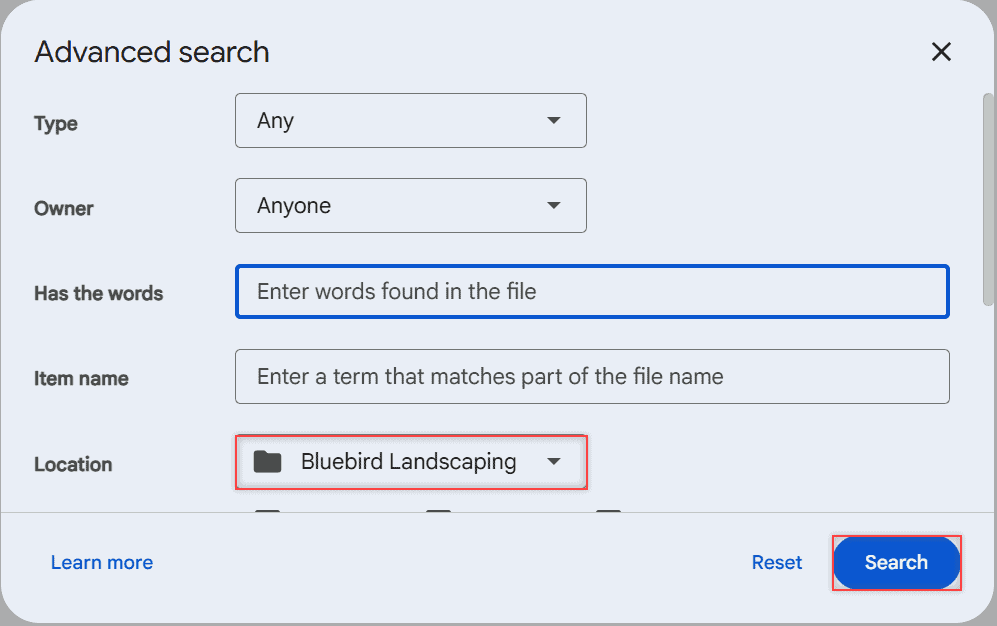
The Location list also offers Anywhere, My Drive, and Shared with me. The picker has Suggested, Starred, and All locations tabs, so you can reach a folder in a shared drive too.
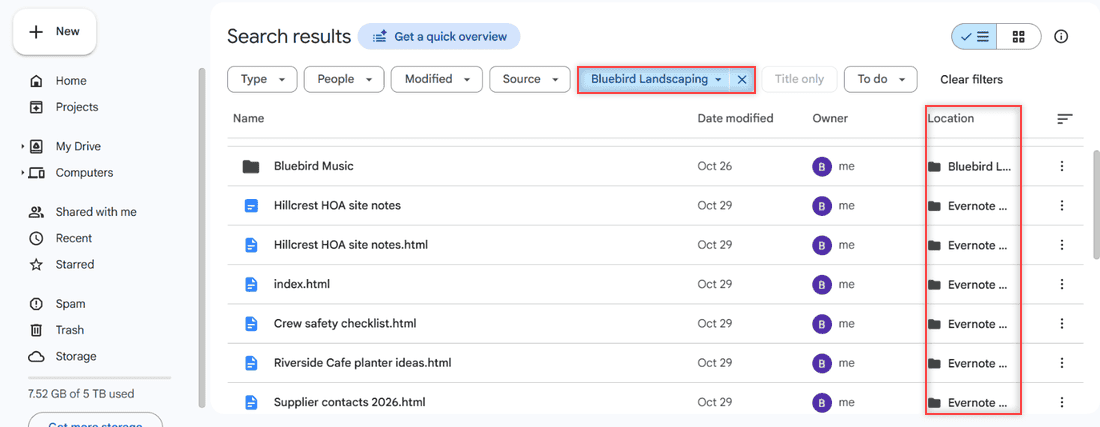
How does this work?
An empty search with a location set means “show me everything here.” The blue chip at the top keeps the search inside the folder, and the Location column tells you which subfolder holds each file. You can then select multiple files on Google Drive right from the results.
Pro tip: Add a Type filter in the same dialog, like PDFs or Spreadsheets, to list only that kind of file across all the subfolders. Click the X on the folder chip to search your whole Drive again.
Method 3: Export the full file list to a Google Sheet with Apps Script
When you need a list you can keep, share, or print, a script is the way to go. It’s free, it runs in your own account, and you don’t need to know how to code. You’ll just paste it and change one line.
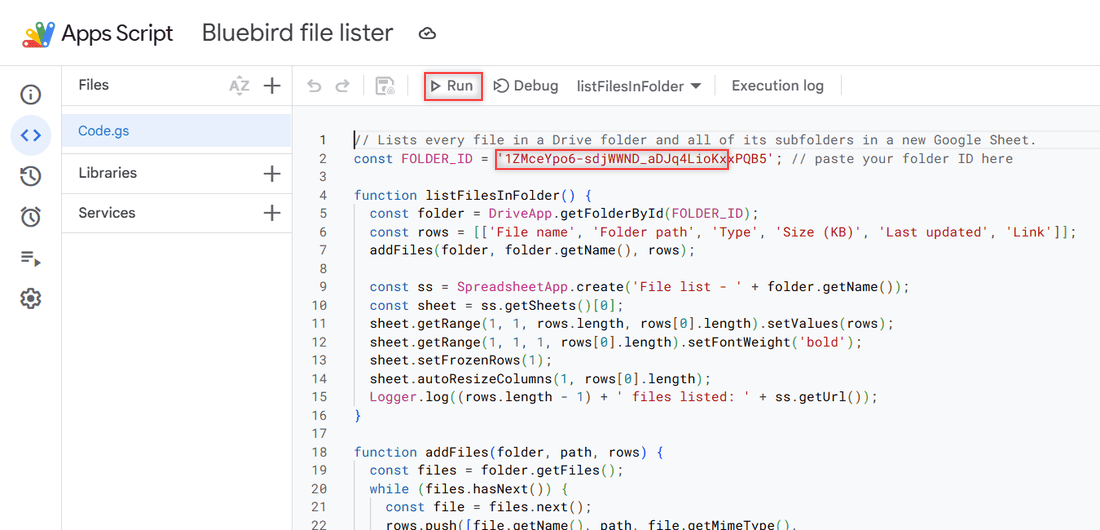
- Open your folder in Drive and copy its ID from the address bar. It’s the part after /folders/.
- Go to script.google.com and click New project. I renamed mine Bluebird file lister.
- Delete the sample code and paste the script below.
- Replace the FOLDER_ID value with your own folder ID and click Save.
- Make sure listFilesInFolder is picked in the function list, then click Run.
// Lists every file in a Drive folder and all of its subfolders in a new Google Sheet.
const FOLDER_ID = '1ZMceYpo6-sdjWWND_aDJq4LioKxxPQB5'; // paste your folder ID here

function listFilesInFolder() {
  const folder = DriveApp.getFolderById(FOLDER_ID);
  const rows = [['File name', 'Folder path', 'Type', 'Size (KB)', 'Last updated', 'Link']];
  addFiles(folder, folder.getName(), rows);

  const ss = SpreadsheetApp.create('File list - ' + folder.getName());
  const sheet = ss.getSheets()[0];
  sheet.getRange(1, 1, rows.length, rows[0].length).setValues(rows);
  sheet.getRange(1, 1, 1, rows[0].length).setFontWeight('bold');
  sheet.setFrozenRows(1);
  sheet.autoResizeColumns(1, rows[0].length);
  Logger.log((rows.length - 1) + ' files listed: ' + ss.getUrl());
}

function addFiles(folder, path, rows) {
  const files = folder.getFiles();
  while (files.hasNext()) {
    const file = files.next();
    rows.push([file.getName(), path, file.getMimeType(),
               Math.round(file.getSize() / 1024), file.getLastUpdated(), file.getUrl()]);
  }
  const subfolders = folder.getFolders();
  while (subfolders.hasNext()) {
    const sub = subfolders.next();
    addFiles(sub, path + ' / ' + sub.getName(), rows);
  }
}
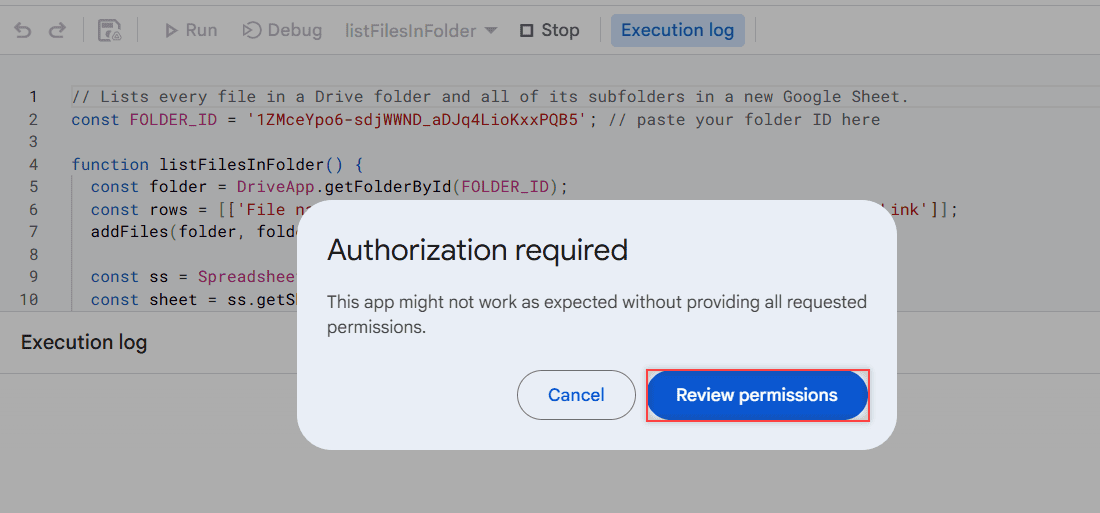
The first run stops with Authorization required. Click Review permissions and choose your Google account.
Google then warns that it hasn’t verified the app. That’s expected, because it’s your own script, not someone else’s. Click Advanced, then Go to Bluebird file lister (unsafe), and Allow.
It asks to see your Drive files and to create spreadsheets, which is all it does. Only allow scripts you wrote or fully trust.
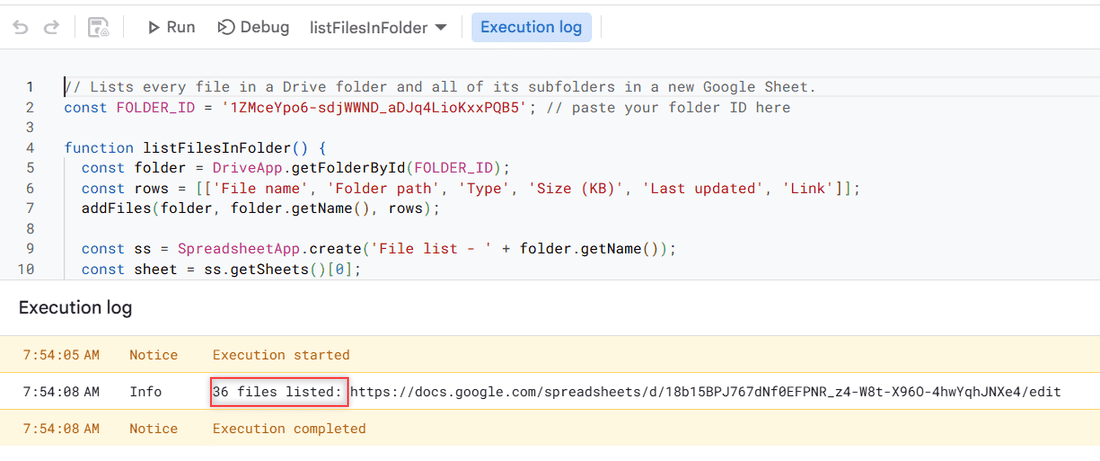
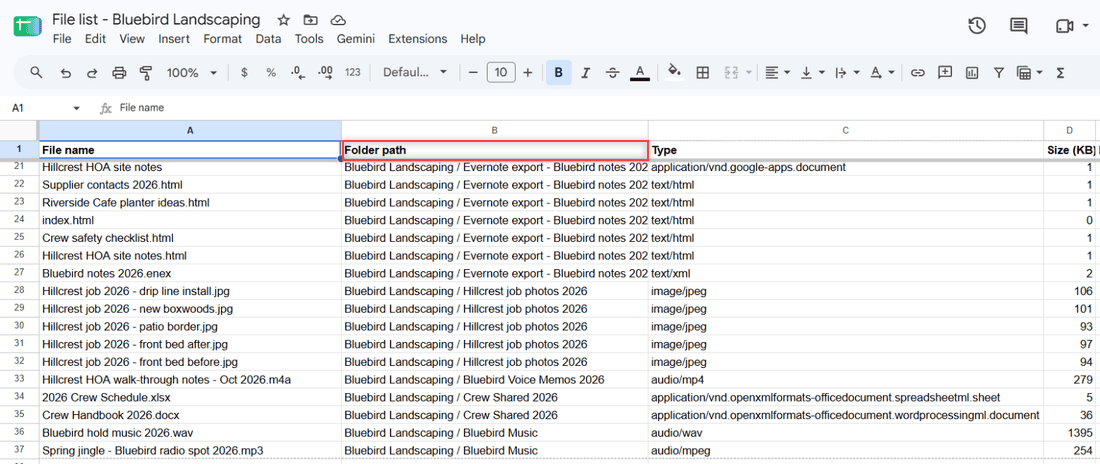
My log said 36 files listed with a link to the new Sheet. It lands in My Drive as File list – Bluebird Landscaping.
How does this work?
The script reads the files in your folder, then calls itself for each subfolder, so it walks the whole tree. The Folder path column shows the chain, like Bluebird Landscaping / Hillcrest job photos 2026.
Since it’s a normal Sheet, you can sort by size, filter by type, or print it. To total the space instead, see how to see folder size in Google Drive.
Pro tip: Run the script again whenever the folder changes. Each run makes a fresh Sheet, so delete the old copies to keep My Drive tidy.
Things to keep in mind
- Time limit: Google’s Apps Script quotas page lists a 6-minute limit per run, for personal and Workspace accounts. A huge folder tree can time out before the list is written.
- Google files look tiny: Docs, Sheets, and Slides report 0 or very small sizes, because they don’t count the same way as uploaded files.
- Personal vs Workspace: Advanced search and the script work in both. At work, Google says admins can turn Apps Script off for users, so ask your admin if Run is blocked.
- Shared folders: Search and the script only see files you have access to.
If what you really want is paper copies of the files, not just their names, try my steps to print an entire folder in Google Drive.
Want to keep that folder organized? Start here
- sort files in Google Drive
- rename multiple files on Google Drive
- download from Google Drive without zipping
- check recent activity on Google Drive
Frequently Asked Questions
How do I see all files in Google Drive, including subfolders?
Open Search options, set Location to your folder (or My Drive), leave the words box empty, and click Search. The results include files from every subfolder.
Can I print a list of files in a Google Drive folder?
Not directly from Drive. Run the Apps Script in this tutorial to put the list in a Google Sheet, then use File > Print in Sheets.
Is there a formula to list Google Drive files in Google Sheets?
No built-in Sheets formula reads a Drive folder. You need Apps Script or a Marketplace add-on to pull the file names in.
Why does Drive search miss some files?
Search only shows items you can access, and the Location filter covers just the folder you picked. Google lists every search filter and operator in Google Drive Help: Search for files.

I am Carissa Gudinoa, a technology buff, and Office online and Apple expert with over 9 years of experience. I am passionate about helping others get the most out of their Apple devices. I have written extensively about Apple products and technologies. I am committed to providing my clients with the best possible service and am always up-to-date on the latest Apple products and features. I also write extensively on other software available for use at minimal cost or free. This includes Word Online, Outlook Online, Excel Online, and other Office online programs… Check out more.