
By the end of this, my Bluebird Landscaping crew checklist and mulch log sit in a Fall cleanup 2026 folder in OneDrive, and the checklist is on version 2.0 instead of a messy second copy. It took me about two minutes on the OneDrive website.
In this tutorial, I’ll show you how to upload files to OneDrive from your browser, what to click when a file name already exists, how to upload straight into a folder, and how the PC and phone options work.
What you need before you upload
- A Microsoft account or a work or school account signed in at onedrive.com.
- The files on your computer. I used Fall Cleanup Checklist 2026.docx and Mulch Delivery Log Nov 2026.xlsx.
- Chrome or Edge if you want to upload a whole folder from the website.
If the file you need is stuck in an email, you can also save Outlook emails to OneDrive without downloading them first.
Upload files to OneDrive on the web
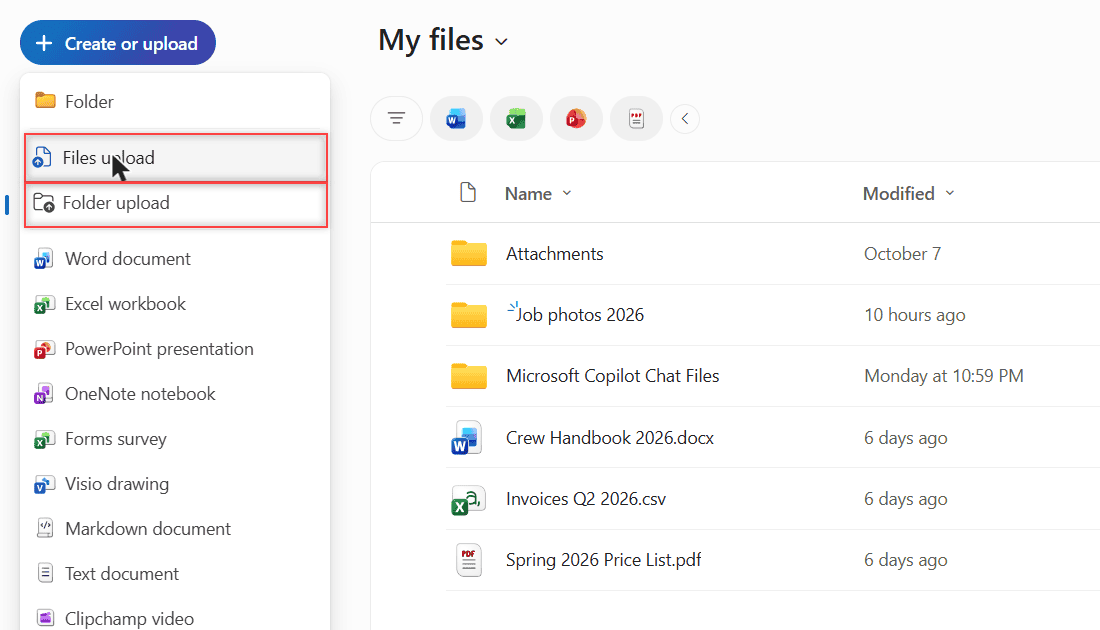
Open Create or upload and pick Files upload
- Go to onedrive.com and open My files.
- Click Create or upload at the top left.
- Choose Files upload (or Folder upload for a whole folder).
- Select your files in the window that opens and click Open.
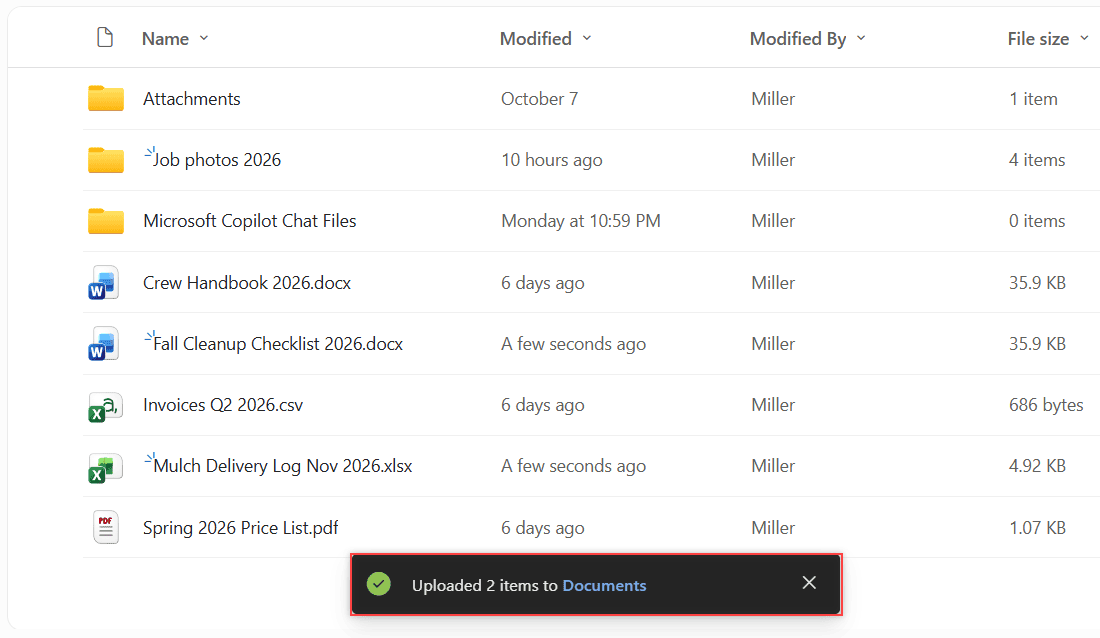
Watch for the upload message
A message showed Uploaded 2 items to Documents, and both files appeared in the list as A few seconds ago. Don’t let the word Documents throw you. On a work account, My files is a library called Documents behind the scenes.
Replace or keep both when the name already exists
Next, I uploaded a newer copy of the checklist with the same name. OneDrive stopped and asked what to do:
A file with this name already exists so we couldn't upload Fall Cleanup Checklist 2026.docx. Add it as a new version of the existing file, or keep them both.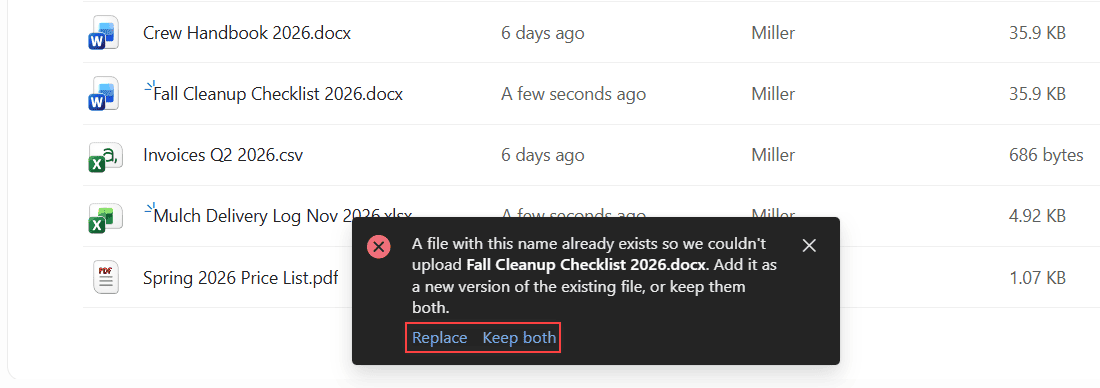
I clicked Replace and got Uploaded Fall Cleanup Checklist 2026.docx to My files. The file moved to version 2.0, so the old copy is still in its version history. Pick Keep both if you really want two separate files.
Create a folder and upload into it
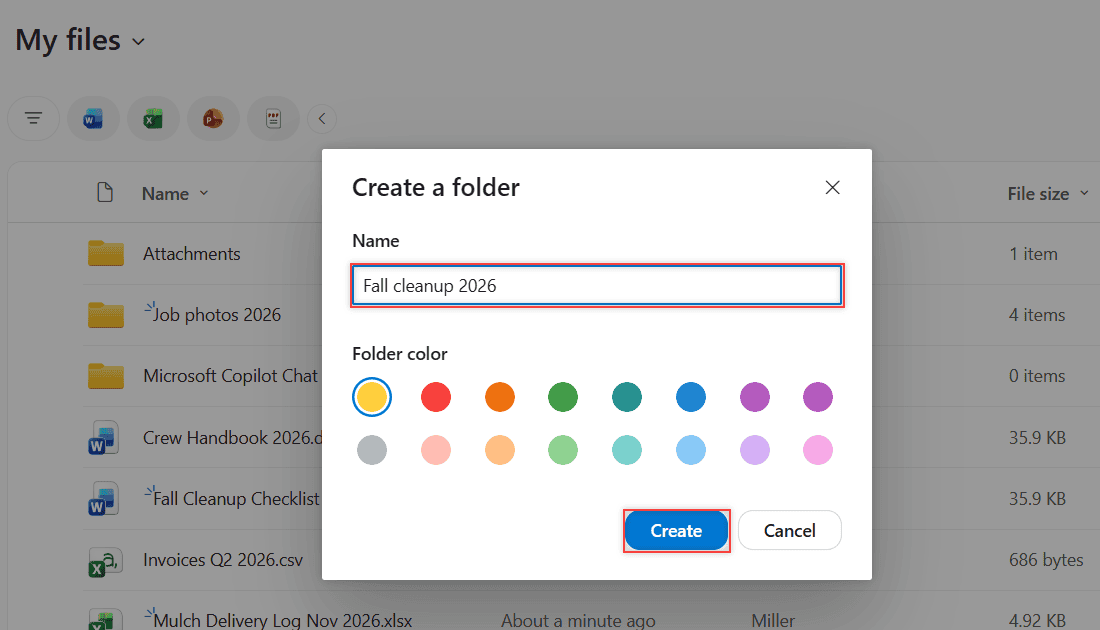
- Click Create or upload and choose Folder.
- Type a name. Mine was Fall cleanup 2026. You can pick a folder color too.
- Click Create, open the new folder, and run Files upload again.
Check that your files landed in the right place
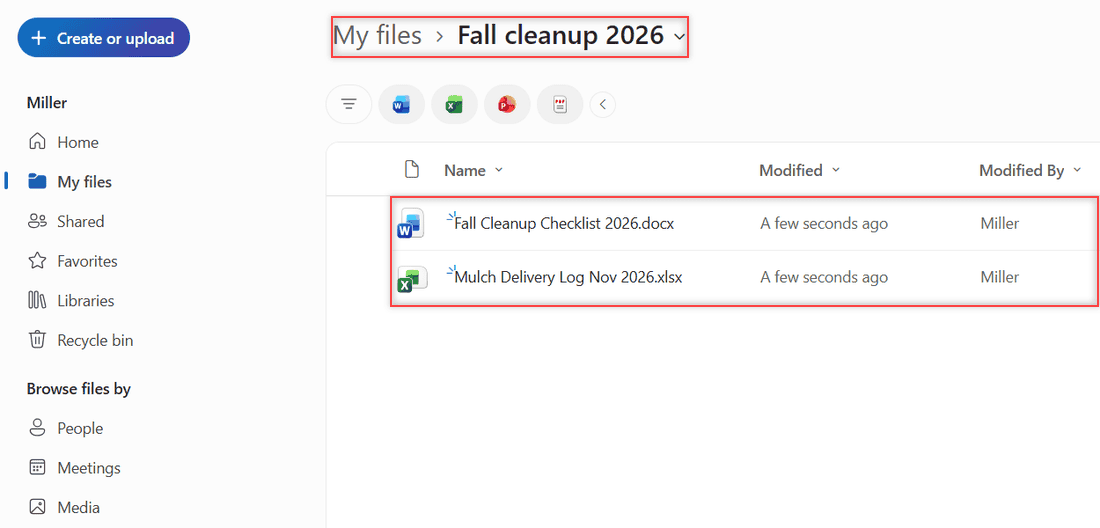
Look at the breadcrumb above the file list. Mine read My files > Fall cleanup 2026, with both files inside, and the message said Uploaded 2 items to Fall cleanup 2026.
If a file shows up in the wrong spot, select it and use Move to. Planning a bigger cleanup? It’s worth knowing how to back up OneDrive to an external drive too.
Upload from your PC or phone instead
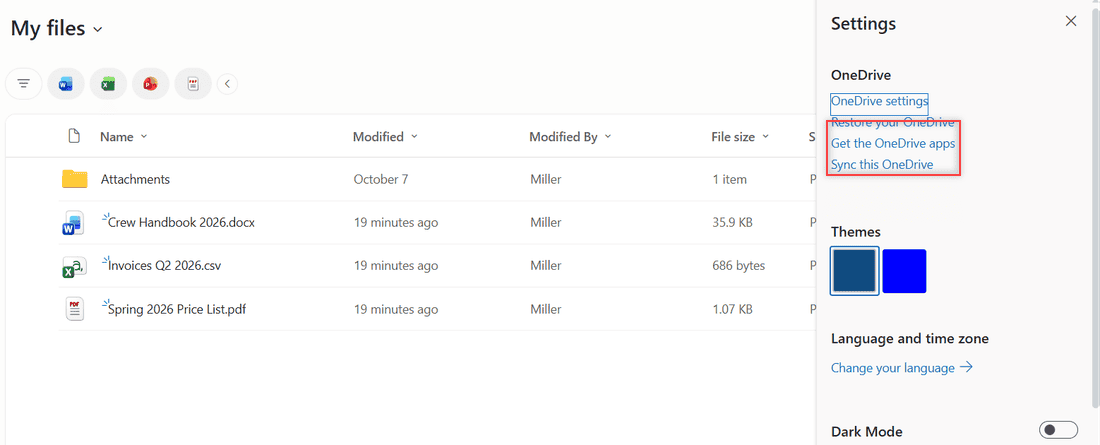
The website isn’t the only way in. Open Settings (the gear icon) on onedrive.com and you’ll see Get the OneDrive apps and Sync this OneDrive.
With the OneDrive app on Windows, drag a file onto OneDrive in the left pane of File Explorer to move it there. To copy instead, right-click the file, choose Copy, open the OneDrive folder and paste.
Microsoft suggests the desktop app when you have lots of files or very large ones. If nothing reaches the web, make sure OneDrive is running on your PC.
The OneDrive app for Android and iPhone can upload files and photos too. I didn’t test the phone apps for this post, so I won’t guess at the buttons.
Change it for your own files
Drag and drop
Skip the menu entirely. Drag files from File Explorer or Mac Finder right onto the file list in your browser. In Chrome or Edge, you can drag whole folders too.
Large files
The website handles files up to 250 GB each. That’s per file, not a total. If you’re weighing services for big uploads, see how I upload large files to Google Drive.
Moving everything somewhere else later
Uploads aren’t a one-way street. When you switch services, here’s how to transfer OneDrive files to Google Drive.
Still setting up your OneDrive? These help next:
Questions about this setup
Can I upload a whole folder to OneDrive?
Yes. On the website, use Create or upload, then Folder upload, or drag the folder onto the page. Folder upload works in Chrome and Edge.
What is the file size limit for OneDrive uploads?
On the website you can upload files up to 250 GB each. Microsoft lists the details in Upload files and folders to OneDrive.
What happens if I upload a file with the same name?
OneDrive asks you to Replace or Keep both. Replace adds your upload as a new version of the existing file, while Keep both saves a second copy.
Why does OneDrive say it uploaded to Documents?
On a work or school account, My files is stored in a library named Documents. The files still show up in My files.

I am Carissa Gudinoa, a technology buff, and Office online and Apple expert with over 9 years of experience. I am passionate about helping others get the most out of their Apple devices. I have written extensively about Apple products and technologies. I am committed to providing my clients with the best possible service and am always up-to-date on the latest Apple products and features. I also write extensively on other software available for use at minimal cost or free. This includes Word Online, Outlook Online, Excel Online, and other Office online programs… Check out more.