
If your Mac shows it’s charging but won’t turn on, the battery is usually too drained to start yet, or the Mac is stuck in a power state that a forced shutdown clears. Sometimes the Mac is on and only the screen is dark. Most cases are fixed without a repair, so start at the top: the fixes go from quickest to most involved.
Quick fixes
- Leave it on its own Apple charger for at least 10 minutes, lid open, before you press the power button.
- Hold the power button (or Touch ID) for 10 seconds, release, then press it once.
- Try another USB-C port, flip the connector, and test a different cable or wall outlet.
- Press the brightness up key a few times in case the Mac is on with a dark screen.
This guide covers MacBook Air and MacBook Pro models with Apple silicon or Intel chips. The current release is macOS 27 Golden Gate, which runs on Apple silicon only; Intel-based Macs top out at macOS 26 Tahoe. Steps that differ by chip are split below.
Is It Off, or Is the Screen Just Dark?
Apple’s own repair guide for Mac laptops starts by checking for signs of power. With the charger connected, press the power button once and look and listen for these:
- The fan spins up (on models that have a fan).
- The trackpad clicks. A Force Touch trackpad only clicks when the Mac has power, so a dead, solid trackpad means the Mac is off.
- You hear the connection sound when you plug in the charger.
- The keyboard backlight or Caps Lock light comes on when you press a key.
- Anything appears on screen, even a faint image you can see with a flashlight held close to the display.
If you get any of these, the Mac has power and the problem is the display or startup. Go to Fix 5 and Fix 7. If you get none of them, the Mac really is off. Start with Fix 1.
If your MacBook has MagSafe 3, the light on the connector tells you more. Apple describes it this way:
| MagSafe light | What it means | Start with |
|---|---|---|
| Brief green when you connect it | Power is available | Fix 1 |
| Steady amber | The battery is charging | Fix 1, Fix 2 |
| Steady green | Fully charged or charging is on hold | Fix 2, Fix 5 |
| Amber flashes three times, then stops | Possible hardware issue | Fix 3, then repair |
| Amber keeps flashing | Port or connector problem | Fix 3 |
| No light at all | No power reaching the Mac | Fix 3 |
Fix 1: Charge It Longer Before You Press Power
A battery that has run all the way down can’t start the Mac the moment you plug it in. Apple’s laptop repair guide tells technicians to charge a drained battery for up to 10 minutes and then check whether the Mac starts. If the Mac sat unused for a long time, Apple says it may need about 20 minutes of charging before you can use it.
- Connect the power adapter that came with your Mac, or one with the same wattage or higher.
- Plug it straight into a wall outlet, not a power strip or a monitor’s USB-C port.
- Open the lid and leave the Mac alone for 20 minutes.
- Press the power button once.
A phone or tablet charger can keep a running Mac going, but it may not supply enough power to get a fully drained battery to the point where it can start. If you only have a low-wattage charger, leave it connected much longer.
Fix 2: Force It Off, Then Turn It On
A Mac can look dead when it’s actually stuck in sleep or partly on with a black screen. Holding the power button forces a full shutdown, and the next press starts it fresh.
- Press and hold the power button for about 10 seconds. On a MacBook with Touch ID, press and hold the Touch ID button itself.
- Release it and wait a few seconds.
- Press and release the power button normally.
You should see the Apple logo within a few seconds. If the screen stays black, try this once more with the charger connected before moving on.
Fix 3: Check the Charger, Cable, Port and Outlet
A charging light on the cable doesn’t prove the Mac is getting enough power. Apple’s checklist for this problem goes through each part of the chain.
- Plug a lamp or phone charger into the same outlet to confirm the outlet works.
- Check the cable and adapter for fraying, bent pins or scorch marks. Stop using anything damaged.
- Unplug the adapter, wait 60 seconds and plug it back in. Apple says this can clear line noise from appliances on the same circuit.
- Try every USB-C port on the Mac, and flip the connector over in each one.
- Try a different charging cable and, if you can borrow one, a different Apple adapter.
Note: If you connect a USB-C charger and a MagSafe cable at the same time, Apple says USB-C gets priority. Use one cable while you test so you know which one works.
To clean a port, shut the Mac down and disconnect every cable first. Use a small, dry, nonmetallic brush. Apple warns against compressed air, metal tools and liquids.
Fix 4: Unplug Every Accessory
A faulty USB hub, drive or dock can stop a Mac from starting up. Apple lists disconnecting accessories as one of its first checks.
- Unplug printers, drives, hubs, docks, phones and external displays.
- Leave only the power adapter connected.
- Repeat Fix 2: hold the power button for 10 seconds, then press it once.
If the Mac starts, plug your accessories back in one at a time to find the one causing trouble.
Fix 5: Rule Out a Dark or Failed Built-In Display
If Fix 2 got you a sound, a fan or a clicking trackpad but no picture, the Mac may be running with its screen off.
- Press the brightness up key (F2, or the sun icon on the Touch Bar) several times. Brightness can end up at zero.
- Type your login password and press Return, in case the Mac is sitting at the login window.
- Connect an external display or TV with the right cable or adapter.
If the external display shows your desktop, the Mac works and the built-in screen, its backlight or its cable is at fault. That needs a repair. If you see lines rather than black, our guide to horizontal lines on a Mac screen helps you tell a software glitch from a hardware fault.
Fix 6: Reset the SMC (Intel-Based Macs Only)
The System Management Controller (SMC) is a chip on Intel-based Macs that handles power, the battery and charging. A reset can clear a stuck power state.
On a Mac with Apple silicon: there’s nothing to reset. Apple says the SMC resets automatically on Apple silicon. Keep the Mac plugged in and do Fix 2 instead.
On an Intel-based MacBook with the Apple T2 Security Chip (most 2018 to 2020 models):
- Shut down the Mac.
- Press and hold the left Control, left Option and right Shift keys for 7 seconds.
- Keep holding them and press and hold the power button too, for another 7 seconds.
- Release all four keys, wait a few seconds, then press the power button.
On an older Intel-based MacBook without the T2 chip:
- Shut down the Mac.
- Press and hold left Shift, left Control and left Option, then press and hold the power button too.
- Hold all four for 10 seconds, then release them.
- Press the power button to turn on the Mac.
To check which chip you have once the Mac starts, choose Apple menu > About This Mac. It shows Chip on Apple silicon and Processor on Intel.
Fix 7: Repair the Disk From macOS Recovery If It Starts Partway
If the Mac now powers on but stops at a black screen, an Apple logo or a progress bar, the power side is fine and you have a startup problem. Apple’s next step is macOS Recovery and Disk Utility.
On a Mac with Apple silicon:
- Press and hold the power button until Loading startup options appears.
- Click Options, then Continue, and enter an admin password if asked.
On an Intel-based Mac:
- Press the power button, then immediately hold Command + R.
- Release the keys when you see an Apple logo or a spinning globe.
In Recovery, choose Disk Utility, select your startup volume (usually Macintosh HD) and click First Aid. If an update was installing when the Mac went dark, our guide to a Mac update taking forever shows how to tell a slow install from a stuck one.
Before you reinstall macOS: reinstalling from Recovery keeps your files, but only try it after Disk Utility, and back up first if the Mac can start at all.
Fix 8: Revive the Firmware (Apple Silicon and T2 Macs)
If the Mac shows no signs of power after everything above, or it powers on to a permanently black screen and won’t reach Recovery, the firmware may be damaged. Apple’s repair guide says to try a firmware revive or restore before any hardware service.
You need a second Mac, a USB-C cable that supports data and the free Apple Configurator app. A revive reinstalls the firmware and keeps your data. A restore erases the Mac. Try a revive first. If you don’t have a second Mac, an Apple Store can do this for you.
When to Get It Repaired
Book a repair if the MagSafe light flashes amber three times, if the Mac got wet, or if it shows no signs of power after Fix 1 to Fix 8. Apple’s repair guide points to the battery, the charging port board and the logic board as the usual suspects at that stage.
- Under warranty or AppleCare+: hardware faults are covered, though liquid damage is treated differently. Check your coverage with your serial number at checkcoverage.apple.com.
- Out of warranty: Apple gives an estimate before any work. Start a request on the Apple Mac repair page.
- Battery: if the Mac starts but Battery Health says Service Recommended, Apple’s battery service page explains your options.
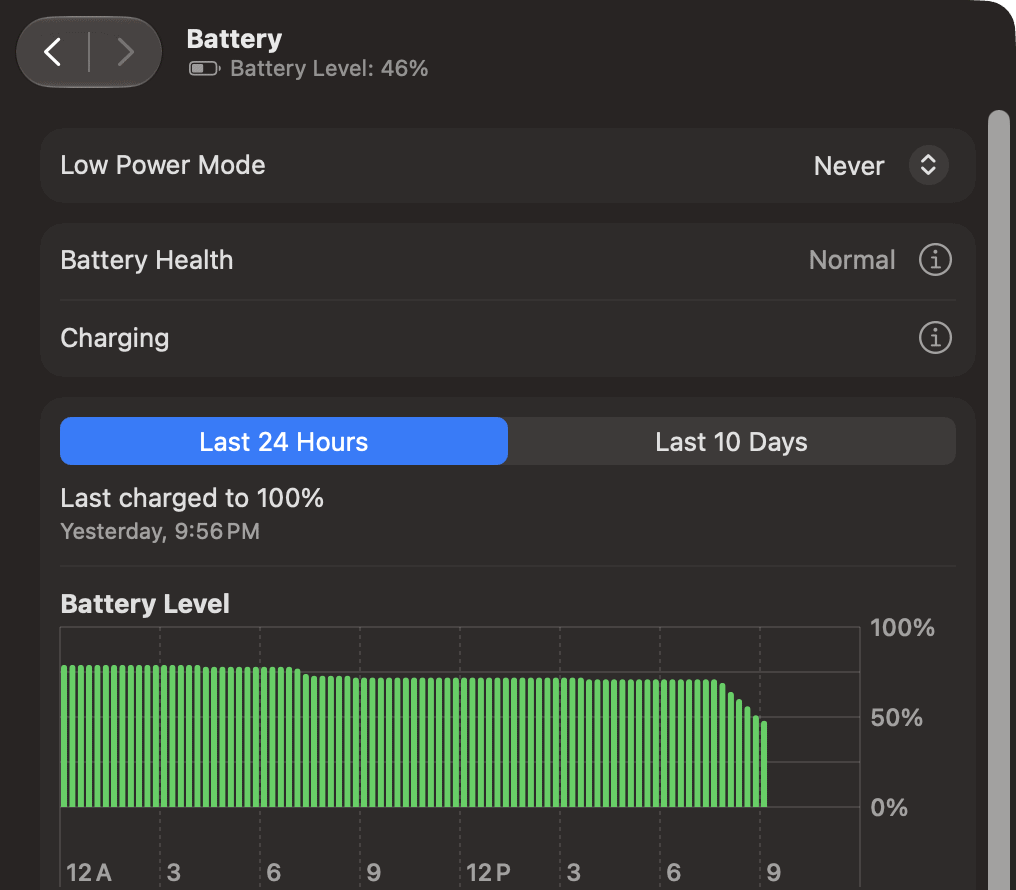
Once the Mac is running, check what drained the battery so it doesn’t happen again. Our guide to a Mac battery draining fast covers the usual causes.
If your Mac does start but gets stuck on an update, read how to fix “macOS Installation Couldn’t Be Completed”. And if it turns on to a Find My lock screen, here’s what to do when a Mac is locked with Find My Mac.
Still not fixed?
Why does my MacBook charge but not turn on after sitting unused for months?
Lithium-ion batteries slowly lose charge in storage and can drop to a level where the Mac won’t start until it has charged for a while. Apple says a Mac taken out of long-term storage may need about 20 minutes on its own adapter before you can use it.
Will a 20W iPhone charger turn on a dead MacBook?
It may charge the battery very slowly, but it might not provide enough power to start a fully drained Mac. Use the adapter that came with your Mac, or one with the same wattage or higher.
Does an iMac or Mac mini need these steps?
Most of them. Desktop Macs have no battery, so skip the charging steps and check the power cord, outlet and display connection. On an Intel-based desktop, the SMC reset is to unplug the power cord for 15 seconds, plug it back in, wait 5 seconds and press the power button.
Will I lose my files if my Mac won’t turn on?
Not from a power problem. Your files stay on the internal storage. A firmware restore or erasing the disk deletes data, so try every other fix first and keep a Time Machine backup once the Mac starts again.

I am Carissa Gudinoa, a technology buff, and Office online and Apple expert with over 9 years of experience. I am passionate about helping others get the most out of their Apple devices. I have written extensively about Apple products and technologies. I am committed to providing my clients with the best possible service and am always up-to-date on the latest Apple products and features. I also write extensively on other software available for use at minimal cost or free. This includes Word Online, Outlook Online, Excel Online, and other Office online programs… Check out more.