
A lightning bolt on a MacBook screen when you press the power button usually means the battery is too drained to start the Mac. It isn’t a fault: plug in the charger, leave it for 10 to 20 minutes, and the Mac should start normally. A large Thunderbolt symbol on a dark screen is different, and means the Mac started in target disk mode.
What to know
- Battery with a lightning bolt or plug: the battery is too low to boot. Charge it and try again.
- Large Thunderbolt or USB symbol: the Mac is in target disk mode, a file-sharing mode on Intel-based Macs. Shut it down and start it normally.
- Neither is harmful. Your files and macOS aren’t damaged.
- Worry only if the icon is still there after an hour on a known-good charger.
What Does the Lightning Bolt on a Mac Screen Mean?
Two different startup screens use a lightning bolt, and they mean very different things.
The low-battery screen. On a MacBook Air or MacBook Pro, a battery outline with a lightning bolt, sometimes paired with a plug or cable, appears when you press the power button and the battery doesn’t have enough charge to start macOS. The Mac shows the symbol instead of the Apple logo. Apple doesn’t publish a dedicated page for this screen, but its laptop repair guide covers the situation directly: charge a drained battery for up to 10 minutes, then check whether the Mac starts.
The target disk mode screen. Apple’s list of startup screens says a large Thunderbolt, USB or FireWire symbol means the Mac is in target disk mode. The Thunderbolt logo is a lightning bolt, so it’s easy to confuse with a charging icon. In this mode the Mac acts like an external drive for another Mac connected by cable, and macOS doesn’t load. Target disk mode exists on Intel-based Macs, including Intel iMacs and Mac minis that have no battery at all.
If you’re unsure which you have, check whether your Mac is a laptop and whether a charger is connected. A desktop Mac showing a lightning bolt is almost always in target disk mode.
Why Does It Appear?
For the low-battery screen:
- The battery ran completely flat. A MacBook that shut itself down at 0% needs some charge back before it can start.
- The Mac sat unused for weeks or months. Batteries lose charge in storage. Apple says a Mac taken out of long-term storage may need about 20 minutes of charging before you can use it.
- The charger is too weak. A phone or tablet charger can run a Mac that’s already on, but it may not deliver enough power to get a flat battery to a level where the Mac can boot.
- No power is reaching the Mac. A damaged cable, a dirty port or a dead outlet means the battery isn’t charging at all, even though it looks plugged in.
For the target disk mode screen:
- The T key was held during startup. Holding T while an Intel-based Mac starts puts it in target disk mode. A stuck or sticky T key can do it by accident.
- Someone chose Restart in Target Disk Mode in System Settings > General > Startup Disk to transfer files.
Is It Harmful?
No. The low-battery screen is the Mac protecting itself: it won’t try to start macOS on a battery that could cut out halfway. Leaving the Mac plugged in to charge is exactly what it’s asking for.
Target disk mode is also harmless. It doesn’t change or erase anything. The only thing to keep in mind is that while a Mac is in this mode, a computer connected to it by cable can read its disk if the disk isn’t protected by FileVault.
How to Check Which One You Have
| What you see | What it means | Normal or worrying |
|---|---|---|
| Battery with a lightning bolt, Mac recently ran out of charge | Battery too low to boot | Normal |
| Battery with a lightning bolt after months in a drawer | Deep-drained battery | Normal, needs a longer charge |
| Battery with a plug symbol, nothing changes after charging | No power reaching the Mac | Worrying: check the charger |
| Same battery icon after an hour on a known-good charger | Battery or charging fault | Worrying: needs service |
| Large Thunderbolt or USB symbol on a dark screen | Target disk mode | Normal |
| Thunderbolt symbol comes back every startup | T key stuck, or startup setting | Usually fixable at home |
If your MacBook has MagSafe 3, look at the connector light too. Apple says amber means charging and green means charged. Amber that flashes three times and stops can point to a hardware problem.
How to Fix It
If it’s the low-battery screen:
- Connect the power adapter that came with your Mac, or one with the same wattage or higher, straight to a wall outlet.
- Leave the lid open and wait 10 minutes. After long storage, give it 20 minutes or more.
- If you have MagSafe 3, check that the light turns amber.
- Press the power button once. You should see the Apple logo.
If nothing changes, try another USB-C port, flip the connector over, and try a different cable or outlet. Apple suggests cleaning the port with a small, dry, nonmetallic brush, with the Mac off and unplugged, and warns against compressed air, metal tools and liquids.
If it’s target disk mode (Intel-based Macs):
- Press and hold the power button until the Mac turns off.
- Disconnect any Thunderbolt or USB cable going to another computer.
- Press the power button again without holding any keys.
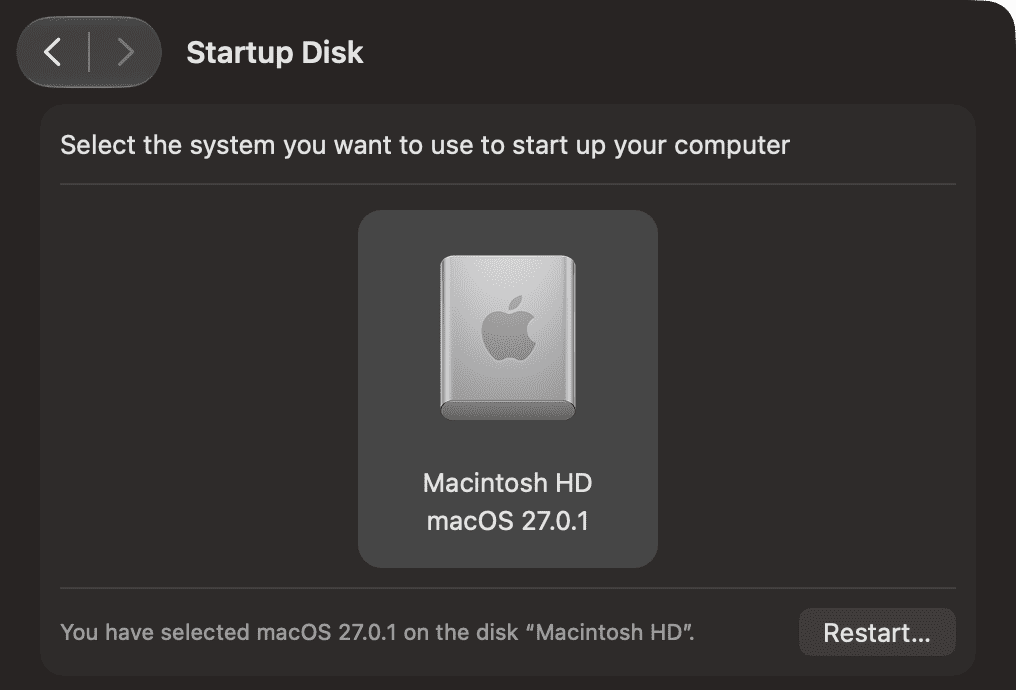
If the symbol comes back every time, check that the T key isn’t stuck. Once the Mac starts, open System Settings > General > Startup Disk and make sure Macintosh HD is selected.
Macs with Apple silicon don’t use target disk mode. Apple says to share their disk with another Mac from macOS Recovery instead, so a Thunderbolt symbol on an Apple silicon Mac is unlikely to mean this mode.
When to Worry
Get the Mac checked if the battery icon is still there after an hour on a charger you know works, if the MagSafe light flashes amber, or if the Mac got wet. Apple’s laptop repair guide lists the battery, the charging port board and the logic board as the parts to test at that point.
Once the Mac starts, check the battery. Choose Apple menu > System Settings > Battery and look at Battery Health. It says Normal or Service Recommended.
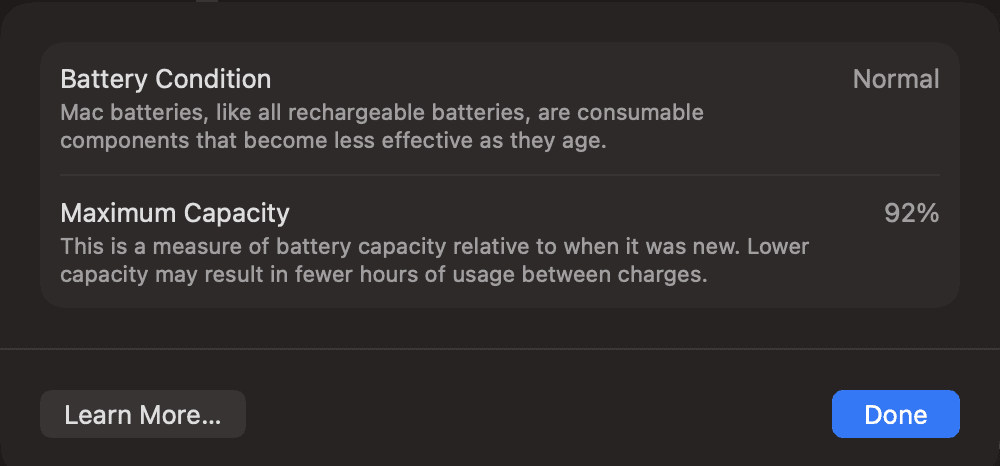
If you have AppleCare+ and the battery holds less than 80 percent of its original capacity, Apple’s battery service page says it will replace the battery at no charge. If the Mac keeps running flat sooner than it should, our guide to a Mac battery draining fast shows how to find the cause.
If the Mac gets past the icon but then stalls on the Apple logo or a progress bar, that’s a separate startup issue. Our guide to a Mac update taking forever helps if an update was installing when the battery ran out.
People also ask
Why does my MacBook show a lightning bolt but not turn on?
The battery doesn’t have enough charge to start macOS yet. Keep it connected to its own adapter for 10 to 20 minutes, then press the power button. If the icon never changes, the charger, cable or port is the next thing to test.
What does a lightning bolt with a USB symbol mean on a Mac?
That’s target disk mode on an Intel-based Mac, which lets another Mac use its disk like an external drive. Hold the power button to shut down, unplug any cable to another computer and start up without holding any keys.
Can a dead battery damage my MacBook?
Running the battery flat now and then doesn’t harm the Mac. Leaving a Mac fully drained for months isn’t good for the battery. Apple’s advice for storing a Mac laptop is to leave the battery about half charged.
Does the lightning bolt mean my battery needs replacing?
Usually not. It means the battery is empty, not worn out. Check Battery Health once the Mac starts. If it says Service Recommended, or the Mac shows the icon again soon after a full charge, the battery may need service.
How long should I charge a dead MacBook before turning it on?
Apple’s repair guide uses up to 10 minutes for a drained battery, and Apple says a Mac coming out of long-term storage may need about 20 minutes. Use the charger that came with the Mac so it charges at full speed.

I am Carissa Gudinoa, a technology buff, and Office online and Apple expert with over 9 years of experience. I am passionate about helping others get the most out of their Apple devices. I have written extensively about Apple products and technologies. I am committed to providing my clients with the best possible service and am always up-to-date on the latest Apple products and features. I also write extensively on other software available for use at minimal cost or free. This includes Word Online, Outlook Online, Excel Online, and other Office online programs… Check out more.